
Dashboard manager
The dashboard manager in the Device Management application brings more flexibility, consistency, and control over device dashboards. In particular, it offers the following options:
- Type-based dashboard templates - Build once, apply everywhere. Create dashboards that automatically apply to devices of the same type, saving time and ensuring consistency across your environment.
- Multiple dashboards per device - Add as many dashboards as you need to a single device to tailor different perspectives for different use cases.
- Custom dashboard names - Label dashboards with meaningful names that match your workflows, so your teams can quickly find the views they need.
ROLES & PERMISSIONS:
- To view dashboards: READ permission for permission type “Inventory” or READ permission for “Inventory” in inventory roles
- To edit widgets within a dashboard: ADMIN permission for permission type “Inventory” or CHANGE permission for “Inventory” in inventory roles
- To create a dashboard: CREATE or ADMIN permission for permission type “Inventory” or CHANGE permission for “Inventory” in inventory roles
- To delete a dashboard: ADMIN permission for permission type “Inventory” or CHANGE permission for “Inventory” in inventory roles
- To share/copy a dashboard: CREATE permission for permission type “Inventory” or CHANGE permission for “Inventory” in inventory roles
To add device or type-based dashboards
To add a new dashboard for a device, click Add dashboard in the device details menu.
To share a dashboard with devices of the same type, enable the template option for the dashboard. Template dashboards become available to all devices with the same type. These shared dashboards are marked with the  icon, making them easy to distinguish from device-specific views.
Refer to To create a dashboard and Dashboard template for more information.
Dashboard manager
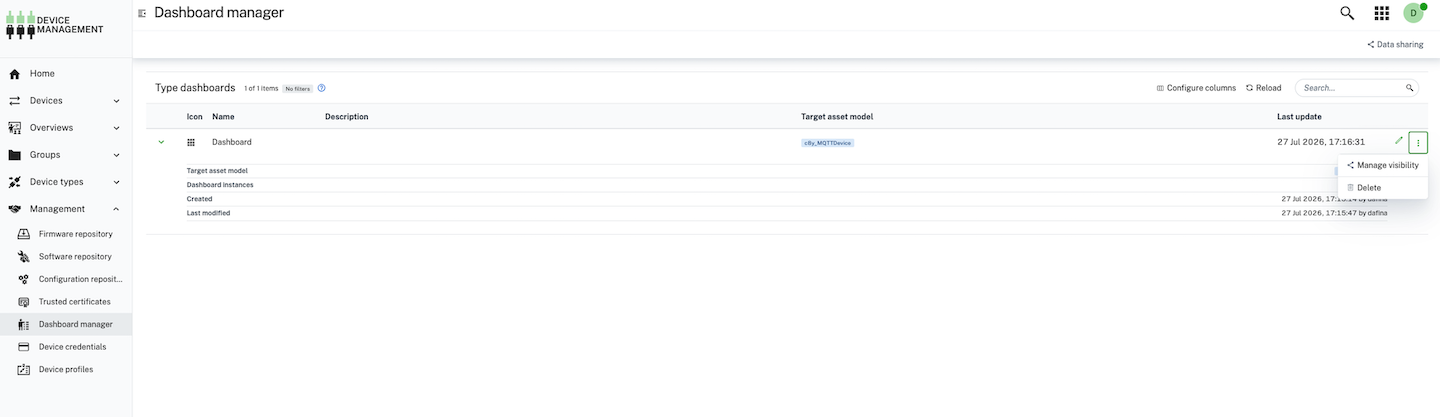
To view, edit or delete dashboard templates created across the Device Management application, click Dashboard manager in the Management menu of the navigator.
To delete type-based dashboard
To delete a device type-based dashboard, navigate to a device that has that type or to the Dashboard manager in the Management menu. In the row of the selected dashboard, click the delete icon on the right.
To edit type-based dashboard
Click the edit icon on the corresponding row to open a list of all devices that have access to the dashboard. In the Select dashboard instance to edit dialog, select the desired device and click the open icon on the right to navigate to the dashboard assigned to this device. Now you can edit the dashboard settings or widgets. See To edit a dashboard for more detailed information.
Type dashboards in the Device Management application can be shared across applications in the same way as in the Cockpit application. See To manage dashboard visibility and To configure data sharing.