
Dashboard manager
The dashboard manager shows a list of device type dashboards by aggregating all dashboards that have a device type assigned. It also provides information about the number of devices that have access to a particular dashboard, date of creation and last modification date.
To open the dashboard manager, click Dashboard manager in the Configuration menu of the navigator.
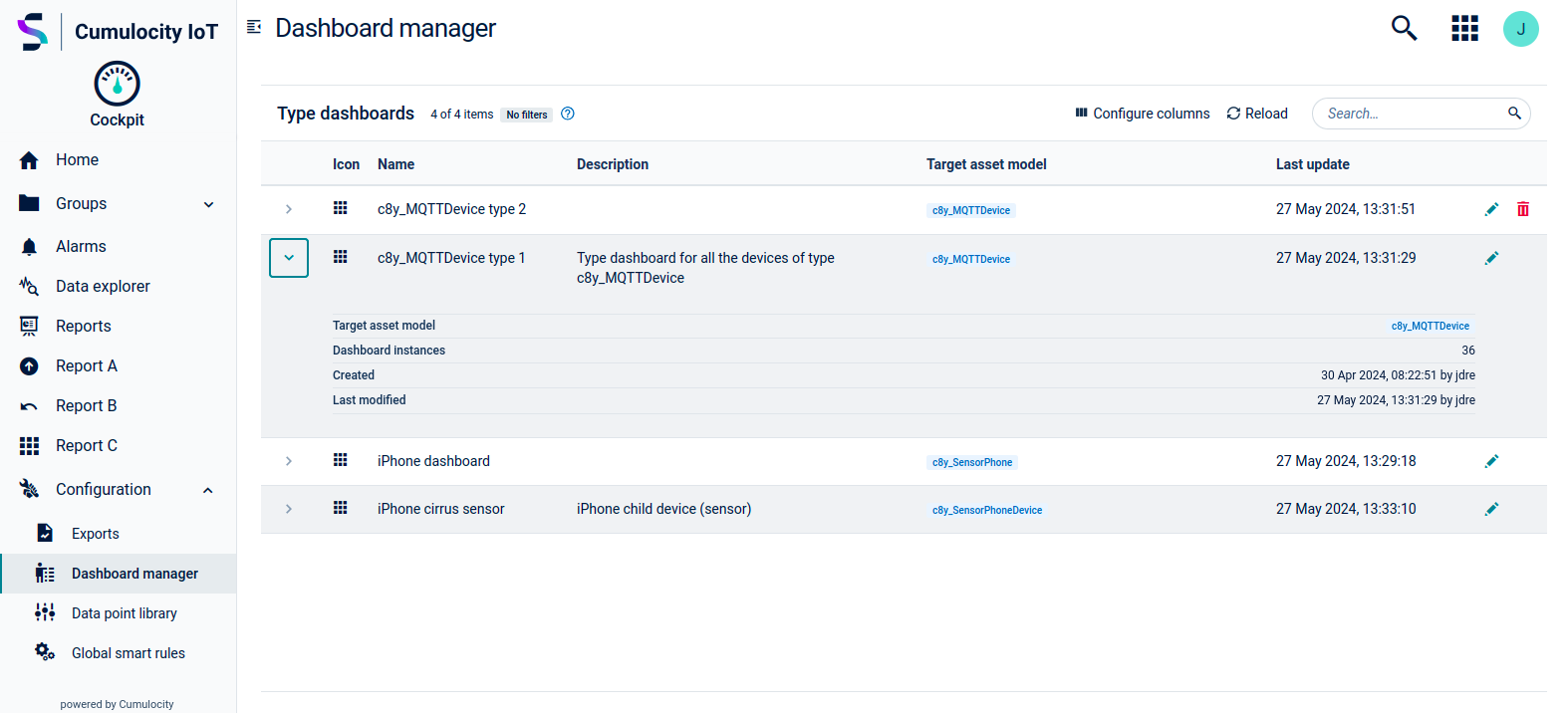
To add a type dashboard
To add a new dashboard for a device type select the device from the device list in the Groups menu. Refer to To create a dashboard and Dashboard template for more information.
To delete type dashboard
To delete a device type dashboard, navigate to the device list in the Groups menu or to the Dashboard manager in the Configuration menu. In the row of the selected dashboard, click the delete icon on the right.
To edit type dashboard
Click the edit icon on the corresponding row to open list with all devices that has access to the dashboard. In the Select dashboard instance to edit dialog window, select the desired device and click the open instance icon on the right to navigate to dashboard assigned to this device. Now you can edit the dashboard settings or widgets. See To edit a dashboard for more detailed information.
To manage dashboard visibility
To control in which applications a type dashboard is visible, click the actions menu in the row of the selected dashboard and select Manage visibility. In the dialog, select the applications in which the dashboard should appear and click Save. The dashboard will be visible in the selected applications.
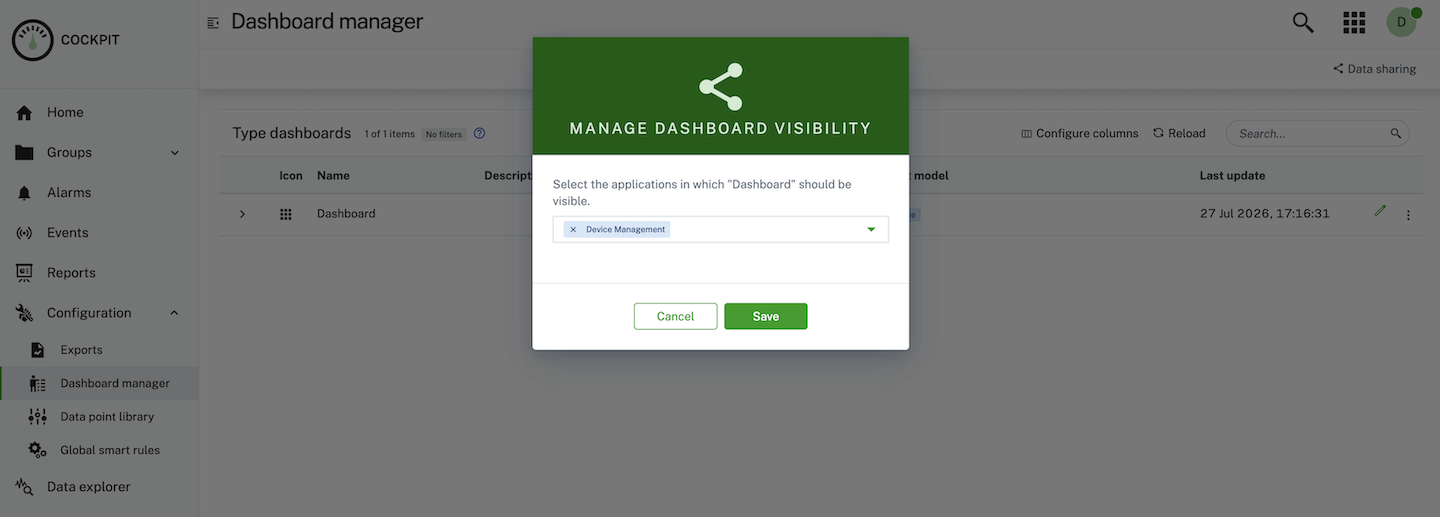
To configure data sharing
Application owners can pull in type dashboards from other applications. Click Data sharing in the menu bar to open the data sharing configuration. Select the applications whose type dashboards should also appear in the current application and click Save.
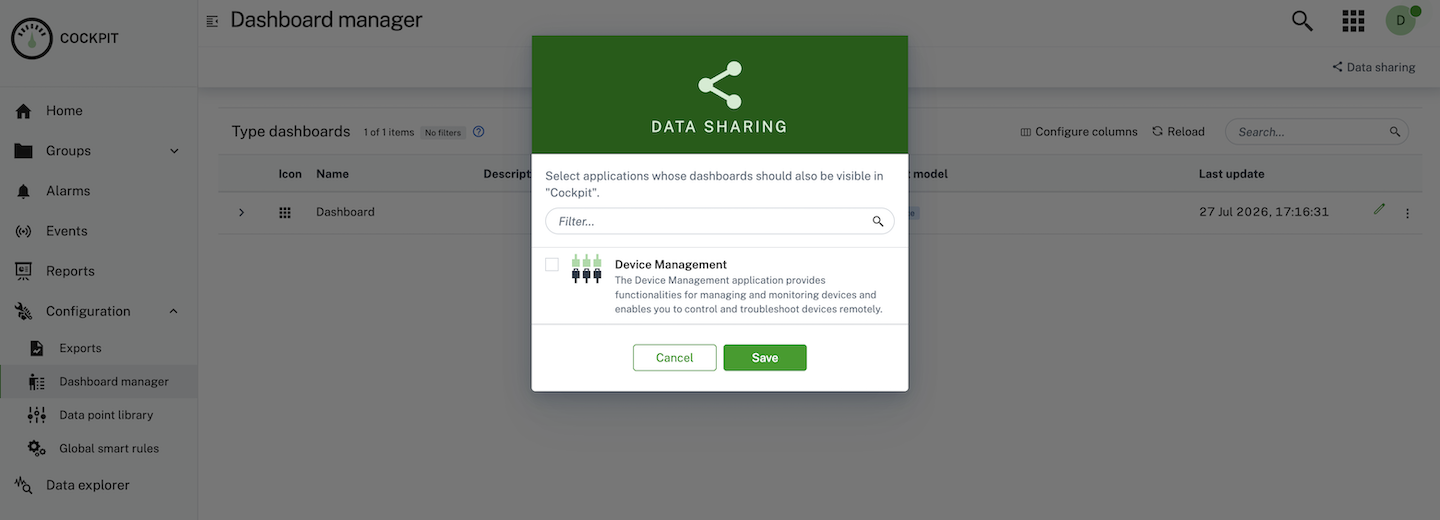
Dashboards inherited via data sharing are displayed with a badge showing the source application name. To manage the visibility of an inherited dashboard, navigate to the source application’s dashboard manager.