Tools extend the capabilities of AI agents by allowing them to perform actions such as querying device data, retrieving measurements, or accessing custom services. The AI Agent Manager supports built-in Cumulocity tools and custom tools via Model Context Protocol (MCP) servers.
Tools
Tools are actions that AI agents perform to access data or execute operations. They enable agents to interact with Cumulocity and external systems beyond just generating text responses.
What are tools?
A tool is a function that an agent calls during a conversation to:
Query device data or measurements.
Retrieve information from Cumulocity APIs.
Execute operations or commands.
Access external services or databases.
When you ask an agent a question that requires data, the agent determines which tools to use, calls them with appropriate parameters, and incorporates the results into its response.
Example conversation:
User: “What is the current temperature of device 12345?”
Agent process:
Recognizes it needs device data.
Calls the “get device measurements” tool with device ID 12345.
Receives the measurement data.
Formulates a natural language response: “The current temperature is 23.5°C.”
Using and testing built-in Cumulocity tools
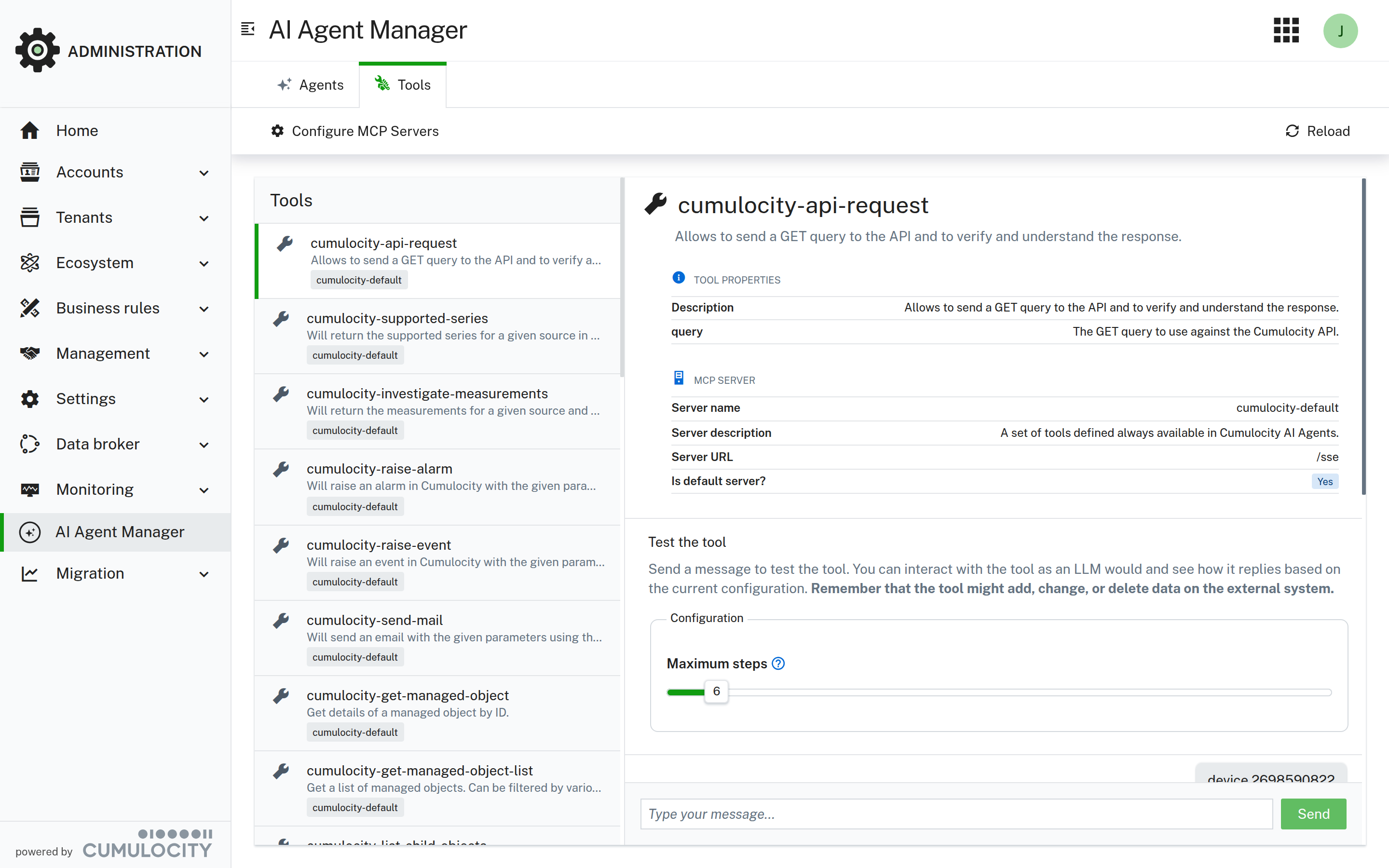
The AI Agent Manager provides default tools for accessing Cumulocity data. They are provided by the cumulocity-default MCP server and include, among others:
Inventory: Search, retrieve, create, update, and delete managed objects such as devices, and list their child objects.
Measurements: Find the supported series of a device, retrieve measurements, and create measurements.
Alarms and events: Raise and list alarms and events, and update the status of alarms.
Operations: Execute and list operations, and request device actions such as a restart, a shell command, or a log file.
API requests: Send GET requests to the Cumulocity REST API.
Further tools: Read and update tenant options, send emails, read the Cumulocity documentation, and call other agents.
Important
These tools access and also change the data that the executing user has access to. Test such tools in a testing environment.
These tools are available automatically and require no additional configuration. They always use the authorization of the current user and therefore cannot access more data than the user accesses. However, be aware that they change or delete data.
To give an agent access to the complete API of your tenant through a single tool, use the codemode tool of AI Workbench.
Testing tools
To test a tool:
Navigate to AI Agent Manager > Tools. The list shows all tools of all configured MCP servers, with the name of the MCP server as a tag.
Select a tool. The details show the description of the tool.
Optionally, click Show details to see the tool properties, such as its parameters, and the MCP server that provides the tool.
Enter a message in the chat to test the tool. A test agent calls the tool and shows the results.
Tools that may delete or overwrite data ask for your approval before they run, unless you select Auto below the message field.
Assigning tools to agents
To enable an agent to use tools:
Navigate to AI Agent Manager > Agents and open the agent.
Navigate to the Tools tab.
Browse or search the available tools.
Select the tools the agent needs.
Click Save.
The agent now accesses these tools during conversations when needed.
Info
Object agents cannot use custom tools. They use tools internally to structure their responses according to the defined schema.
Best practices
Tool selection: Assign only the tools an agent actually needs. Too many tools confuse the agent and increase processing time.
Performance: Tools that take a long time to execute slow down agent responses. Optimize tool performance or use caching where appropriate.
MCP servers
Model Context Protocol (MCP)
The Model Context Protocol (MCP) is a standard for connecting AI agents to external tools and data sources. MCP servers expose custom tools that extend agent capabilities beyond the built-in Cumulocity tools.
MCP server characteristics:
Runs as a separate service accessible via Streamable HTTP or HTTP with SSE (Server-Sent Events).
Exposes one or more tools that agents use.
Defines tool schemas that describe parameters and functionality.
Executes tool logic and returns results to the agent.
They are therefore perfect fits to extend the capabilities of Cumulocity agents, either by connecting an existing MCP server or by building your own.
Configuring MCP servers
To add an MCP server to the AI Agent Manager:
Navigate to AI Agent Manager > Tools.
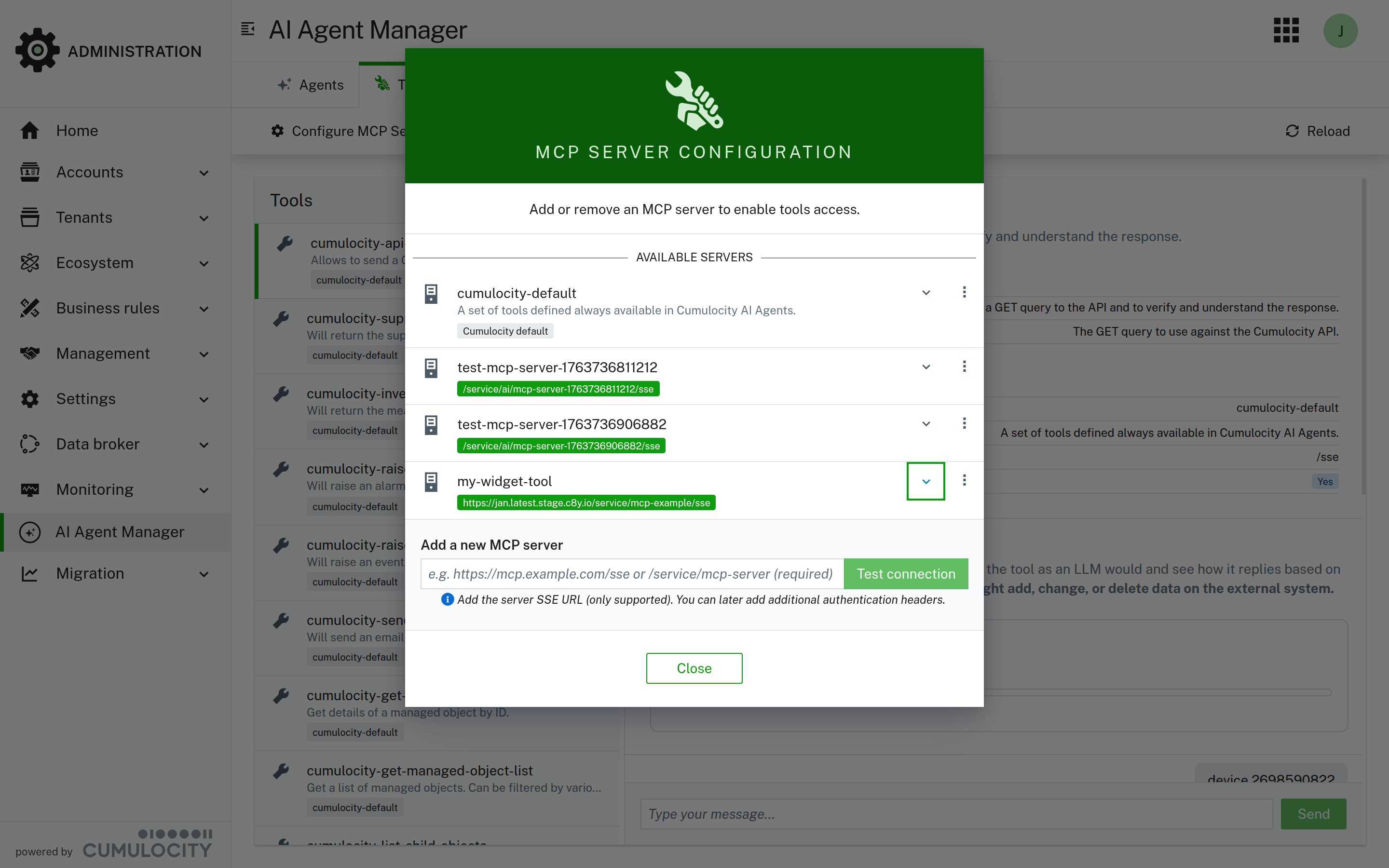
In the action bar, click Configure MCP Servers.
Select the MCP server transport type: Streamable HTTP (default) or HTTP with SSE.
Enter the URL for your MCP server in the Add a new MCP server field. Use an absolute URL, for example, https://mcp.example.com/mcp, or a relative URL for a microservice in your tenant, for example, /service/mcp-server.
Click Test connection.
If the connection is successful, you see a list of tools the server exposes. Scroll to the bottom of the list to add a name and description for the server and configure authentication or additional headers.
Click Save to persist the configuration and start using it in agents.
The system connects to the MCP server and discovers available tools.
Info
Only tools are supported, not prompts or resources.
Important
Forwarding authentication headers to third-party MCP servers is a security risk. Enable this option only if the server is trustworthy.
Creating custom MCP servers
To extend the AI Agent Manager with custom tools, develop an MCP server that:
Exposes a Streamable HTTP endpoint (recommended) or an SSE endpoint.
Implements the MCP protocol.
Defines tool schemas with clear descriptions.
Executes tool logic and returns structured results.
For MCP server implementation details, refer to the Model Context Protocol specification. You can also find an article on how to build MCP servers with NestJS and publish them on the Cumulocity platform as a microservice in the Cumulocity TechCommunity.
Best practices
Tool naming: Use clear, descriptive names for custom MCP tools. The agent uses tool names and descriptions to decide when to call them.
Parameter validation: Ensure MCP tools validate parameters and handle errors gracefully. Return clear error messages that help the agent understand what went wrong.