
Introduction
The AI Agent Manager enables you to create and manage AI agents—intelligent assistants that help users interact with your IoT data and systems through natural language conversations. Instead of building custom AI integrations from scratch, you configure pre-built agents that understand your specific use cases and have access to the tools required to be helpful.
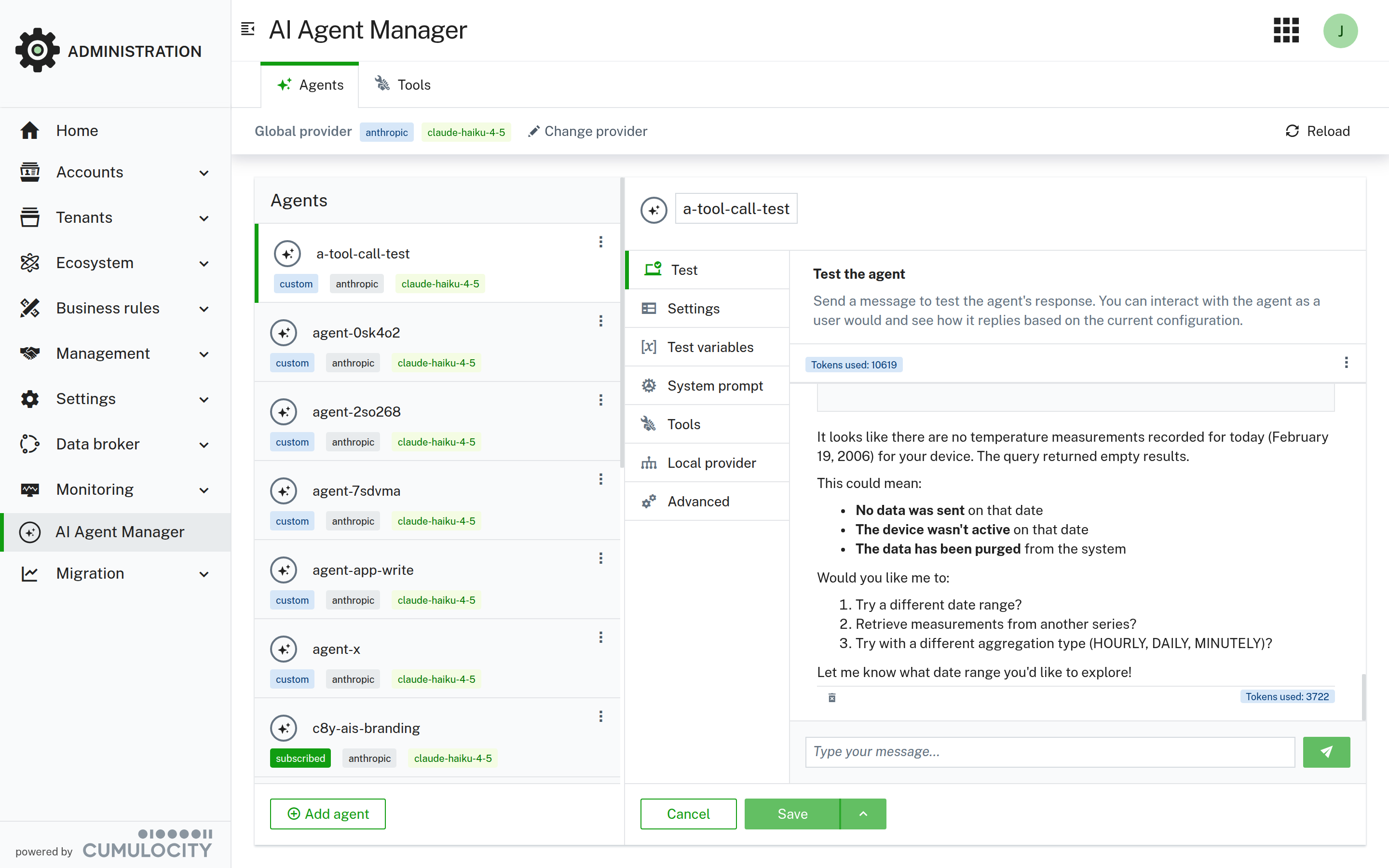
What is an AI agent?
An AI agent is a configured AI assistant with a specific purpose and behavior. Each agent consists of:
- System prompt: Defines the agent’s role, personality, and expertise (for example, “You are a factory monitoring assistant”).
- Tools: Actions the agent performs, such as querying device data, triggering operations, or accessing custom services.
- AI provider: The underlying AI model (such as Claude, GPT, or others) that powers the agent.
Once configured, users interact with agents through natural language without needing to know technical details about APIs or system prompts.
What you do with AI agents
-
Create specialized assistants: Configure agents for specific use cases like equipment monitoring, predictive maintenance analysis, or device troubleshooting. Each agent has its own expertise and access to relevant data.
-
Add tools and capabilities: Connect agents to Cumulocity data through built-in tools or extend them with custom tools via MCP (Model Context Protocol) servers. This allows agents to query device data, retrieve measurements, or trigger actions.
-
Test and refine: Use the built-in test interface to interact with your agents and see how they respond. The test interface shows you exactly what tools the agent is calling and how it reasons about your questions.
-
Provide conversational interfaces: Once configured, agents maintain conversations with context, using variables to personalize responses and access to tools to fetch real-time data.
-
Manage AI providers: Configure the default provider and model for all agents in the control panel and override them for specific agents. The system supports multiple providers including OpenAI, Anthropic, Google, and others, abstracting away the complexity of working with different APIs.
-
Control AI usage: Turn off all AI agents in your tenant at once with the kill switch in the control panel, for example, to stop AI activity immediately.
Navigating the AI Agent Manager
Once the preview feature is enabled, the AI Agent Manager appears as its own entry in the navigator of the Administration application. It contains the following pages:
- Control panel: Turn all AI agents on or off for your tenant and configure the default provider, model, and API key. This page is only visible to users with the ROLE_AI_AGENT_ADMIN permission. See Control panel.
- Agents: Browse, create, configure, and test agents. See Agents.
- Tools: Browse and test the available tools and configure MCP servers. See Tools and MCP.
If AI agents are disabled in the control panel, the Agents and Tools pages are hidden.
Getting started by configuring a model
Start by configuring the default provider and model in the control panel. This model configuration, also called the global provider, is used by default on each agent interaction as long as the agent does not define another provider or model in its local provider configuration.
-
Navigate to AI Agent Manager > Control panel.
-
In the Model configuration section, click Add configuration.
-
Select a provider. The tested providers are:
- Anthropic
- OpenAI
- Google Gemini (Google Generative AI)
- Azure OpenAI
Additional providers are supported but not tested by the Cumulocity team. They work without guarantee. The same applies to open-source models based on the OpenAI API, which are supported by selecting Custom/self-hosted and entering the base URL of the endpoint.
-
Enter the model to use.
-
Add an API key provided by your provider. This is securely stored inside the platform and cannot be read afterwards.
-
Add provider-specific settings in the Custom provider settings editor, if necessary.
-
Click Test configuration. The provider responds to a short test prompt if the configuration is correct.
-
Click Save.
For details on all fields, see Model configuration.
You can also validate your configuration by creating a new agent:
- Navigate to AI Agent Manager > Agents.
- Click Add agent in the action bar, keep the generated name, and click Add agent. The new agent opens with the Test tab selected.
- Write “Hello world” and send the message.
- The agent responds with a hello message.
If successful, your provider is correctly configured, and you can start to use and test AI agents. Next, learn more about subscribed agents, object agents, local providers, and MCP tools:
- Learn how to turn AI agents on or off and manage the model configuration in the control panel.
- Learn what subscribed agents are and how you can align them.
- Understand the difference between an object and a text agent.
- See how you can leverage local providers to overwrite the provider or model of a global provider.
- Understand the available tools and how you can extend them with MCP.
- Let agents work with the complete API of your tenant in code mode with AI Workbench.
- You can also manage agents programmatically via the REST API for integration into your own applications and workflows.