
Control panel
The control panel is the central place to manage the AI features of your tenant. To open it, navigate to AI Agent Manager > Control panel in the Administration application.
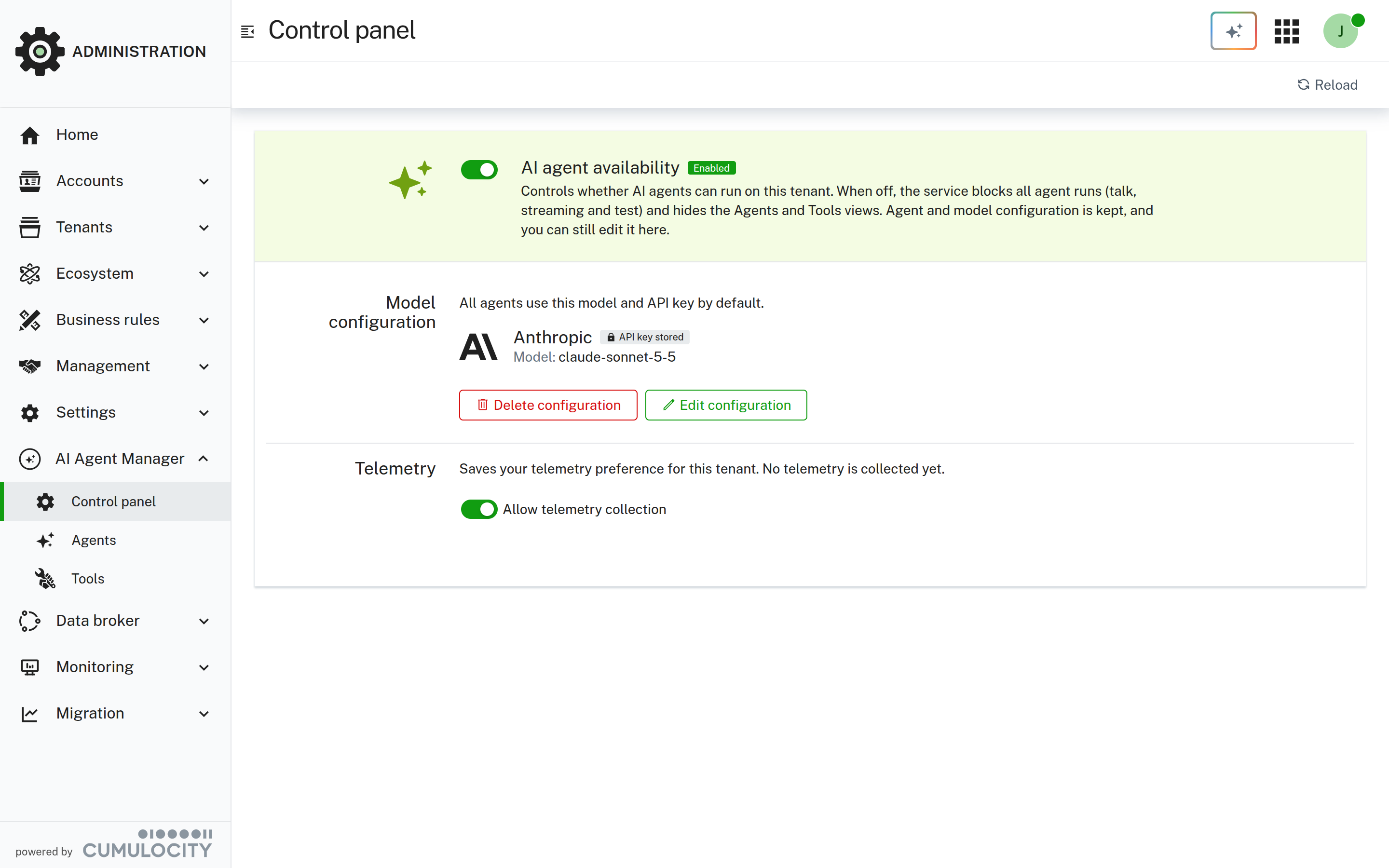
The control panel has three sections:
- AI agent availability: A kill switch that turns all AI agents in the tenant on or off.
- Model configuration: The provider, model, and API key that all agents use by default, also called the global provider.
- Telemetry: The telemetry preference of the tenant.
AI agent availability (kill switch)
The AI agent availability switch lets you stop all AI activity in your tenant at once, for example, if an agent behaves unexpectedly or you need to stop the costs of an LLM provider immediately. The tag next to the switch shows whether AI agents are Enabled or Disabled.
When you turn the switch off:
- The AI Agent Manager blocks every agent run in the tenant. This includes calls to text and object agents, streaming calls, and tests in the AI Agent Manager. Such calls fail with the HTTP status 403 (Forbidden) and the message “AI agents are disabled for this tenant”.
- Applications and features that rely on AI agents, such as AI chat widgets or AI assistants in other applications, no longer get a response from their agents.
- The Agents and Tools pages are hidden in the navigator. Only the Control panel remains available.
- All agent definitions, MCP server configurations, and the model configuration are kept. You can still edit the model configuration in the Control panel.
To disable all AI agents:
- Navigate to AI Agent Manager > Control panel.
- Turn off the AI agent availability switch.
The change takes effect immediately and there is no confirmation dialog. The tag changes to Disabled, and the icon changes to a power symbol. To enable AI agents again, turn the switch back on.
You can also read and change the availability programmatically, see Tenant settings.
Model configuration
The model configuration defines the provider, model, and API key that all agents use by default. Throughout this documentation, it’s also referred to as the global provider. An agent uses a different provider or model only if it defines a local provider.
If no model is configured yet, the section shows “No model configured yet”. Otherwise, it shows the provider, the model, and an API key stored tag if an API key is saved.
Adding or editing the model configuration
- Navigate to AI Agent Manager > Control panel.
- In the Model configuration section, click Add configuration. If a configuration already exists, click Edit configuration.
- Select a provider.
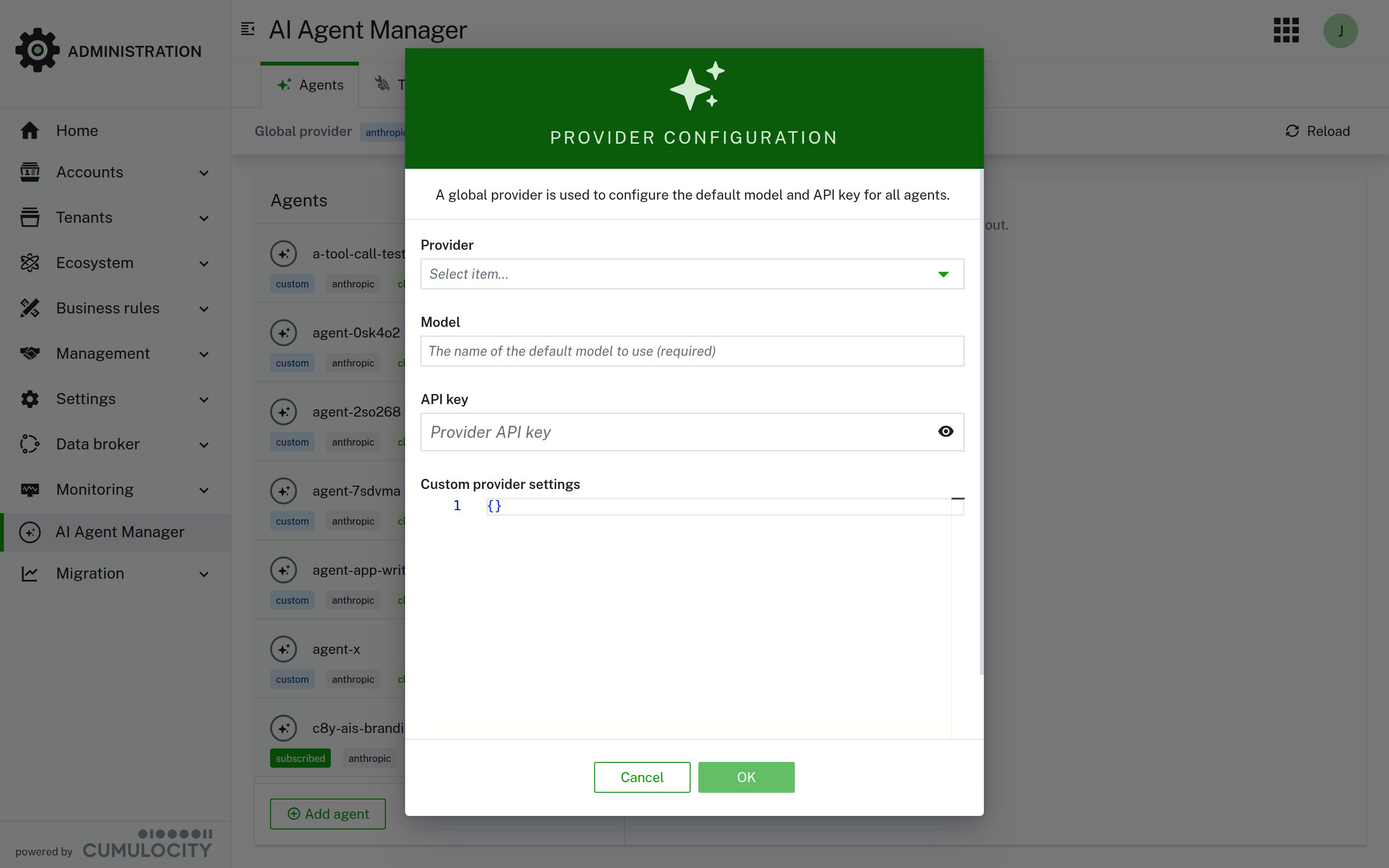 The providers are grouped as follows:
- Recommended providers: OpenAI, Anthropic, Google Generative AI, and Azure OpenAI. These providers are tested by the Cumulocity team.
- Supported providers: XAI, Groq, DeepInfra, Mistral, TogetherAI, Cohere, Fireworks, DeepSeek, Cerebras, Perplexity, Ollama, Echo, and Custom/self-hosted. These providers are supported but not tested and work without guarantee.
- In the Model field, enter the exact model identifier from the documentation of your provider, for example,
claude-sonnet-4-6. - In the API key field, enter the API key of your provider. The API key is optional for Ollama and Custom/self-hosted.
- Fill in the provider-specific fields, if shown:
- Azure OpenAI: Enter the Resource name of your Azure OpenAI resource.
- Custom/self-hosted: Enter the Base URL of an OpenAI-compatible endpoint, for example, an open-source model hosted on your own infrastructure. The AI Agent Manager sends the requests with the OpenAI provider to this URL.
- Optionally, add further provider-specific settings in JSON format in the Custom provider settings editor, for example, custom
headers. The settings that have their own input fields, such as the provider, model, and API key, are ignored in this editor. - Click Test configuration to verify the configuration before you save it. The AI Agent Manager sends a short test prompt to the provider and shows the response, for example, “Connection successful. The provider responded: OK”. If the test fails, the error returned by the provider is shown.
- Click Save.
API key handling
The API key is stored securely inside the platform and is never shown again after you saved it.
- When you edit an existing configuration, the API key field is locked. If you save without changing it, the stored key is kept. Test configuration also uses the stored key.
- To use a different key, click Replace key and enter the new key. To discard the new key and keep the stored one, click Keep current key.
- A stored key belongs to the provider it was saved for. If you select a different provider, you must enter a new API key.
Deleting the model configuration
- In the Model configuration section, click Delete configuration.
- Confirm with Delete.
Agents that do not define their own local provider cannot run until you configure a new model.
Telemetry
The Allow telemetry collection switch saves your telemetry preference for the tenant. Currently, no telemetry is collected by the AI Agent Manager. The switch only records your preference.