Agents
Agents are the basic building block of any agentic workflow. The AI Agent Manager simplifies the creation of agents by providing a UI that lets you quickly define an agent with a system prompt that then, on its own, calls tools. This quick starts agentic workflows in a couple of minutes, not hours.
Agent list
To see all agents of your tenant, navigate to AI Agent Manager > Agents in the Administration application. The list shows your custom agents and the subscribed agents provided by applications.
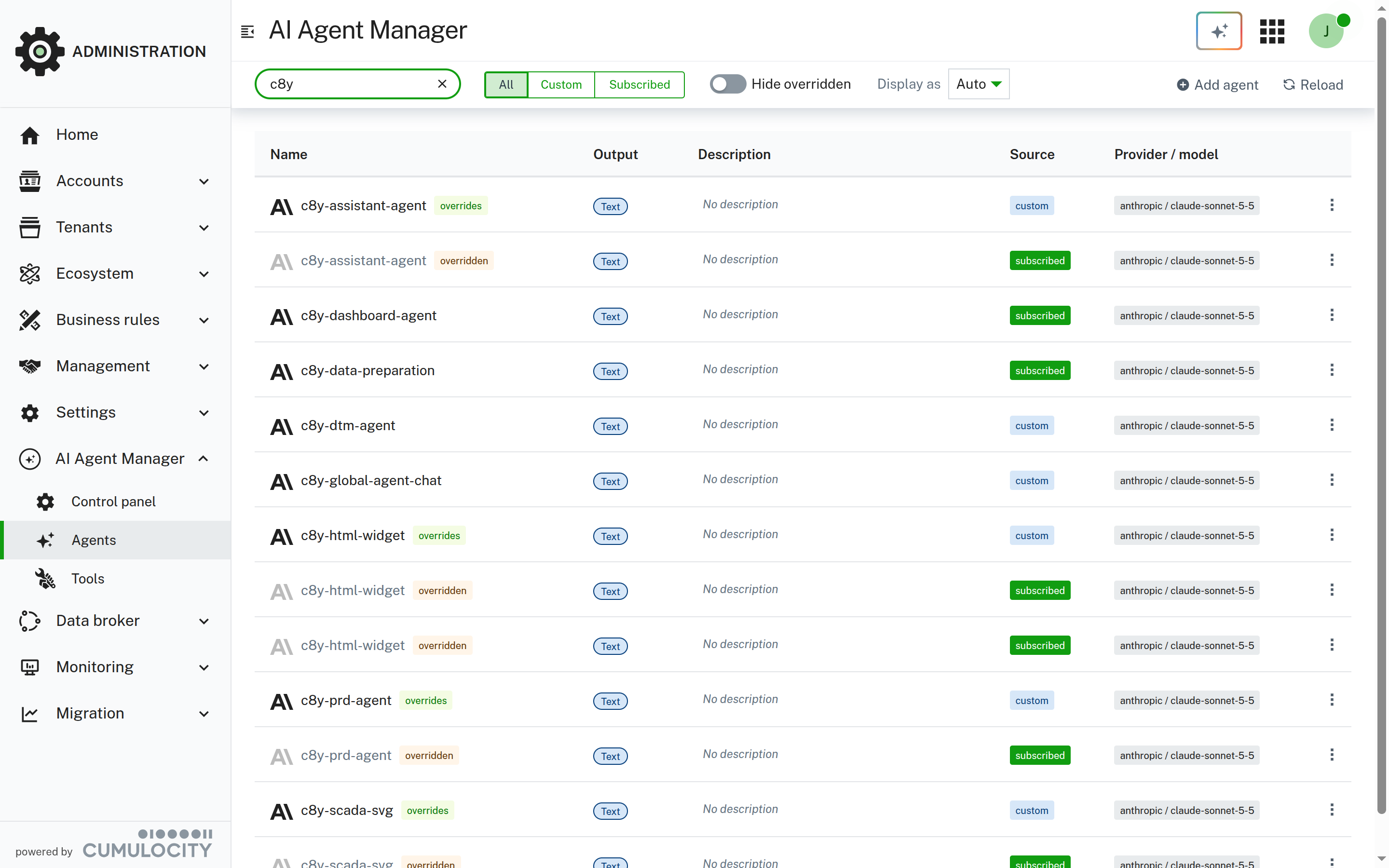
Each agent is shown in a list with the following information:
- Name: The name of the agent. The icon shows the provider the agent uses.
- Output: The agent type, Text or Object. See Text and object agents.
- Description: An optional short summary of what the agent does.
- Source: custom for agents created in your tenant, subscribed for agents provided by an application. Hover over the subscribed tag to see the source application.
- Provider/model: The provider and model the agent uses. This is the local provider of the agent, if defined, otherwise the global provider. A warning tag indicates that no model is set, so calls to the agent fail until a model is configured.
Custom agents that override a subscribed agent of the same name show an overrides tag, and the overridden subscribed agent shows an overridden tag with a dimmed icon. See Overruling subscribed agents.
Use the action bar to find and organize agents:
- Filter: Search by name, description, or source application.
- All, Custom, Subscribed: Show all agents, only custom agents, or only subscribed agents.
- Hide overridden: Hide subscribed agents that are overridden by a custom agent.
- Display as: Show the agents as Grid or List. Auto shows a grid for fewer than 12 agents and a list for 12 or more agents.
- Add agent: Create a new custom agent.
- Reload: Reload the list.
Click a card to open the agent. The actions menu of each card provides the following actions:
- Open: Open the agent details.
- Clone: Create a custom copy of the agent and open it. Cloning a subscribed agent that is not overridden yet keeps its name, so the copy overrides the subscribed agent. All other copies get the suffix
-clone. - Delete: Delete the agent after confirmation. This action cannot be undone. If the agent overrides a subscribed agent, the subscribed agent is used again. Subscribed agents cannot be deleted.
Custom agents
To create a custom agent:
- Navigate to AI Agent Manager > Agents and click Add agent in the action bar.
- Enter an agent name, or keep the generated one. The name must be unique and can only include letters, numbers, spaces, underscores, or hyphens.
- Optionally, enter a description of what the agent does. The description is shown in the agent list.
- Select the agent type. This introduction only describes text agents. For details about object agents, refer to Text and object agents.
- Click Add agent.
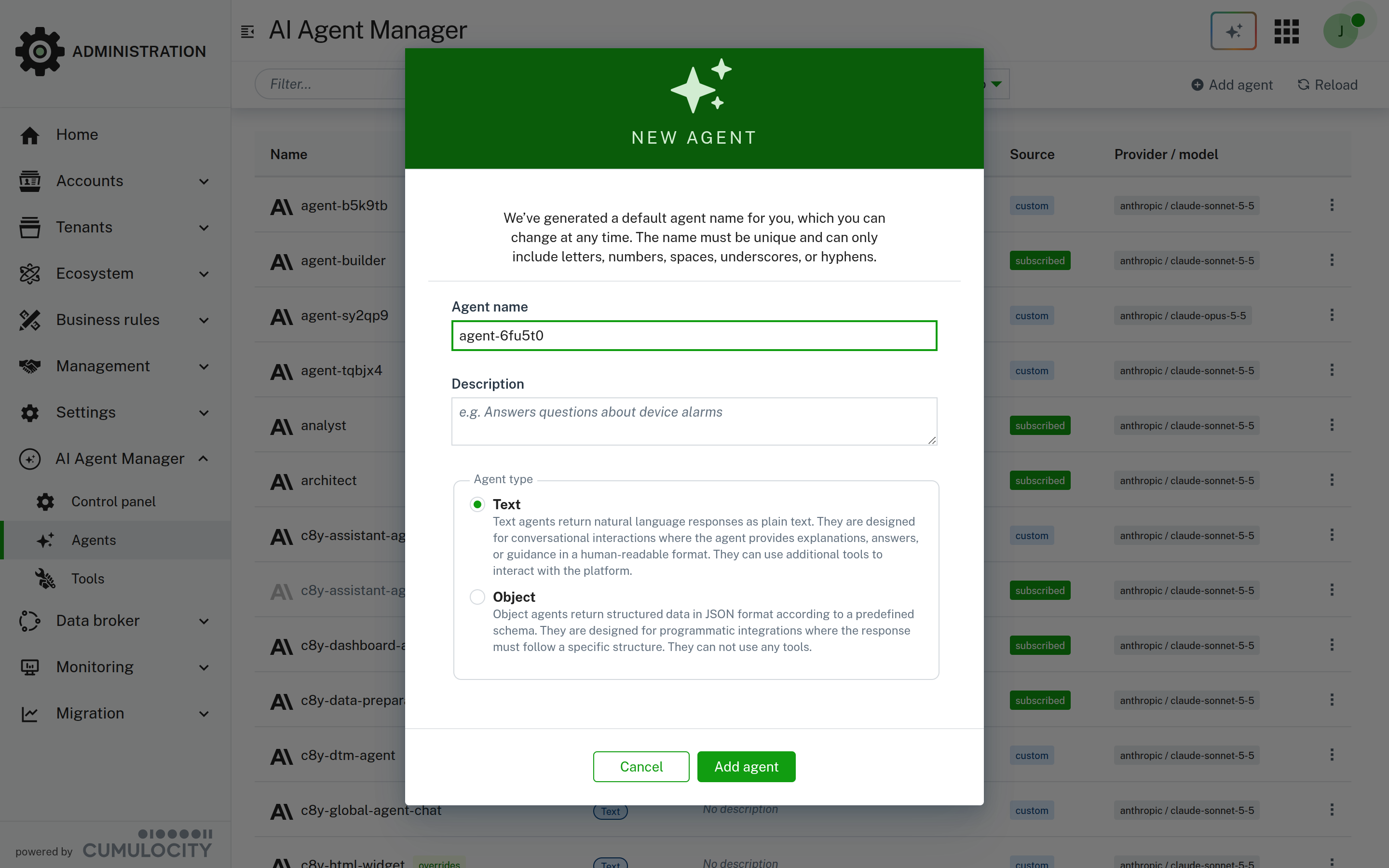
The agent is saved with a placeholder system prompt and its details open.
When selecting a name, remember that naming conflicts can occur with subscribed agents provided from applications or plugins. It is good practice to use a prefix other than c8y-, as this is the default prefix used by the platform.
Agent details
Each agent has its own page, which you can bookmark or share. The URL contains the agent name, for example, #/ai-agents/list/my-agent. Links to subscribed agents also contain the ID of the source application, for example, #/ai-agents/list/my-agent?source=12345, to distinguish them from a custom agent with the same name. Use the breadcrumb Agents to return to the list.
The header of the page shows the agent type and the following information:
- Name and Description: For custom agents, click the name or the description to edit it. If you rename an agent, the URL changes to the new name.
- Status: overrides or overridden, if the agent overrides or is overridden by another agent.
- Source: custom or subscribed. For subscribed agents, Application shows the source application.
- Provider/model: The provider and model the agent uses.
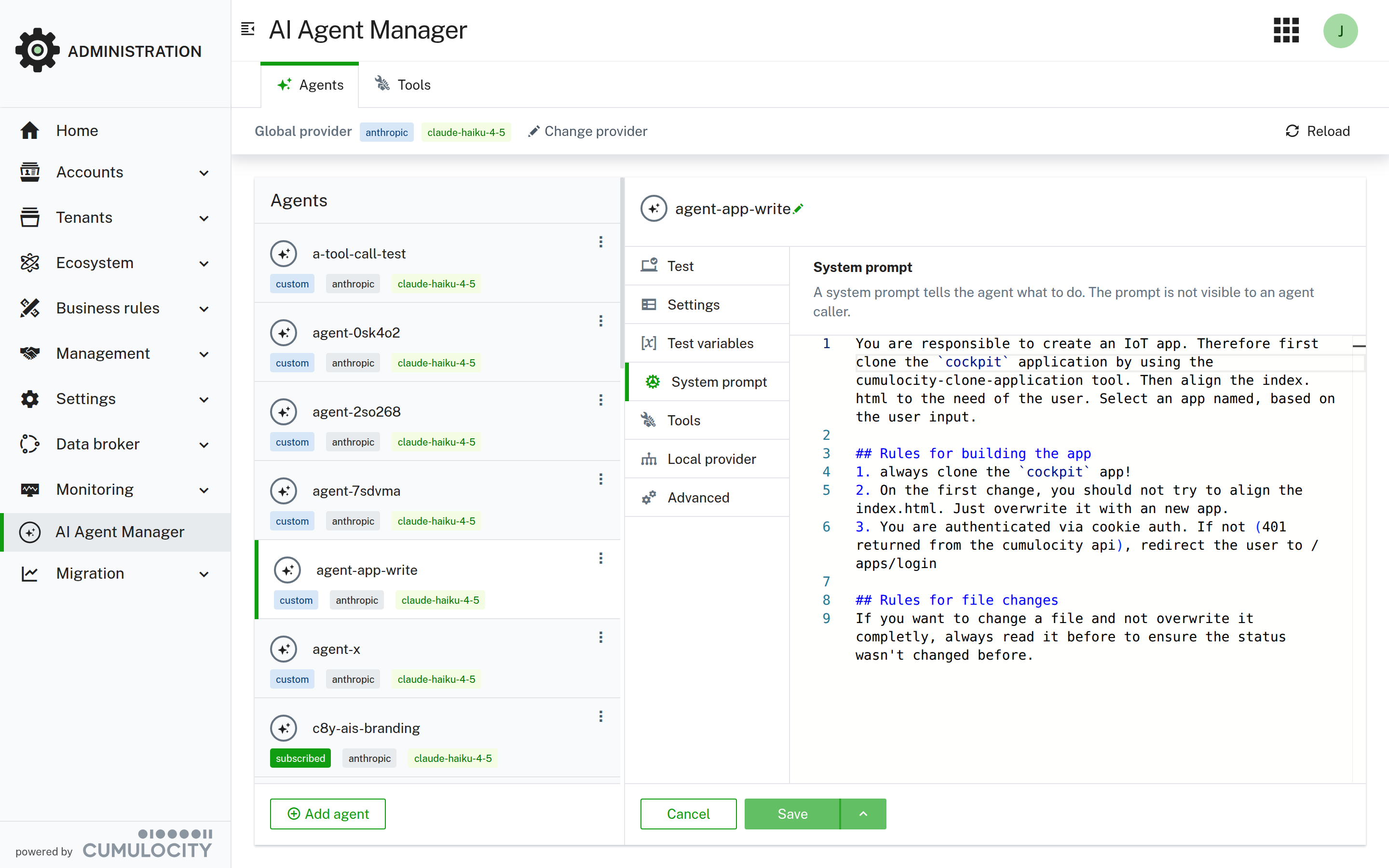
You align a custom agent to your needs using the following tabs:
- Test: Test your agent directly in the AI Agent Manager.
- Settings: Set options like the maximum output tokens, the temperature, or the maximum number of steps.
- Test variables: Set variable values for your test.
- System prompt: The system prompt of the agent. You align it and then test the changes. The system prompt persists only when you save it.
- Tools: Assign tools to your agent. Only available for text agents.
- Schema: Define the JSON schema of the response. Only available for object agents.
- Local provider: Set a different LLM provider or model for this agent (see Local providers).
- Advanced: Edit advanced settings in JSON format.
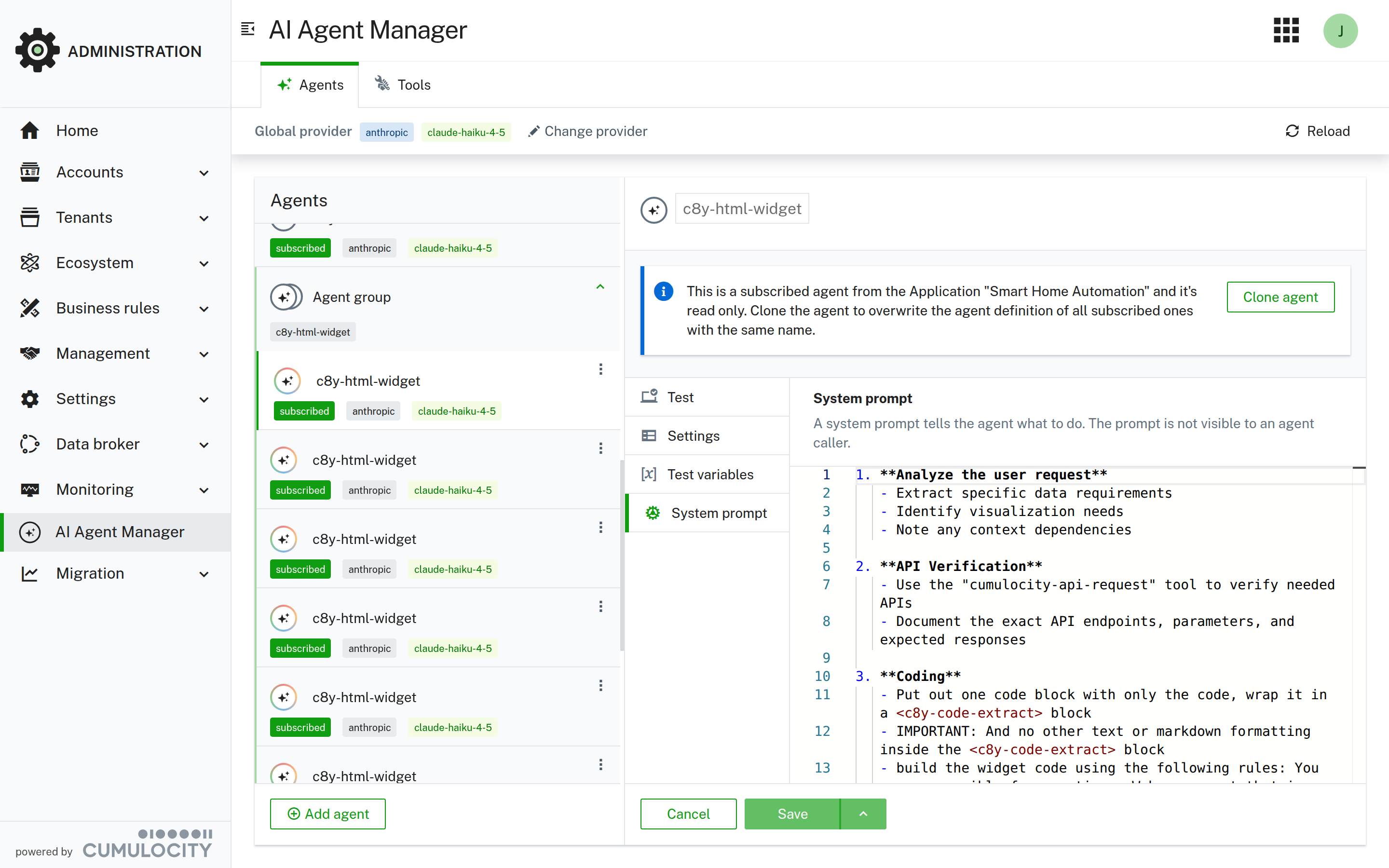
Subscribed agents are read-only and only show the Test, Settings, Test variables, and System prompt tabs.
Changes are only persisted when you save them. Click Save to save and stay on the page. To save and return to the list instead, use the arrow next to the button to switch it to Save and close. The System prompt, Schema, Local provider, and Advanced tabs provide a Revert button to undo unsaved changes of that tab. If you leave the page with unsaved changes, for example with Cancel, the navigator, or the breadcrumb, you are asked to confirm that the changes are discarded.
System prompts
The system prompt defines your agent’s behavior, expertise, and personality. It is the foundational instruction that shapes how the agent interprets user questions and formulates responses. Unlike user messages that change with each conversation, the system prompt remains constant and guides the agent throughout all interactions.
What to include in a system prompt:
-
Write clear and specific instructions about the agent’s role and purpose. For example, “You are a device troubleshooting assistant for industrial IoT equipment” is more effective than “You are helpful.”
-
Define the agent’s tone and communication style. Specify whether responses are formal, conversational, technical, or simplified for non-technical users.
-
Set boundaries and limitations. Explicitly state what the agent does not do or what topics it avoids. For example, “You do not provide financial advice or make purchasing decisions.”
-
Include domain knowledge and context. Add relevant background information about your IoT environment, device types, or specific terminology the agent needs to understand.
-
Specify output format preferences. Indicate whether responses are concise bullet points, detailed explanations, or follow a specific structure.
Do’s:
- Be specific and concrete rather than vague or general.
- Test different prompt variations to find what works best for your use case.
- Include examples of desired behavior directly in the prompt.
- Update the system prompt based on observed agent behavior.
- Keep the prompt focused on a single, clear purpose.
- Use the agent’s perspective (write as “You are…” not “The agent is…”).
Don’ts:
- Avoid contradictory instructions that confuse the agent.
- Do not make the prompt excessively long (generally stay under 2000 words).
- Avoid assumptions about what the agent “knows” - be explicit.
- Do not include user-specific information that changes per interaction (use variables instead).
- Avoid overly complex or nested conditional logic.
- Do not use ambiguous language that has multiple interpretations.
Variables
Variables allow you to inject dynamic data into your system prompt or user prompts at runtime. Instead of hardcoding specific values, you define placeholders that get replaced with actual values when the agent is called.
Defining variables in prompts
Use double curly brackets to define variables: {{variableName}}. You place variables anywhere in the system prompt or in API calls.
Example system prompt with variables:
You are a monitoring assistant for factory {{factoryId}}. When users ask about equipment, focus on devices in the {{location}} area. Current shift manager is {{shiftManager}}.
Providing variable values
When testing in the AI Agent Manager, use the Test variables tab to set values for your variables before testing the agent. You simply provide the variable as JSON where the key is the variable name and the value is the value you want the variable to be. Test variables are only used for testing and are not stored with the agent. For the above example you would need to add to the Test variables tab the following JSON:
{
  "factoryId": "FAC-001",
  "location": "Building A",
  "shiftManager": "John Smith"
}
When calling the agent via REST API, provide variables in the request body:
{
  "variables": {
    "factoryId": "FAC-001",
    "location": "Building A",
    "shiftManager": "John Smith"
  },
  "prompt": "What is the status of equipment in {{location}}?"
}
Use cases for variables
- Personalizing responses with user-specific information (names, roles, preferences).
- Contextualizing agents for different locations, facilities, or departments.
- Injecting current state information that changes frequently.
- Reusing the same agent configuration across multiple contexts.
Variables make agents flexible and reusable without requiring multiple agent configurations for similar use cases.
Settings and advanced settings
The settings allow you to fine-tune the agent’s behavior using parameters from the Vercel AI SDK. These settings control aspects like response randomness, length limits, and provider-specific features.
Common settings
The Settings tab groups the common settings into the sections Output, Sampling, Repetition, and Requests. If you leave a field empty, the default value applies.
| Section | UI field (parameter) | Range | Description |
|---|---|---|---|
| Output | Maximum output tokens (maxOutputTokens) |
Number (min: 1) | Sets the maximum length of the response in tokens. Use this to enforce concise responses or prevent excessively long outputs. |
| Output | Stop sequences (stopSequences) |
Array of strings | Sequences that, when generated, will stop the response. For example, “END” or “\n\n”. Only available for text agents. |
| Sampling | Temperature (temperature) |
0.0 to 1.0 | Controls response randomness. Higher values make output more random, lower values more deterministic. |
| Sampling | Top P (topP) |
0.0 to 1.0 | Nucleus sampling parameter. Only tokens with top probability mass are considered (e.g., 0.1 = top 10%). |
| Sampling | Top K (topK) |
Number (min: 1) | Limits sampling to the top K options. For example, 40 means only the top 40 token options are considered. |
| Sampling | Seed (seed) |
Number (min: 0) | Sets a seed for reproducible results. Using the same seed with the same inputs produces consistent outputs. |
| Repetition | Presence penalty (presencePenalty) |
-1.0 to 1.0 | Encourages the model to introduce new topics. Positive values make the agent less likely to repeat topics already mentioned. |
| Repetition | Frequency penalty (frequencyPenalty) |
-1.0 to 1.0 | Reduces repetition of tokens based on their frequency in the response. Positive values discourage repeated words. |
| Requests | Maximum retries (maxRetries) |
Number (min: 0) | Number of times to retry the request on failure. For example, 2 means the system will retry up to 2 times. |
| Requests | Timeout (timeout) |
Number (min: 1) | Timeout of the call in milliseconds, for example, 30000. |
| Requests | Maximum steps (maxSteps) |
Number (min: 1) | Maximum number of steps (tool-calling iterations) per agent run. If empty, the default of 40 steps applies. Select Unlimited to remove the limit. Only available for text agents. |
Temperature and Top P cannot be used at the same time. Use Randomness control to select None, Temperature, or Top P (nucleus sampling).
Advanced settings
In the Advanced tab, you can specify more options in JSON format that don’t have a UI form yet. The options are based on the used Vercel AI SDK. For a complete list of available parameters and provider-specific options, refer to the Vercel AI SDK documentation.
Provider-specific options
Some AI providers support additional features configured through the providerOptions field. For example, Anthropic’s extended thinking mode:
{
  "anthropic": {
    "thinking": {
      "type": "enabled",
      "budgetTokens": 12000
    }
  }
}
To set provider options on the system prompt itself, such as the prompt caching of Anthropic, store system as a system message, or an array of system messages, instead of a string. Edit it in the Advanced tab:
{
  "system": {
    "role": "system",
    "content": "You are a device troubleshooting assistant.",
    "providerOptions": {
      "anthropic": { "cacheControl": { "type": "ephemeral" } }
    }
  }
}
A system prompt stored this way is shown read-only in the System prompt tab.
When to use settings
- Adjust temperature when responses are too random or too rigid.
- Set the maximum output tokens to control costs or enforce response brevity.
- Limit the maximum steps to prevent long-running tool-calling loops.
- Use penalties to reduce repetitive language in longer conversations.
- Enable provider-specific features for specialized capabilities.
Test different settings to find the optimal configuration for your use case.
Tools
Tools extend your agent’s capabilities by allowing it to access data and perform actions beyond generating text. In the Tools tab, you assign tools from configured MCP servers to your agent.
To assign tools to an agent:
- Navigate to the Tools tab in the agent details.
- Browse or search the list of available tools from configured MCP servers. A tag shows the MCP server of each tool.
- Select the tools your agent needs to answer user questions.
- Click Save to update the agent configuration.
If a tool assigned to the agent is no longer available, for example because it was removed or renamed on the MCP server or the server is unavailable, the tool is marked as unavailable and a warning is shown. Remove such tools from the agent or ask your administrator to verify the tool availability.
The agent automatically determines when to call assigned tools based on user questions and tool descriptions. For example, if you assign a “get device measurements” tool, the agent calls it when users ask about current temperature or sensor readings.
For detailed information about tools, configuring MCP servers, and how agents use tools, refer to Tools and MCP servers.
Test
The Test tab provides an interactive interface to test your agent directly in the AI Agent Manager. This allows you to validate the agent’s behavior, system prompt, and tool usage before deploying it in production.
To test an agent:
- Navigate to AI Agent Manager > Agents and open the agent. The Test tab is selected by default.
- If your agent uses variables, set them in the Test variables tab first.
- Enter a prompt in the chat interface.
- Review the agent’s response.
The test uses the current configuration of the agent, including unsaved changes. The test interface maintains conversation context, allowing you to have multi-turn conversations and verify the agent remembers previous messages. Each response shows the tools the agent called and the tokens used. Click Clear messages to start a new conversation.
Depending on the agent configuration, tool calls can require your approval before they run. Below the message field, select how such tool calls are handled:
- Manual: You are asked to approve the tool call before the tool runs.
- Auto: Tools run without asking.
Your selection is saved as a user preference.