Connecting Edge to the cloud
Edge can be managed, configured, and monitored remotely through a Cumulocity cloud tenant. You can control and troubleshoot your instance of Edge deployments remotely.

Edge can be managed, configured, and monitored remotely through a Cumulocity cloud tenant. You can control and troubleshoot your instance of Edge deployments remotely.
To remotely manage, configure, and monitor Edge through a Cumulocity cloud tenant, you must first establish a secure connection. Edge authenticates to the cloud using an X.509 certificate, which your tenant must trust before a connection can be established. You have three options for managing these certificates:
Once registered, the Edge instance appears in your cloud tenant as a device of type c8y_EdgeAgent and named with the domain name of Edge. For example, if your Edge instance is configured with the domain edgebootstrap.example, it will appear as a device named edgebootstrap.example in the cloud tenant. You can download diagnostics, manage software, upgrade and monitor Edge from your cloud tenant via this device.
The Cumulocity’s Certificate Authority service requires you to first create a CA certificate for the cloud tenant before devices can use it. For more information on creating a CA certificate for your cloud tenant refer to Creating a CA certificate via the UI or Creating a CA certificate via REST. Subsequently you need to register a device in your cloud tenant using the Cumulocity Device Management application, following the steps below:
If you installed Edge using the c8yedge tool, you can configure Edge with your cloud tenant’s domain (for example, sub-domain.cumulocity.com) and one-time password using the command below.
c8yedge config \
    --set cloudTenant.domain=<cloud tenant's domain> \
    --set cloudTenant.otp=<one-time password>
If you installed Edge on a self-managed Kubernetes cluster, you can configure Edge with your cloud tenant details by updating the spec.cloudTenant field in the Edge CR. For more details, refer to Edge custom resource > Cloud tenant. For general guidance on configuring Edge, see Modifying Edge.
If you installed Edge using the c8yedge tool, you can configure Edge with your cloud tenant’s domain (for example, sub-domain.cumulocity.com), TLS/SSL key, and certificate chain using the command below.
c8yedge config \
    --set cloudTenant.domain=<cloud tenant's domain> \
    --set-file cloudTenant.tlsSecret.tls.key=<path/to/tls.key> \
    --set-file cloudTenant.tlsSecret.tls.crt=<path/to/tls.crt>
If you installed Edge on a self-managed Kubernetes cluster, you can configure Edge with your cloud tenant details by updating the spec.cloudTenant field in the Edge CR. For more details, refer to Edge custom resource > Cloud tenant. For general guidance on configuring Edge, see Modifying Edge.
To complete the registration process, you must sign in to your cloud tenant and follow the steps outlined in Managing trusted certificates to upload the third-party CA certificate into your tenant’s trusted certificates.
If you do not provide a TLS/SSL key and certificate chain or a one-time password, the Edge operator automatically generates an internal TLS/SSL key and certificate for authentication. If you installed Edge using the c8yedge tool, you can configure Edge with your cloud tenant’s domain (for example, sub-domain.cumulocity.com) using the command below.
c8yedge config \
    --set cloudTenant.domain=<cloud tenant's domain>
If you installed Edge on a self-managed Kubernetes cluster, you can configure Edge with your cloud tenant details by updating the spec.cloudTenant field in the Edge CR. For more details, refer to Edge custom resource > Cloud tenant. For general guidance on configuring Edge, see Modifying Edge.
To complete the registration process, you must sign in to your cloud tenant and follow the steps outlined in Managing trusted certificates to upload the Edge-generated CA certificate into your tenant’s trusted certificates. You can download the Edge-generated CA certificate using the command below:
kubectl get edge c8yedge -n c8yedge --output jsonpath='{.status.helpCommands.fetchGeneratedCACrt}' | sh
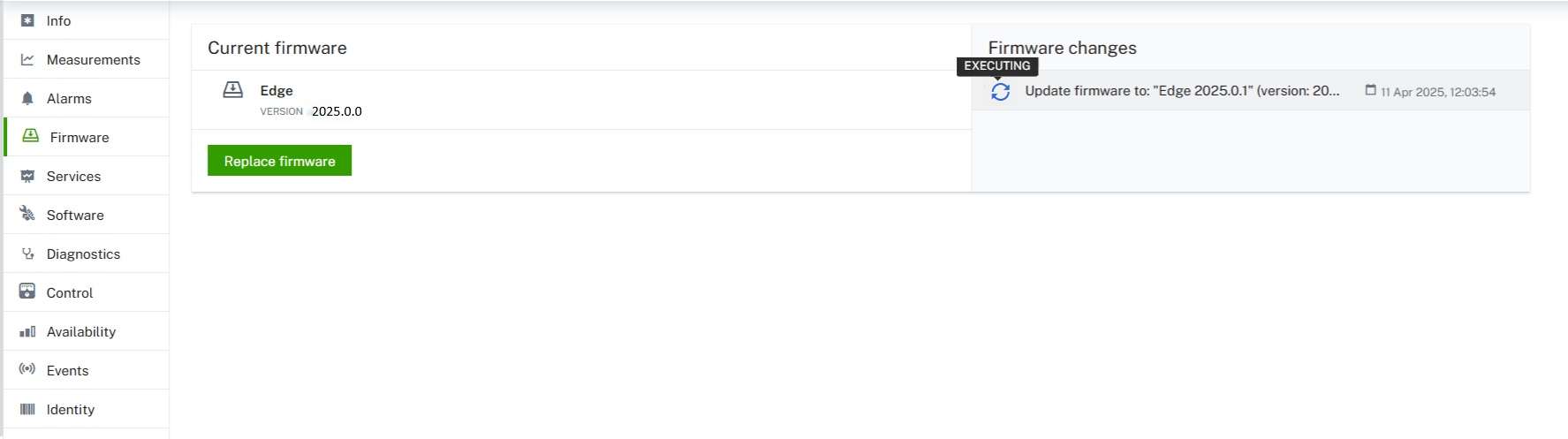
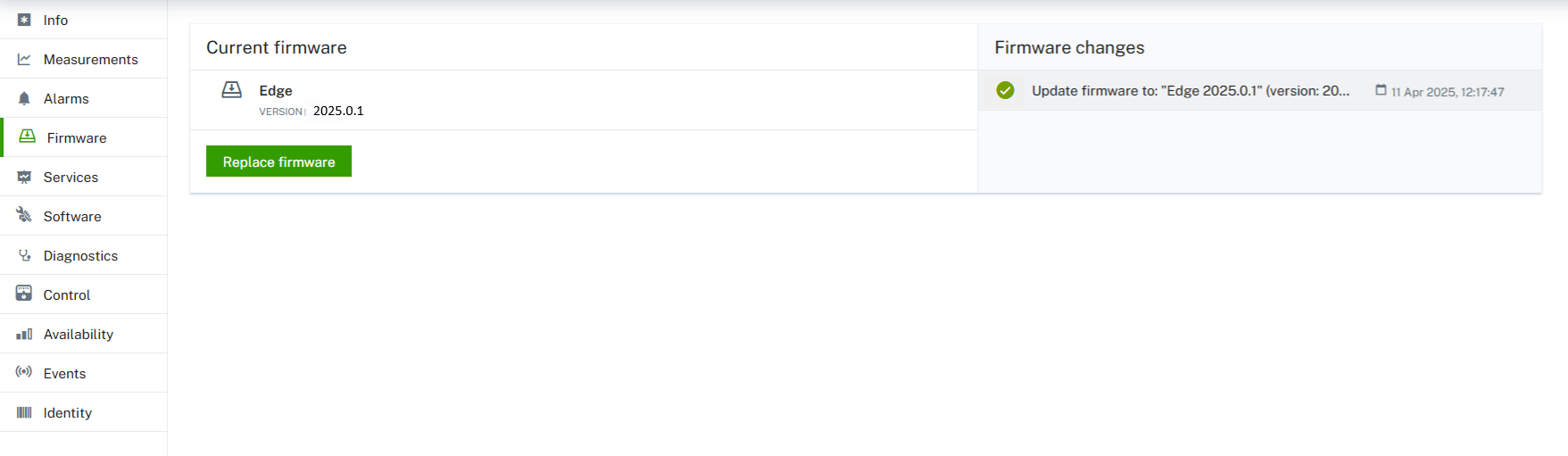
You can remotely update your instance of Edge using the Cumulocity’s firmware update feature. This process requires you to upload a YAML file specifying the Edge version to your tenant account. For more information about the firmware feature, see Managing firmware.
Update the sample version file to specify the Edge version follow the steps below to upgrade:
Log in to your Cumulocity tenant account and go to the Device Management application.
In the Firmware repository page, click Add firmware and provide a name for the firmware, add a description and its version (all required).
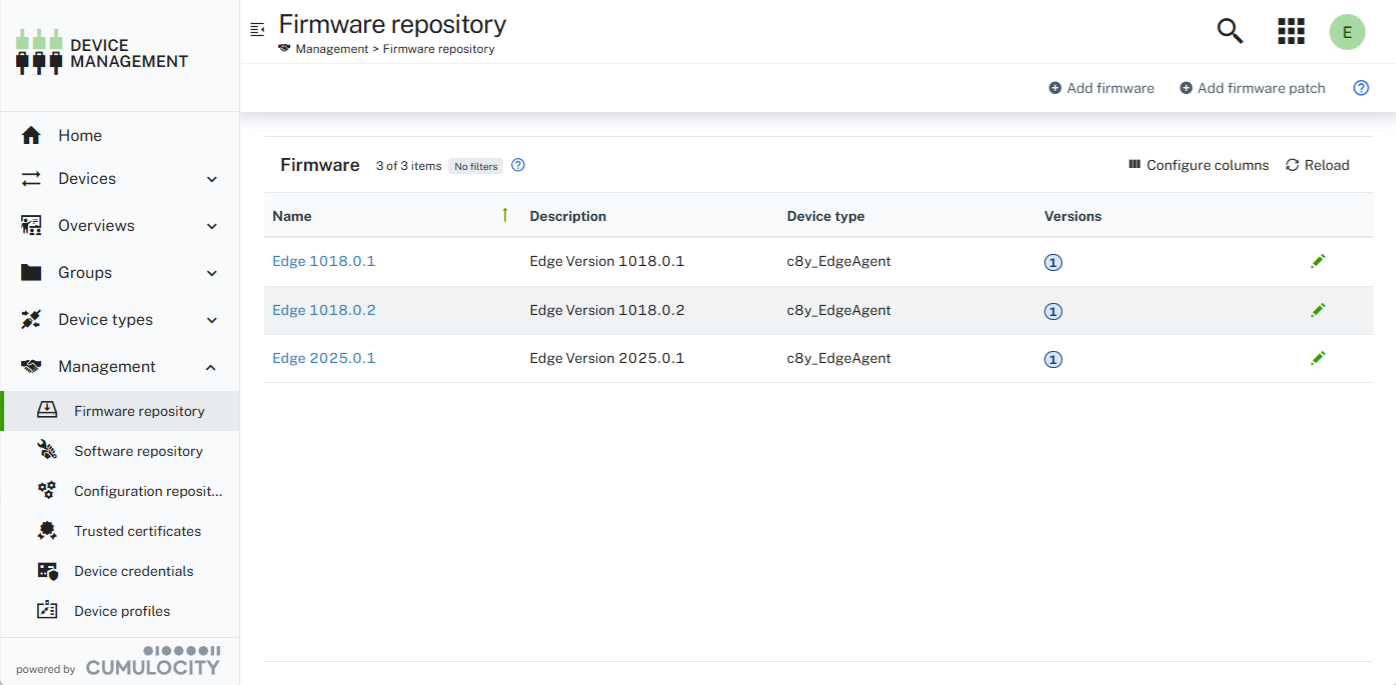
Optionally, you can set the device type filter to c8y_EdgeAgent when adding a new firmware.
Select the Provide a file path option to specify an HTTPS URL of a server from where the version file can be downloaded.
Click Add firmware. The firmware object appears in the firmware list.
Click All devices in the Devices menu, select your instance of Edge from the device list.
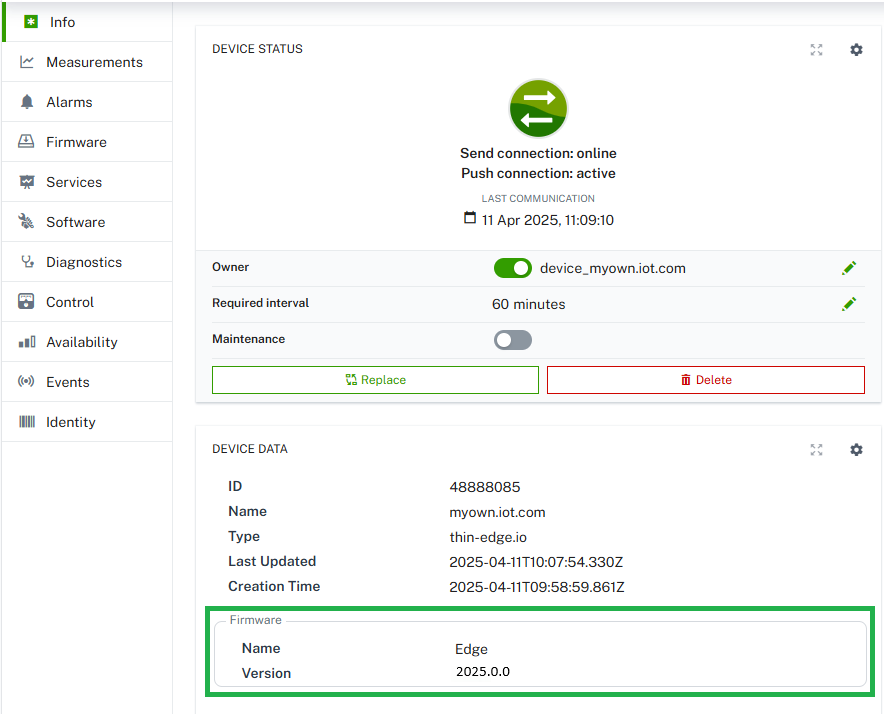
Click Firmware. The Firmware tab shows the current Edge version.
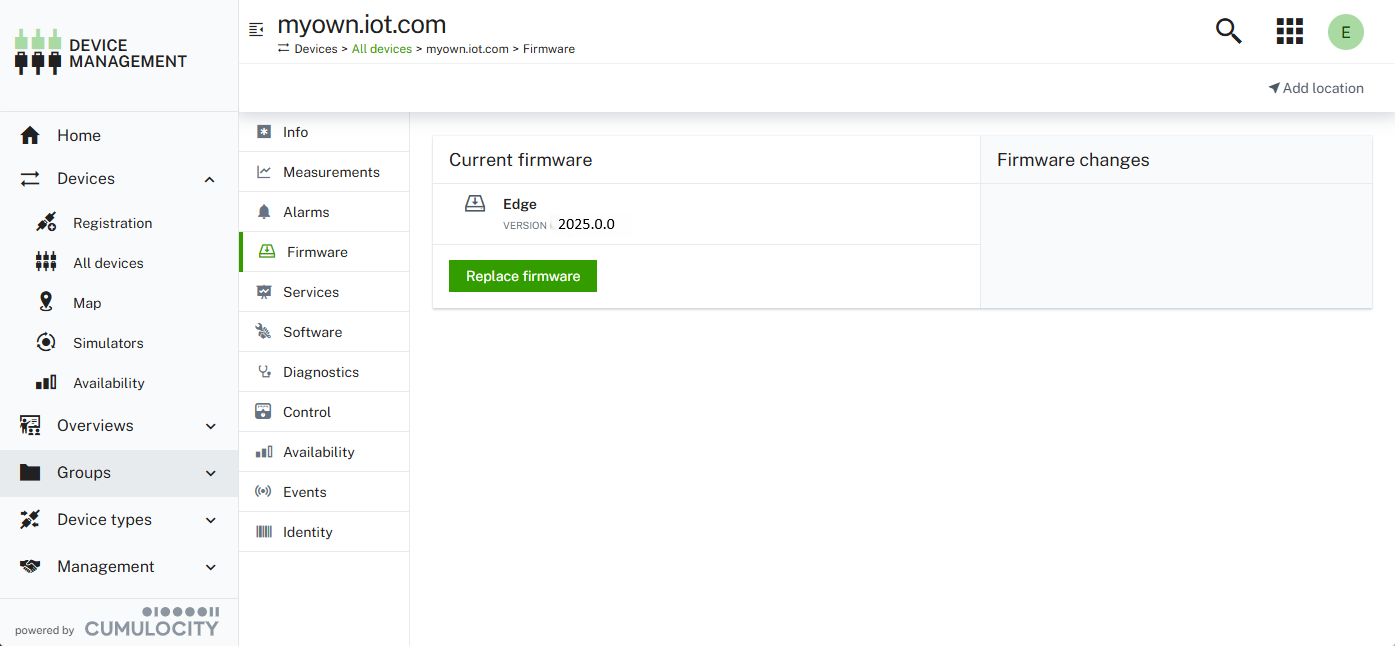
You can also see the current Edge version in the Info tab.
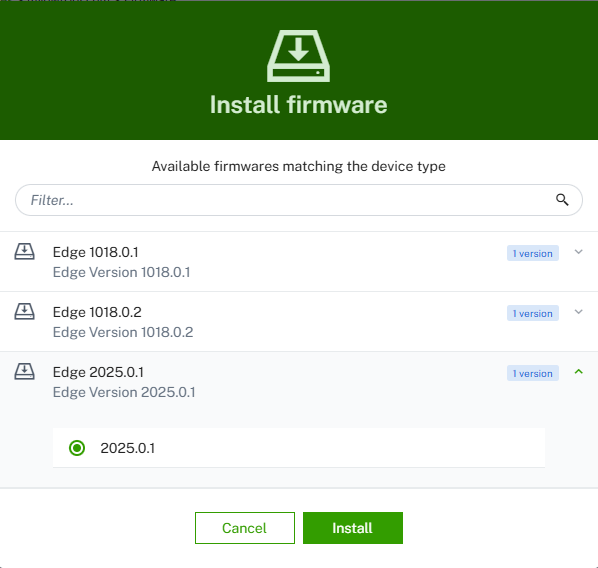
Click Replace firmware.
Select the firmware that you just uploaded and click Install.
You can download the diagnostics report remotely from your tenant account after you have registered your instance of Edge in the tenant account.
To download the diagnostics report from your tenant account:
Log in to your Cumulocity tenant.
Go to the Device Management application.
Click Devices > All devices in the navigator.
Select your instance of Edge for which you want to download the diagnostics report.
Click Diagnostics > Request diagnostic file.
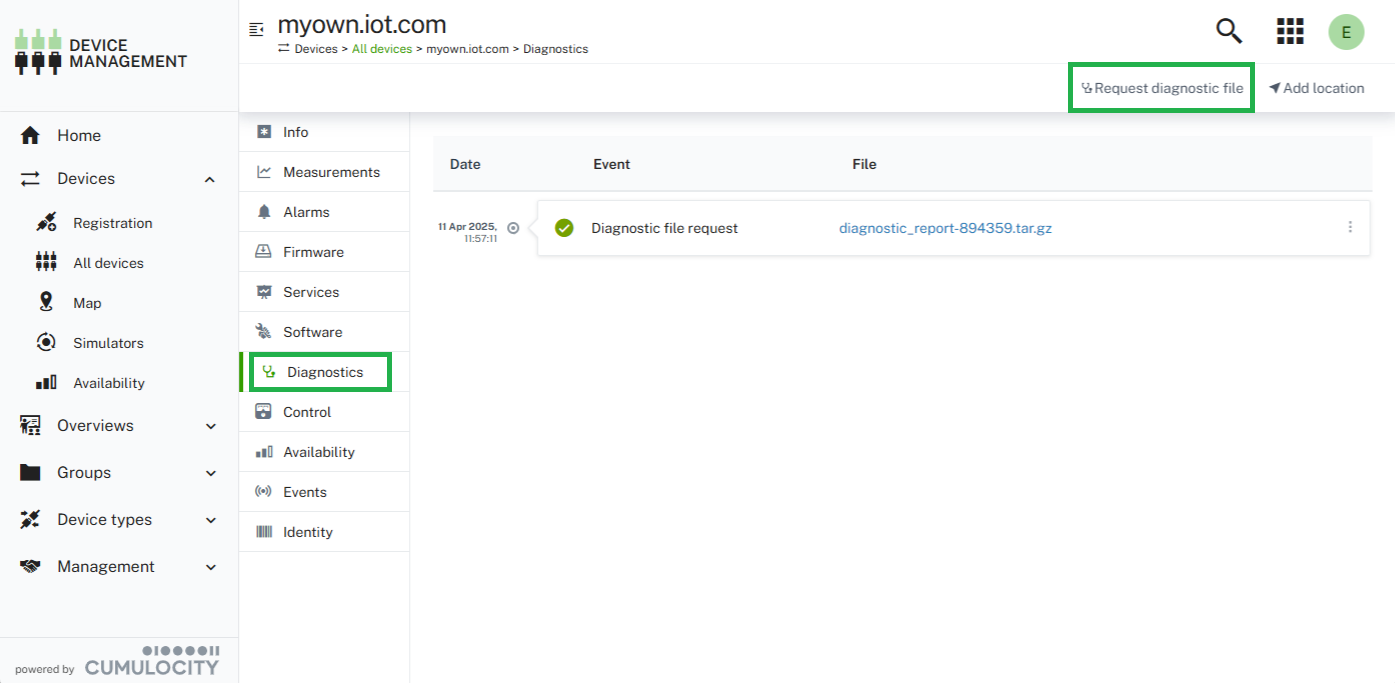
Click the ZIP file link to download the diagnostic report.
You can remotely manage the applications, microservices and extensions installed on Edge using the Cumulocity advanced software management feature. This process requires you to first upload an application, microservice or extension to the software repository before installing them. For more information on uploading items to the software repository, see To add a new software or software version. For more information about the software management feature in general, see Managing device software.
The install operation will be created and executed on the device. The software installation is completed when the device has installed the software.
To update software on your Edge device, hover over the software item which you want to update and click Update. Select a version from the list and click Update again. The software will be updated with the selected version.
The update operation will be created and executed on the device. The software update is completed when the device has updated the software.
To remove software on your Edge device, hover over the software item which you want to remove and click the remove icon.
The remove operation will be created and executed on the device. The software removal is completed when the device has removed the software.
Data broker lets you upload the data to a Cumulocity tenant account selectively. Note that you must first create a Cumulocity tenant account.
You can share the following data with the tenant account:
To upload the data to a Cumulocity tenant account, you must first create a data connector in the Edge and subscribe this connector in the tenant account.
A data connector describes the subset of the data that you would like to send to the Cumulocity tenant. For more information, see Data connectors.
To create a data connector and upload the data to the tenant account, perform the following steps:
Log in to the “edge” tenant. For more information, see To access Edge
Navigate to the Administration application. Click Data broker > Data connectors.
Click Add data connector and provide all the information and filters. See To add a data connector.
Note down the security code. This security code will be used to subscribe the connector in the tenant account.
Log in to the Cumulocity tenant account.
In the tenant account, go to the Administration application. Click Data broker > Data subscriptions to subscribe the connector created in your Edge.
Click Add data subscription and provide the security code. Click Submit and accept the subscription. See Data subscriptions.
You can now navigate to the Device Management application or the Cockpit application. You will find a new “virtual group” with a specific icon showing the forwarded devices. The group will have the same name as your subscription.
For more information about sending and receiving data in Cumulocity, see Using the data broker.