Skills are instructions for AI agents and step-by-step guides for people, for the tasks on this page. Give a skill's SKILL.md to your agent. The Skills page has all skills to download.
Scan the address space of an OPC UA server with the gateway, then read nodes, list their children, follow browse paths, and search the stored address space.
Create an OPC UA device type that maps server nodes to measurements, events, and alarms, check which nodes it matches, enable, update, and delete it with the OPC UA management service.
Read the stored history of an OPC UA node and process it through the device protocol mappings, or export it as files to the file repository and download them.
Read an OPC UA file node into the file repository or upload it to an external endpoint, then find and download the stored file and remove copies that you no longer need.
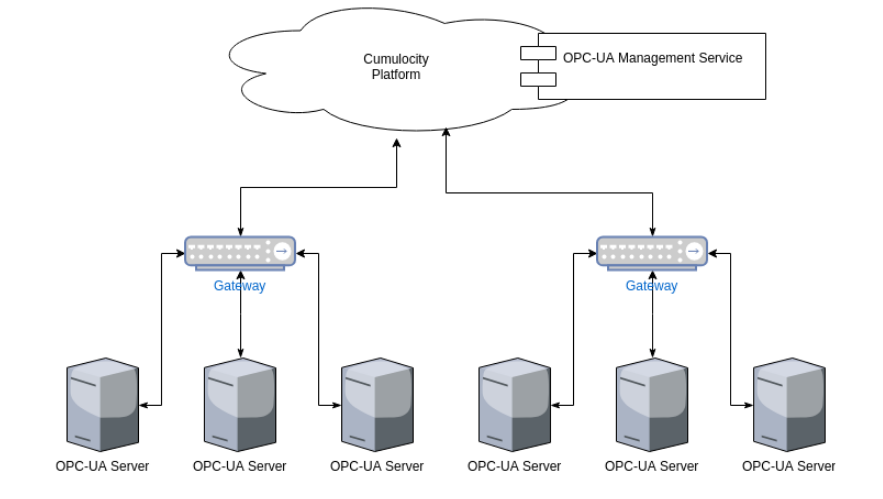
OPC Unified Architecture (OPC UA) is a standard pushed by the OPC Foundation for industry automation. The goal of OPC UA is to enable the communication between industrial devices. OPC UA is designed to work across technology boundaries (cross-platform). There are two components designed to accomplish this integration:
OPC UA device gateway
OPC UA management service
The OPC UA device gateway is a stand-alone Java program that communicates with OPC UA server(s) and the Cumulocity platform. It stores data into the Cumulocity database via REST. Additionally, C8Y commands are executed to perform various operations on the OPC UA servers.
The gateway must be registered as Cumulocity device in a specific tenant and the opcua-device-gateway must run in the users’ environment.
Important
In order to use OPC UA, you must be subscribed to the “opcua-mgmt-service” microservice. If the “opcua-mgmt-service” microservice is not available in your tenant please contact product support.
YAML file and spring profiles are used for the configuration of the gateway. A default configuration file is embedded in the gateway JAR file, so you only must set the properties which are different from the default.
Important
When editing the YAML file, make sure to provide valid indentations.
To run the gateway locally, the default settings should be overridden in a customized profile. To use the customized profile, create a YAML file which must follow the naming convention:
application-<<Profile_name>>.yaml
For example, to connect to a tenant, first a profile named application-myTenant.yaml will be created. The following properties will be added to the file:
C8Y:
baseUrl: https://<<yourTenant>>.cumulocity.com
gateway:
bootstrap:
tenantId: <<yourTenantId>>
identifier: Gateway_Device
name: Gateway_Device
db:
# The gateway uses the local database to store platform credentials and local cache.# This parameter shows the location in which the local data should be stored.baseDir: C:/Users/<<userName>>/.opcua/data
Info
Windows OS is used for the example.
thin-edge.io
The OPC UA gateway can also be registered and operated via thin-edge.io. In contrast to the standalone mode, thinEdge configurations must be added to the YAML file:
Recommended configuration using the thin-edge.io Cumulocity proxy
Info
This requires to be run with the thin-edge.io version 1.7.1 or higher.
The recommended mode of integration uses
the thin-edge.io proxy. The local
proxy of thin-edge.io exposes the Cumulocity API. By default, the proxy is available at
http://localhost:8001/c8y.
Example configuration for the thin-edge.io proxy
C8Y:
baseUrl: http://localhost:8001/c8y # Points to the thin-edge.io proxygateway:
bootstrap:
tenantId: <<yourTenantId>>
identifier: Gateway_Device
name: Gateway_Device
db:
# The gateway uses the local database to store platform credentials and local cache.# This parameter shows the location in which the local data should be stored.baseDir: C:/Users/<<userName>>/.opcua/data
thinEdge:
enabled: trueuseHttpProxy: truedeviceId: Thin-Edge_Device
With the configuration gateway.thinEdge.enabled: true you switch to the thin-edge.io mode. This means that the authentication and registration to the platform will be done via thin-edge.io. The OPC UA gateway is automatically registered and created as a subdevice under the thin-edge.io device defined with gateway.thinEdge.deviceId.
gateway.thinEdge.useHttpProxy is a switch that makes the opcua-device-gateway fully use the thin-edge.io proxy, including authentication to the platform. It requires C8Y.baseUrl to be set to the thin-edge.io proxy URL.
Example legacy thin-edge.io configuration (deprecated)
The legacy thin-edge.io mode recreates the authentication credentials for the thin-edge.io connection. This mode is now deprecated.
C8Y:
baseUrl: https://<<yourTenant>>.cumulocity.com
gateway:
bootstrap:
tenantId: <<yourTenantId>>
identifier: Gateway_Device
name: Gateway_Device
db:
# The gateway uses the local database to store platform credentials and local cache.# This parameter shows the location in which the local data should be stored.baseDir: C:/Users/<<userName>>/.opcua/data
thinEdge:
enabled: true# URL for the MQTT client to connect to the local thin-edge.io MQTT broker.mqttServerURL: tcp://<<thinEdge MQTT broker>>
deviceId: Thin-Edge_Device
MQTT Forwarding mode
The OPC UA gateway supports an MQTT Forwarding mode that can be used together with the thin-edge.io mode. In addition to the OPC UA gateway being registered as a child device of the thin-edge.io device and the OPC UA gateway using credentials provided by thin-edge.io, in MQTT Forwarding mode the OPC UA gateway also uses thin-edge.io to send the data it receives from OPC UA servers to Cumulocity. When using cyclic reads, the data received in a single cyclic read that is mapped to measurements, events, or custom actions can be batched into a single message.
The MQTT Forwarding mode uses the existing thinEdge configuration and introduces a number of additional configuration options to the YAML file:
C8Y:
baseUrl: http://localhost:8001/c8y
gateway:
bootstrap:
tenantId: <<yourTenantId>>
identifier: Gateway_Device
name: Gateway_Device
db:
# The gateway uses the local database to store platform credentials and local cache.# This parameter shows the location in which the local data should be stored.baseDir: C:/Users/<<userName>>/.opcua/data
mappings:
mergeCyclicRead: falsemergedEventType: c8y_OpcuaEvent
mergedMeasurementType: c8y_OpcuaMeasurement
thinEdge:
enabled: trueuseHttpProxy: truemqttServerURL: tcp://<<thinEdge MQTT broker>>
deviceId: Thin-Edge_Device
useForDataForwarding: truemqttAutomaticReconnect: truemqttCleanSession: truemqttConnectionTimeout: 30mqttKeepAliveInterval: 60mqttMaxInFlight: 1000
The configuration gateway.thinEdge.useForDataForwarding controls if MQTT Forwarding mode is enabled. The following configurations are optional and control the behavior of the MQTT client:
gateway.thinEdge.mqttServerURL (default: tcp://127.0.0.1:1883) - URL for the MQTT client to connect to the local thin-edge.io MQTT broker.
gateway.thinEdge.mqttAutomaticReconnect (default:true) - controls if the MQTT client will reconnect in case it looses connection to the MQTT server.
gateway.thinEdge.mqttCleanSession (default:true) - controls if the MQTT client should remember state across sessions or start with a clean session.
gateway.thinEdge.mqttConnectionTimeout (default: 30) - connection timeout in seconds.
gateway.thinEdge.mqttKeepAliveInterval (default: 60) - keep alive interval in seconds.
gateway.thinEdge.mqttMaxInFlight (default: 1000) - maximum number of unacknowledged messages in the MQTT client. If this limit is reached, additional messages will fail.
For cyclic reads the configuration gateway.mappings.mergeCyclicRead can be enabled. The default is false. If this configuration is enabled cyclic reads mapped to measurements, events, or custom actions in a device protocol that use the same data reporting are merged into single messages. For measurements and events, the type can be controlled by the gateway.mappings.mergedMeasurementType and gateway.mappings.mergedEventType configuration. This is optional, and if not configured c8y_OpcuaEvent and c8y_OpcuaMeasurement respectively are used.
Configuration profile location on the filesystem
The configuration profile can be stored either in the same directory as the JAR file or in a default configuration directory.
Depending on the operating system, the following default configuration directories can be used:
Windows OS
    /C:/opcua/
Linux OS
    /etc/opcua/
    /etc/opcua/data
Mac OS
    /opt/opcua/
    /opt/opcua/data
The number of profiles you may have is not limited. To use a specific profile on runtime, the “–spring.profiles.active” JVM argument must be passed when running the gateway JAR file. For example, let’s use the previously created profile. Start a terminal and use the following command:
The command above will start a gateway with the default profile and it will override the default properties with the properties defined in the “myTenant” profile. The list of profiles must be provided as an ordered, comma-separated list. The default profile must always be the first profile in the list.
Optional: To specify your own configuration, Spring arguments can be used in your terminal to run the gateway JAR file. Multiple locations must be comma-separated. The configuration locations should be either YAML files or directories. In case of directories, they must end with “/”. For example:
If both arguments “–spring.config.location” and “–spring.profiles.active” are provided, the configuration locations should be directories instead of files. Otherwise, the profile-specific variants will not be considered.
Additional customizations
Info
If no additional customizations are required, you can skip this section.
The following properties can be manually configured in the YAML file:
# Name of the application - this should not changename: opcua-device-gateway
# Platform location and configurationC8Y:
# This is the base URL pointing to the Cumulocity platform. This must always be customized in an application profile.baseUrl: http://localhost
# This is an internal setting of the Cumulocity SDK. It is set to true, because we typically# want to configure the Cumulocity SDK to always use the baseURL provided during initialization.# Otherwise, the gateway would use the links in the `self` fragment of the core API responses as the host name.# This is helpful in deployment scenarios where the Cumulocity instance is# reachable only with an IP address.forceInitialHost: true# HTTP proxy host for platform communication# proxyHost: your.proxy.host# HTTP proxy port for platform communication# proxyPort: 8080# Username for HTTP proxy authentication# proxyUser: yourProxyUser# Password for HTTP proxy authentication# proxyPassword: yourProxyPassword## Gateway-specific settings#gateway:
# The version of the gateway - this is filled automatically during the build process - do not change this propertyversion: ${project.version}
# The following two properties will be set to the name of the user that is running the gateway unless it's overridden manuallyidentifier: mygateway
name: mygateway
# The gateway uses a local database to store platform credentials and a local cache. This setting tells# where local data is stored.db:
baseDir: ${user.home}/.opcua/data
# These settings configure and enable/disable thin-edge.io mode (registration and operating OPC UA gateway via thin-edge.io).thinEdge:
# Enable thin-edge.io if the OPC UA gateway is running next to thin-edge.io and should use it to connect to Cumulocity.# Set enabled to false if the OPC UA gateway is running without thin-edge.io.enabled: false# MQTT Server URL of thin-edge.io (localhost).mqttServerURL: tcp://127.0.0.1:1883
# Enable this if the MQTT client uses a single steady connection. Note that MQTT is only used to retrieve the JWT, which is dependent on how long the JWT is valid. See https://cumulocity.com/guides/device-integration/mqtt/#jwt-token-retrieval.# We recommend you to use a steady connection only if the JWT is valid for a short time. If the JWT is valid for a longer time, the standard is one hour. It is generally not recommended to have a steady MQTT connection.mqttSteadyConnection: false# The thin-edge.io deviceId must be changed, depending on the configured deviceId of the thin-edge.io certificate.deviceId: my-thin-edge-device
# These settings control the device bootstrap process of the gateway.# In general, the default settings are sufficient, and should not be changed.# Contact product support (https://cumulocity.com/guides/<latest-release>/additional-resources/contacting-support/).# in case the bootstrap credentials are different.bootstrap:
# Tenant ID to be used for device bootstraptenantId: management
# Credentials for the device bootstrap userusername: devicebootstrap
password: <devicebootstrap user password>
# When the gateway starts, it waits <delay> milliseconds before connecting to the platform and searching for# the device.delay: 5000# If set to true, the gateway will drop any stored device credentials and fetch new ones from the platform.force: false# Scheduled tasks and thread pools configuration# Only change the settings here if really necessary. Wrong scheduler configurations can# disturb the gateway's operation.scheduler:
# Threadpool specific settingsthreadpool:
# This setting corresponds to the size of the threadpool used for periodic tasks.size: 15# These settings control the threadpool of our internal task executor, which is used for generic background# execution and asynchronous tasks.executor:
threadpool:
coreSize: 30maxSize: 60# The following settings control the settings of the device type mappings execution.mappingExecution:
# This section contains all settings related to external, custom-action execution.http:
# Connection request timeout (milliseconds)connectionRequestTimeout: 3000# Connection timeout (milliseconds)connectionTimeout: 3000# Socket timeout (milliseconds)socketTimeout: 5000# Maximum number of connections via HTTP routemaxPerRoute: 100# Maximum total size of the HTTP connection pool used for external, custom actions.maxTotal: 100# The inactivityLeaseTimeout setting defines a period, after which persistent connections to# the HTTP server must be reevaluated. See PoolingHttpClientConnectionManager for more informationinactivityLeaseTimeout: 50000#ms# Aggregate number of alarms if something goes wrong with the execution of external custom actionsfailureAlarmAggregate: true# How often is the alarm aggregation for failed external calls invoked?failureAlarmFixedDelay: 15# secondsfailureHandling:
# Whether a failed HTTP POST should be retried later or not. This can be overridden by the configuration in device type. Default is falseenabled: false# Number of retries a failed HTTP POST will be resentmaxRetries: 5# If retry is enabled, the exceptions of HTTP status codes can be provided here, comma separated. A HTTP POST which failed with one of these codes will not be retried. This can be overridden by the configuration in the device type. Default is empty which means that all failed http posts will be retried if enabled. Example: 400,500noRetryHttpCodes:
# Minimum delay in seconds between two retriesretryDelay: 120# Max queue size of the HTTP POST actions queuemaxQueueSize: 50000# Worker thread (which performs the actual HTTP request) pool sizethreadPoolSize: 200# Threadpool configuration for the mapping execution# Each value arriving in the gateway will be handled by one or more action handlers defined in the device type. Each handler will be executed in one single thread.# Hence, this threadpool must be large enough to cope with the parallel processing needs of values# received from the OPC UA server.threadpool:
size: 200# Mapping-specific settingsmappings:
# In OPC UA, alarm severity is specified by an integer range between 0 and 1000. The alarmSeverityMap# allows to configure how OPC UA severity is mapped into Cumulocity severity levels. The following is the default mappings:# alarmSeverityMap:# 1001: CRITICAL# 801: CRITICAL# 601: MAJOR# 401: MINOR# 1: WARNING# Mapping synchronization interval# The OPC UA gateway periodically fetches the OPC UA device types. With the following settings, this# interval can be adjusted.# Sync interval in milliseconds. The default is 43200000ms (12 hours)syncInterval: 43200000# Operation settingsoperation:
# Default behavior that controls if the OPC UA gateway performs an address space scan when it connects the first time to an OPC UA server. Can be overridden in the OPC UA Server config.autoScanAddressSpace: true# Validates if the nodes given for the operation belongs to device's address space. If the validation fails an alarm is created for the device. If disabled, the opcua-device-gateway will execute the operation directly. The default is set to true.validateDeviceOperationNodes: true# Cyclic-Reader settingscyclicRead:
# The cyclic readers use a dedicated threadpool to perform periodic read tasks.threadpool:
# Allows the size of the threadpool for cyclic reads to be configuredsize: 30# How many nodes can be read at once for the cyclic read of the same device protocol, server, root node and the same parameters (rate, max-age).defaultBulkSize: 1000# OPC UA subscription settings: These settings allow global OPC UA configuration parameters# for subscription-based data reportingsubscription:
# The reporting rate (in milliseconds) corresponds to the publishing rate for monitored items.reportingRate: 100# The maxKeepAliveCount specifies the maximum number of OPC UA reporting intervals with no data that# can be skipped before the OPC UA server sends an empty response to the gateway, informing about# a yet active, but idle OPC UA subscription.maxKeepAliveCount: 200# The lifeTimeCount specifies the maximum number of reporting intervals without a value being sent.# After the lifetime count has exceeded, the subscription is terminated.# Must be 3 times greater than maxKeepAliveCountlifetimeCount: 600# The notificationBufferSize defines how many monitored item values should be buffered to receive# subscription notification data from the OPC UA server. The subscription reporting rate (publish interval) # and the volume of sampling data should be taken into account to choose a suitable buffer size.notificationBufferSize: 500# The recreateFailedItems flag can be used to enable the feature of a subscription so that it automatically retries to create the monitored items# if they fail due to error code Bad_NodeIdUnknown. It assumes that the NodeIds are correct, but it hasn't been added to the# server's address space yet. The default value is false.recreateFailedItems: false# Subscription update settingssubscriptionUpdate:
# The subscription update interval controls how often the OPC UA gateway updates the subscription# settings for connected OPC UA servers. Expects: Interval duration in milliseconds.interval: 60000# Server connectivity configurationconnectivity:
# If autoReconnect in the client configuration is set to false, the gateway tries to reconnect manually.# triggerManualReconnectOnConnectionDrop can be used to stop the manual reconnect as well if set to false. The default value is true.triggerManualReconnectOnConnectionDrop: true# As a default, the OPC UA stack validates the endpoints returned by the OPC UA server. With this# setting, the default can be toggled.# This global setting can be individually overridden for each OPC UA server using the# "validateDiscoveredEndpoints" configuration fragment.# validateDiscoveredEndpoints: true# Internal repository configurationsrepositories:
# Interval in milliseconds describing how often the repositories are flushed to the platformflushInterval: 10000# Threadpool size for the event queue flushingeventsThreadpool: 30# Threadpool size for the alarm queue flushingalarmsThreadpool: 30# Threadpool for the measurement queue flushingmeasurementsThreadpool: 60# Maximum capacity. If a repository grows over this size, the OPC UA communication will be shut off!maximumCapacity: 250000# Re-enable threshold. If OPC UA communication has been disabled due to exceeding maximum capacity, this threshold# controls when OPC UA communication is enabled againreenableThresholdSize: 10# The settings below describe platform-specific connection parameters.platform:
inventory:
update:
# Default processing mode for inventory managed objects update to the Cumulocity platform.defaultProcessingMode: QUIESCENT
# Processing mode for inventory update of the gateway device managed objects to the Cumulocity platform.gateway:
processingMode: QUIESCENT
# Processing mode for inventory update of the OPC UA server device managed objects to the Cumulocity platform.server:
processingMode: QUIESCENT
# Processing mode for inventory update of value-map managed objects to the Cumulocity platform.valuemap:
processingMode: QUIESCENT
# Connection pool configurationconnectionPool:
# Overall maximum size of the connection poolmax: 250# Max connections used for a single hostperHost: 150# Gateway self-monitoring configuration# First, the gateway internally measures different metrics and populates them to the platform.# Second, the gateway actively checks if a server connection is active and working by regularly# browsing the root node of an OPC UA server.monitoring:
# The interval below in milliseconds configures the frequency of this monitoring task.interval: 10000# The interval below in milliseconds configures how often we investigate the thread executor queue sizes to prevent overflowcheckQueueSizes: 10000# The OPC UA gateway persists all latest values of an OPC UA server in a dedicated managed object,# the so-called value map. These value maps are locally kept on the device for a certain time# before being pushed to the platform, allowing for local aggregation of all last-seen values.valueMap:
# The lifetime of a local value map in secondslifeTime: 30# How often (in milliseconds) does the gateway check for changes in configured servers.# This setting controls how long it takes for the gateway to discover an added or a removed serverchildrenAddedOrRemoveCheck:
interval: 15000# How often (in milliseconds and if enabled) the gateway reads pending operations from the platform.shortPolling:
enabled: truefixedDelay: 15000# Time in days for which the certificate is valid.applicationIdentity:
validityTime: 3650# Timeout scanning address space in minutes and a pause between retries in millisecondsscanAddressSpace:
timeout: 1440retries: 5pauseMillisForRetry: 700
Logging
Custom logging configuration can be set during startup by passing the “–logging.config” JVM argument. For more info on how to set up custom logging settings, refer to the “Logback” documentation.
A sample logging configuration file may look like this:
An OPC UA gateway can be associated with multiple OPC UA servers, and the servers can have multiple child devices
connected to them. The cleanest approach to delete a gateway is to first delete the OPC UA server managed objects and all its child devices.
The server can be either deleted from the OPC UA server tab of the gateway (recommended way of deletion), or from the device list itself. If the server is
deleted from the OPC UA server tab, then the server managed object and all the address space managed objects are deleted by the OPC UA management service,
but the child devices associated with the server must be deleted separately.
On the other hand, if the server is deleted from the device list, then the
child devices associated with the server can be deleted by selecting the checkbox Also delete child devices of this device. The deletion is detected by the gateway,
and the address space managed objects are deleted for the corresponding server. If the gateway is offline, then the address space managed objects will not be removed.
The process of deletion is asynchronous for both cases, so it may take a while to
completely remove all the associated managed objects. Thereafter, the gateway can be deleted from the list of devices along with the device user by selecting the checkbox
Also delete associated device owner “device_<gateway_name>”.
If the gateway is directly deleted from the list of devices before deleting gateway’s servers and devices of those servers, by selecting the checkbox Also delete child devices of this device,
then the server managed object will be deleted, but the corresponding address space objects will not be deleted as they are not children of the gateway.
Running the Gateway
The gateway can run with either default or custom settings. To run the gateway run one of the commands below:
Default settings and default logging configuration:
java -jar opcua-device-gateway.jar
Custom settings and default logging configuration:
For example, using the profile from the previous section we are going to register the gateway. First, open the terminal and navigate to the location of the gateway.jar file. Next, enter the following command:
In certain scenarios it is required to adjust the memory settings of the gateway application. Examples for such scenarios are the integration of servers with very large address spaces or obtaining large amounts of data from servers using high sampling rates.
You can adjust the memory settings of the gateway like with any other Java program. Typically, it is sufficient to increase the initial heap size and the maximum heap size of the gateway process.
Example: Run the gateway with a minimum heap size of 2 GB and a maximum heap size of 8 GB.
java -Xms2g -Xmx8g -jar opcua-device-gateway.jar
Important
Please adjust the memory settings according to the physical memory available on the gateway host. The maximum heap size must be set in a way that it doesn’t consume more RAM than physically available to the gateway. Otherwise, the virtual memory management of the host operating system might start paging, resulting in reduced gateway performance.
Performance tuning for large setups
If you’re running your setup with a large number of connected OPC UA servers the scan of these nodes can take a long time and may fail with the default settings. There are a lot of other problems like data collection and synchronisation, subscriptions, cyclic reads and flushing data.
We recommend you to tune the following settings in the configuration YAML file (values are just examples of a known large setup):
If cyclic read (only subscription) is used we recommend
  cyclicRead:
    threadpool:
      size: 3000
otherwise size 0 is perfect.
In general, a larger number of threads will increase your performance. To increase the number of threads, add more memory.
Registering the gateway as a Cumulocity device
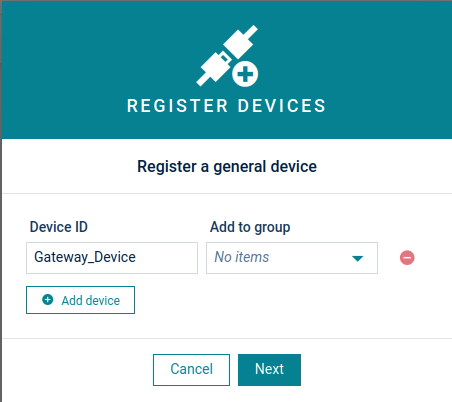
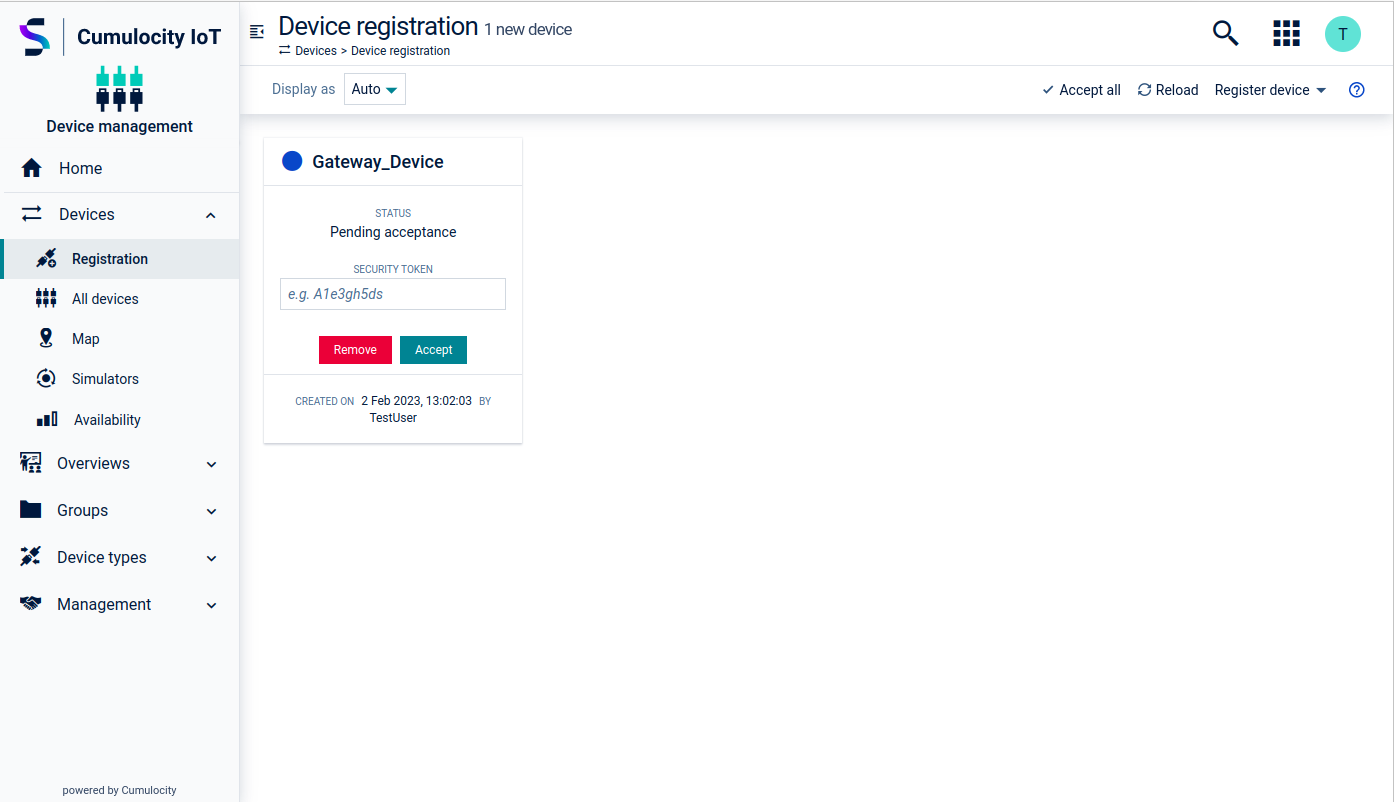
Click Registration in the Devices menu of the navigator.
Click Register device at the right of the top bar and from the dropdown menu select Single registration > General.
Enter the Device ID (in our example it is “Gateway_Device”) and then click Next.
Click Accept to complete the registration.
Info
If you run the OPC UA Gateway in thin-edge.io mode, manual registration is not needed. thin-edge.io automatically registers the OPC UA Gateway at Cumulocity as a sub-device of its device.
Gateway device details
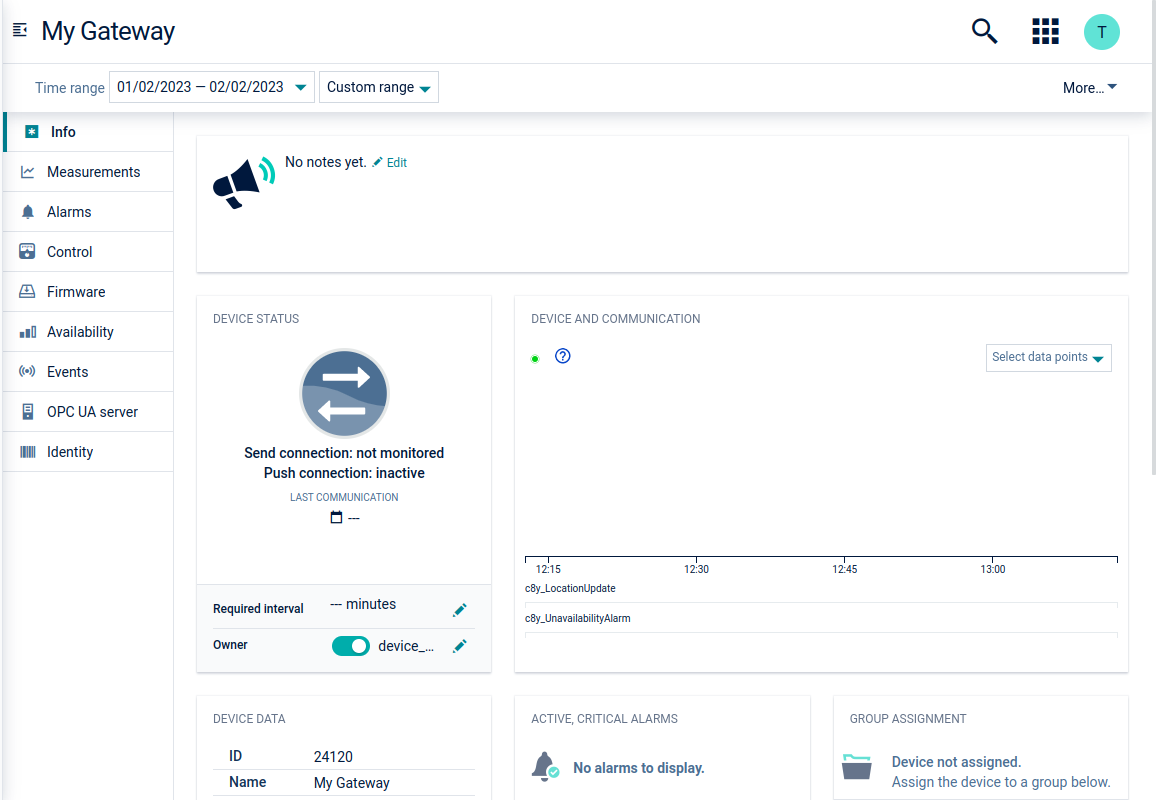
After the registration is completed, the gateway device will be created by the opcua-device-gateway.
In this section, only OPC UA specific information related to the tabs in the device details page will be explained. For more info on all tabs, see Viewing device details.
Connecting the gateway to the server
Next, establish a connection between the gateway and the OPC UA server.
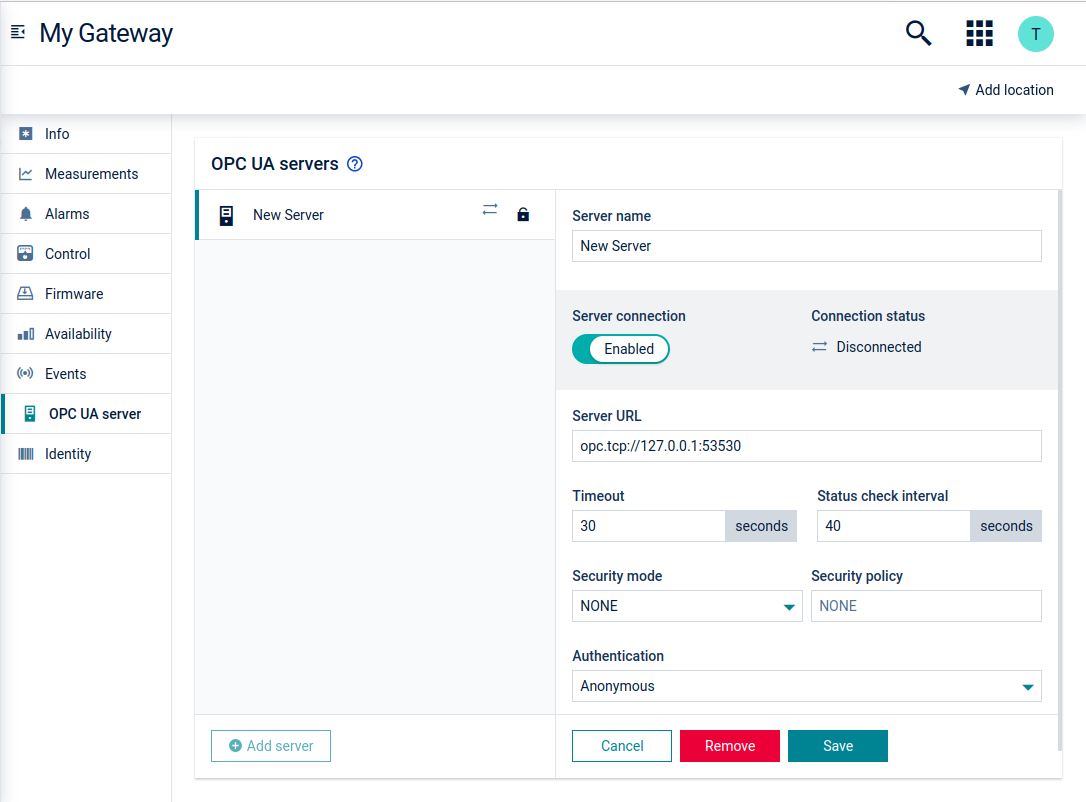
In the OPC UA server tab of the respective gateway, click Add server.
Use the Server connection toggle, to enable or disable the server connection.
Enter the Server URL which is used to establish a connection between the server and the gateway.
Enter the Timeout value in seconds. The timeout value is calculated for each request. If the timeout value is exceeded the request will be unsuccessful.
Enter the Status check interval in seconds. The status check interval specifies how often the gateway actively checks if the server status has changed. These periodic checks are carried out by reading the ServerStatus variable on the OPC UA server.
Select the Security mode and Security policy depending on the server configuration. For more info, see Security modes.
Select the desired authentication method. For more info, see Authentication.
You can configure the mode of the OPC UA server address scan under Advanced settings. If automatic address scanning is enabled the gateway immediately starts the scan after the new server connection is saved.
Caution
Be cautious with the address scan type. If it is set to “full”, the gateway will scan the whole OPC UA server address space. Depending on the address space size and the speed of the OPC UA server this can take from minutes to days. We highly recommend you to set the address scan type to “partial” and configure only those node IDs you really want to scan.
You can add further node IDs later and do a rescan in the Address space tab of the server object afterwards.
Click Save.
Info
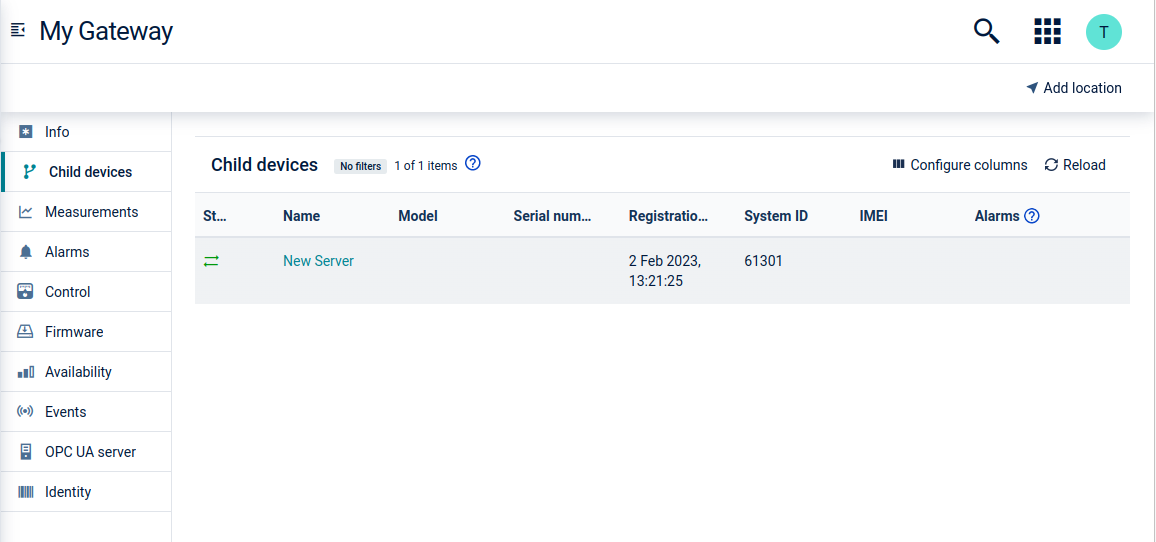
Once a connection is established, the servers will be located in the Child devices tab. In there, the servers will contain additional data such as access to the address space.
Security modes
The security mode settings tell the gateway how it should secure the connection between itself and the OPC UA server. When a mode other than NONE is selected, the gateway will auto-generate a self-signed application instance certificate and will use it to connect to the server. Possible security mode options are:
NONE
BASIC128RSA15_SIGN
BASIC128RSA15_SIGN_ENCRYPT
BASIC256_SIGN
BASIC256_SIGN_ENCRYPT
BASIC256SHA256_SIGN
BASIC256SHA256_SIGN_ENCRYPT
Info
The security modes have nothing to do with authorization or authentication! The security mode tells the gateway how the connection should be secured and whether the connection should be encrypted or not.
Authentication
The authentication setting is used to authenticate and authorize the server user. It tells the gateway how to create a user identity and how to send it to the OPC UA server when establishing a connection.
The following authentication methods can be selected:
Anonymous - Will only work when the OPC UA server allows such connections.
Username/Password - With this setting the gateway will connect to the server as a specific user represented by a username and password.
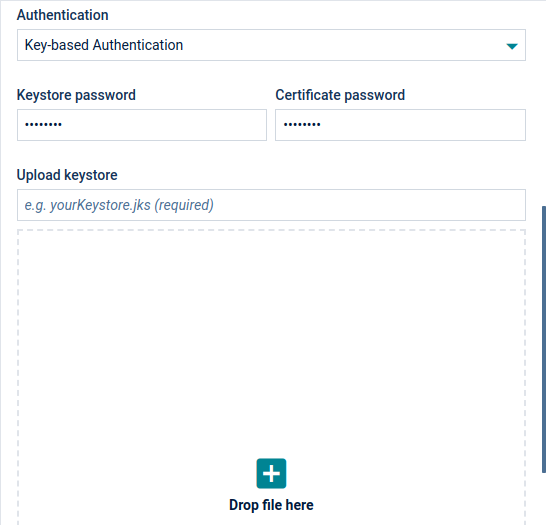
Key-based authentication - The gateway will use an existing certificate to authenticate as a specific user. JKS keystore must be uploaded to Cumulocity as a binary with type “application/octet-stream”. This keystore must follow the following rules:
It must be a Java keystore (JKS).
The keystore itself must be password-protected.
The keystore must contain a user certificate with the “opcuauser” alias.
The user certificate must be password-protected.
Info
The OPC UA gateway connects as an OPC UA client to the OPC UA server. If key-based authentication is used, the gateway uses a certificate and a corresponding private key to authenticate at the OPC UA server. Both certificate and private key must be stored in a keystore file, using the alias “opcuauser”. This way, the gateway precisely can determine which certificate and private key must be used in case a keystore file should contain more data.
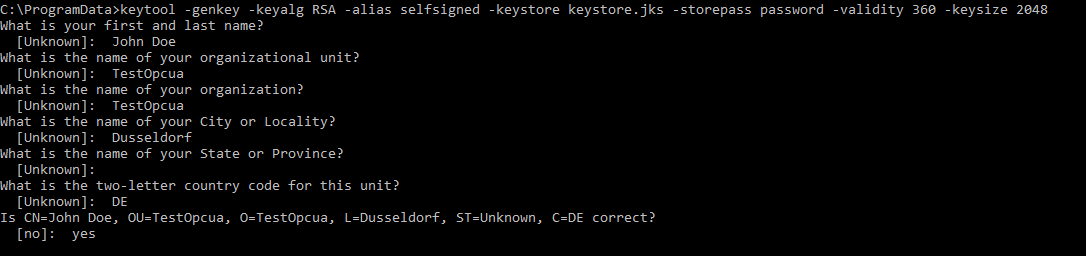
The keystore can be created via the following Java keytool command:
With the above command, the key pass is set to the same value as the keystore password.
The keystore can be verified by using a tool like KeystoreExplorer. It can then be uploaded to Cumulocity as a binary and used in the server configuration.
Info
If you don’t have the certificate trusted by your OPC UA server, the server will reject the connection. If you have problems trusting a certificate in your OPC UA server, contact your OPC UA server provider.
Info
Beside the above authentication certificate, the device gateway also automatically creates a so-called application identity certificate to identify itself with the OPC UA server. This must be trusted by the OPC UA server as well.
Child devices
All server connections are listed as child devices even if the servers are disconnected. To stop a server connection, either delete the server child device or disable/remove the connection from the OPC UA server tab.
Address space
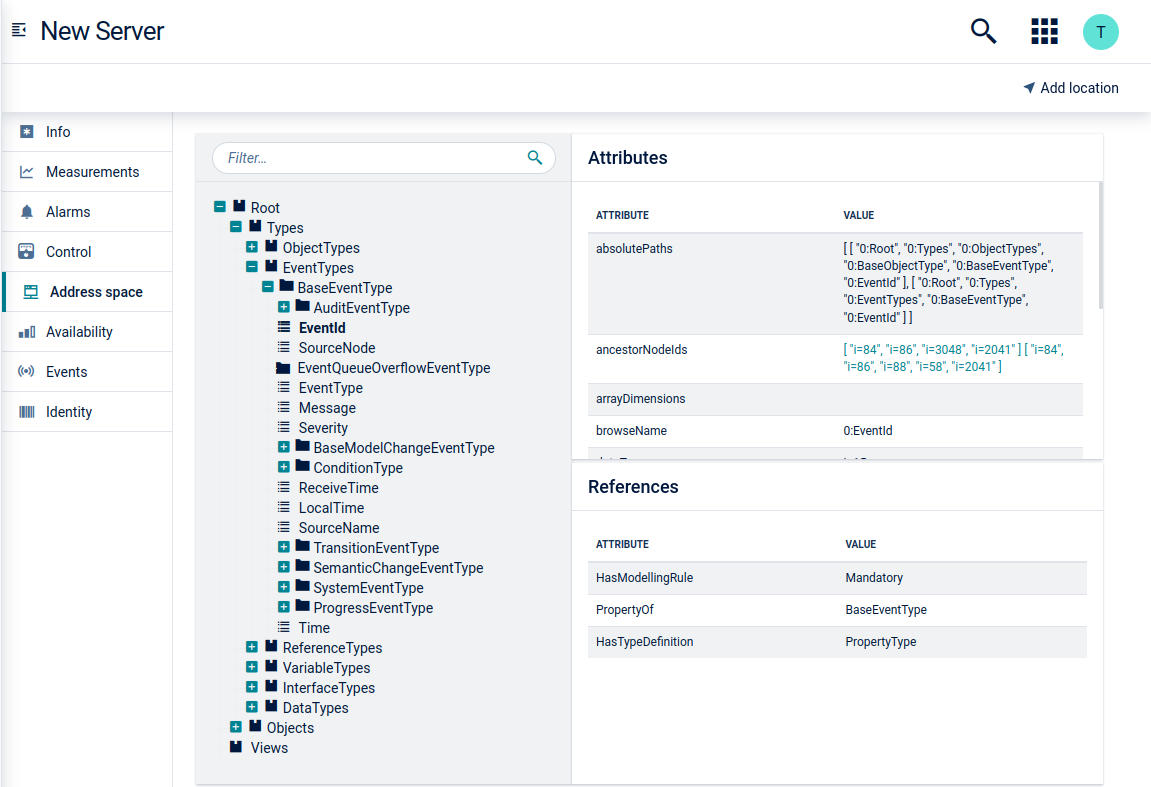
When you navigate to the child device of the gateway, the Address space tab shows the attributes and references of the address space node of the servers. The filter searches through the whole hierarchy to find “nodeId”, “browserName” or “displayName” of an attribute. In case of multiple “ancestorNodeIds”, you can click on the desired node to be redirected.
The address space is automatically scanned when a connection between the gateway and the server is established. The duration of the scan depends on the size of the address space. The address space information is stored locally once it is scanned and then used by this applying process. If the address space information is not yet available, for example, the address space has not been scanned, another scan will be triggered without synchronizing data into Cumulocity. Performing another address space operation will update the address space information.
In case a node cannot be read, the scan process skips this node and continues.
An error entry is written to the opcua-device-gateway log file to provide information (more information available in debug level).
To manually scan the address space click Rescan. You can monitor the progress by checking the rescan operation in the Control tab.
Monitoring measurements
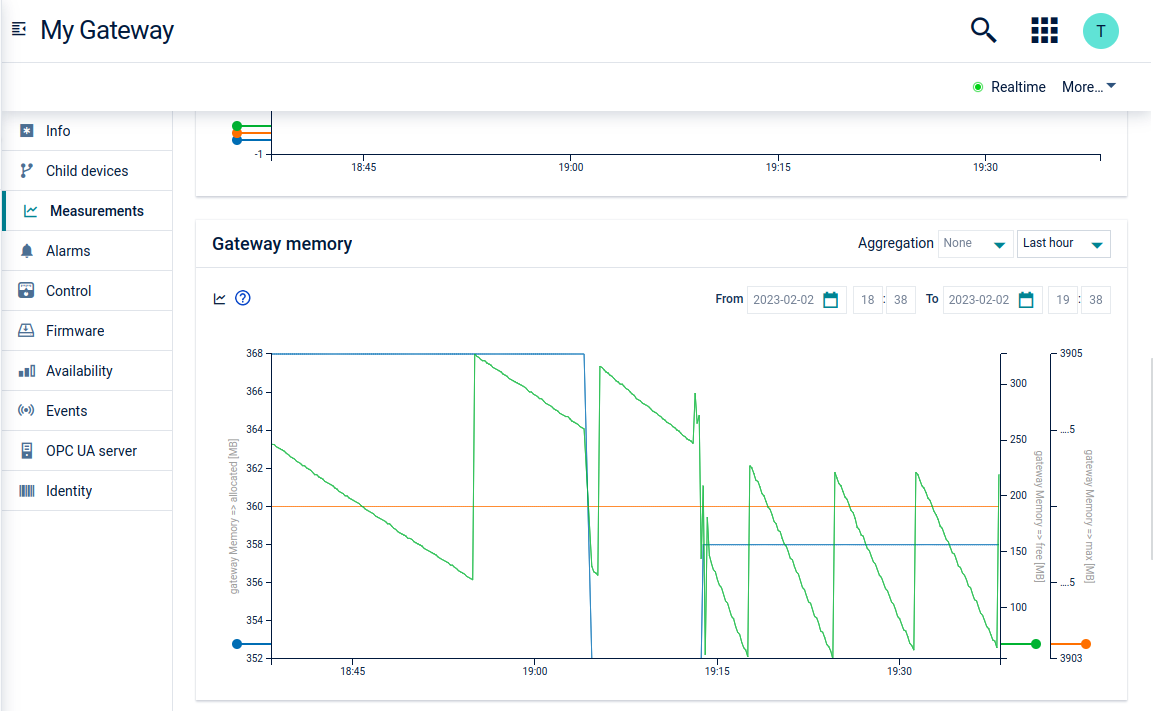
On the gateway device, the Measurements tab provides visualization of data in the form of charts. In total the gateway contains the following six charts:
Charts
Description
Connected servers
Provides the number of connected and disconnected servers.
Gateway active threads
Shows the number of active threads for the alarm/measurements/event flushes and for the executor. You can also see whether the threadpool size limit is not sufficient, based on the threadpool configurations in the gateway. If the maximum threadpool size is reached then any new activities which require a new thread will be blocked until a thread is available.
Gateway cyclic reads
Number of active cyclic reads done by the gateway. Cyclic reads are actively reading from the OPC UA server within an interval based on the configuration of the device protocol.
Gateway memory
Represents the "free", "max" and "allocated" memory values of the gateway.
Gateway repository queues
Before a thread is flushed it is first added to the queue. This chart shows how many threads are currently in the queue.
Server response time
Shows the response time of each currently connected server.
Monitoring measurement details
The following is the full list of monitoring measurements created by the gateway:
Chart
Measurement type
Measurement series
Unit
Description
Connected servers
c8y_connectedServers
connected servers
num
Number of connected servers
Connected servers
c8y_connectedServers
disconnected servers
num
Number of disconnected servers
Gateway active threads
c8y_gatewayActiveThreads
event_flush
threads
Number of active threads for event flushing
Gateway active threads
c8y_gatewayActiveThreads
alarm_flush
threads
Number of active threads for alarm flushing
Gateway active threads
c8y_gatewayActiveThreads
measurement_flush
threads
Number of active threads for measurement flushing
Gateway active threads
c8y_gatewayActiveThreads
event_flush_queued
threads
Number of queued threads for event flushing
Gateway active threads
c8y_gatewayActiveThreads
alarm_flush_queued
threads
Number of queued threads for alarm flushing
Gateway active threads
c8y_gatewayActiveThreads
measurement_flush_queued
threads
Number of queued threads for measurement flushing
Gateway cyclic reads
c8y_gatewayCyclicReads
scheduled_reads
scheduled
Number of cyclic reads that have been scheduled
Gateway cyclic reads
c8y_gatewayCyclicReads
active_reads
threads
Number of active cyclic reads
Gateway cyclic reads
c8y_gatewayCyclicReads
avg_interval
ms
Average cyclic read rate overall
Gateway memory
c8y_gatewayMemory
max
MB
Gateway JVM max memory
Gateway memory
c8y_gatewayMemory
allocated
MB
Gateway JVM total allocated memory
Gateway memory
c8y_gatewayMemory
free
MB
Gateway JVM free memory
Gateway repository queues
c8y_gatewayRepositoryQueues
measurement_queue
measurements
Number of measurements currently in the queue
Gateway repository queues
c8y_gatewayRepositoryQueues
event_queue
events
Number of events currently in the queue
Gateway repository queues
c8y_gatewayRepositoryQueues
alarm_queue
alarms
Number of alarms currently in the queue
Server response time
c8y_serverResponseTime
response_time
ms
OPC UA server response time
Monitoring alarms
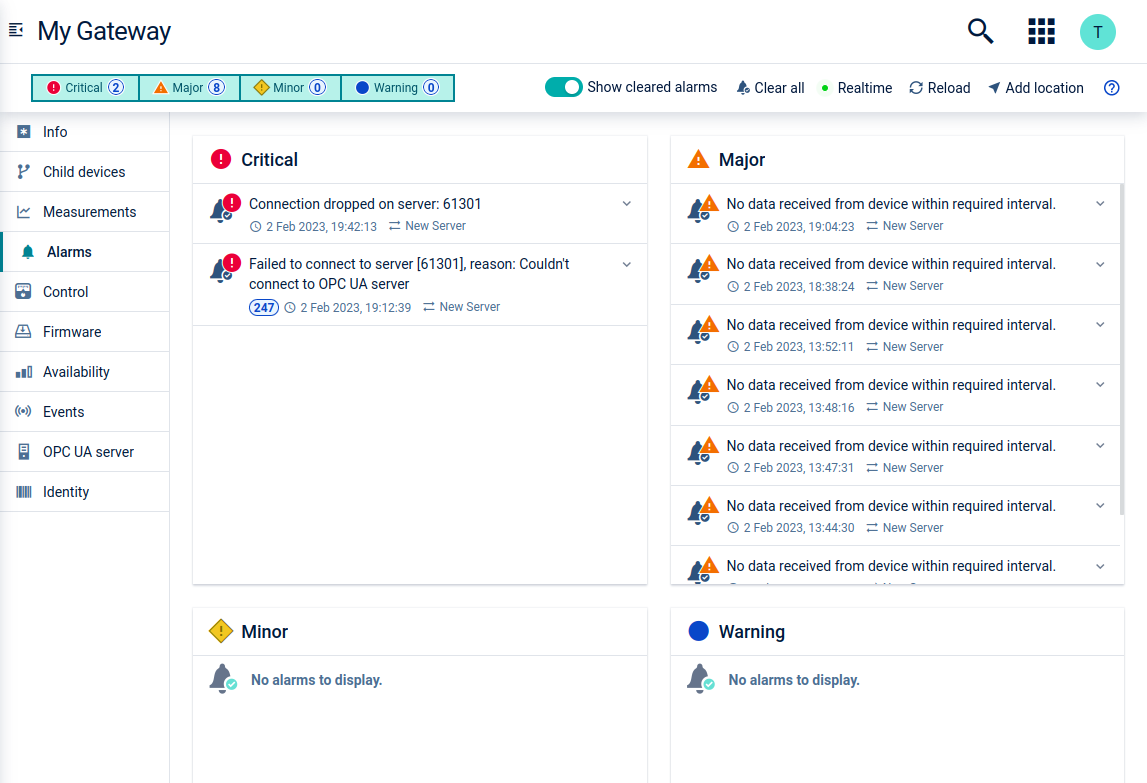
On the gateway device, the Alarms tab shows all alarms raised either on the gateway or on the servers.
There are three alarm types which can be raised:
Connection loss - If the gateway fails to connect to the OPC UA server a critical alarm is raised.
Gateway crash - If the gateway crashes or is abruptly shut down a major alarm is raised.
No data arrived within interval - If the status interval check value in the OPC UA server configuration is exceeded a major alarm is raised.
Monitoring alarm details
The following is the full list of monitoring alarms created by the gateway:
Text
Alarm type
Severity
Note
EventRepository is constantly growing! Possible memory overflow which will result in gateway crash!
c8y_ua_GatewayQueueGrowth_EventRepository
CRITICAL
AlarmRepository is constantly growing! Possible memory overflow which will result in gateway crash!
c8y_ua_GatewayQueueGrowth_AlarmRepository
CRITICAL
MeasurementRepository is constantly growing! Possible memory overflow which will result in gateway crash!
c8y_ua_GatewayQueueGrowth_MeasurementRepository
CRITICAL
Gateway crashed on last run! Please check the log files and memory dumps to see what caused this
c8y_ua_GatewayCrash
MAJOR
This alarm is also raised when the gateway process was not terminated gracefully
Failed to connect to server [{serverId}], reason: {reason}
c8y_ua_ServerConnectionFailed
CRITICAL
This alarm will be cleared by the gateway when the connection to the server has been established successfully
Connection dropped on server: {serverId}
c8y_ua_ConnectionDropped
CRITICAL
This alarm will be cleared by the gateway when the connection has been restored
Monitoring events
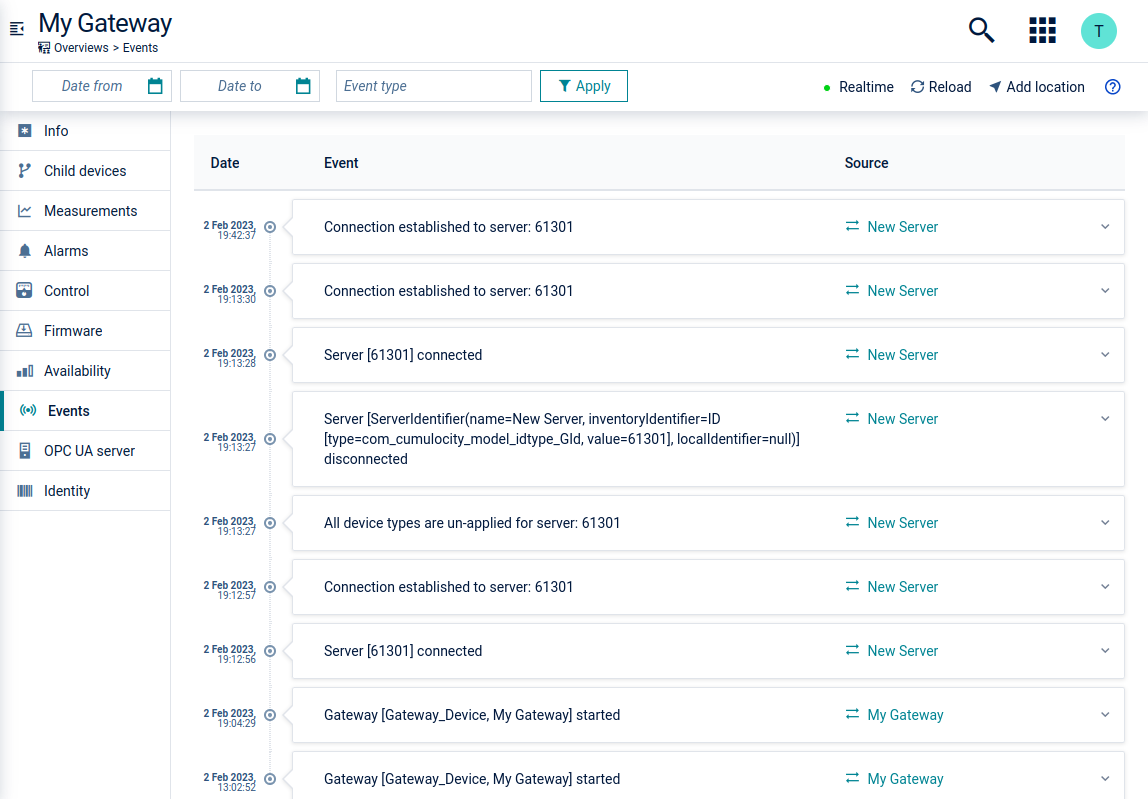
On the gateway device, the Events tab shows all events related to the gateway-server connection. Additionally, you can see when the gateway has started and when it ends.
Monitoring event details
The following is the full list of monitoring events created by the gateway:
Text
Event type
Event source
Description
Gateway [{gateway identifier}, {gateway name}] started
c8y_ua_GatewayStarted
The gateway managed object
This event is created when the gateway has been started and authenticated with the Cumulocity platform
Connection established to server: {server ID}
c8y_ua_ConnectionEstablished
The server managed object
This event is created when the server connection is established - either first time or a reconnection
Server {server ID} connected
c8y_ua_ServerConnected
The server managed object
This event is created when server is connected successfully by the Connection Manager. This event is not created if it is a reconnection. This event is normally followed by an event of type c8y_ua_ConnectionEstablished
Server disconnected: {server ID}
c8y_ua_ServerDisconnected
The server managed object
This event is created when the server is disconnected proactively by the Connection Manager
Device protocols
Adding a new device protocol
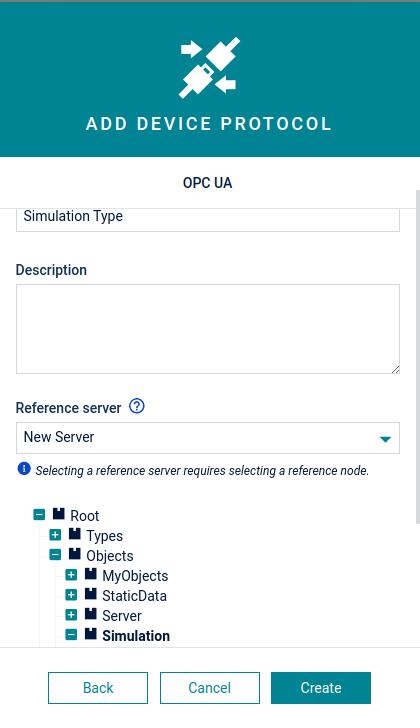
In the Device protocols page, click New device protocol in the top menu bar and select OPC UA as device protocol type.
In the resulting dialog box, enter a name and an optional description for the device protocol.
Optionally, a reference server can be selected. Selecting a reference server allows you to create device protocols based on the OPC UA model stored on an OPC UA server. This greatly simplifies the mapping process, as device protocols can be created based on OPC UA browse paths being actually present on the server.
Click Create.
Info
Selecting a reference server will require you to select a reference node.
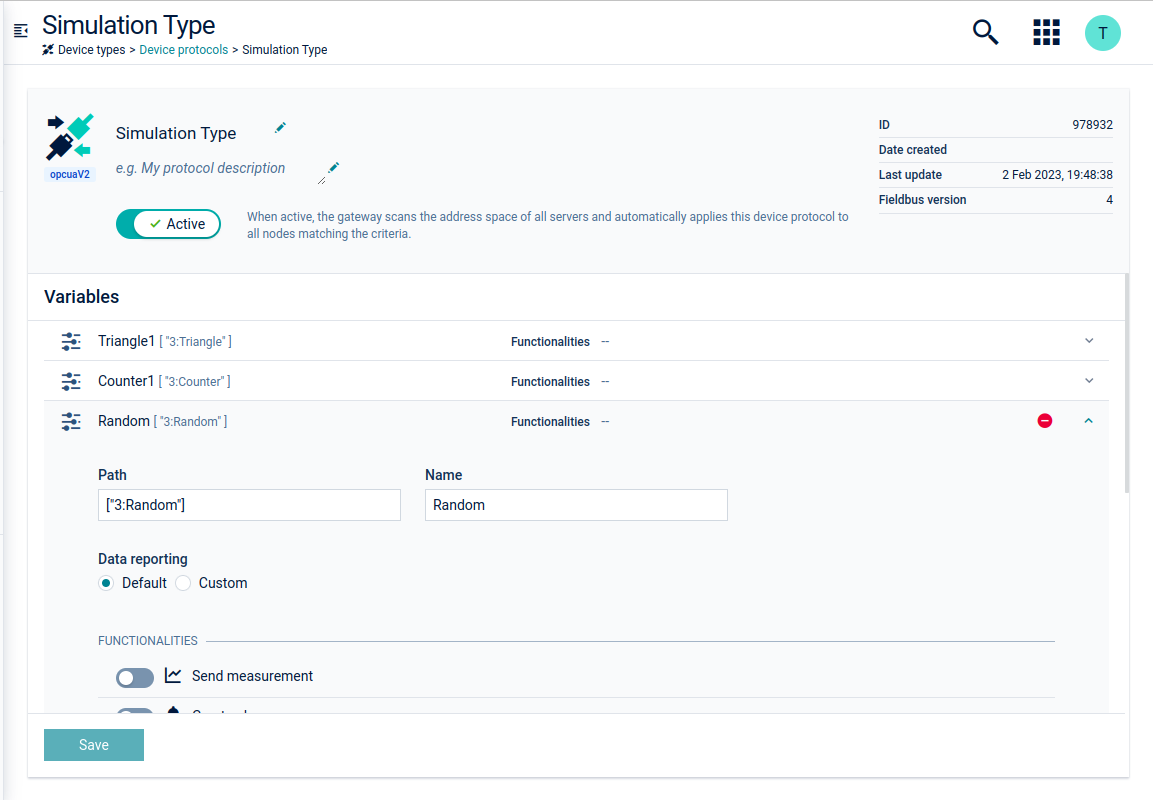
Once the device protocol is created, various configuration settings such as variables, data reporting and constraints can be applied. Initially, the device protocol will be inactive. When active, the gateway will scan the address space of all servers and will automatically apply the device protocol to all nodes which match the criteria. When the device protocol is configured, click Save.
Adding a new variable
Click Add variable under the Variables section.
Enter the path and the name of the variable. The path can be the exact browse path or a regular expression of the browse path. If it is a regular expression, it must be wrapped inside regex(…). For example: regex(2:Objects) or regex(urn:test.namespace:Objects\\d). Note that the namespace index and the namespace URI are not part of the regular expression itself but they will be quoted as literal strings.
When using a regular expression, keep in mind that it might be matching many nodes in the address space and resulting in unexpected incoming data. Our recommendation is to use it with great care and together with other exact browse paths in the same mapping if possible. For example, ["2:Objects", "regex(2:MyDevice\\d)", "..."]
Select either the default or the custom data reporting. The default option uses the data reporting mechanism used in the device protocol. The custom option will let you configure a data reporting mechanism only for the current variable.
Additionally, different functionalities such as sending measurements, creating alarms, sending events and custom actions for each variable can be selected.
Click Save to save your settings.
The gateway has a scheduling job and after the variables are saved, the gateway will check whether the variables exist under the subtree of the node. Afterwards, for each node a child device of the server is created. The child devices will contain data based on the configuration of the device protocol. The node child devices will also be listed in the All devices page.
Info
If no reference server was selected during the device protocol creation, the path should be given with a namespace URI representation. In the OPC UA server the index value can be taken from the namespace array. An example namespace URI representation for browse path “5:Counter1” would be: http://www.prosysopc.com/OPCUA/SimulationNodes:Counter1. A node ID equal to “ns=5;s=Simulation” will have the following namespace representation nsu=http://www.prosysopc.com/OPCUA/SimulationNodes;s=Simulation. In both examples the fifth element of the server’s namespace array has a value of http://www.prosysopc.com/OPCUA/SimulationNodes.
The functionalities that can be enabled are the following:
Send measurement
Turn on Send measurement to specify a measurement.
Specify the following parameters:
Enter the type of the measurement, for example, “c8y_AccelerationMeasurement”.
Series are any fragments in measurements that contain a “value” property, for example, “c8y_AccelerationMeasurement.acceleration”.
Specify the unit of the given measurement, for example, “m/s” for velocity.
All measurements which exceed the Java Long ranges for Long.Max_VALUE(9,223,372,036,854,775,807) or Long.MIN_VALUE(-9,223,372,036,854,775,807) are converted internal to double values with scientific notation (for example 9.223372036854778e+24) to ensure the storage in the database. This may result in a less precise rounded value.
Create alarm
Turn on Create alarm if you want to create an alarm out of the resource.
Specify the following parameters (all mandatory):
Severity - One of CRITICAL, MAJOR, MINOR, WARNING
Type
Text
Info
If the value of the mapped resource is “true” (in case of boolean), or a positive number (in case of integer/double), then the alarms are created in ACTIVE state.
The alarm de-duplication prevents the creation of multiple alarms with same the source and type, thereby only incrementing the count of the existing alarm. The alarms will be CLEARED as soon as the value is changed to “false”, or a number that is less than or equals to 0.
Send Event
Turn on Send event to send an event each time you receive a resource value.
Specify the following parameters:
Enter the type of the event, for example, “com_cumulocity_model_DoorSensorEvent”.
Enter the text which will be sent, for example, “Door sensor was triggered”. You can also get the resource value populated to the event text by defining the value placeholder:
Door sensor was triggered, event value: ${value}
The value will also be populated as a fragment of the created event, under a static fragment name as the following:
The node values under this static fragment that are numeric and exceed the Java long ranges for Long.Max_VALUE(9,223,372,036,854,775,807) or Long.MIN_VALUE(-9,223,372,036,854,775,807) are converted internally to double values with scientific notation (for example 9.223372036854778e+24) to ensure the storage in the database. This may result in a less precise rounded value. However, the node value that is populated for the value placeholder in the event text will have the actual value even if it exceeds the long range.
Info
The measurements, events and alarms are added to a queue by the gateway, and they are flushed at once to create the respective elements. If the server is deleted, but there are still some items to be flushed, then the request is failed with a response code 403.
Thereafter, the exception is handled by validating the existence of the source. If the source is missing then the elements will be removed from the queue.
Custom Actions
Custom actions are HTTP POST requests which the gateway will send to a defined custom URL. You can define custom headers and body template with the following placeholders available:
${value}: JSON-serialized value of specific node
${valueAsText}: Plain text representation of the node value, useful for embedding values directly in strings without JSON formatting
${receivedTimestampInMs}: Timestamp when the node value is received by the OPC UA device gateway in milliseconds
${serverId}: ID of OPC UA server
${nodeId}: ID of source node
${deviceId}: ID of source device
Below there is an example of a full device protocol that configures a custom action:
If MQTT Forwarding mode is enabled, the configured functionalities in device protocols behave differently:
Send measurement (MQTT Forwarding mode)
Measurements are sent to the MQTT topic te/<identifier>/m/<measurement-type> of thin-edge.io. As thin-edge.io only supports measurement values in measurements, the measurement units configured in the device protocol are ignored. Also, the standard fragments of the OPC-UA Gateway and additionally configured static fragments are not populated.
Create alarm (MQTT Forwarding mode)
Alarms are created by sending them to the te/<identifier>/a/<alarm-type> MQTT topic of thin-edge.io. Alarms are cleared by sending an empty message to the same topic. The logic to clear and deduplicate alarms is unchanged.
Send event (MQTT Forwarding mode)
Events are sent to the te/<identifier>/e/<event-type> MQTT topic of thin-edge.io.
Custom actions (MQTT Forwarding mode)
Custom actions in MQTT Forwarding mode use the same body template mechanism. The endpoint of the custom action should be a valid MQTT topic. Headers are ignored.
Merging measurements is only supported for cyclic reads but not for subscriptions. Variables coming in the same cyclic read (meaning they use the same data reporting in a device protocol) are sent as a single, multi-value measurement to the te/<identifier>/m/<measurement-type> of thin-edge.io. The configured type and series for the variable will be used as fragment and series in the measurement. If multiple variables are configured for the same type, they will be consolidated into a single fragment.
The measurement type of the measurement is c8y_OpcuaMeasurement unless gateway.mappings.mergedMeasurementType in the configuration has been set to a different type.
Merging events is only supported for cyclic reads but not for subscriptions. Variables coming in the same cyclic read (meaning they use the same data reporting in a device protocol) are sent as a single event with multiple fragments to the te/<identifier>/e/<event-type> of thin-edge.io. The configured type for the variable is used as the fragment name. While it is allowed to use the same event type for multiple variables in a device protocol, here this will result in variables overwriting each other and hence generally discouraged.
The event type of the event is c8y_OpcuaEvent unless gateway.mappings.mergedEventType in the configuration has been set to a different type.
Merging custom actions is only supported for cyclic reads but not for subscriptions. Variables coming in the same cyclic read (meaning they use the same data reporting in a device protocol) are sent as a single measurement. For each variable, the body template of the configured custom action is applied, and the results are sent as the string representation of a JSON array.
The expectation is that all custom actions use the same endpoint which is used as the MQTT topic to send the message to. If this is not the case, the endpoint from the first configured variable of the device protocol is used.
Monitoring events for device protocol application
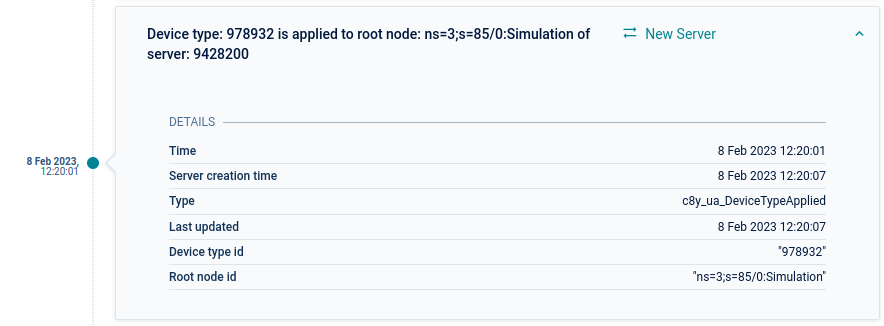
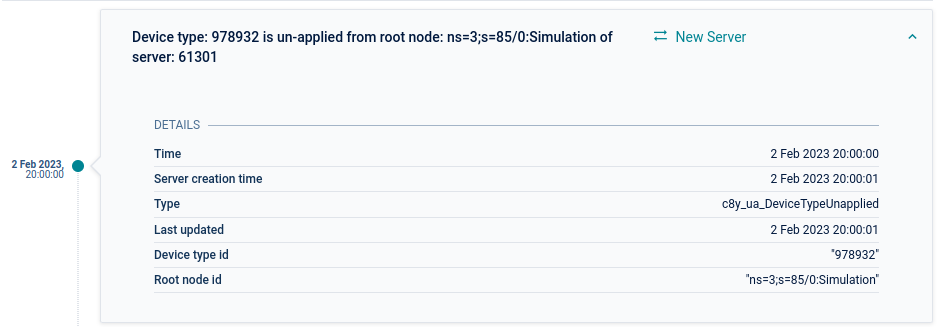
When a device protocol has been applied to or un-applied from a node, a monitoring event is generated as the following:
Device type has been applied
Event type - c8y_ua_DeviceTypeApplied
Event text - Device type: {device type ID} is applied to root node: {root node ID} of server: {server ID}
Event source - The server managed object
Device type has been un-applied
Event type - c8y_ua_DeviceTypeUnapplied
Event text -
If the device type has been un-applied from all nodes on the server: Device type: {device type ID} is un-applied from all nodes of server: {server ID}
If the device type has been un-applied from a specific node on the server: Device type: {device type ID} is un-applied from root node: {root node ID} of server: {server ID}
If all device types have been un-applied for the server: All device types are un-applied for server: {server ID}
Event source - The server managed object
Custom action retry mechanism on external server failure
If a custom action fails, a retry mechanism will be processed. This is configured in the application YAML file, and the queues will be stored in the event repository.
Queues are collections of failed custom actions, including the complete HTTP request of this custom action. Each entry of the queue is one failed custom action.
A background scheduler task will retry each queue up to the number of maxRetries. If maxRetries is reached the queue will be stored as a permanently failed queue in the event repository.
All elements of the queue are retried after the retry delay has passed. In effect, the count of the elements in the queue is decreases with each successful retried custom action.
This mechanism can be configured in the configuration section gateway.mappingExecution.http.failureHandling (see also Additional customization) using the following properties:
Setting
Default
Value format
Example
Description
enabled
true
boolean (true/false)
true
Activate or deactivate the fail over for custom actions
maxRetries
5
number
5
Number of retries for failed queues. If the maximum is reached the queue is saved as permanently failed and never tried again. Default is 5.
noRetryHttpCodes
empty
Comma-separated list of HTTP response codes
400,500
If retries are enabled (failureHandling.enabled=true), this setting allows retries to be skipped for certain HTTP response codes. In the given example requests that have received a 400 Bad Request or a 500 Internal server error response will not be retried.
retryDelay
120
number
120
Minimum delay in seconds between two retries of the same request.
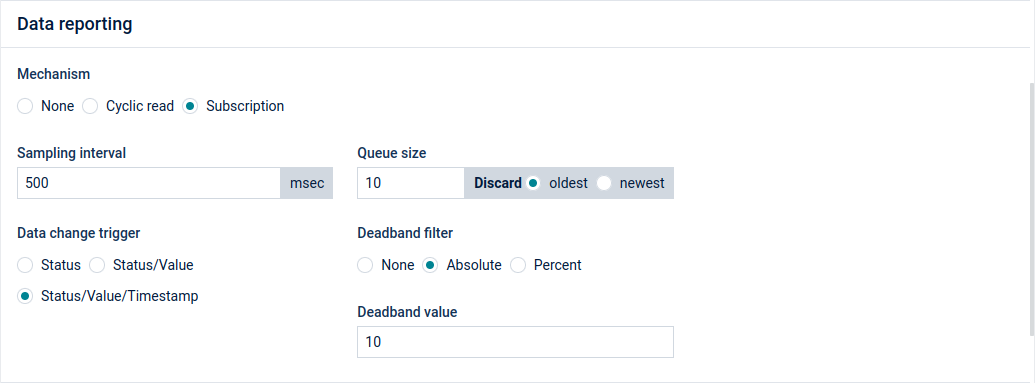
Data reporting
There are three data reporting mechanisms which can be applied to read all mapped browse paths:
None - The gateway will not read values automatically. The mappings will be applied only when manual read operations are performed on mapped nodes.
Cyclic Read - The gateway reads values from mapped nodes at specified interval rates in milliseconds. The minimum allowed rate is 50 milliseconds.
Subscription - The gateway retrieves values by using OPC UA’s own subscription mechanism.
Possible parameters:
Sampling interval (required) - Defines a time interval individually for each mapped node. This is the rate at which the server checks the data source for changes.
Queue size - The size of the queue where it holds the samples before reporting. If you wish to record samples at a faster rate than reporting interval, you will also need to reserve a longer queue size, to be able to keep all the samples in the server. The reporting interval is defined for the gateway and the value is configurable with the YAML file (see gateway.subscription.reportingRate).
Discard - Select whether to discard the oldest or the newest item if the samples are exceeding the queue size.
Data change trigger:
Status - Triggers notification if node’s status has changed.
Status/Value - Triggers notification if node’s status or value has changed.
Status/Value/Timestamp - Triggers notification if node’s status, value or timestamp has changed.
Deadband filter - Deadband filter makes notified data values to be filtered.
None - No filter will be applied. This option is selected by default.
Absolute - Contains the absolute change in a data value which causes the generation of a notification. This parameter applies only to variables with any number data type.
Percent - The value is defined as the percentage of the EU range. It applies only to analog items with a valid EU range property. This range is multiplied with the deadband value and is then compared to the actual value change in order to determine the need for a data change notification.
Important
Very low interval rates (for example 50 ms) for cyclic read and subscription types will result in huge amounts of data being created.
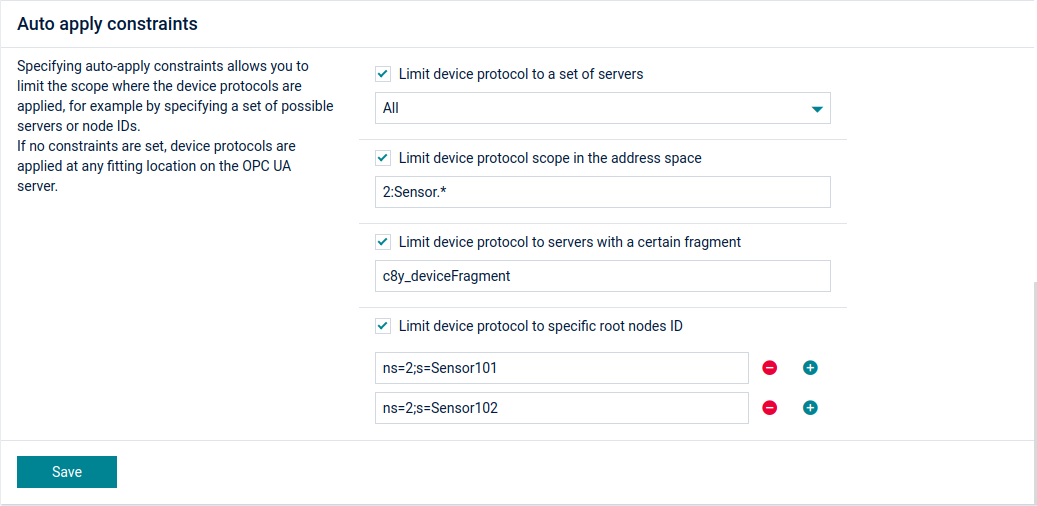
Applying constraints
Specifying auto-apply constraints allows you to limit the scope in which the device protocols are applied, for example by specifying a set of possible servers or node IDs. If no constraints are set, device protocols are applied at any fitting location on the OPC UA server.
The following constraints can be applied:
Limit device protocol to a set of servers - Limit the device protocols to a particular set of servers. This is useful if you want to have 1 device type for each OPC UA server. Simply click on the dropdown menu and select the desired servers.
Limit device protocol scope in the address space - Limit the scope to servers which have the entered path in their address space.
Limit device protocol to servers with a certain fragment - The device protocol will only be available to the servers which have the entered fragment.
Limit device protocol to specific root nodes ID - A list of “root” node IDs (from which your browsePath is defined) to which the device protocol should be applied. For example, if there is only one server and the device protocol is applied to two node IDs, two child devices of the server will be created. Note that if the device protocol variables do not exist in the root nodes, the device protocol will not be applied to the root node server.
Bad StatusCode handling
The gateway creates an alarm with status WARNING for the corresponding OPC UA server managed object when the received DataValue of a node has an abnormal status code (such as BAD or UNCERTAIN).
The alarm text in the Cumulocity platform will provide the necessary information such as the node ID, and the StatusCode information (code, value, and description).
The type of the alarm is constructed as c8y_ua_DataValueAbnormal_<nodeId>_<StatusCode>_<value>. This alarm due to the abnormal status code for a node is created once,
and the counter is not incremented in the next read operations. The alarm will be cleared by the OPC UA device gateway when the status code is back to normal in the following read operations.
The full list of abnormal alarms are stored in the server managed object under the c8y_ua_DataValueAbnormalAlarms fragment.
REST APIs
While the Cumulocity user interface for OPC UA provides an easy and visual way to configure and build your OPC UA solution, the OPC UA management microservice gives you the possibility to do it via RESTful web service.
The full API definitions can be found at /service/opcua-mgmt-service/swagger-ui.html.
Info
To access the OPC UA management service APIs, users must be assigned the required OPC UA service roles. You can assign these roles in the Administration application under Accounts > Users, Roles.
OPC UA server resources
Connect a new OPC UA server to the gateway
Endpoint
POST /service/opcua-mgmt-service/gateways/{gatewayId}/servers
Required role
OPC UA service - ADMIN
Description
Connect a new OPC UA server to the gateway or update the existing server with a new configuration.
String. Id of the OPC UA server in case of updating an existing server. When connecting a new server, this must not be provided.
name
string
yes
Server managed object name.
requiredInterval
integer
no
How frequently the server is expected to send data to the Cumulocity platform.
config
ServerConnectionConfig
yes
Connection configuration to the OPC UA server.
Data structure for ServerConnectionConfig:
Field
Type
Mandatory
Description
securityMode
string
yes
String enum, mandatory. Security mode for connection to OPC UA server. Possible values: NONE, BASIC128RSA15_SIGN, BASIC128RSA15_SIGN_ENCRYPT, BASIC256_SIGN, BASIC256_SIGN, BASIC256_SIGN_ENCRYPT, BASIC256SHA256_SIGN, BASIC256SHA256_SIGN_ENCRYPT.
serverUrl
string
yes
String, mandatory. OPC UA server URL.
autoScanAddressSpace
boolean
no
boolean. Whether the gateway should scan the address space automatically the first time it connects. Default is true.
rescanCron
string
no
String. Regular expression that defines how the address space rescanning should be scheduled. If this is not set, no auto-rescan will be triggered.
autoReconnect
boolean
no
Boolean. Whether the gateway should try to reconnect to the OPC UA server once the connection drop is detected. Default is true.
timeout
integer
no
Integer. Define the default communication timeout that is used for each synchronous service call. This value is set to each service request and the OPC UA gateway will wait for the response message for that long.
statusCheckInterval
integer
no
Integer. Define the status check interval, that is, how often the server status is read. Default is 3 (seconds).
maxResponseMessageSize
long
no
Integer. Define the maximum size, in bytes, for the body of any response message from the server. Default is 50.000.000 (50 MB). To make it unlimited, set this to 0.
targetConnectionState
string
no
String enum. Possibe values: enabled/disabled. Whether the connection the the target OPC UA server is enabled.
userIdentityMode
string
no
User identity. Possible values: Anonymous, UserName, Certificate, IssuedToken. Default is Anonymous.
userName
string
yes/no
Authentication username when user identity mode is UserName.
userPassword
string
no
Authentication password when user identity mode is UserName. Set the value in order to change the authentication password. If it is not set, the previously stored authentication password is preserved.
keystoreBinaryId
string
yes/no
If the user identity mode is Certificate, this is the binary object ID of the uploaded keystore.
keystorePass
string
no
If the user identity mode is Certificate, this is the password of the uploaded keystore.
certificatePass
string
no
If the user identity mode is Certificate, this is the password of the private key embedded in the keystore.
cyclicReadBulkSize
integer
no
For cyclic reads, this defines how many nodes can be read at once from the OPC UA server. This is applicable only for nodes resulting from the application with the same device type, matching root node and sharing the same reading parameters (rate and max age). Default is 1000 as defined in the application YAML file.
alarmSeverityMappings
map<string, string>
no
Alarm severity mappings from the OPC UA event severity to the Cumulocity alarm severity. This is applicable only for UAAlarmCreation. The key of this map is the lower bound value of the OPC UA event severity in the range. The value of this map is the expected severity of the alarm being created. For example, to map the OPC UA severity of the range 200-400 to a MINOR Cumulocity alarm, put this entry to the map: "200": "MINOR". If this is given, it will override the alarm severity mappings that are specified in the configuration YAML file. Note that, if the severity field for alarm mapping is provided, this alarmSeverityMappings will have no effect. Example: "201": "WARNING","401": "MINOR","601": "MAJOR","801": "CRITICAL"
Additionally, the Severity attribute should be added in the subscribed attributes (uaEventMappings -> attributes) in the device type in order to get the severity value of the OPC UA event.
alarmStatusMappings
map<string, string>
no
The status of an alarm in Cumulocity is defined by multiple conditions on OPC UA servers. For example, if the value of AcknowledgedState node is "Acked" and ConfirmedState is "Confirmed",
then the status of the alarm in Cumulocity is expected as ACKNOWLEDGED. They might vary with different servers as well. This field enables the user to configure the desired conditions (based on the information retrieved
from the event type nodes of the OPC UA server) while creating alarms via UA event mappings (this is not applicable for OPC UA data value alarm creation).
The example below shows that the keys of the map are the user-defined expressions and the value represents their corresponding desired status of the alarm. The variables that can be used in the expressions are the selected
attributes provided in the subscription definition of the device type. It can be written down either by using the relevant node names
(for example EnabledState.text == 'Enabled'), or the qualified browse name with namespace index (for example ['0:EnabledState'].text == 'Enabled').
If the variables are not provided in the subscribed attributes (uaEventMappings -> attributes), they are considered null.
If the alarm status is explicitly provided in the alarm mapping (uaEventMappings -> alarmCreation) of the device type, these alarm status mappings have no effect.
The Spring Expression Language(SpEL) has been used to parse these conditions, but only boolean expressions are allowed.
See the alarmStatusMappings example below the table.
Info
There are three alarm statuses in Cumulocity, namely ACTIVE, ACKNOWLEDGED, and CLEARED. If the user-defined conditions overlap and as a result more than one alarm status is realized during the alarm creation, then the status is selected based on priority. ACTIVE has the highest priority, followed by ACKNOWLEDGED and then CLEARED status with the least priority. If the expression could not be evaluated then the gateway logs a warning and the alarm status is assumed as ACTIVE. The alarm status is also assumed as ACTIVE, if the default status is not specified, and the parameters do not match any other defined condition.
subscribeModelChangeEvent
boolean
no
The subscription to model change event can be enabled/disabled using this property. Default value is "false" (disabled),
which means any change in the address space nodes of the OPC UA server in runtime will not automatically be updated in the address space of Cumulocity.
This property must be explicitly set to "true" to detect and persist the address space changes on runtime.
validateDiscoveredEndpoints
boolean
no
The protocol stack of the OPC UA gateway validates whether the endpoint it is connecting to is present in the list of endpoints returned by the OPC UA server. By default, this validation is enabled (true). However, a setting in the server configuration can override the global gateway configuration setting, which can be configured using gateway.connectivity.validateDiscoveredEndpoints.
We strongly recommend you to keep this validation enabled unless there are compelling reasons to disable it. Disabling the endpoint validation should only be done when absolutely necessary.
If events operated on the OPC UA server change their status, these changes can be reflected as internal alarms.
To catch these events and convert them into internal alarms, a UA event mapping with the alarmCreation definition in device protocol and alarmStatusMappings in server configuration are required.
For better performance an in-memory map is used to store the alarm type and the internal representation. These values are also stored on the filesystem and survive a possible crash or restart of the gateway. When the alarm is cleared then its entry is removed from the in-memory map.
Get all servers of a gateway device
Method
GET /service/opcua-mgmt-service/gateways/{gatewayId}/servers
Required role
OPC UA service - READ
Parameters
Field
Field type
Description
gatewayId
Path variable
Managed object ID of the gateway that should connect to the OPC UA server.
Delete the OPC UA server managed object. Once the DELETE request is received by the OPC UA management service, the specified server along with all its address space nodes created in the Cumulocity platform will be deleted.
The service will retain all the child devices of the server, and their corresponding data, which were created by the device protocols.
Parameters
Field
Field type
Description
serverId
Path variable
Managed object ID of the OPC UA server.
Response
200 OK
Address space resources
Get an address space node by ID
Endpoint
GET /service/opcua-mgmt-service/servers/{serverId}/address-spaces/get
Required role
OPC UA service - READ
Description
Get a node in the server address space specified by the given node ID. The node ID must be URL encoded.
Parameters
Parameter
Parameter Type
Description
serverId
Path variable
Integer, mandatory. OPC UA server managed object ID.
nodeId
Query param
Mandatory. Node ID of the node to get.
withUri
Query param
Boolean, default is false. Whether the result should use address space URI instead of index.
Example
Endpoint: GET /service/opcua-mgmt-service/servers/10/address-spaces/get?nodeId=i%3D84
GET /service/opcua-mgmt-service/servers/{serverId}/address-spaces/browse
Required role
OPC UA service - READ
Description
Browse a node from a base node following the given browse path. This basically searches for a node with relative browse path to the other node.
Parameters
Parameter
Parameter Type
Description
serverId
Path variable
Integer, mandatory. OPC UA server managed object ID.
nodeId
Query param
Node ID of the node to browse from. Default is root node (i=84).
browsePath
Query param
Mandatory. Browse path to browse from the give node. Browse path can be a single param or an array to represent a path from the given node to the target node. To specify the browsePath as an array, repeat the browsePath query. Example: .../browse?browsePath=L1&browsePath=L2.
withUri
Query param
Boolean, default is false. Whether the result should use address space URI instead of index.
Example
Endpoint: GET /service/opcua-mgmt-service/servers/10/address-spaces/browse?nodeId=i%3D84&browsePath=Objects
Whether the device type is enabled and should be applied to the connected servers or not. Default is false.
description
string
no
mappings
array<Mapping>
no
Define the mappings from OPC UA data into Cumulocity measurements, events and alarms.
uaMappings
array<UAMapping>
no
Define the mappings from OPC UA alarms and events into Cumulocity alarms and events.
referencedNamespaceTable
array
no
Reference namespace table if known. This is then used to convert the browse paths with namespace index into namespace URL. This is to make sure that the mappings are still the same even when the namespace index gets changed.
subscriptionType
SubscriptionType
no
Define the mechanism how to collect data from the OPC UA servers. There are two mechanisms that can be used: Cyclic read and subscription. This is not mandatory however if the device type is enabled and no subscription type is specified, the device will not be applied to any node.
processingMode
string
no
Define the Cumulocity processing mode for incoming data. Refer to HTTP usage > Process mode in the Cumulocity OpenAPI Specification for more information. Possible values: PERSISTENT, TRANSIENT, QUIESCENT, CEP. Default is PERSISTENT. Note that for the alarm mappings, only the PERSISTENT mode is supported regardless what is being given here.
overiddenSubscriptions
OverriddenSubscription
no
While the subscriptionType defines how data can be collected from the OPC UA server, this option allows you to override the mechanism for particular browse paths. For example you can have a subscription applied globally with a sampling rate of 1000ms but you can apply sampling rate of 500ms for particular browse paths.
applyConstraints
ApplyConstraint
no
Limit the places in the address space where the device type should be applied.
Data structure for Mapping
Field
Type
Mandatory
Description
name
string
no
browsePath
array
yes
The browse path. The path can be the exact browse path or a regular expression of the browse path. Each browse path in the list of mappings must be unique. Duplication is not allowed by the API. If it is a regular expression, it must be wrapped inside *regex(...)*. For example: `regex(2:Objects)` or `regex(urn:test.namespace:Objects\\d)`. Note that the namespace index and the namespace URI are not part of the regular expression itself but they will be quoted as literal strings. When using a regular expression, keep in mind that it might be matching many nodes in the address space and resulting in unexpected incoming data. Our recommendation is to use it with great care and together with other exact browse paths in the same mapping if possible. For example, `["2:Objects", "regex(2:MyDevice\\d)", "..."]`
measurementCreation
MeasurementCreation
no
Mappings for measurement.
eventCreation
EventCreation
no
Mappings for event.
alarmCreation
AlarmCreation
no
Mappings for alarm. If the value of the mapped resource is "true" (in case of boolean), or a positive number (in case of integer/double), then the alarms are created in ACTIVE state.
The alarm de-duplication prevents the creation of multiple alarms with the same source and type, thereby only incrementing the count of the existing alarm. The alarms will be CLEARED as soon as the value
is changed to "false", or a number that is less than or equals to 0.
customAction
HttpPostAction
no
Mappings for custom action. Only HTTP POST is supported so far.
Data structure for UAMapping
Field
Type
Mandatory
Description
browsePath
array
yes
The browse path.
eventTypeId
string
yes
The event type ID.
attributes
array
yes
Selectable event attributes. The nodeId of the event source
is added by default as the last selected attribute by
the OPC UA device gateway.
If alarmSeverityMappings are defined, also the Severity attribute must be added to the attributes.
If alarmStatusMappings are defined, also the variables used in the expression must be added to the attributes.
eventCreation
UAEventCreation
no
Mappings for event.
alarmCreation
UAAlarmCreation
no
Mappings for alarm.
Data structure for SubscriptionType
Field
Type
Mandatory
Description
type
string
yes
Subscription type. Possible values: Subscription, CyclicRead, None.
subscriptionParameters
SubscriptionParameter
yes/no
In case the subscription type is Subscription, this is required. This defines the OPC UA subscription configuration, such as sampling rate, queue size, and more.
cyclicReadParameters
CyclicReadParameter
yes/no
In case the subscription type is CyclicRead, this is required. This defines the cyclic read configuration, such as rate.
Data structure for OverriddenSubscription
Field
Type
Mandatory
Description
browsePath
array
yes
The browse path.
subscriptionType
SubscriptionType
yes
The custom subscription type that overrides the global one.
Data structure for ApplyConstraints
Field
Type
Mandatory
Description
matchesServerIds
array
no
Limit the servers by server managed object ID where the device type should be applied.
serverObjectHasFragment
string
no
Limit the servers by their custom fragment where the device type should be applied.
matchesNodeIds
array
no
Limit the nodes in the server address space where the device type should be applied.
browsePathMatchesRegex
string
no
Regular expression of the browse paths where the device type should be applied.
serverHasNodeWithValues
ServerNodeValues
no
Limit the servers which have particular nodes with given values.
Data structure for MeasurementCreation
Field
Type
Mandatory
Description
type
string
yes
Measurement type.
series
string
no
Measurement series. If this is omitted, it will be automatically generated by the gateway.
unit
string
yes
Measurement unit.
fragmentName
string
no
Measurement fragment name. If this is omitted, it will be automatically generated by the gateway.
staticFragments
array
no
Static fragments that should be populated to the measurement.
overriddenProcessingMode
string
no
Custom processing mode applied to the measurement to be created. Possible values: PERSISTENT, TRANSIENT, QUIESCENT, CEP. Default: PERSISTENT.
Data structure for EventCreation
Field
Type
Mandatory
Description
type
string
yes
Event type.
text
string
yes
Event text. This event text can be parameterized by the value of the subscribed node by using the placeholder: ${value}.
staticFragments
array
no
Static fragments that should be populated to the measurement.
overriddenProcessingMode
string
no
Custom processing mode applied to the event to be created. Possible values: PERSISTENT, TRANSIENT, QUIESCENT, CEP. Default: PERSISTENT.
Data structure for AlarmCreation
Field
Type
Mandatory
Description
type
string
yes
Alarm type.
text
string
yes
Alarm text.
severity
string
yes
Alarm severity. Possible values: WARNING, MINOR, MAJOR, CRITICAL.
staticFragments
array
no
Static fragments that should be populated to the alarm.
overriddenProcessingMode
string
no
Custom processing mode applied to the alarm to be created. Possible values: PERSISTENT.
Data structure for HttpPostAction
Field
Type
Mandatory
Description
endpoint
string
yes
Endpoint of the HTTP POST request.
headers
map<string, string>
no
HTTP headers of the HTTP request.
bodyTemplate
string
yes
Template of the request body. This can be parameterized by the following placeholders: ${value}: JSON-serialized data value of the OPC UA node. ${valueAsText}: Plain text representation of the node value, useful for embedding values directly in strings without JSON formatting. ${serverId}: OPC UA server managed object ID. ${nodeId}: ID of the node where the data is coming from. ${deviceId}: Managed object ID of the source managed object. ${receivedTimestampInMs}: Timestamp when the node value is received by the OPC UA device gateway in milliseconds.
retryEnabled
boolean
no
Whether a failed HTTP POST should be retried or not. This overrides the configuration in the gateway. If this is not provided, the configuration in the gateway will be taken.
noRetryHttpCodes
array<integer>
no
Array of HTTP POST status exceptions by which the failed HTTP POST should not be retried if enabled. Example: [400, 500]. Note that, if this is null or missing, the exceptions will be taken from the gateway configuration. If this is provided, even with an empty array, the configuration in the gateway is disregarded.
Data structure for UAEventCreation
This has exactly the same fields as EventCreation, however the text and type field can be parameterized with different parameters.
Field
Type
Mandatory
Description
text
string
yes
Event text. This event text can be parameterized by the data value of selected attributes. Put ${i} to parameterize it by the data value of attribute at index i. The index starts from 0, so put ${0} to take the first attribute, ${1} to select second attribute, and so on.
type
string
yes
Event type. This event type can be parameterized by the data value of selected attributes. Put ${i} to parameterize it by the data value of attribute at index i. The index starts from 0, so put ${0} to take the first attribute, ${1} to select second attribute, and so on.
Data structure for UAAlarmCreation
Field
Type
Mandatory
Description
text
string
yes
Alarm text. This alarm text can be parameterized by the data value of selected attributes. Put ${i} to parameterize it by the data value of attribute at index i. The index starts from 0, so put ${0} to take the first attribute, ${1} to select second attribute, and so on.
type
string
yes
Alarm type. This alarm type can be parameterized by the data value of selected attributes. Put ${i} to parameterize it by the data value of attribute at index i. The index starts from 0, so put ${0} to take the first attribute, ${1} to select second attribute, and so on.
severity
string
no
For UAAlarmCreation, the severity is optional. If this is not provided, the severity of the alarm will be mapped using the severity mappings specified in the default gateway configuration YAML file or in the server configuration.
status
string
no
Alarm status. The possible values are ACTIVE, ACKNOWLEDGED, CLEARED. If this is given, the alarmStatusMappings setting in ServerConnectionConfig is ignored.
Data structure for SubscriptionParameter
Field
Type
Mandatory
Description
samplingRate
integer
yes
Subscription sampling rate in milliseconds. Minimum allowed value is 50.
deadbandType
string
no
Possible values: Percent, Absolute.
deadbandValue
double
no
If the deadbandType is Percent, this ranges from 0 to 100. If the deadbandType is Absolute, this can be any double value.
queueSize
integer
no
Subscription queue size.
dataChangeTrigger
string
no
Default value is StatusValue. Possible values: Status, StatusValue, StatusValueTimestamp.
discardOldest
boolean
no
Default is true. When this is true and the reported data is exceeding the queue size, the oldest elements in the queue will be discarded. If this is false, the newer elements will be discarded.
ranges
string
no
When the subcribed node is array type, you can provide the data range you want to get. For example: "0:3" to get elements from index 0 to 3 from the array.
Data structure for CyclicParameter
Field
Type
Mandatory
Description
rate
integer
yes
Cyclic read rate in milliseconds. Minimum allowed value is 50.
Data structure for ServerNodeValues
Field
Type
Mandatory
Description
matchAll
array
no
A collection of conditions and they must all be matched.
matchOneOf
array
no
A collection of conditions and at least one of them must be matched.
Data structure for MatchingNode
Field
Type
Mandatory
Description
nodeId
string
yes
The node ID to match against.
valueMatchesOneOf
array
no
A collection of possible values of the node, in string representation. If this is omitted, the gateway only checks for the existence of the node by given node ID.
Get all OPC UA device types
Endpoint
GET /service/opcua-mgmt-service/device-types
Required role
OPC UA service - READ
Payload
The endpoint returns a JSON array of all OPC UA device types.
Get a single device type
Endpoint
GET /service/opcua-mgmt-service/device-types/{deviceTypeId}
Required role
OPC UA service - READ
Payload
A JSON representation of the device type with the given ID if it exists. If not, an error message is returned.
Response codes
200 OK
404 Not found
Updating a device type
Endpoint
PUT /service/opcua-mgmt-service/device-types/{deviceTypeId}
Required role
OPC UA service - ADMIN
Payload
The payload of updating a device type is exactly the same as the payload of creating it. Please note that partial update is not supported. All information must be provided in the update request and will completely override the existing device type.
Cumulocity operations is the interface that is used to tell the gateway what to do and how to do it. This section describes all operations that are currently supported by the gateway.
Scanning the address space
This operation triggers importing address space for a specific OPC-UA server. The server’s ID is passed as a device ID. The gateway will scan the entire address space of the server and persist a twinned representation of the address space in the Cumulocity platform.
POST /devicecontrol/operations/

{
    "deviceId": "<server-device-Id>",
    "c8y_ua_command_ScanAddressSpace": {
            "skipSync": false
    },
    "description": "Import address space from root node"
}
The twinned address space information is persisted in the Cumulocity inventory. It is internally used to support address space browsing and to define device protocols. Hence this operation is always triggered if a new server is added to the platform.
Once the device gateway knows the address space, it uses it to handle different logics, for example applying device protocols to nodes. So if you already have the address space scanned once and stored in Cumulocity, you might want the device gateway to learn one more time about server’s address space without synchronizing data into Cumulocity. To achieve that, provide "skipSync": true.
To do a partial address space scan, you can provide the nodeIds property which contains all node IDs to be scanned.
The subaddress space starting from those nodes as well as the ancestor nodes are persisted both in the Cumulocity inventory, unless skipSync is set to true, and in the local address space file of the gateway.
POST /devicecontrol/operations/

{
  "deviceId": "<server-device-Id>",
  "c8y_ua_command_ScanAddressSpace": {
    "nodeIds": [
      "ns=3;i=1005",
      "ns=3;i=1001",
      "ns=3;i=1004"
    ],
    "skipSync": false
  },
  "description": "Import address space from node(s) ns=3;i=1005,ns=3;i=1001,ns=3;i=1004. Triggered by custom operation"
}
Available arguments for c8y_ua_command_ScanAddressSpace:
Field
Type
Mandatory
Description
nodeId
string
no
Scan of the address space starts from this node. If not provided, full scan is done starting from the root node.
skipSync
boolean
no
If set to true, the address space nodes will not be synchronized to Cumulocity Inventory API. Default is false.
Info
We do not recommend you to directly work with the persisted address space data structures in the Cumulocity inventory, as these might change in the future. Use the endpoints of the management service to interact with the OPC UA address space.
Reading the value of a node/nodes
This operation reads the value attribute of specific node or list of nodes. The deviceId of the operation can be either the OPC UA Server device ID or the generated device ID (child device of OPC UA Server).
Array of IDs of the nodes to execute the operation
ranges
string
no
The index ranges of a subset of the multi-dimension array from the read attribute. The syntax is according to the OPC UA specification and will be transformed to NumericRange.
Example values to define the range for a 1D array is “0:1”, for a 2D array is “0:1,0:1”
maxAge
double
no
The maximum age used for the read. If the server does not have a value that is within the maximum age, it shall attempt to read a new value from the data source. If maxAge is set to 0, the server shall attempt to read a new value from the data source. Default is 0.
timestampsToReturn
string
no
Time stamps to return for the read attributes in the operation result. Available options are "Source", "Server", "Both", "Neither". Default is "Both".
expirationTime
dateTime
no
Expiration time to execute the operation. The operation is executed if it is before the given expiration time. Otherwise, the operation will fail. In this case, "Operation expired" is returned as failure reason.
The result of this operation will contain output in the following format:
This operation returns all attributes of specific node. The deviceId of the operation can be either the OPC UA Server device ID or the generated device ID (child device of OPC UA Server).
Available arguments for c8y_ua_command_ReadNodeAttributes:
Field
Type
Mandatory
Description
node
string
yes
ID of the node to execute the operation
expirationTime
dateTime
no
Expiration time to execute the operation. The operation is executed if it is before the given expiration time. Otherwise, the operation will fail. In this case, "Operation expired" is returned as failure reason.
This operation supports to read one or more attributes of one or more nodes. This includes support of the range parameter to read a single element or a range of elements when the attribute value is an array. The deviceId of the operation can be either the OPC UA Server device ID or the generated device ID (child device of OPC UA Server).
Available arguments for c8y_ua_command_ReadAttribute:
Field
Type
Mandatory
Description
nodes
string array
yes
Array of IDs of the nodes to execute the operation
attribute
string
yes
The ID of the attribute according to the OPC UA specification
ranges
string
no
The index ranges of a subset of the multi-dimension array from the read attribute. The syntax is according to the OPC UA specification and will be transformed to NumericRange.
Example values to define the range for a 1D array is “0:1”, for a 2D array is “0:1,0:1”
maxAge
double
no
The maximum age used for the read. If the server does not have a value that is within the maximum age, it shall attempt to read a new value from the data source. If maxAge is set to 0, the server shall attempt to read a new value from the data source. Default is 0.
timestampsToReturn
string
no
Time stamps to return for the read attributes in the operation result. Available options are "Source", "Server", "Both", "Neither". Default is "Both".
expirationTime
dateTime
no
Expiration time to execute the operation. The operation is executed if it is before the given expiration time. Otherwise, the operation will fail. In this case, "Operation expired" is returned as failure reason.
This operation reads many attributes from many nodes at single call. The deviceId of the operation can be either the OPC UA Server device ID or the generated device ID (child device of OPC UA Server).
Available arguments for c8y_ua_command_ReadComplex:
Field
Type
Mandatory
Description
nodeAttrs
map<string, map<string, string>>
yes
Map with ID of the node and inner map with ID of the attribute and the index range.
The index ranges defines a subset of the multi-dimension array from the read attribute.
The syntax is according to the OPC UA specification and will be transformed to NumericRange.
Example values to define the range for a 1D array is “0:1”, for a 2D array is “0:1,0:1”.
Empty string ("") can be given to not define any range.
maxAge
double
no
The maximum age used for the read. If the server does not have a value that is within the maximum age, it shall attempt to read a new value from the data source. If maxAge is set to 0, the server shall attempt to read a new value from the data source. Default is 0.
timestampsToReturn
string
no
Time stamps to return for the read attributes in the operation result. Available options are "Source", "Server", "Both", "Neither". Default is "Both".
expirationTime
dateTime
no
Expiration time to execute the operation. The operation is executed if it is before the given expiration time. Otherwise, the operation will fail. In this case, "Operation expired" is returned as failure reason.
Historic read
This operation reads history values and applies the mappings except of alarm mappings. The deviceId of the operation can be either the OPC UA Server device ID or the generated device ID (child device of OPC UA Server).
Available arguments for c8y_ua_command_HistoricReadOperation:
Field
Type
Mandatory
Description
nodeId
string
yes
ID of the node to execute the operation
dateFrom
dateTime
yes
The values are read starting from this time
dateTo
dateTime
yes
The values are read until this time
ranges
string
no
The index ranges of a subset of the multi-dimension array from the read attribute. The syntax is according to the OPC UA specification and will be transformed to NumericRange.
Example values to define the range for a 1D array is “0:1”, for a 2D array is “0:1,0:1”
batchSize
integer
no
Batch size for each history read call to the OPC UA server. Default is 200.
processMappings
boolean
no
If set to false then the read values will not be processed based on the device protocol mapping. Default is true. Note that any data created from historic data using a device protocol will carry the same processing mode as specified in the mapping.
tagType
string
no
Possible tagType values are "TAG" and "NO_TAG". "TAG" appends "_Historic" for both the mapping types and for the measurement mappings. Default is "TAG".
Historic data binary upload
This operation reads historic values and only saves those values to a file which can be retrieved using the binary API. The deviceId of the operation can be either the OPC UA Server device ID or the generated device ID (child device of OPC UA Server).
The binary file representations, which can be queried using binary API, are created with the type “c8y_ua_HistoricData” and an operationId with the value of the operation with which it has been generated.
Available arguments for c8y_ua_command_HistoricDataUploadOperation:
Field
Type
Mandatory
Description
nodeId
string
yes
ID of the node to execute the operation
dateFrom
dateTime
yes
The values are read starting from this time
dateTo
dateTime
yes
The values are read until this time
ranges
string
no
The index ranges of a subset of the multi-dimension array from the read attribute. The syntax is according to the OPC UA specification and will be transformed to NumericRange.
Example values to define the range for a 1D array is “0:1”, for a 2D array is “0:1,0:1”
batchSize
integer
no
Batch size for each history read call to the OPC UA server. Default is 100000.
chunkSize
integer
no
The maximum file size in Mb for the output binary file. For each batch, the files can be divided based on this limit.
compress
boolean
no
If set the false the output chunks are compressed. Default is false.
Read file
Prerequisites:
Open and Read methods for the file node must be implemented on server side, either as the children of the file node itself or as the children of the data type node
With this operation, a file can be downloaded from the OPC UA server at the given fileNodeId. The deviceId of the operation can be either the OPC UA Server device ID or the generated device ID (child device of OPC UA Server).
Available arguments for c8y_ua_command_ReadFileOperation:
Field
Type
Mandatory
Description
fileNodeId
string
yes
ID of the node to execute the operation
bufferSize
long
no
Maximum value can be 10 MB. The default size, if not set in the request, is 1MB. This will not limit the size of the file to be read. If the size is bigger, multiple read operations are triggered.
skipResetPosition
boolean
no
If set to true then the position to read the file is reset before reading the file. Default is false.
After the downloaded file has been read successfully (see Control tab of the device) it is available in Management > Files repository in the Administration application for download to local file system.
Alternatively, you can check the binary folder by using the binary API like this:
Now download is possible with the self link provided inside the managedObjects section of the JSON response.
For further information, refer to binaries API in the Cumulocity OpenAPI Specification.
Write value
This operation writes values to the node/nodes. The deviceId of the operation can be either the OPC UA Server device ID or the generated device ID (child device of OPC UA Server).
{
"deviceId": "<server-or-child-device-Id>",
"c8y_ua_command_WriteValue": {
"values": {
"ns=3;s=LocalizedText": {
"value": "This is a localized text" },
"ns=3;s=Double": {
"value": "3.14159" }
}
},
"description": "Write values to different nodes"}
Available arguments for c8y_ua_command_WriteValue:
Field
Type
Mandatory
Description
values
map<string, rangedValue>
yes
Map with ID of the node to execute the operation and RangedValue to set
expirationTime
dateTime
no
Expiration time to execute the operation. The operation is executed if it is before the given expiration time. Otherwise, the operation will fail. In this case, "Operation expired" is returned as failure reason.
Available arguments for type rangedValue (used as map value in c8y_ua_command_WriteValue.values):
Field
Type
Mandatory
Description
value
string
yes
Value to set to the node attribute
ranges
string
no
The index ranges of a subset of the multi-dimension array. The syntax for the ranges is according to the OPC UA specification and will be transformed to NumericRange.
Example values to define the range for a 1D array is “0:1”, for a 2D array is “0:1,0:1”
Write attribute
This operation is similar to the previous one, but instead of writing to the value attribute, this operation writes attributes’ values to any writable attributes. The following example writes two different attributes to two different nodes. The deviceId of the operation can be either the OPC UA Server device ID or the generated device ID (child device of OPC UA Server).
{
"deviceId": "<server-or-child-device-Id>",
"c8y_ua_command_WriteAttribute": {
"values": {
"ns=3;s=LocalizedText": {
"attribute": "13",
"value": "This is a localized text" },
"ns=3;s=Double": {
"attribute": "13",
"value": "3.14159" }
}
},
"description": "Write attributes' values to different attributes of different nodes"}
Available arguments for c8y_ua_command_WriteAttribute:
Field
Type
Mandatory
Description
values
map<string, attributeRangedValue>
yes
Map with ID of the node to execute the operation and AttributeRangedValue to set
expirationTime
dateTime
no
Expiration time to execute the operation. The operation is executed if it is before the given expiration time. Otherwise, the operation will fail. In this case, "Operation expired" is returned as failure reason.
Available arguments for type attributeRangedValue (used as map value in c8y_ua_command_WriteAttribute.values):
Field
Type
Mandatory
Description
attribute
string
yes
ID of the attribute according to the OPC UA specification
value
string
yes
Value to set to the node attribute
ranges
string
no
The index ranges of a subset of the multi-dimension array. The syntax for the ranges is according to the OPC UA specification and will be transformed to NumericRange.
This operation reads the description of a method node. The deviceId of the operation can be either the OPC UA Server device ID or the generated device ID (child device of OPC UA Server).
Available arguments for c8y_ua_command_GetMethodDescriptionOperation:
Field
Type
Mandatory
Description
nodeId
string
yes
ID of the node to execute the operation
The result describes a method, it’s parent object, input and output arguments.
{
    "nodeId": "ns=2;s=MyMethod",
    "name": "MyMethod",
    "parentNodeId": "ns=2;s=MyDevice",
    "parentName": "MyDevice",
    "inputArguments": [{
            "name": "Operation",
            "description": "The operation to perform on parameter: valid functions are sin, cos, tan, pow",
            "dataType": "String",
            "dataTypeId": "i=12"
        },
        {
            "name": "Parameter",
            "description": "The parameter for operation",
            "dataType": "Double",
            "dataTypeId": "i=11"
        }
    ],
    "outputArguments": [{
        "name": "Result",
        "description": "The result of 'operation(parameter)'",
        "dataType": "Double",
        "dataTypeId": "i=11"
    }]
}
Call method
This operation calls the method on the OPC UA server. It requires complete input arguments with an additional “value” fragment. The deviceId of the operation can be either the OPC UA Server device ID or the generated device ID (child device of OPC UA Server).
{
"deviceId": "<server-or-child-device-Id>",
"c8y_ua_command_CallMethodOperation": {
"request": {
"nodeId": "ns=2;s=MyMethod",
"arguments": [{
"name": "Operation",
"description": "The operation to perform on parameter: valid functions are sin, cos, tan, pow",
"dataType": "String",
"dataTypeId": "i=12",
"value": "pow" },
{
"name": "Parameter",
"description": "The parameter for operation",
"dataType": "Double",
"dataTypeId": "i=11",
"value": "5" }
]
}
},
"description": "call method"}
Available arguments for c8y_ua_command_CallMethodOperation:
Field
Type
Mandatory
Description
request
methodRequest
yes
Request to send to the OPC UA Server
expirationTime
dateTime
no
Expiration time to execute the operation. The operation is executed if it is before the given expiration time. Otherwise, the operation will fail. In this case, "Operation expired" is returned as failure reason.
Available arguments for type methodRequest (used in c8y_ua_command_CallMethodOperation.request):
Field
Type
Mandatory
Description
nodeId
string
yes
ID of the node to execute the operation
arguments
list<methodArgument>
no
List of arguments for the method request
objectNodeId
string
no
The NodeId of the Object or ObjectType that is the source of a HasComponent reference (or subtype of HasComponent reference) to the method
parseResponse
boolean
no
If set to true, the value is converted to JSON and the actual value is stored in the rawValue fragment in response. Default is true
Available arguments for type methodArgument (used in c8y_ua_command_CallMethodOperation.request.arguments):
Field
Type
Mandatory
Description
name
string
no
Name of the method argument
description
string
no
Description of the method argument
dataType
string
yes
Data type of the method argument
dataTypeId
string
yes
ID of the data type in OPC UA Server
value
string
yes
Value for the method argument
arrayDimension
string
no
Array dimension for the value to set if the value is an array
The result contains all output arguments with values set by the OPC UA server.
Power of 5 is 25:
{
    "statusCode": 0,
    "result": [{
        "name": "Result",
        "description": "The result of 'operation(parameter)'",
        "dataType": "Double",
        "dataTypeId": "i=11",
        "value": "25.0"
    }]
}
Testing a device type against a node on an OPC UA server
This operation allows for testing a device type against a specific node on an OPC UA server. The operation result provides diagnostic information if the device type could be applied:
Analyzing the set of nodes to which a device type can be applied (dry run)
As explained earlier, the Cumulocity OPC UA gateway performs an auto-discovery to determine the set of nodes that match a certain device protocol (“device type”). The following operation performs an auto-discovery for the given device protocol on the server, without actually applying it to any node (“dry run”):
{
"deviceId":"<server-device-Id>",
"c8y_ua_command_DryRunDeviceTypeMatching":{
"deviceTypeId":"<device-type-id>" },
"description":"Dry Run Device Type"}
Available arguments for c8y_ua_command_DryRunDeviceTypeMatching:
Field
Type
Mandatory
Description
deviceTypeId
string
yes
ID of the managed object containing the device protocol
The result of the operation contains the set of nodes that match the device protocol. In addition to that, the fragment matchednodes is added to the operation. It contains a JSON representation of the matched nodes.
Get the current application state of a device type
In order to know what is the current state of a device type application, use the following operation:
{
	"description": "Get device type application state",
	"deviceId": "{server-device-Id}",
	"c8y_ua_command_GetDeviceTypeApplicationState": {
		"deviceTypeId": "{device protocol ID}",
		"matchingRootNodes": ["{root node ID #1}", "{root node ID #2}"]
	}
}
Available arguments for c8y_ua_command_GetDeviceTypeApplicationState:
Field
Type
Mandatory
Description
deviceTypeId
string
yes
ID of the managed object containing the device protocol
matchingRootNodes
list<string>
no
List of ID of the root nodes to execute the operation. When it is not provided, the application state of all matching nodes will be returned.
The result will be populated into the operation result as a map of nodes telling whether the device type has been applied to that node or not.
Sample result when the device type has been applied to node #1 but not node #2:
{
"{root node ID #1}": true,
"{root node ID #2}": false}
Expiring operations
In certain cases it is desirable that the OPC UA gateway executes an operation only if it processes it before a given expiration time. Providing such an optional expiration time is supported for the following OPC UA operations:
Reading the value of a node/nodes
Reading all attributes of a node
Reading an attribute
Read complex
Write value
Write attribute
Call method
For all the given operations this expiry mechanism can be activated by supplying an expirationTime fragment inside the operation body.
The following example shows how to mark a read operation as expiring:
The operation above will only perform a read on the OPC UA server if processed by the gateway before the 8th of February, 2021 15:00. Otherwise, the operation will fail. In this case, Operation expired is returned as failure reason.
OPC UA events
Model change events
The model change events are created by the OPC UA server to notify about the changes in an address space node on runtime.
The gateway subscribes to the events of type BaseModelChangeEventType on connection to the servers. The subscription to this event can be enabled or disabled for each server
using the subscribeModelChangeEvent property during the server configuration. The changes for the events with type GeneralModelChangeEventType and SemanticChangeEventType, which are subtypes
of BaseModelChangeEventType, are handled and address space information is persisted in the Cumulocity inventory as well as in the local address space file of the gateway.
Troubleshooting
Permission denied error when running the gateway JAR file on a Linux OS
If the following error appears, add a baseDir property to the YAML file. For example:
db:
  baseDir: ${user.home}/.opcua/profile/data
Unknown host exception when running the gateway JAR
This error appears if the provided baseUrl property in the YAML file is incorrect.
Failed to load property source from location when running the gateway JAR
The following error appears if the indentation of the properties in the YAML file is incorrect.
java.net.BindException: Address already in use
If this error appears, a Java process is running in the background. To fix this issue, the process must be stopped/killed.
Changing the log level for troubleshooting
For troubleshooting purposes, we recommend you to enable the DEBUG log level for subpackages and root if required, and send the log file to product support.
For additional monitoring, the gateway component provides MBeans. These MBeans get exposed if the following configuration is set in the application.yaml file:
spring:
     jmx:
         enabled: true
Via jconsole the MBeans can be selected and the following attributes can be accessed:
It can be useful to get some statistics for custom actions in particular. These attributes can be retrieved from the CustomActionMBean:
Table of all called URLs seperated by HTTP return code and retry count.
The key entry of the table consists of:
{URL}_{HTTP Response Code}_{Retry Count}
If retry is enabled, the queue size of the retry queue can be monitored.
OPC UA major version upgrade notes
Upgrading from 1021 to 1022 gateway version
Major version 1022 of the OPC UA gateway introduces significant changes, including a new internal database and updated Java version.
To ensure a smooth transition, follow these steps:
Back up the existing data: Before proceeding with the upgrade, back up your existing gateway data folder to prevent any potential data loss.
Stop the existing gateway: Ensure that the current gateway instance is stopped before starting the upgrade process.
Download and run the data migration tool: A data migration tool is provided to facilitate the transition of your existing data to the new format.
Download the tool from https://resources.cumulocity.com/examples/opc-ua/migration-tool-for-1022-upgrade/ and follow the instructions in the README.md file to execute the migration.
Install Java 17: The new gateway version requires Java 17. Ensure that your system has Java 17 installed and configured properly.
Update the gateway JAR file: Replace the existing gateway JAR file with the new version.
Start the new gateway: After completing the above steps, start the new gateway instance.
Rollback procedure
If at any point you encounter issues, stop the new gateway and restore the backup of your data folder. Then, restart the previous version of the gateway using Java 11.