Skills are instructions for AI agents and step-by-step guides for people, for the tasks on this page. Give a skill's SKILL.md to your agent. The Skills page has all skills to download.
Assign a device as a child device of another device, create a new child device in one request, list the child devices, and remove the assignment again.
Install configuration text or a configuration file on a device, make the device report its current configuration, and read the configuration file that the device uploads.
Configure the SIM provider of the tenant, link a SIM card to a device, read its status, activate or deactivate it, disconnect it, read its audit and usage data, and send it an SMS.
Read the LAN, WAN, and DHCP configuration that a device reports, and check whether the platform monitors the device and whether the device is available and connected.
Read the managed object of a device, interpret its hardware, firmware, and availability fragments, update or remove editable fragments, and switch availability monitoring off or into maintenance mode.
Check that a device supports firmware updates, send it a firmware image or patch with a c8y_Firmware operation, follow the operation, and check the firmware that the device reports.
Create a measurement for a device, query the measurements of a device by time range, type, and series, read the values of its series, and delete the measurements of a device.
Check that a device supports shell commands, find a predefined command for its device type, send the command as a c8y_Command operation, and read the result that the device returns.
Check which software operation a device supports, create a c8y_SoftwareUpdate, c8y_SoftwareList, or c8y_Software operation to install a software package, and follow the operation until the device reports the result.
Read and set the current position of a device, record location updates, query the movement of the device in a time range, and delete a location update.
Read a device parameter from the device managed object, send a new value to the device with a c8y_ParameterUpdate operation, and check the value that the device reports back.
The device integrator library defines the data structures that are used in Cumulocity for device management activities like, for example, software management and configuration management. The data structures are expressed as fragments that can be used inside managed objects, operations and other resources. More information on the fragment concept can be found in Cumulocity domain model.
In the following section you will find descriptions of the most important functionalities of a device, its managed objects and all its corresponding fragments to them. We will explain the relationship between the Cumulocity UI, the device object managed in our databases and what is being communicated to and from the device itself.
If you are interested in details on exposing the Cumulocity´s functionalities through our REST API, see the Cumulocity OpenAPI Specification for further information.
Moreover, see SmartREST for more information on SmartREST and a complete list of all SmartREST templates mentioned throughout the following sections.
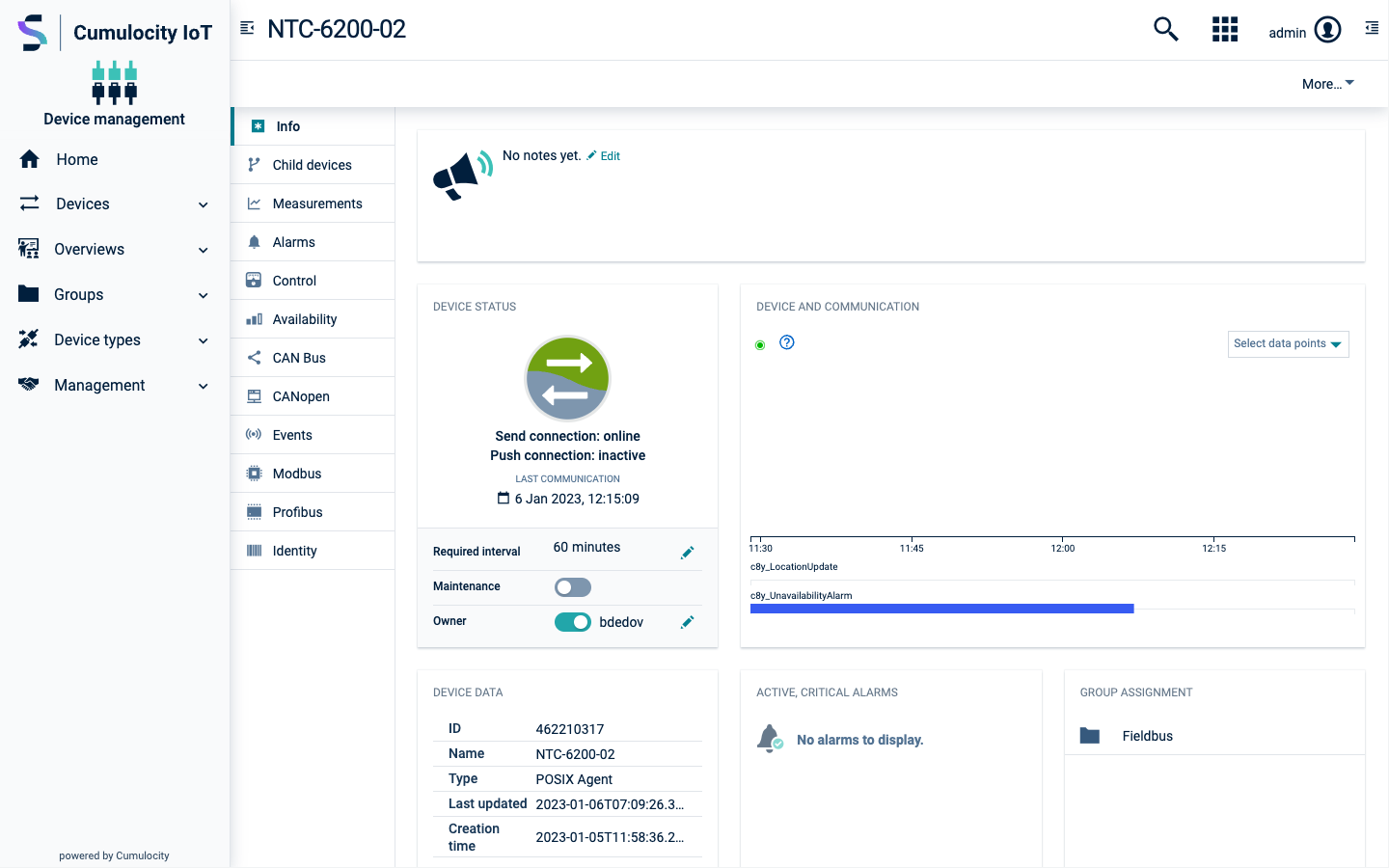
To start with device management, open the All devices tab in the Devices menu of the Device Management application. Click on a device in the list to open the device details of this particular device. You will see various tabs and particular information on each of them.
This list can be manipulated through the device fragments, that means, which tabs are shown depends on the capability the device supports. This is mainly operated by one fragment called c8y_SupportedOperations. Based on what is put in the array of this fragment, functionality such as tabs, buttons, and so on are enabled. For example if the c8y_SupportedOperations fragment contains c8y_Firmware, the firmware tab will be visible in the Device details page and the device can manage firmware objects.
c8y_SupportedOperations fragments
The following fragments can be added to the c8y_SupportedOperations fragment:
Permits the upload of configuration files as binaries
General concepts
Announcing capabilities
Devices may announce their supported capabilities using the c8y_SupportedOperations fragment in their own managed object. The fragment itself is an array of strings. It may contain built-in operations with their meaning or custom operations for specific use cases, which are described in the following sections.
Some capabilities also introduce their own c8y_Supported<...> fragments with a similar concept. These fragments allow devices to announce the ability to handle certain types of log files or configuration.
SmartREST example
The 114 static template is available for devices to announce their supported operations:
Devices are responsible for communicating their current status to Cumulocity. The status is usually communicated in the device’s own managed object. Cumulocity provide specific fragments for each capability. The device must update this data whenever it detects a change to its local state.
In practice this usually means that a device should publish its local state concerning all of its supported capabilities during startup, when requested to change its local state, and whenever any external change has been detected.
Operation handling
Operations are always created with status PENDING. Devices are responsible for moving operations along into different statuses in their lifecycle. Before beginning to process an operation the device agent must update its status to EXECUTING. After processing is completed the device must set the operation status to SUCCESSFUL or FAILED depending on the outcome.
SmartREST 2.0
Cumulocity provides the static templates 501, 502, and 503 to manipulate the operation status. These templates take the operation type as input parameter and always update the oldest operation in the preceding status. We recommend you to let all operations be handled sequentially in the order they arrive at the device.
Devices can find their operation IDs by querying the Device Control API, by subscribing to the operation JSON topic, or by using a custom response template which includes the IDs, that is, template 504, 505, or 506, which enable setting the status of operations with a known ID.
Error handling during operation processing
If any error occurs during the processing of an operation the device must set the operation status to FAILED and provide a failure reason as descriptive as possible. This includes any unexpected or expected error conditions that prevent the operation to be fully completed and as expected. Even if only one step in an operation with multiple distinct steps fails, the entire operation must be considered as FAILED.
It is up to the device and its use case whether it should roll back any local state changes that happened before the error occurred. If any change of state remains after an operation failed the device must communicate this changed state with Cumulocity.
Handling of unknown operations
Future versions of Cumulocity may include new operation types. To ensure compatibility, devices should safely ignore any operations they do not recognize.
When a device receives an unknown operation code, it should not respond or take any action. The operation will remain in a pending state, which is normal and does not indicate a problem.
Recovering after agent crash
After an unexpected restart a device must cleanly recover its status. This includes all status parameters communicated with the platform and all ongoing operations. Recovering the status can be done by updating all values in the cloud with the current values on the device. Recovering ongoing operations is more difficult. Devices are expected to keep track of all operations they moved to status EXECUTING. Typically devices keep information of longer-running operations in a persistent storage so that they can be resumed. In unexpected shutdown or crash scenarios this may not always be possible. In this case the device may cancel all ongoing operations to reset its own status.
GET /devicecontrol/operations?deviceId=<deviceId>&status=EXECUTING
Alternatively the static template 507 may be used. The template changes the status from EXECUTING to FAILED for all operations of the given type or for all types.
Idempotent cases
In cases where a device receives an operation that requests a state that is already present, it is up to the device how the operation should be handled. This may for example be the case when a device is requested to install a software package that is already present in the requested version. Typically there are three different ways of handling such cases in device agents: skip, execute, or fail. In case of the mentioned software package that is already installed the following options could be selected:
Consider the package as already installed and skip its installation because the requested state is already present
Execute the operation as normal including re-installing the package
Fail the operation because the requested state may indicate that the command was created under false preconditions
The ideal option depends on the use case and the concrete operation. Regardless of which option is selected the device must ensure that its local state and the one communicated to Cumulocity remains consistent.
Alarms
The Alarm tab is always shown for all devices. Its content is filled by alarm statuses reported by the device and other sources like analytics or smart rules. Devices raise alarms in Cumulocity as they occur. Once the alarm status was resolved the device must also update the status of its created alarm to CLEARED.
Raising alarms
A device may raise an alarm at any time. Typically alarms are used to communicate problem statuses in the devices environment.
POST /alarm/alarms
{
"source": {
"id": "4801" },
"type": "c8y_TemperatureAlarm",
"text": "CPU temperature too high",
"severity": "MAJOR",
"time": "2021-10-07T12:00:00.000Z"}
Field
Data type
Mandatory
Details
source
object
Yes
The ID of the device
type
string
Yes
Type of the alarm
text
string
Yes
Alarm text, describing the alarm status
severity
string
Yes
Alarm severity
time
string
Yes
Time of alarm occurrence
In addition to the required parameters above, the device may also include custom fragments with more details about the alarm status into the alarm.
SmartREST example
Cumulocity provides several static SmartREST templates for basic alarm management for device. They can be found with message IDs between 301 and 304 for different severities:
302,c8y_TemperatureAlarm,"CPU temperature too high"
Clearing alarms
When a device detects that the local alarm status was resolved it must clear the alarm. This is done by updating the alarm status to CLEARED.
PUT /alarm/alarms/<alarmId>
{
"status": "CLEARED"}
Field
Data type
Mandatory
Details
status
string
Yes
The new alarm status
SmartREST example
The 306 static template is provided to clear an active alarm of a specified type:
306,c8y_TemperatureAlarm
Critical alarms
When a device raises an alarm with the severity CRITICAL, the device is considered unavailable for the duration this alarm stays active. The aggregated availability overview in the Service monitoring tab will reflect this time as offline.
Devices should use the severity “CRITICAL alarm” only for alarm statuses that impact the device’s ability to fulfill its use case.
Child devices
The Child Devices tab shows a list of all child devices. It will be available only if the device has any child devices assigned to it.
We recommend to include the c8y_IsDevice fragment in all child devices. Accordingly, all aspects of devices are also applicable to child devices, for example, querying and filtering of child devices. Moreover, child devices are also shown in the device lists (such as the All devices list, and in groups and during the creation of bulk operations).
Assign child device to parent device
In order to link a device the parent device must post to its inventory API the following request containing the ID of the child device.
POST /inventory/managedObjects/<deviceId>/childDevices
Content-Type: application/vnd.com.nsn.cumulocity.managedobject+json
{
   "name": "New child object",
   "c8y_IsDevice": { }
}
Field
DataType
Mandatory
Details
managedObject.id
string
Yes
ID of the child device to link
SmartREST example
To add a child device to an existing device you must connect the connected device and call the child create template:
101,uniqueChildId,myChildDevice,myChildType
Operating a gateway for child devices
Using the agent marker fragment com_cumulocity_model_Agent on the parent device but not on child devices effectively declares the device as a connected gateway for its children. The children are not directly connected to Cumulocity but send and receive data through the device and its integration.
In this case operations for the child devices are delivered to the connected parent device. The parent device then must determine the addressed child device based on the included device ID or other information. Then the command must be forwarded to the correct child.
The built-in static SmartREST response templates of Cumulocity always include a device identifier as first parameter to determine the targeted child device. Here is an example of the 510 static response template for the c8y_Restart operation with the device identifier highlighted.
510,DeviceSerial
Custom response templates also contain the targeted device’s external ID as first parameter. We recommend you to implement a similar mechanism there as well.
Configuration
The Configuration tab allows three different formats for device configuration:
Text-based configuration
Legacy file-based configuration
Typed file-based configuration
They all follow a similar concept where the device may upload its current configuration to the platform and users may install a new configuration on the device.
This tab appears for devices when they announce support for any of the available formats.
Text-based configuration
The most basic form of configuration is a simple text-based configuration. Here the configuration is stored and transferred directly as string. We recommend you to use this form for small human readable configuration files only, for example, for microcontroller-based devices.
The current configuration state of the device is communicated with the c8y_Configuration fragment in the device’s own managed object. It contains the complete configuration including all control characters as a string. Special care must be taken that encoding is performed properly. Cumulocity supports UTF-8 characters, additionally escaping according to the JSON specification for JSON payloads, or the SmartREST specification for SmartREST payloads may be required.
We recommend you to upload the current configuration only on demand to save transfer data volume and device resources. There are specific operations designed to trigger a device to upload its current configuration to the platform documented below.
Complete configuration text to be applied by the device
Upload current text configuration
For devices that include c8y_SendConfiguration in their c8y_SupportedOperations the Configuration tab offers a button to trigger a configuration upload from the device to Cumulocity. When the button is clicked a c8y_SendConfiguration is created.
{
   "c8y_SendConfiguration": {}
}
Name
Type
Mandatory
Description
c8y_SendConfiguration
object
Yes
Send configuration marker object designating the operation as a command to trigger the device to upload its configuration
The device is expected to perform the following actions:
Set operation status to EXECUTING
Upload the current configuration to its own managed object using the c8y_Configuration fragment
Set operation status to SUCCESSFUL
SmartREST example
There is no built-in static response template available for the c8y_SendConfiguration operation. Devices must create a custom template to implement this capability. Here is an example how such a template and its use could work.
Receive the c8y_SendConfiguration operation using the custom template created above 100,DeviceSerial,4801
Set operation status to EXECUTING
501,c8y_SendConfiguration
Upload the current configuration state using the 113 static template
113,"c8y.url.http=https://management.cumulocity.com\nc8y.url.mqtt=mqtt.cumulocity.com\n"
Set operation status to SUCCESSFUL
503,c8y_SendConfiguration
Install text configuration
Devices that support installing configuration can communicate this by adding c8y_Configuration to their c8y_SupportedOperations. Then the Configuration tab will offer a button to send a user configured configuration to the device. This action consequently creates a c8y_Configuration operation with the same fragment signature as found in the device’s managed object.
The device is expected to perform the following actions:
Set operation status to EXECUTING
Install and apply configuration as included in the nested config property with the c8y_Configuration fragment
Update the c8y_Configuration fragment in the device’s managed object
Set operation status to SUCCESSFUL
SmartREST example
The 513 static response template is available to receive c8y_Configuration operations:
Set operation status to EXECUTING 501,c8y_Configuration
Install and apply configuration as included
Update the c8y_Configuration fragment 113,"c8y.url.http=https://management.cumulocity.com\nc8y.url.mqtt=mqtt.cumulocity.com\n"
Set operation status to SUCCESSFUL 503,c8y_Configuration
Legacy file-based configuration
Devices that want to manage configuration as files can achieve a basic form using legacy file-based configuration. For new device integrations we recommend you to implement typed file-based configuration instead because it is more versatile.
This approach stores and transfers configuration as binary files.
Info
This mechanism only works with the internal Cumulocity repository. Be aware that configurations with external URLs will not be supported if a device only supports legacy configuration. The ID which is stored in the device managed object (an example can be seen below) always refers to an internal binary saved in the inventory.
Upload current legacy configuration
Devices may signal their support for uploading their current configuration to Cumulocity by adding c8y_UploadConfigFile to their c8y_SupportedOperations. This enables a Get snapshot from device button in the Configuration tab. Clicking it generates a c8y_UploadConfigFile operation for the device.
{
   "c8y_UploadConfigFile": {}
}
Name
Type
Mandatory
Description
c8y_ UploadConfigFile
object
Yes
Upload configuration file marker object designating the operation as a command to trigger the device to upload its configuration file
When uploading its configuration, the device must first upload the configuration file into Cumulocity inventory binaries, and then create a configuration repository entry as a managed object of type c8y_ConfigurationDump in the inventory. This object must then contain a link to the just uploaded file. We recommend you to create this entry with an easily recognizable name and description that allows users to find the desired configuration in the repository.
POST /inventory/managedObjects
{
"name": "myDevice configuration",
"description": "Uploaded by myDevice on 2021-09-15T12:00:00+0200",
"url": "https://demos.cumulocity.com/inventory/binaries/154702",
"type": "c8y_ConfigurationDump"}
Name
Type
Mandatory
Description
name
string
Yes
Name of the configuration
description
string
No
Description of the configuration
url
string
Yes
URL where the configuration file was uploaded to
type
string
Yes
Type of the configuration repository entry object; must always be “c8y_ConfigurationDump”
The device is expected to perform the following actions:
Set operation status to EXECUTING
Upload the configuration file into Cumulocity inventory binaries
Create a configuration repository entry
Set the operation status to SUCCESSFUL
SmartREST example
The 520 static response template is available for this functionality:
Set operation status to EXECUTING 501,c8y_UploadConfigFile
Upload configuration to inventory binaries API using REST
Create configuration repository entry in inventory using REST
Set operation status to SUCCESSFUL 503,c8y_UploadConfigFile
Install legacy configuration
Devices that are capable of installing configuration remotely can announce this by adding c8y_DownloadConfigFile to their c8y_SupportedOperations. Then the Configuration tab offers a Send configuration to device button. When clicked, a c8y_DownloadConfigFile operation is created for the device.
URL where the configuration file should be obtained from
c8y_ConfigurationDump
object
Yes
Configuration dump reference object containing the ID of the configuration repository entry object
After downloading the configuration from the specified URL and installing it, the device must reference its currently installed configuration in its own managed object. This is done by transferring the nested c8y_ConfigurationDump fragment entirely into the device’s own managed object.
PUT /inventory/managedObjects/<deviceId>
{
   "c8y_ConfigurationDump": {
       "id": "9200"
   }
}
Name
Type
Mandatory
Description
id
string
Yes
ID of the referenced configuration object
The device is expected to perform the following actions:
Set operation status to EXECUTING
Download the configuration file from the specified URL
Install the configuration file
Update the currently installed configuration dump in the device’s managed object
Set the operation status to SUCCESSFUL
SmartREST example
The 521 static response template is available for this functionality:
Set operation status to EXECUTING 501,c8y_DownloadConfigFile
Download configuration from the URL specified
Install the configuration file
Set operation status to SUCCESSFUL and set the currently installed c8y_ConfigurationDump fragment implicitly 503,c8y_DownloadConfigFile
Typed file-based configuration
The most versatile way of managing device configuration is typed file-based configuration. Here a device can manage multiple configuration files at the same time. Typed file configuration is activated for a device by adding the c8y_SupportedConfiguration fragment to the device’s own managed object.
Array of strings of the supported configuration for this device
Cumulocity does not validate or further process configuration types. From a platform perspective they are simple strings. Associating these type strings to configuration files is responsibility of the device agent.
SmartREST example
The c8y_SupportedConfiguration fragment can be uploaded using the static template 119:
119,agent_conf,ssh_conf
Upload current configuration file
Similarly to legacy configuration, uploading typed configuration is announced by adding the c8y_UploadConfigFile to the c8y_SupportedOperations. In this case clickinging the button creates a very similar c8y_UploadConfigFile operation with the targeted configuration type as additional parameter.
Then the device must create an event with the type equal to the configuration type. Cumulocity uses events here instead of the inventory like in legacy file-based config because events are automatically associated to the device and old events (and their binary attachments) included can be automatically cleaned up using retention rules.
In order to attach the configuration file to the just uploaded event, the Event binaries API should be used. The file is attached using a multipart/form-data request.
Set operation status to EXECUTING 501,c8y_UploadConfigFile
Create a config type event using REST API
Attach the targeted config file to the event using REST API
Set operation status to SUCCESSFUL 503,c8y_UploadConfigFile
Install configuration file
Installing typed configuration also works very similarly to the legacy configuration. Adding the c8y_DownloadConfigFile to the device’s c8y_SupportedOperations controls the availability of the Send configuration to device button. When it is clicked a c8y_DownloadConfigFile operation with the configuration type included is created.
URL where the configuration file should be obtained from
When the device has downloaded and installed the configuration it must update the currently installed configuration of this specific type in its own managed object. This is done by adding the c8y_Configuration_<config type> fragment to the device’s own managed object.
Fragment name with prefix "c8y_Configuration_" followed by the configuration type containing details of the currently installed configuration of that particular type
name
string
Yes
Optional name of the installed configuration file
time
string
Yes
ISO datetime indicating when the configuration was applied
type
string
Yes
Type of the configuration
url
string
Yes
URL where the configuration was obtained from
The device is expected to perform the following actions:
Set operation status to EXECUTING
Download configuration file from the included URL
Install the configuration file
Update the device’s currently installed configuration with the typed configuration fragment in the device’s own managed object
Set the operation status to SUCCESSFUL
SmartREST example
The 524 static SmartREST response template is available for typed c8y_DownloadConfigFile operations, and the 120 static template is prepared for uploading the current configuration:
Set operation status to EXECUTING 501,c8y_DownloadConfigFile
Download configuration from the included URL
Install the configuration as the targeted configuration type
Set the currently installed configuration 120,agent_conf,https://demos.cumulocity.com/inventory/binaries/156719,agent_conf.txt,2021-09-15T15:47:13.721Z
Set operation status to SUCCESSFUL 503,c8y_DownloadConfigFile
Connectivity
The Connectivity tab integrates with a 3rd party SIM management platform to provide SIM management functionality within the Cumulocity Device Management application. The tab appears for a device when all of the following criteria are met:
Connectivity microservice is subscribed and configured
The device managed object contains the c8y_Mobile fragment with the MSISDN or ICCID property set
The SIM referenced by the device is managed by the SIM management provider configured for the tenant
Depending on the configured connectivity provider either MSISDN or ICCID may be used to identify the SIM present in the device. We recommend you to always include both into the c8y_Mobile fragment. There are many more mobile connection related properties that may also be attached to the c8y_Mobile fragment, but only MSISDN or ICCID are relevant for connectivity management.
SmartREST example
The 111 static template is provided for devices to communicate their mobile information:
111,1234567890,8930000000000000459,54353
Device availability
The Device availability tab shows the device’s availability and connection status. To achieve this the device must communicate its required interval using the c8y_RequiredAvailability fragment in the device’s own managed object. This action activates availability and connection monitoring for the device.
Expected response interval of the device in minutes. If it is <= 0 the device is considered in maintenance mode.
Usually devices should set their required interval only once during its first connection to the platform with a default value. Later changes can be left to platform users.
SmartREST example
The static template 117 is provided to set the required availability for SmartREST connected devices. This template can be sent in a fire-and-forget approach during device startup because it doesn’t override already existing required availability configuration:
117,15
Availability monitoring
The response interval set in the c8y_RequiredAvailability fragment is used as interval in which the platform expects to receive data from the device. If no data is received in this interval the device will be marked as offline and an alarm of type c8y_UnavailabilityAlarm will be raised automatically. This alarm will also be cleared automatically when the device sends data again. No further action from the device is necessary.
The availability information computed by Cumulocity is stored in the fragments c8y_Availability and c8y_Connection of the device.
The date and time when the device sent the last message to Cumulocity.
status
String
The current status, one of AVAILABLE, UNAVAILABLE, MAINTENANCE.
The following requests are considered a device’s heartbeat and will mark the device as available and update the last message timestamp of a device,as long as the X-Cumulocity-Application-Key header is not set:
Creation of an event, measurement or alarm (for given device as source)
Updates to the device itself (with a given ID), in the form of empty PUT requests or requests with an ID only, that is {} or {"id": ... }
Info
Keep in mind that after updating the last message it may take some minutes until the new status has been saved in a database.
Connection monitoring
Cumulocity also provides connection monitoring for devices. When the device establishes a connection where it is able to receive operations the platform considers this device as connected. This applies to HTTP longpolling connection or a MQTT session equally.
A monitored device has one of the following statuses for c8y_Connection:
Status (string)
Description
CONNECTED
A device push connection is established.
DISCONNECTED
responseInterval is larger than 0 and the device is neither AVAILABLE nor CONNECTED.
MAINTENANCE
responseInterval is smaller or equal to 0; the device is under maintenance.
Info
If a device is not connected via device push, but a message was sent within the required response interval, c8y_Availability can still have the status AVAILABLE, even if c8y_Connection does not have the status CONNECTED.
Device information
The Device information tab is a predefined dashboard with several widgets that combine default device information. The status widget, for example, will get its information from the c8y_Availability fragment, which holds information about the device’s status and when it was last available. For details see Availability.
Device marker
A device is marked in the inventory with a c8y_IsDevice fragment in its own managed object. Only devices with this fragment appear in the all All devices list in the Device Management application.
PUT /inventory/managedObjects/<deviceId>
{
   "c8y_IsDevice": {}
}
The devices with this fragment can be queried and filtered for. Along with the All devices list, they will also be shown in groups as well as during the creation of bulk operations.
All devices including child devices should contain this fragment.
Info
Devices created through SmartREST 2.0 will automatically contain this fragment.
Agent marker
In order to receive any operation a device must declare the agent marker fragment in its own managed object. This will enable the platform to send operations to this device to for all child devices in its child hierarchy that don’t carry this fragment themselves.
PUT /inventory/managedObjects/<deviceId>
{
   "com_cumulocity_model_Agent": {}
}
Info
Devices created through SmartREST 2.0 will automatically contain this fragment.
Device restart
Devices capable of restarting remotely can announce this capability by adding the c8y_Restart operation to the device’s own c8y_SupportedOperations fragment. Then the Device details page will enable a Restart button within its context menu.
Restart operation
Upon clicking the Restart button in the Device Management application an operation as follows is sent:
{
  "c8y_Restart": {}
}
Field
Data type
Mandatory
Details
c8y_Restart
object
Yes
Restart marker fragment, that designates this operation as a restart operation
The device is expected to perform the following actions:
Set the operation status to EXECUTING
Perform the requested restart
Set the operation status to SUCCESSFUL
SmartREST example
Cumulocity provides the 510 static response template:
Device receives command via 510 static response template 510,DeviceSerial
Device sets operation status to EXECUTING 501,c8y_Restart
Device confirms successful execution by setting operation status to SUCCESSFUL 503,c8y_Restart
Hardware information
Devices may announce their underlying hardware information to Cumulocity using the c8y_Hardware fragment in the device’s own managed object.
The Device profile tab shows the different parameters of the added device profiles. From a device agent perspective, device profiles are a combination of firmware update, software update, and typed file-based device configuration. Large parts of the agent code to support these capabilities can be reused.
Device profile functionality is enabled when the device announces the c8y_DeviceProfile operation in its c8y_SupportedOperations. The Device profile tab allows users to apply a profile to a device. This creates a c8y_DeviceProfile operation according to the configured profile. If present the firmware, software, and configuration should be handled exactly like their individual operations (c8y_Firmware, c8y_SoftwareUpdate, and typed c8y_DownloadConfigFile). We recommend you to execute a c8y_Profile operation by installing firmware first, software second and configuration third to minimize the potential of later actions overriding earlier ones.
Indicator showing if the profile has been applied fully; must be false in this context
After completing each of the three subsections the device must announce its current state in its own managed object the same way as described in the individual operations using the fragments c8y_Firmware, c8y_SoftwareList, and c8y_Configuration_<type> respectively. Then the device should update its installed profile state in its managed object by updating the profileExecuted property to true.
Install configuration if included and complete the installation by updating the c8y_Configuration_<type> fragment for each configuration in its own managed object
Set the c8y_Profile fragment in the device’s own managed object with profileExecuted = true
Set the operation status to SUCCESSFUL
SmartREST example
In addition to the static templates for firmware, software, and configuration provided by Cumulocity there are specific templates available for handling device profiles. The 527 static response template is designed to receive the operation. The 121 static template can be used to set the current state of device profile:
Template 527 is triggered whenever a c8y_DeviceProfile operation is created and does not include the software item types.
In cases where there is at least one software element in the software list with a defined software type, template 531 will also be triggered alongside with template 527. Template 531 carries the software type information.
Both templates will be sent to devices simultaneously.
Set operation status to EXECUTING 501,c8y_DeviceProfile
Set target profile 121,false,
Download, install and confirm firmware installation state 115,device_fw,1.0.1,https://cumulocity.com/fw
Download, install and confirm software installation state 116,curl,2.3.4,http://my.url.com,cumulocity_agent,1.2.3,https://cumulocity.com/agent
Download, install and confirm configuration installation state for each configuration 120,ssh_conf,http://cumulocity.com/conf,config, 120,agent_conf,https://demos.cumulocity.com/inventory/binaries/156719,agent.cfg,
Set the target profile as executed 121,true,
Set operation status to SUCCESSFUL 503,c8y_DeviceProfile
Firmware
The Firmware tab displays currently installed firmware of a device and allows users to install a different version. A device can have only one firmware installed at a time. It depends on the device, what a firmware can be in Cumulocity. Typical use cases are: operating system, microcontroller firmware or BIOS.
Firmware can be installed with a full installation or with a patch. Which variant is sent to the device depends on how the firmware was created in the firmware repository.
Installed firmware
A device must announce its current state to the platform first. Then the installed firmware should be entered into the c8y_Firmware fragment into the device’s own managed object. A device must upload its current state to Cumulocity during startup and any time a local change is detected. This includes cases where an update was triggered remotely.
A URL pointing to the location where the firmware file was obtained from
Similar to software the URL field is optional and may be omitted by devices.
SmartREST example
The 115 static template is available for devices to communicate their currently installed firmware state:
115,ubuntu core,20.04.3,http://test.com
Installing a firmware image
When a user selects a complete firmware image for installation, an operation with a similar c8y_Firmware fragment as found in the device managed object is created. This operation should be considered as the desired state that should be achieved by the device.
A URL pointing to the location where the firmware file should be downloaded from
The device is expected to perform the following actions:
Set operation status to EXECUTING
Install firmware image
Update the installed firmware state in the device’s own managed object
Set operation status to SUCCESSFUL
Updating a devices often changes fundamental system components. This operation should always be considered as a critical operation. The device must ensure that all of its connection parameters to Cumulocity are preserved through the upgrade and that connectivity can be resumed afterwards. We recommend you to make sure that the device uses an A/B firmware switching mechanism with a possibility to roll back if necessary.
SmartREST example
Cumulocity provides the 515 static response template to deal with installing firmware images:
Set operation status to EXECUTING 501,c8y_Firmware
Install firmware image
Update device’s installed firmware state in inventory 115,ubuntu core,20.04.3,http://test.com
Set operation status to SUCCESSFUL 503,c8y_Firmware
Installing a firmware patch
In case a user selects a firmware patch to be installed on a device, a c8y_Firmware operation is created. In this case two additional parameters are included to help with installation of a firmware patch. The device agent is responsible for a firmware patch process instead of a regular installation.
A URL pointing to the location of the firmware file
dependency
string
Yes
Version of the firmware the patch depends on
isPatch
boolean
Yes
Indicator showing that this firmware package is a patch
The device is expected to perform the following actions:
Set operation status to EXECUTING
Verify if the currently installed firmware version is equal to the dependency version
Install firmware patch
Update the installed firmware state in the device’s own managed object
Set operation status to SUCCESSFUL
SmartREST example
Cumulocity provides the 525 static response template to deal with installing firmware patches. It works very similarly to the 515 template, it just adds the dependency parameter as fifth parameter. The fact that a patch instead of a complete image should be installed is implicit because this template is only triggered for patches.
Set operation status to EXECUTING 501,c8y_Firmware
Verify if currently installed firmware version and dependency version match
Install firmware image
Update device’s installed firmware state in inventory 115,ubuntu core,20.04.3,http://test.com
Set operation status to SUCCESSFUL 503,c8y_Firmware
Info
If the URL is set to an empty string, no firmware file is uploaded or linked from the platform. In this case, the device is fully responsible for resolving the correct binary. If the device cannot resolve the binary, it must mark the operation as FAILED.
This option is useful if the device can retrieve the correct firmware file dynamically based on its environment, architecture, or internal logic.
Identity
The Identity tab shows all identities associated with the device. If no identities are available the tab is not shown. Identities map from a unique device identifier (for example, IMEI or SN) to the device’s managed object in Cumulocity. This allows the device to find its managed object.
REST
MQTT (SmartREST 2.0)
In the context of MQTT the client ID is used as the device’s external ID. Upon connecting the MQTT client ID is used to automatically associate the connection to a device in the inventory. No additional identity bindings must be created by the device. They are created internally when the 100 and 101 templates are used. All messages to create data are automatically associated with the device context.
Creating a device by a device connected to Cumulocity:
100,createdDeviceName,deviceType
Creating a child device for a device connected to Cumulocity:
101,uniqueChildId,myChildDevice,myChildType
Logs
The Logs tab is used to extract logs from the device. The Logs tab is available if the fragment c8y_LogfileRequest is present in the c8y_SupportedOperations of the device.
The device should contain a fragment called c8y_SupportedLogs, which holds an array of the types of logs that it supports. The types of logs will later be referenced when logs are requested.
Setting supported logs
Supported log types are announced by devices using the c8y_SupportedLogs fragment in the device’s own managed object.
PUT /inventory/managedObjects/<deviceId>
{
   "c8y_SupportedLogs": [
      "syslog",
      "dmesg"
   ]
}
Field
DataType
Mandatory
Details
c8y_SupportedLogs
array
Yes
Array of strings of the supported log types
SmartREST example
The 118 static template is available to announce the supported logs of a device:
118,syslog,dmesg
Uploading log files
When users request log files from devices via the Logs tab a c8y_LogfileRequest operation is created.
Type of log for the specific device (c8y_SupportedLogs)
searchText
string
Yes
A text filter to apply to individual log lines
maximumLines
string
Yes
Maximum amount of lines to transfer
When the device has gathered the logs it uploads them to Cumulocity as a file.
We recommend you to create an event and upload the log file as a binary attachment of the event.
To avoid conflicts with other events bearing binary attachments (for example, for typed file-based configuration)
we recommend you to use c8y_Logfile as event type.
The following is an example of such an event:
Type of the event holding the log file should always be c8y_Logfile
time
string
Yes
Time when the event occurred
text
string
Yes
Event text
If desired the device may also include the c8y_LogfileRequest fragment from the operation or the operation ID into the event. The file is then attached to the event using it’s event ID and event binaries API.
POST /event/events/<eventId>/binaries

Host: https://<TENANT_DOMAIN>
Authorization: <AUTHORIZATION>
Accept: application/json
Content-Type: multipart/form-data;boundary="boundary"

--boundary
Content-Disposition: form-data; name="object"

{ "name": "syslog.txt", "type": "text/plain" }
--boundary
Content-Disposition: form-data; name="file"; filename="syslog.txt"
Content-Type: text/plain

Oct 25 13:28:53 wtp kernel: [  719.554855] sd 6:0:0:0: [sdb] Write Protect is off
Oct 25 13:28:53 wtp kernel: [  719.554864] sd 6:0:0:0: [sdb] Mode Sense: 03 00 00 00
Oct 25 13:28:53 wtp kernel: [  719.555033] sd 6:0:0:0: [sdb] No Caching mode page found
--boundary--
After successful completion of the upload, the device must include a URL to the uploaded file into the c8y_LogfileRequest fragment of the operation. The link must be presented as property “file”. This action can be combined with setting the operation status to SUCCESSFUL.
Type of log for the specific device (c8y_SupportedLogs)
searchText
string
Yes
A text filter to apply to individual log lines
maximumLines
integer
Yes
Maximum amount of lines to transfer
file
string
Yes
URL where the log file was uploaded to
The device is expected to perform the following actions:
Set operation status to EXECUTING
Load, filter, and crop the log file as specified in the operation
Create a log file event
Upload the log file as binary attachment to said event
Set the operation status to SUCCESSFUL and include a URL to the uploaded log file
SmartREST example
Cumulocity provides the 522 static response template for receiving c8y_LogfileRequest operations. When the log file is uploaded the device may use the implicit parameter functionality of the 503 static template to set the operation status and provide the file link at the same time:
Set operation status to EXECUTING 501,c8y_LogfileRequest
Create log file event using REST API
Upload log file as event binary to newly created event using REST API
Set operation status to SUCCESSFUL and supply uploaded file URL 503,c8y_LogfileRequest,"https://demos.cumulocity.com/event/events/157700/binaries"
Manual status update
For cases where devices need a manual trigger for uploading a status update to the platform, the Get measurements button in the action bar of a device is available. It is shown when the device’s c8y_SupportedOperations contains c8y_MeasurementRequestOperation.
This action creates a c8y_MeasurementRequestOperation operation.
{
    "c8y_MeasurementRequestOperation": {}
}
There is no additional configuration to specify the set of requested data points available. We recommend triggering an upload of the complete device state.
On receiving the operation the device is expected to perform the following actions:
Set the operation status to EXECUTING.
Upload the current status of all data points to the platform.
Set the operation status to SUCCESSFUL.
Measurements
The Measurements tab creates a single graph per measurement fragment sent by the device. This means all included series will be shown together in one graph. Therefore, any device integrations must be made considering this grouping. Its visibility is controlled by the device’s supported measurements. Cumulocity automatically and dynamically populates the device’s supported measurements based on previously sent measurements. This means the measurements tab effectively appears after the device has sent its first measurement.
SmartREST example
There are several static templates available to create measurements in the 2xx range of message IDs. We provide the 200 static template to create a measurement with a dynamic fragment and series:
200,c8y_Temperature,T,25
While using this template is possible for many use cases, we recommend you to create a custom template for all use cases where dynamically defining fragment and series are not required.
Network
The Network tab displays network information. It is shown if the c8y_Network fragment is present in the device managed object. There are three subsections: WAN, LAN and DHCP. Each of these can be activated by the nested fragments c8y_ WAN, c8y_LAN, and c8y_DHCP respectively.
Network status
Devices may announce their current local network status and configuration to the platform using the c8y_Network fragment in the device’s own managed object.
Optional nested object containing local network information
c8y_LAN.netmask
string
No
Subnet mask configured for the network interface
c8y_LAN.ip
string
No
IP address configured for the network interface
c8y_LAN.name
string
No
Identifier for the network interface
c8y_LAN.enabled
integer
No
Indicator showing if the interface is enabled or not
c8y_LAN.mac
string
No
MAC address of the network interface
c8y_WAN
object
No
Optional nested object describing mobile internet connectivity interface status
c8y_WAN.password
string
No
SIM connectivity password
c8y_WAN.simStatus
string
No
SIM connection status
c8y_WAN.authType
string
No
Auth type used by the SIM connectivity
c8y_WAN.apn
string
No
APN used for internet access
c8y_WAN.username
string
No
SIM connectivity username
c8y_DHCP
object
No
Optional nested object containing information for DHCP server status
c8y_DHCP.dns1
string
No
First configured DNS server
c8y_DHCP.dns2
string
No
Second configured DNS server
c8y_DHCP.domainName
string
No
Domain name
c8y_DHCP.addressRange.start
string
No
Start of address range assigned to DHCP clients
c8y_DHCP.addressRange.end
string
No
End of address range assigned to DHCP clients
c8y_DHCP.enabled
integer
No
Indicator showing if the DHCP server is enabled or not
Setting network configuration
If the device contains the c8y_Network operation in its c8y_SupportedOperations users may also update a device’s network configuration in the Network tab. The changed configuration is sent as c8y_Network operation with a very similar fragment as also present in the device managed object. The c8y_Network fragment within this operation may contain one or more of its nested fragments.
Optional nested object containing local network information
c8y_LAN.netmask
string
Yes
Subnet mask configured for the network interface
c8y_LAN.ip
string
Yes
IP address configured for the network interface
c8y_LAN.enabled
integer
Yes
Indicator showing if the interface is enabled or not
c8y_WAN
object
No
Optional nested object describing mobile internet connectivity interface status
c8y_WAN.password
string
Yes
SIM connectivity password
c8y_WAN.authType
string
Yes
Auth type used by the SIM connectivity
c8y_WAN.apn
string
Yes
APN used for internet access
c8y_WAN.username
string
Yes
SIM connectivity username
c8y_DHCP
object
No
Optional nested object containing information for DHCP server status
c8y_DHCP.dns1
string
No
First configured DNS server
c8y_DHCP.dns2
string
No
Second configured DNS server
c8y_DHCP.domainName
string
No
Domain name
c8y_DHCP.addressRange.start
string
No
Start of address range assigned to DHCP clients
c8y_DHCP.addressRange.end
string
No
End of address range assigned to DHCP clients
c8y_DHCP.enabled
integer
No
Indicator showing if the DHCP server is enabled or not
The device is expected to perform the following actions:
Set operation status to EXECUTING
Apply WAN, LAN, and DHCP configuration
Set new network configuration status the device managed object
Set operation status to SUCCESSFUL
Changes to the network configuration potentially impact the device’s ability to connect to the Cumulocity platform. We recommend you to implement a connection test with the new settings. If the test fails the device should rollback the settings to their previous state and set the operation status to FAILED.
SmartREST example
There are no static templates available for populating the network fragment or receiving network operations. A custom template can be used instead:
The example custom template provides the 100 template for the device to upload its current network configuration completely. At device agent startup and each time a change is detected this template should be used to synchronize the information in the cloud with the local truth.
The example template also provides three response templates to receive the three different nested fragments as operations. Each response template may be handled separately.
WAN
Receive WAN configuration operation 200,example.apn.com,user,secret,chap
Set operation status to EXECUTING 501,c8y_Network
Apply WAN configuration
Update device’s network configuration in inventory 100,br0,192.168.128.1,255.255.255.0,00:60:64:dd:a5:c3,1,SIM OK,example.apn.com,user,secret,chap,192.168.128.100,192.168.128.199,my.domain,8.8.8.8,1.1.1.1,1
Set operation status to SUCCESSFUL 503,c8y_Network
LAN
Receive LAN configuration operation 201,192.168.128.2,255.255.255.0,1
Set operation status to EXECUTING 501,c8y_Network
Apply LAN configuration
Update device’s network configuration in inventory 100,br0,192.168.128.2,255.255.255.0,00:60:64:dd:a5:c3,1,SIM OK,example.apn.com,user,secret,chap,192.168.128.100,192.168.128.199,my.domain,8.8.8.8,1.1.1.1,1
Set operation status to SUCCESSFUL 503,c8y_Network
Update device’s network configuration in inventory 100,br0,192.168.128.1,255.255.255.0,00:60:64:dd:a5:c3,1,SIM OK,example.apn.com,user,secret,chap,192.168.128.150,192.168.128.199,my.other.domain,1.1.1.1,8.8.8.8,1
Set operation status to SUCCESSFUL 503,c8y_Network
Platform capabilities
Devices may require information about platform capabilities. To enable new device-side functionality, a new API or optional components may be required. For this purpose, Cumulocity provides dedicated interfaces.
Platform version
To enable functionality that requires a minimum version of the Cumulocity platform it is best practice to first query this version before attempting to use a newly added API.
GET /tenant/system/options/system/version

{
    "category": "system",
    "value": "2025.0.0",
    "key": "version"
}
Field
Data type
Details
category
string
Category of the system option (always “system”)
value
string
Platform version
key
string
Key of the system option (always “version”)
SmartREST example
The 600 static request template and its corresponding 601 static response template are available for SmartREST enabled devices:
Sending request
600
Receiving response
601,2025.0.0
Relay
Relays
A relay is a kind of binary state switch which can be in the states OPEN or CLOSED. Relays can be used for many purposes, for example to connect or disconnect the consumer power supply through a smart energy meter.
In a managed object, a relay control model includes the state of the control. When the control state changes, the inventory model should be updated to include the new state.
Single Relay
To manage and monitor a single relay Cumulocity offers the Relay control widget.
Relay state
Devices may announce their relay state by updating the c8y_Relay fragment in their managed object.
PUT /inventory/managedObjects/<deviceId>
"c8y_Relay": {
"relayState" : "OPEN"}
Name
Type
Mandatory
Description
c8y_Relay.relayState
string
Yes
The relay state: “OPEN” or “CLOSED”.
Setting relay state
Devices that support changing the relay position remotely may add the c8y_Relay operation to c8y_SupportedOperations. Then users can request an update to the relay position in the Relay control widget. This creates an operation of fragment type c8y_Relay for the device.
The operation representation is the same as the inventory representation:
"c8y_Relay": {
"relayState" : "OPEN"}
Operation
States
Description
state
OPEN, CLOSED
OPEN commands the relay into the open position, CLOSED commands it to the closed position.
On receiving the operation the device is expected to perform the following actions:
Set the operation status to EXECUTING.
Set the relay state.
Set the new relay state in its managed object.
Set the operation status to SUCCESSFUL.
SmartREST example
Cumulocity provides the 518 static response template for setting the relay state.
The device receives the command via the 518 static response template 518,OPEN
The device sets the operation status to EXECUTING 501,c8y_Relay
The device sets its relay state.
The device confirms successful execution by setting the operation status to SUCCESSFUL 503,c8y_Relay
Devices that support changing their relays positions remotely may add the c8y_RelayArray operation to c8y_SupportedOperations. Then users can request an update to the relay position in the Relay array control widget. This creates an operation of fragment type c8y_RelayArray for the device.
The operation representation is the same as the inventory representation:
On receiving the operation the device is expected to perform the following actions:
Set the operation status to EXECUTING.
Set the relays states to the respective values.
Set the new relays states in its managed object.
Set the operation status to SUCCESSFUL.
SmartREST example
Cumulocity provides the 519 static response template:
The device receives the command via the 519 static response template 519,OPEN,CLOSED,CLOSED,OPEN
The device sets the operation status to EXECUTING 501,c8y_RelayArray
The device confirms successful execution by setting the operation status to SUCCESSFUL and sets the relay array state with the implicit parameters in the 503 static template 503,c8y_RelayArray,OPEN,CLOSED,CLOSED,OPEN
Remote access
The Remote access tab is used to configure and access devices for remote control through remote control protocols.
The Remote access tab is available if the following criteria are met:
The Cloud Remote Access microservice is subscribed to the needed tenant
The user has the correct permissions granted (Remote access admin rights)
c8y_RemoteAccessConnect is added to the device’s c8y_SupportedOperations
Shared secret to authenticate the connection request from device side
hostname
string
Yes
Endpoint on local network to connect to
port
integer
Yes
Port to be used on the local network endpoint
With this operation the device must open a WebSocket connection to the microservice endpoint using the connection key for authentication (wss://<c8y host>/service/remoteaccess/device/<connectionKey>) and a local socket to the specified hostname and port. Then it must establish bidirectional forwarding of data between the WebSocket and the local socket.
Cumulocity currently supports VNC, SSH, and Telnet. The device agent should be implemented independently of the remote access protocol used. The operation intentionally does not transfer the protocol. The agent must be capable of forward arbitrary data between both its established sockets.
The device is expected to perform the following actions:
Set operation status to EXECUTING
Establish WebSocket connection to remote access microservice
Establish local socket connection to the specified host and port
Establish bidirectional forwarding between WebSocket and local socket
Set operation status to SUCCESSFUL
The operation is set to SUCCESSFUL after the connection is established. Disconnecting happens silently. Even if the connection was not terminated gracefully by any of the involved components, the operation status must stay in SUCCESSFUL. Whenever one of the connections is terminated (WebSocket or TCP) the device agent should consider the session as ended and should also terminate both connections.
SmartREST example
The 530 static response template is available for receiving c8y_RemoteAccessConnect operations:
Device sets operation status to EXECUTING 501,c8y_RemoteAccessConnect
Establish WebSocket connection using HTTP
Establish local socket connection
Device sets operation status to SUCCESSFUL 503,c8y_RemoteAccessConnect
Shell
The Shell tab allows to send arbitrary device-specific commands to the device. It is shown if the c8y_Command operation is present in the device’s c8y_SupportedOperations.
Send a command to a device
You may enter an arbitrary string into the command text. The format and its interpretation is up to the device integration. Click the Execute button to create a c8y_Command operation.
{
   "c8y_Command": {
       "text": "get sw.version; get hw.version"
   }
}
Field
DataType
Mandatory
Details
c8y_Command.text
string
Yes
The command text to be executed by the device
After completing the execution, the device must provide a return string for the command in addition to setting the operation status to SUCCESSFUL. The result is provided as string property nested within the c8y_Command fragment in the operation.
Operation status indicating if the operation was completed as intended
c8y_Command
object
Yes
c8y_Command object received via the pending operation at the beginning
c8y_Command.text
string
Yes
The command that was executed by the device
c8y_Command.result
string
Yes
Execution result after running the command
The device is expected to perform the following actions:
Set operation status to EXECUTING
Execute the command and obtain the return value
Set the operation status to SUCCESSFUL and include the return value in it
SmartREST example
For SmartREST connected devices the 511 static response template is available for receiving c8y_Command operations. Additionally, the implicit parameter functionality of the 503 static template can be used to supply the return value:
Receive c8y_Command operation 511,DeviceSerial,"get sw.version; get hw.version"
Set operation status to EXECUTING 501,c8y_Command
Set operation status to SUCCESSFUL and supply return value 503,c8y_Command,"1.2.3; 9.8.7"
Software
The Software tab allows you to install and uninstall a set of software files for a device. The files can be located
using an URL or they can be hosted in the Cumulocity Software Repository. Device agents are fully
responsible for their local installation, management, and uninstall procedures and any kind of error handling during the
operation.
The Device details page shows a Software tab for devices that announce c8y_SoftwareList
and/or c8y_SoftwareUpdate in their c8y_SupportedOperations fragment in their device managed objects. It also shows
a Services tab for devices that have at least one software service running. The service can have measurements,
alarms and events assigned.
Installed software
The installed software packages are listed in the c8y_SoftwareList fragment which may be placed in the device managed object or in the single child addition of type c8y_InstalledSoftwareList.
The first approach to managing software is referred to as “legacy” and the second as “advanced”.
A software package list entry must contain the following properties:
Field
Mandatory
Details
name
Yes
The name of the software
version
Yes
A version identifier of the software
url
No
A URL pointing to the location where the software file was obtained from
softwareType
No
An arbitrary string for organizing software artifacts
The name and the version are used to identify the package. Already mentioned c8y_SupportedSoftwareTypes fragment
restricts possible software types that can be installed on the device.
Legacy Software Management
A device may update its software list by updating its managed object c8y_SoftwareList fragment.
Devices should upload the complete list of installed software during startup. Additionally the list should be updated
any time a local change is triggered or detected. This includes cases where a change was requested through Cumulocity UI.
SmartREST example
Cumulocity provides the static SmartREST template 116 for devices to upload their installed software. It
takes a dynamic length list of triples per software package as parameters. Each triple is interpreted as the name,
version, and URL property of an individual package:
Within the Software tab users can select software to install, to update, and to uninstall for a device. After
confirming, the desired software configuration is sent to the device as an operation. The operation format depends on
the device’s c8y_SupportedOperations fragment.
Software list
If the device only supports the c8y_SoftwareList operation and the c8y_SupportedOperations fragment does not
contain c8y_SoftwareUpdate, a c8y_SoftwareList operation is sent to the device. This operation contains a
very similar c8y_SoftwareList fragment to the one that is already present in the device’s own managed object.
The c8y_SoftwareList operation always contains the entire list of software that should be installed on the device.
Exactly the packages in the list should be installed. Any installed packages not contained in the list should be
removed.
A URL pointing to the location where the software file should be downloaded from
The device is expected to perform the following actions:
Set operation status to EXECUTING
Uninstall software that should be uninstalled
Install software that should be installed
Update the software list in the device’s own managed object
Set operation status to SUCCESSFUL
If the desired state cannot be achieved for any reason the operation should be concluded with status FAILED.
SmartREST example
The 516 static response template is available for dealing with software list operations. It works very similarly to the
116 template used for updating the device’s own managed object:
Set operation status to EXECUTING 501,c8y_SoftwareList
Uninstall and install software
Update device’s software list in inventory 116,software_a,4.0.0,http://example.com/software_a,software_b,3.0.0,http://example.com/software_b
Set operation status to SUCCESSFUL 503,c8y_SoftwareList
Software update
If a device supports the c8y_SoftwareUpdate operation in its c8y_SupportedOperations fragment the **
Software** tab will create c8y_SoftwareUpdate operations for the device. Conceptually the software update is very
similar to the software list. A desired state of software is sent to the device in form of a list of packages. The
difference is that the c8y_SoftwareUpdate should be considered as a partial list. Each list element contains an
additional instruction whether the package should be installed or uninstalled. Any package not listed in the software
update list should not be touched.
Set operation status to EXECUTING 501,c8y_SoftwareUpdate
Uninstall and install software
Update device’s software list in inventory 116,software_a,3.0.0,http://example.com/software_a
Set operation status to SUCCESSFUL 503,c8y_SoftwareUpdate
Info
If the URL is set to an empty string, no file is uploaded or linked from the platform. In this case, the device is fully responsible for resolving the correct binary. Typically, this process works through package managers that retrieve the correct binary from the name, version, and other device-specific details. If the device cannot resolve the binary, it must mark the operation as FAILED.
Advanced Software Management
Using the “advanced” approach, the c8y_SoftwareList fragment is no longer present in the device managed object. The data is separated from the device managed object which keeps the size of the device managed object low even for very large lists of installed software. All installed software for a device can be read and managed through the Advanced Software Management default microservice.
Devices support Advanced Software Management when they include the c8y_SoftwareUpdate operation
in their c8y_SupportedOperations fragment and list their supported software types in the c8y_SupportedSoftwareTypes fragment.
The number of items on the page of the paginated result, between 1 and 2000
currentPage
No
The current page of the paginated result
withTotalPages
No
When set to true, the returned result will contain the total number of the pages in the statistics object
Setting software packages
Advanced Software Management allows devices to set their installed software, similarly to legacy software management. In
this case any software communicated to the platform before is overwritten entirely with then new packages.
POST /service/advanced-software-mgmt/software?deviceId=<deviceId>
Devices may also use the SmartREST static template 140 instead. It takes a list of software packages of dynamic length,
where each package is represented by its name, version, software type and URL:
In order to complete partial updates of installed software Advanced Software Management offers an interface to remove
individual packages from a device’s installed software.
Devices may also use the SmartREST static template 142 instead. It takes a list of software packages of dynamic length,
where each package is represented by its name and version, as URL and software type are not used to identify a package:
142,software_a,3.0.0,software_b,2.0.0
Changing installed software
Similarly, in the Advanced Software Management approach updating software packages requires sending to the device one of
the operations: c8y_SoftwareUpdate or c8y_SoftwareList, depending on which are specified
in c8y_SupportedOperations fragment. The only difference is that now software type property is required for software
packages.
Software update
The c8y_SoftwareUpdate operation contains also partial list of software packages, each with an instruction whether it
should be installed or uninstalled. This is very similar to legacy software management, however an additional parameter
indicating the software type of each package is also included.
Set operation status to EXECUTING 501,c8y_SoftwareUpdate
Uninstall and install software
Remove from the inventory uninstalled software packages 142,software_b,3.0.0
Add to the inventory installed software packages 141,software_a,4.0.0,"type A",http://example.com/software_a
Set operation status to SUCCESSFUL 503,c8y_SoftwareUpdate
Services
The Cumulocity UI allows you to monitor software services running on a device. The services are represented
in Cumulocity domain model as the device managed object child additions with c8y_Service type.
The Device details page shows a Services tab for devices that have at least one software service. A service can
have measurements, alarms and events assigned.
Query, update, add and remove services using Cumulocity REST API for manipulating managed objects.
REST API examples
Announcing a service to the platform
Using the Inventory REST API:
POST /inventory/managedObjects/<deviceId>/childAdditions

Content-Type: "application/vnd.com.nsn.cumulocity.managedObject+json"
The second parameter, the unique ID, does not reference the internal numeric ID but a string-based external ID which is defined by the device instead of the platform.
We recommend you to prefix the unique ID with a device-specific prefix to avoid clashes with other devices running the same service:
102,myDatabaseDevice,systemd,DatabaseService,up
Updating the status of a service
Using Inventory REST API:
PUT /inventory/managedObjects/<serviceId>

Content-Type: "application/vnd.com.nsn.cumulocity.managedObject+json"
{
"status": "down"}
Field
Mandatory
Details
status
Yes
‘up’, ‘down’, ‘unknown’ or any arbitrary string specifying the service status
Similarly to measurements, alarms and events associated with the service can also be sent.
Service commands
A service can announce its capability to receive commands by adding the c8y_ServiceCommand operation in its c8y_SupportedOperations.
This allows the service to execute predefined or custom commands sent from the platform.
Available service commands
The list of commands a service supports is defined in the c8y_SupportedServiceCommands fragment. If this fragment is not present,
the system assumes a default set of commands: START, STOP, and RESTART.
The device is expected to perform the following actions:
Set operation status to EXECUTING
Find the service based in the deviceId, the serviceName, and the serviceType included in the operation
Execute the service command with the found service
Set operation status to SUCCESSFUL
Tracking
The Location tab of a device shows the path of the device. To achieve this the device must periodically send tracking events and update its position.
Tracking position history
A device may upload its current or past positions as location updated events with the c8y_Position fragment. This is useful for tracking devices on a route or generally tracing the location history of devices.
Optional altitude of the device position in meters
c8y_Position.lng
number
Yes
Longitude of the device position in degrees
c8y_Position.lat
number
Yes
Latitude of the device position in degrees
time
string
Yes
The time the position was measured
source
object
Yes
ID of the source device
type
string
Yes
Must always be c8y_LocationUpdate to designate this event as location update event
text
string
Yes
Description of the event. This parameter is required because it is a required for events in general. There are no further semantics applied to the text in the context of tracking devices.
SmartREST example
Cumulocity provides the 401 static template to send location update events using SmartREST:
Optional altitude of the device position in meters
lng
number
Yes
Longitude of the device position in degrees
lat
number
Yes
Latitude of the device position in degrees
SmartREST example
Devices may update their current position using the 112 static template:
112,51.151977,6.95173,67,
In Cumulocity tracking over time is done using events and the current position is represented as fragment in the device’s own managed object (see above for details). In practice devices usually determine their current position in an interval and upload the coordinates as they are measured. In this case the current position and the position at that time are the same and can be uploaded at the same time using 402 static template.
402,51.151977,6.95173,67,,
Device parameter
The Device parameter tab allows users to modify granular, atomic state variables on a connected device without transmitting an entire monolithic configuration file. The data structures are expressed as fragments that manage discrete parameters, such as Modbus register numbers, filtering times, or polling intervals.
This functionality is automatically enabled for all devices whose communicated parameters match asset property definitions configured in the Digital Twin Manager application.
Parameter status
Devices are responsible for communicating their current parameter status to the platform. To establish an auditable, time-series-based ledger of parameter shifts, devices must emit an event whenever a local parameter changes. The platform automatically intercepts events of this specific type and asynchronously mirrors the parameters directly into the device’s managed object representation in the inventory.
The event type must be strictly defined as c8y_ParameterUpdate to trigger the platform’s internal state-mirroring engine.
text
string
Yes
A human-readable description of the event, for example, “Relay status updated”.
time
string
Yes
The ISO-8601 formatted timestamp of the event occurrence.
[Custom Fragments]
object
No
The actual parameters that were updated, structured as individual fragments or nested objects reflecting the device’s data model, for example, c8y_RelayStatus.
SmartREST example
Cumulocity provides the static SmartREST template 408 to create device parameter update events. This template enforces the event type as c8y_ParameterUpdate and features a change detection functionality. This means events are created only if the reported state differs from the currently known state in the inventory.
When a user or microservice initiates a remote parameter modification, the platform creates an operation containing the c8y_ParameterUpdate fragment marker. This operation directs the device agent to apply specific key-value modifications to its local memory.
To enable updating parameters remotely, devices must include the c8y_ParameterUpdate in their c8y_SupportedOperations. Additionally each respective parameter must be modeled as asset property definitions in the Digital Twin Manager application with the context “Operation”.
The actual configuration fragment containing the updated key-value parameters, for example, c8y_RelayStatus.
c8y_ParameterUpdate
object
Yes
An empty marker fragment identifying the targeted parameter modification request.
c8y_ParameterUpdate_
object
Yes
An empty marker fragment identifying the specific configuration fragment being updated, for example, c8y_ParameterUpdate_c8y_RelayStatus.
When the device receives the c8y_ParameterUpdate operation, it is expected to perform the following actions:
Set the operation status to EXECUTING.
Apply the specific parameter configurations to the physical hardware or internal software layer.
Update the parameter status in the platform by sending a parameter update event.
Set the operation status to SUCCESSFUL or FAILED if the configuration cannot be applied.
SmartREST example
Cumulocity provides the 532 static response template to receive parameter update operations. This template is designed to accommodate a variable number of parameters using a repeating 3-set sequence of name (representing the fragment path), type, and value:
Receive the
532,DeviceSerial,c8y_RelayStatus.left,b,false,c8y_RelayStatus.right,b,true
Set the operation status to EXECUTING. 501,c8y_ParameterUpdate
Apply the specific parameter configurations to the physical hardware or internal software layer.
Report the new status. Use the 408 template to report the new status to the cloud. 408,,,true,c8y_RelayStatus.left,BOOLEAN,false,c8y_RelayStatus.right,BOOLEAN,true
Set the operation status to SUCCESSFUL. 503,c8y_ParameterUpdate