Monitoring
Monitoring covers operational health and user activity tracking. This helps administrators to proactively manage the system, ensure stability, maintain security, and diagnose issues efficiently across different components.

Monitoring covers operational health and user activity tracking. This helps administrators to proactively manage the system, ensure stability, maintain security, and diagnose issues efficiently across different components.
Audit logs show security-relevant operations a user has processed. For example, an audit log is generated when a user logs into a gateway.
ROLES & PERMISSIONS:
To view the audit log list, click Audit logs in the Accounts menu. For each log entry, the following information is provided:
| Column | Description |
|---|---|
| Server time | Server time when the operation was processed. |
| Event | Type of operation, for example "Alarm created", "Smart rule deleted". Below it, the user who processed it is displayed. |
| Description | Provides further information depending on the operation, for example, the device name, alarm text, operation status. |
| Device time | Device time when the operation was processed. This can differ from the server time. |
Only the last 100 logs are visible. Scroll down the page to Load more to view more log entries.
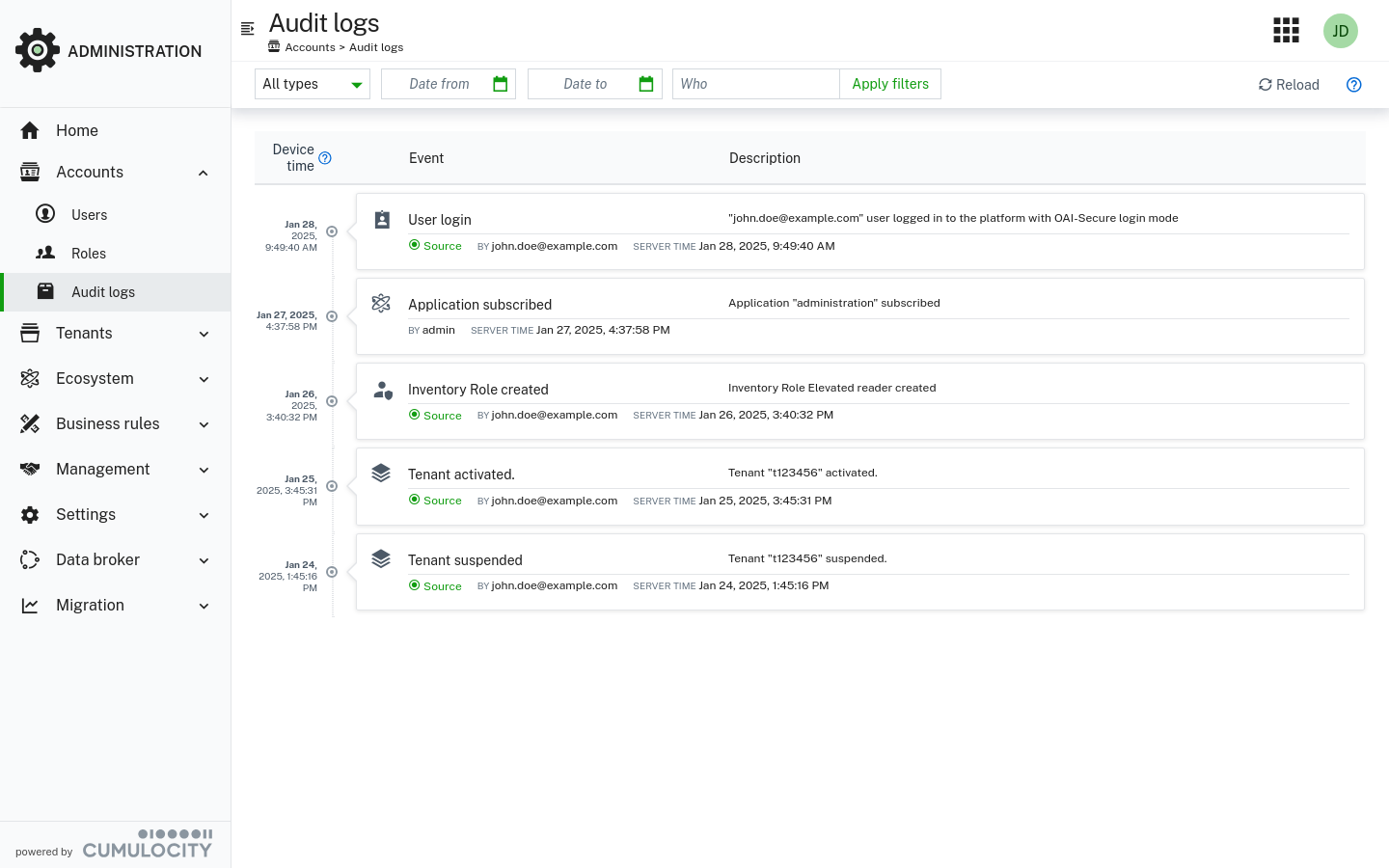
In order to easily search through logs, you can filter logs by:
To apply a filter, click the Apply button next to the respective filter field. To discard filters, click the clear icon next to the Apply button (only visible if filters are set).
| Audit type | Actions |
|---|---|
| Alarm |
|
| Application |
|
| Bulk operation |
|
| Data broker connector |
|
| Devices availability monitoring |
|
| Global role |
|
| Inventory |
|
| Inventory role |
|
| Operation |
|
| Option |
|
| Reliable notification |
|
| Report |
|
| Single sign-on |
|
| Smart rule |
|
| Tenant |
|
| Tenant auth configuration |
|
| Trusted certificate |
|
| Tenant Certificate Authority |
|
| User |
|
| User login |
|
This feature is in Public Preview status, that is, it is not enabled by default and may be subject to change in the future.
The feature can be enabled for your tenant using the Manage preview features option in the right drawer in the Administration application.
The messaging-management microservice must be subscribed to your tenant. This should happen automatically, but if the feature is not accessible after enabling it in Manage preview features, verify the microservice subscription. To do this, open the Administration application and navigate to Ecosystem > Microservices. If you do not see the messaging-management microservice listed, contact product support to request the subscription for your tenant.
ROLES & PERMISSIONS:
The Messaging Service is a publish/subscribe messaging and message streaming component embedded in the Cumulocity platform. It provides asynchronous communication between platform components and user-facing features for moving real-time data into and out of the platform. The features that use the Messaging Service include the microservice-based data broker, Notifications 2.0, and the MQTT Service.
Topics are the core concept underlying all of the features using the Messaging Service. A topic is a logical channel for delivering messages from publishers to subscribers. Each topic may have any number of publishers and subscribers, and in general, every subscriber to a topic receives the messages sent by every publisher to that topic. All subscribers of a topic receive the published messages in the same order. The topic persistently stores published messages until every subscriber has acknowledged that they have successfully received them. This means that the Messaging Service can guarantee the delivery of every published message to every subscriber.
The following sections show how to monitor your tenant’s usage of the Messaging Service for each of the services that use it.
Click Messaging Service in the Monitoring menu in the navigator to display a list of all features that use the Messaging Service. Next to the feature name, you see basic information on the feature’s usage of the Messaging Service, such as the number of topics, publishers, and subscribers. Select a feature and click it to see the details. This displays a list of all topics used by the feature and the limits that are applied for each of these topics.
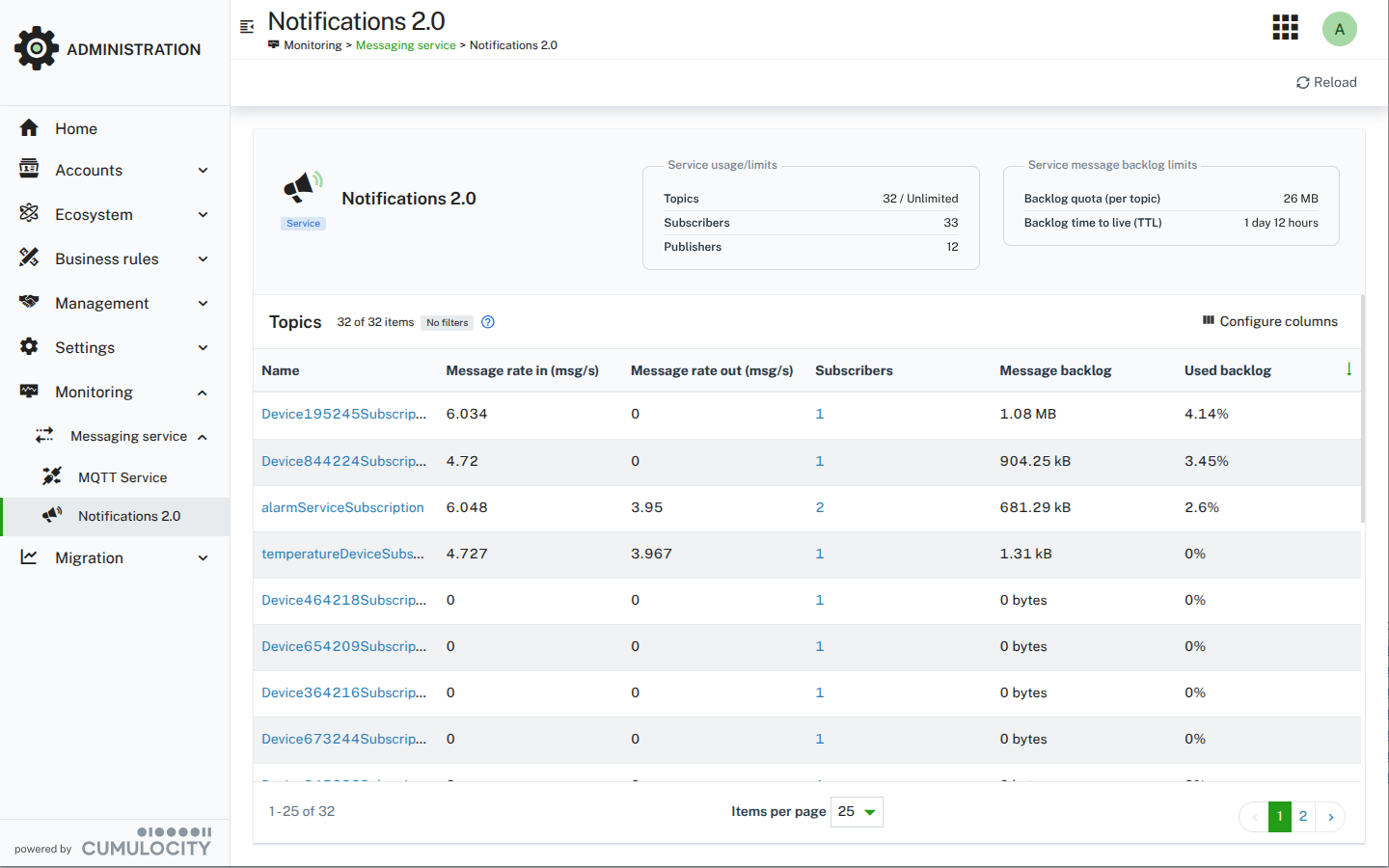
The topic list shows the following information for each topic:
| Column name | Description | Unsafe range |
|---|---|---|
| Name | Topic name. See the feature-specific documentation below for more information on mapping this to a specific source. | - |
| Message rate in (msg/s) | Total rate of messages published on the topic per second. | - |
| Message rate out (msg/s) | Total rate of messages dispatched to the subscribers for the topic per second. Dispatch includes additional batching and queuing mechanisms, so this rate could differ from the subscriber acknowledgment rate. | - |
| Subscribers | Total number of registered subscribers. This includes both actively consuming subscribers and those that are currently disconnected and not consuming any messages. | > 5 |
| Message backlog | Backlog size in bytes which corresponds to the size occupied by unconsumed messages. | > 20 MB |
| Used backlog | Percentage usage of the backlog quota limit. | > 80% |
Refer to the feature-specific documentation below for more information on how to map the topic name to the source and how to clear the backlog when reaching the unsafe range.
All the backlog limits visible at the top of the topics list view are applied per topic. This means if the backlog quota is set to 25MB, each topic will queue messages until it reaches the configured limit. Limits are Cumulocity platform wide, and only the Operations team can change them.
Click on a selected topic name to navigate to the topic details view. The view contains information about the topic at the top and the list of all subscribers for that topic below.
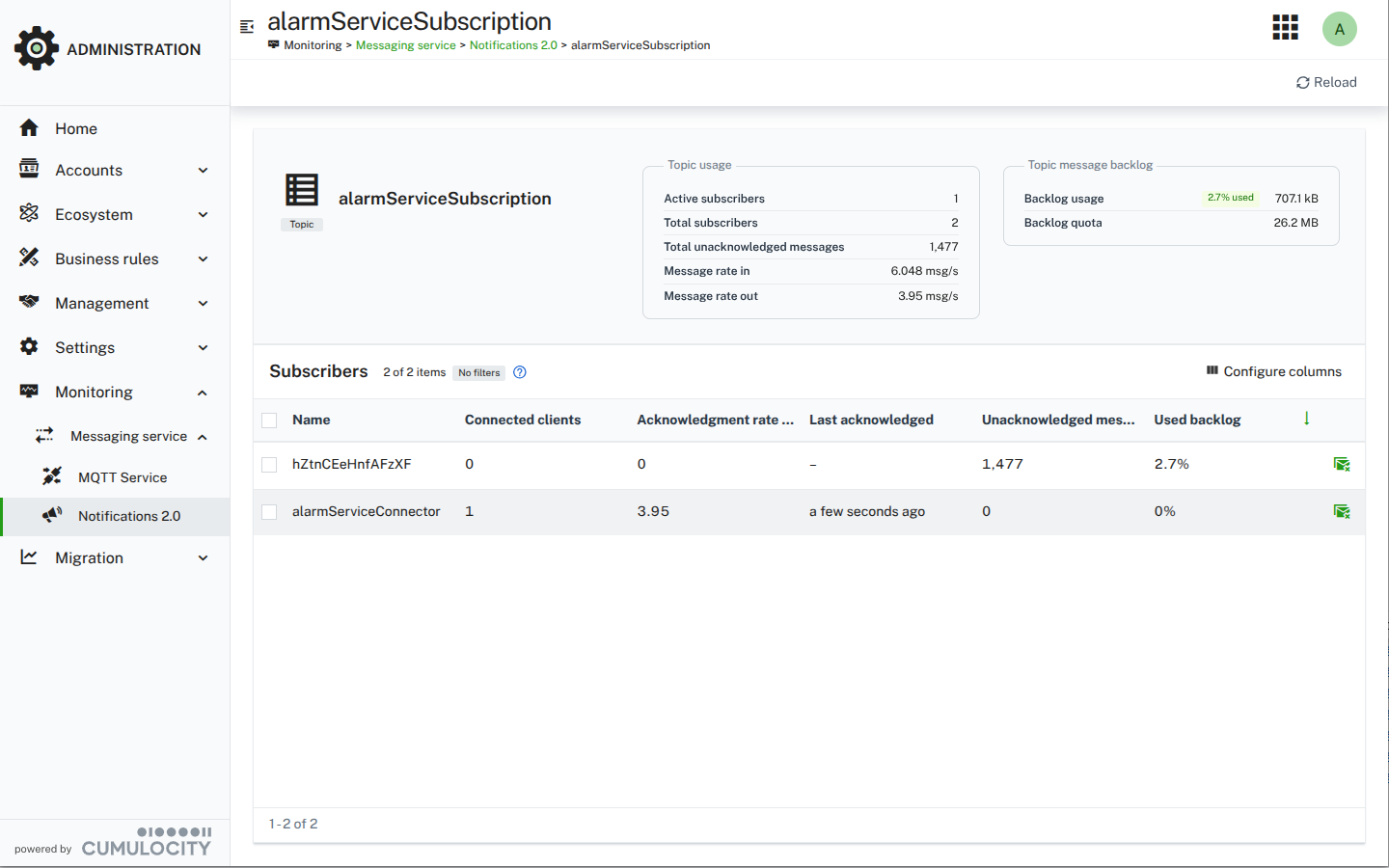
The subscriber list shows the following information for each subscriber:
| Column name | Description | Unsafe range |
|---|---|---|
| Name | Subscriber name. See the feature-specific documentation below for more information on mapping this to a specific destination. | - |
| Connected clients | Number of clients that are currently connected and consuming messages. | - |
| Acknowledgment rate (msg/s) | Current rate per second of messages fully processed (consumed, processed, and acknowledged) by the consumers. | - |
| Last acknowledged | Latest timestamp when a message was fully processed by the consumer. | >= 1 day |
| Unacknowledged messages | Number of unconsumed messages for this subscriber. | > 1000 |
| Used backlog | Percentage usage of the backlog quota limit by the subscriber. | > 80% |
Refer to the feature-specific documentation below for more information on how to map the subscriber name to the destination and how to clear the backlog when reaching the unsafe range.
The topic name is the same as the subscription field used in the Notifications 2.0 Subscriptions API and the Notifications 2.0 Tokens API.
The subscriber name is the same as the subscriber field used in the Notifications 2.0 Tokens API.
The subscriber is created the first time that a Notifications 2.0 WebSocket connection is established using a token with given subscription and subscriber names. The topic itself is created the first time that any Notifications 2.0 WebSocket connection is established using a token with the given subscription name. However, once the subscriber is created it will not be deleted even if the WebSocket connection is disconnected. That is, the Messaging Service will collect and persist the messages under the given topic until either they are consumed, they reach the configured time-to-live (TTL) interval, or the subscriber is explicitly unsubscribed from the topic. Refer to the consumer lifecycle for more details.
When the Messaging Service backlog is full, no new messages can be added to the backlog until it is cleared. REST requests that are also supposed to produce a notification will fail with a 500 status code and a message saying that the backlog quota has been reached. Clients working with Cumulocity must be aware of this situation and handle the error appropriately. In this situation, the backlog must be cleared before continuing work. There are various ways to clear the backlog from Notifications 2.0 topics.
If the topic and subscriber were created, there are probably also valuable messages stored in the Messaging Service that should be consumed. To consume and acknowledge the messages for a given topic and subscriber:
This will remove the messages from the Messaging Service and clear the backlog for the given topic and subscriber, but the action is not permanent. Since the Notifications 2.0 subscription and the subscriber still exist, the backlog can fill again with new messages if they are not consumed continuously.
If the subscriber is not needed anymore and there are no valuable messages that should be consumed, the subscriber can be unsubscribed. To do this:
This will remove the subscriber from the Messaging Service and clear the backlog for the given subscriber, and potentially the whole topic if there are no more subscribers with unconsumed messages. If the subscriber is not recreated by establishing a Notifications 2.0 WebSocket connection to the topic, this action is permanent, meaning the backlog won’t grow again. If there are no more active subscribers for the topic, it is also recommended to delete the Notifications 2.0 Subscription.
If the subscriber is no longer needed and there are no valuable messages that should be consumed, the subscriber can be unsubscribed directly from the UI. To do this, select the subscriber from the subscriber list in the Messaging Service page and click the unsubscribe icon. This action is equivalent to unsubscribing the subscriber using Notifications 2.0 API. All information about this being a permanent action and clearing the backlog is the same as described above.
The MQTT Service creates a fixed set of topics per tenant for routing device traffic. These topics are the primary way to monitor whether the MQTT Service data flow is working correctly.
The MQTT Service creates the following topics:
| Topic | Description |
|---|---|
to-device |
Messages to be sent to devices. Topic contains messages for all outbound traffic to devices excluding Cumulocity SmartREST topics. |
from-device |
Messages arriving from devices to the MQTT Service. Topic contains messages for all inbound traffic from devices excluding Cumulocity SmartREST topics. |
smartrest-from-device |
Internal topic used to forward SmartREST traffic from devices to the Cumulocity core for processing. |
smartrest-to-device |
Internal topic used to forward SmartREST traffic from the Cumulocity core back to devices. |
The expected subscribers for each topic are:
from-device: One or more subscribers used in custom microservice implementations or Streaming Analytics. This is the most important topic to monitor for custom integrations.to-device, smartrest-to-device: One subscriber per MQTT Service instance, for example, c8y-mqtt-service-0, c8y-mqtt-service-1.smartrest-from-device: One subscriber with one consumer per Cumulocity core instance, for example, cumulocity-core.When the Messaging Service backlog is full, no new messages can be added to the backlog until it is cleared. In this situation, client behavior depends on the MQTT protocol version used:
0x97 (quota exceeded) reason code, but it will still remain connected.Implementations connecting to the MQTT Service must be aware of this and handle these errors appropriately.
For the to-device, smartrest-from-device, and smartrest-to-device topics, do not attempt to clear the backlog manually.
These subscribers are managed by the MQTT Service and Cumulocity core, which re-create them automatically after unsubscription.
If the backlog is full on one of these topics, contact product support.
If the backlog is full on the from-device topic, first check whether your consumer (custom microservice or Streaming Analytics) is running and actively processing messages.
If the consumer is healthy, the backlog will decrease over time.
If the consumer cannot process the messages and the backlog must be cleared immediately, you can unsubscribe the subscriber via the UI. To do this, select the subscriber from the subscriber list in the Messaging Service page and click the unsubscribe icon.
Be aware that this action:
from-device topic.A high number of topics could be normal behavior when dealing with many devices, but there could also be a situation where new topics are generated unnecessarily:
Note that the MQTT Service creates a fixed set of topics per tenant (for example, to-device, from-device, smartrest-from-device, smartrest-to-device). A high topic count in the MQTT Service section is not expected and may indicate an issue.
If you have a single microservice or a single client consuming messages from the Messaging Service, you should typically only have a single subscriber. Check if the subscriber name used by your client is unique and reused consistently when connecting to the Messaging Service. A common pitfall is generating a random subscriber name each time a new connection to the Messaging Service is established.
Multiple subscribers are expected when multiple distinct clients consume from the same topic or when using shared consumer tokens.
For the MQTT Service from-device topic, the number of subscribers depends on your implementation.
If you have a single custom microservice or Streaming Analytics flow consuming device messages, you should see a single subscriber.
For the to-device and smartrest-to-device topics, the number of subscribers should match the number of MQTT Service instances running in your environment.
For the smartrest-from-device topic, there should be one subscriber with a number of consumers that matches the number of Cumulocity core instances in your environment.
These consumers will partition the messages on the topic across the core instances so that each message is processed by a single core.