
Basic settings
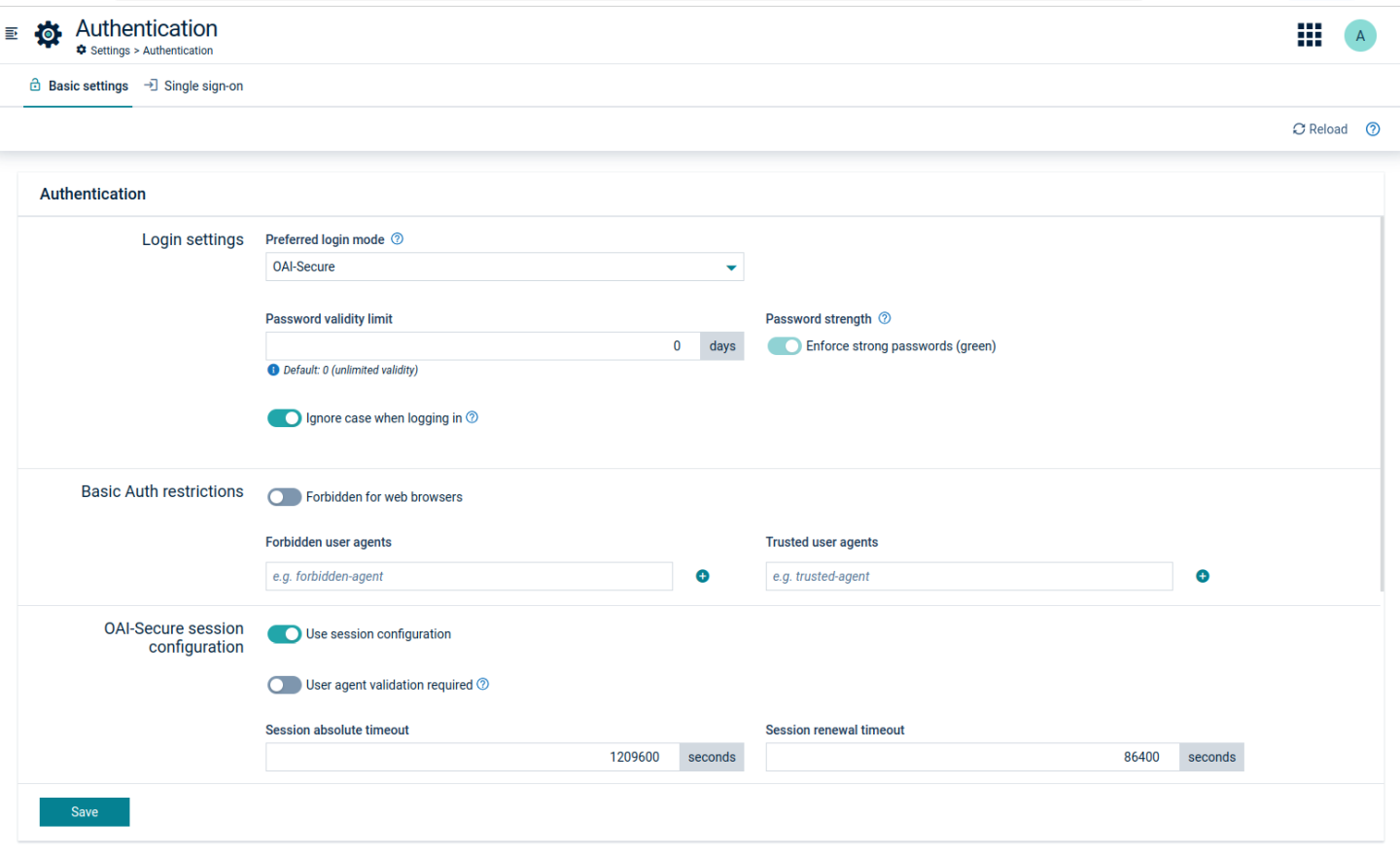
Click Authentication in the Settings menu if you want to view or change the basic authentication settings.
ROLES & PERMISSIONS:
To see the Authentication menu item, you must have ADMIN permission for the “Tenant management” permission type or be the first admin user created in the tenant.
For easier user access management, the above permission(s) are/is included in the global role(s) created by default in every new tenant:
- Tenant manager - manages tenant-wide configurations like applications, tenant options and retention rules.
Additionally, access to the Basic settings tab may be restricted by the platform administrator via setting the onlyManagementTenantAccess option to true for Basic Auth or OAI-Secure login options (see Cumulocity OpenAPI Specification).
Login settings
In the Preferred login mode field, you can select one of the following options:
- OAI-Secure - recommended, since it provides high security, using authorization tokens to prove the identity of the user. Default login mode on creating new tenants. This mode is an enhancement of the previous OAuth Internal authentication (available prior to 10.13.0).
- Basic Auth - should be selected only for specific compatibility reasons, since it only provides basic security.
- Single sign-on redirect - can be selected only if SSO is configured. If selected, will remove Basic Auth and OAI-Secure login options.
This login mode will be used by the platform’s applications as the default method to authenticate users. Device authentication stays unchanged.
In the field Password validity limit, you can limit the validity of user passwords by specifying the number of days after which users must change their passwords. If you do not want to force your users to change passwords, use “0” for unlimited validity of passwords (default value).
By default, users can use any password with eight characters or more. If you select Enforce that all password are “strong” (green), users must provide strong passwords as described in To change your password.
The Ignore case when logging in toggle allows enabling or disabling case sensitivity for the username or alias when authenticating a user login. If enabled, this feature is applied to all tenant users. By default, the feature is disabled.
For details on the OAI-Secure session configuration, token generation, and certificate-based token retrieval, see the OAI-Secure tab.
Basic Auth restrictions
Even if OAI-Secure authentication is configured for users, basic authentication remains available for devices and microservices using the platform. To provide a higher security level the basic authentication can be restricted.
Use the Forbidden for web browsers toggle to disallow the usage of basic authentication for web browsers. Moreover you can specify the following parameters:
- Trusted user agents - this list is empty by default. If some user agent is added, all the HTTP requests containing this entry in the
User-Agentheader and having a valid basic authentication date will be accepted. - Forbidden user agents - this list is empty by default. If some user agent is added, all the HTTP requests containing this entry in the
User-Agentheader and using basic authentication will be rejected.
TFA settings
Select the checkbox Allow two-factor authentication if you want to allow TFA in your tenant (only possible for administrators).
You may select one of the following options:
-
SMS-based, supporting the following settings:
- Token validity limit - lifetime of each session in minutes. When the session expires or a user logs out, the user must enter a new verification code.
- Verification code validity limit - here you can set the lifetime of each verification code sent via SMS. When the verification code expires, the user must request a new verification code in order to login.
Note that an SMS gateway microservice must be configured for the tenant. Naturally only users with a valid phone number associated can use this functionality. -
TOTP (Time-based One-Time Password) supporting the following setting:
- Enforce TOTP two-factor authentication on all users - when enabled it will force all users to set up their TFA on login. Otherwise each individual user can choose to activate it or not.
Note that the TOTP method is only available with the login mode “OAI-Secure”.
Click Save TFA settings to apply your settings.
- Each time you change the TFA method you will be forced to log out. User TFA settings are cleared and must be configured again.
- Users with a “devices” role are excluded from TFA and TOTP. This is also true when TOTP is enforced for all users.