
Overview
Feature preview
Streaming Lake Ingestion is currently in preview. It is continuously being developed. Features described in the documentation may not be fully available in your tenant, or differ from the documentation text. For more information on previews, see Previewing features. For limitations of the preview, see Current preview limitations.
The Streaming Lake Ingestion feature in DataHub bridges the gap between real-time IoT data and large-scale business analytics and artificial intelligence needs. It takes the continuous stream of IoT data flowing into Cumulocity and automatically transforms it into a queryable and AI-ready format in your data lake. It requires no configuration beyond a one-time setup that points it to a folder in your object storage. For details, see Enabling Streaming Lake Ingestion on AWS or Enabling Streaming Lake Ingestion on Microsoft Azure. Once set up, it processes your data transparently, continuously, reliably, and scalably, making it available for analysis within minutes.
From live stream to analytics
At a high level, the service consists of three parts:
- Data ingestion: The service subscribes to the real-time data feed from the Cumulocity Messaging Service (powered by Apache Pulsar).
- Processing and optimization: It intelligently batches, structures, and writes this data into Apache Iceberg tables within your data lake.
- Data access: The structured data is almost immediately available for high-performance querying from multiple endpoints, such as the built-in capabilities of Cumulocity Cockpit, Jupyter notebooks, AI/ML platforms like TensorFlow or PyTorch, or Business Intelligence tools.
A foundation for advanced analytics and AI
While powerful for business intelligence and ad-hoc queries, the true long-term value of your IoT data lies in its potential to fuel AI and Machine Learning (ML) models. However, raw device data alone is not enough. Technical data from your devices—such as PLC registers or sensor values—exists as cryptic identifiers (for example, register_012f or sensor_4a2b). These identifiers are typically associated with sensors and machine components, not with business-level assets. For AI and ML models to be useful, this raw data must be transformed into understandable, business-meaningful information.
Cumulocity and Streaming Lake Ingestion provide precisely this functionality:
- To automatically maintain cleaned, harmonized and historically complete data in a long-term data archive for any data science workflow, so that your data science team can focus on model development instead of data preparation.
- To contextualize it into business-relevant assets through Digital Twin Manager’s Data Service so that AI models can understand what the data represents and extract meaningful insights.
Reliability, performance, and an open standard for your data
Apache Iceberg is the strategic choice of Cumulocity to provide you with a reliable and future-proof foundation for your data lake. It is an open source table format governed by the Apache Software Foundation that has rapidly become an industry standard supported by major data platforms such as Dremio, Databricks, and Snowflake. It ensures that all your data assets remain portable and valuable for years to come.
Besides being a widely adopted industry standard, it provides the following other key advantages:
- Transactional reliability: Using Apache Pulsar and Apache Iceberg, Cumulocity manages your data with database-like guarantees for reliability, ensuring that your data is complete and consistent.
- Robust schema evolution: When your IoT data changes its structure, Cumulocity adapts your Iceberg tables automatically. Using Iceberg, new types of measurements or additional device properties are added without compromising previously stored data, and without breaking your queries and BI dashboards. This makes your data pipeline resilient to change.
- High performance analytics: The Iceberg catalog embedded into Cumulocity tracks detailed information about your data, allowing query engines and analytics tools to be much smarter. They can only read the files necessary to answer a query, returning results faster. This is further improved by running regular optimization on the data lake files to ensure that data is highly clustered for the many querying uses.
In summary, by building on Apache Iceberg and its standard REST catalog APIs, Cumulocity delivers IoT data as an open, vendor-neutral asset. Rather than forcing you into a proprietary ecosystem, your IoT data can be accessed and queried through the same tools and infrastructure you already use for your corporate data lake — whether that is Snowflake, Databricks, Dremio, or other platforms. This makes IoT data a true first-class citizen in your enterprise data initiatives. Your data science and analytics teams can seamlessly integrate IoT data with other business data sources without architectural compromises, breaking down the traditional barrier between operational IoT data and enterprise analytics to uncover insights that span your entire organization.
Enabling Streaming Lake Ingestion on AWS
Streaming Lake Ingestion writes your data into an S3 bucket in your AWS account. To enable it, you complete a one-time setup in which you grant Cumulocity access to one prefix of your bucket. Beyond this setup, Streaming Lake Ingestion needs no configuration.
You perform the setup on the Data Lake configuration page. In the Administration application, click Settings > Data Lake. The page guides you through each step, with instructions for the AWS console and the AWS CLI, and fills in the values for your environment. If the page shows “You cannot complete the setup yet”, contact Cumulocity support.
Before you start
Requirements
- Your Cumulocity user has the ROLE_OFFLOADING_ADMIN permission. The OFFLOADING_ADMINISTRATOR global role carries it. Assign it to a user in the Administration application under Accounts > Roles.
- In AWS, you have permission to create an S3 bucket.
- In the same AWS account, you have permission to create an IAM role and attach an inline policy to it (
iam:CreateRoleandiam:PutRolePolicy).
The bucket must meet the following requirements:
- It is in the region of your Cumulocity environment. The Data Lake configuration page shows the region, and the setup refuses a bucket in any other region.
- Bucket versioning is enabled. Versioning keeps deleted files recoverable. If it is off, the setup completes and your data arrives, but the page shows a warning and the Setup status shows “Provisioning failed” until you enable it and try again.
- It uses the default S3 encryption. A bucket encrypted with a customer-managed KMS key is not supported.
Setting up the tenant
The Data Lake configuration page leads you through the following steps:
- Create the bucket: Create a bucket that meets the requirements above, and enter its name.
- Create the role: Create an IAM role with a trust policy that allows Cumulocity to assume it with the external ID of your tenant. The role name must begin with
c8y-streaming-lake-ingestion-. Cumulocity cannot assume a role with any other name, and you cannot rename a role later. - Grant the role access to your prefix: Add an inline permissions policy that allows the role to read and write under your prefix. Enter the prefix, or leave it empty to use the root of the bucket.
- Provision the tenant: Enter the ARN of the role and the external ID.
- Review and provision: Check the base location
s3://<bucket>/<prefix>, select These values are correct, and click Save.
The Data Lake configuration page shows both policies with your values filled in. The external ID protects your role against use on behalf of anyone else. Keep the suggested value or use your own with at least 32 characters. Use a different external ID for each tenant and keep a record of it. After the setup, the page shows only its last characters.
When you click Save, Cumulocity assumes your role, tests a write, a read, and a delete under the base location, creates the Iceberg catalog of your tenant, and checks bucket versioning. When all checks pass, the Setup status shows “Provisioned”, and your data arrives as described in Using Streaming Lake Ingestion.
Cumulocity stores your tables under s3://<bucket>/<prefix>/<tenant-id>/. Several of your tenants can therefore share one prefix. You cannot change the base location after the setup. To change it, contact Cumulocity support.
What the access consists of
After the setup, the following objects in your AWS account give Cumulocity access. If you delete them or reduce what they allow, ingestion stops:
- The IAM role of the tenant. Its trust policy names the Cumulocity principal shown on the Data Lake configuration page and requires the external ID of the tenant.
- The inline policy “c8y-streaming-lake-ingestion” on the role. It allows the role to locate the bucket, read its versioning setting, list the prefix, and read, write, and delete objects under the prefix.
Changing the role or the external ID
You can replace the role or the external ID at any time in the Catalog identity section on the Data Lake page. When you click Save, the setup checks the new values again. The new role must be in the same AWS account as the current one.
If something fails
If a check fails, the Data Lake configuration page shows the reason. If the catalog was already created, the Setup status shows “Provisioning failed”. Hover over the icon of a step to see its result. After you fix the cause, click Save in the Catalog identity section to try again.
A failed check stops the setup. The data lake catalog stays, but the setup creates nothing after it: no data stream, no DataHub settings, no offloading status object in the device inventory, and no Dremio source. Data does not reach the lake until you fix the cause and try again.
| Cause | Solution |
|---|---|
| The role cannot be assumed. | Check that the trust policy contains the principal from the Data Lake configuration page and the same external ID that you entered. Check that the role name begins with c8y-streaming-lake-ingestion-. |
| The external ID is rejected. | Use at least 32 characters from A-Z a-z 0-9 _ + = , . @ : / -. Change the value in the trust policy and on the Data Lake configuration page. |
| The bucket is in a different region, or cannot be found. | Create a bucket in the region that the Data Lake configuration page shows. You cannot move a bucket. |
| Access to the prefix is denied. | Check that the prefix in the permissions policy is the same as the one in the base location. |
| The page says “it could not reach your storage” or “it could not obtain credentials for your storage”. | Check the permissions policy of the role. Then click Save in the Catalog identity section. If the policy is correct, contact the [Cumulocity support. |
| The base location overlaps the location of another tenant. | Choose a prefix that neither contains nor is contained in the other location. Sharing the same prefix is allowed. |
| The page warns that data loss protection is off. | Bucket versioning is off. Enable it, then click Save in the Catalog identity section. |
| The setup fails right after you changed the role. | IAM changes take up to a minute to become effective. Wait and try again. |
If the cause is not listed, contact Cumulocity support with the reason that the Data Lake configuration page shows.
Adding more tenants
Each tenant needs its own role and its own external ID. The tenants can share a bucket and a prefix. Repeat the setup for each tenant.
Removing access
To stop the data flow, unsubscribe the tenant from Streaming Lake Ingestion. Afterwards, delete the role of the tenant. AWS deletes its inline policy with it. The data already written stays in your bucket.
Caution
If you only delete the role, Streaming Lake Ingestion treats this as a temporary failure state and still applies the service surcharge.
Enabling Streaming Lake Ingestion on Microsoft Azure
Streaming Lake Ingestion writes your data into an Azure Data Lake Storage Gen2 container in your Azure subscription. To enable it, you complete a one-time setup in which you approve a Cumulocity application in your Microsoft Entra directory and grant it access to the container. Beyond this setup, Streaming Lake Ingestion needs no configuration.
You perform the setup on the Data Lake configuration page. In the Administration application, click Settings > Data Lake. The page guides you through each step, with instructions for the Azure portal and the Azure CLI, and fills in the values for your environment. If the page shows “You cannot complete the setup yet”, contact Cumulocity support.
Before you start
Requirements
- Your Cumulocity user has the ROLE_OFFLOADING_ADMIN permission. The OFFLOADING_ADMINISTRATOR global role carries it. Assign it to a user in the Administration application under Accounts > Roles.
- In the Entra directory of your storage account, you have the Cloud Application Administrator or Application Administrator role to approve the application.
- On the storage account, you have the Owner or User Access Administrator role to assign roles.
- In the subscription, you have permission to create a storage account, for example, with the Contributor role.
The storage account must meet the following requirements:
- Hierarchical namespace is enabled. You cannot enable it later. The setup does not check it: without it, the setup succeeds, but ingestion fails later.
- The account kind is StorageV2.
- Public network access is enabled from all networks. To restrict access to selected networks, contact Cumulocity support first, because only support can provide the value that your network rules need.
- Anonymous access is disabled.
- Soft delete is enabled for blobs and for containers. The service level agreement requires it for production use.
All steps take place in the Entra directory that the subscription of your storage account belongs to. An approval or role assignment in another directory does not work.
Setting up the tenant
The Data Lake configuration page leads you through the following steps:
- Create the storage account and container: Create a storage account and a container that meet the requirements above, and enter their names.
- Approve the Streaming Lake Ingestion application: Enter the ID of your Entra directory as Entra tenant ID, click Consent, and accept the prompt as an administrator of the directory. The approval creates an enterprise application for Cumulocity in your directory. The application requests no API permissions.
- Assign the two roles: Assign the application the Storage Blob Data Contributor role on the container and the Storage Blob Delegator role on the storage account. Optionally, assign it the Reader role on the storage account, so that the setup can check soft delete.
- Provision the tenant: Enter a path in the container, or leave it empty to use the root of the container.
- Review and provision: Check the base location
abfss://<container>@<account>.dfs.core.windows.net/<path>, select These values are correct, and click Save.
When you click Save, Cumulocity creates the Iceberg catalog of your tenant and tests a write and a delegation key request. If you assigned Reader, it also checks soft delete. If soft delete is off, the setup completes and your data arrives, but the page shows a warning and the Setup status shows “Provisioning failed” until you enable it and click Retry provisioning. When all checks pass, the Setup status shows “Provisioned”, and your data arrives as described in Using Streaming Lake Ingestion.
Cumulocity stores your tables under <base location>/<tenant-id>/. Several of your tenants can therefore share one path. You cannot change the base location, the storage account, or the Entra directory after the setup. To change them, contact Cumulocity support.
What the access consists of
After the setup, the following objects give Cumulocity access. If you delete them or reduce what they allow, ingestion stops:
- The enterprise application of Cumulocity in your Entra directory, created by the approval.
- The Storage Blob Data Contributor role of the application on the container.
- The Storage Blob Delegator role of the application on the storage account. Assigned on the container, it does not work.
- Optionally, the Reader role of the application on the storage account.
If something fails
If a check fails, the Data Lake configuration page shows the reason. If the catalog was already created, the Setup status shows “Provisioning failed”. Hover over the icon of a step to see its result. After you fix the cause, click Retry provisioning.
A failed check stops the setup. The data lake catalog stays, but the setup creates nothing after it: no data stream, no DataHub settings, no offloading status object in the device inventory, and no Dremio source. Data does not reach the lake until you fix the cause and try again.
| Cause | Solution |
|---|---|
| The application cannot be found, or Azure asks for a single-tenant application. | Your account cannot approve applications. Sign in as Cloud Application Administrator or Application Administrator and approve again. |
| The application does not appear in the member search. | Search by display name. Check that you approved the application in the directory of the storage account. |
| The check for short-lived credentials fails. | Storage Blob Delegator is missing or assigned to the container. Assign it to the storage account. |
| The storage cannot be reached. | Check that Storage Blob Data Contributor is assigned to the container, and that the storage account allows public network access. |
| The page says “it could not reach your storage” or “it could not obtain credentials for your storage”. | Check the role assignments of the application on the storage account and the container. Then click Retry provisioning. If they are correct, contact the [Cumulocity support. |
| The directory is unknown, or authentication fails. | The Entra tenant ID belongs to another directory. Enter the ID of the directory that the subscription of the storage account belongs to. |
| The base location overlaps the location of another tenant. | Choose a path that neither contains nor is contained in the other location. Sharing the same path is allowed. |
| The page warns that data loss protection is off. | Soft delete is off for blobs or for containers. Enable both, then click Retry provisioning. |
| The setup fails right after you assigned the roles. | Role assignments take a few minutes to become effective. Wait and try again. |
If the cause is not listed, contact Cumulocity support with the reason that the Data Lake configuration page shows.
Adding more tenants
You approve the application once per Entra directory. For each additional tenant, assign Storage Blob Data Contributor on its container and run the setup. Storage Blob Delegator, and Reader if you use it, are needed only once per storage account.
Removing access
To stop the data flow, unsubscribe the tenant from Streaming Lake Ingestion. Afterwards, remove the Storage Blob Data Contributor assignment of the container. Keep Storage Blob Delegator while other tenants use the storage account. To remove access for all your tenants of the environment, delete the enterprise application under Enterprise applications and remove the remaining role assignments. The data already written stays in your storage account.
Caution
If you only remove the role assignments, Streaming Lake Ingestion treats this as a temporary failure state and still applies the service surcharge.
Using Streaming Lake Ingestion
Streaming Lake Ingestion is an optional service in Cumulocity. To subscribe to the service, contact the Cumulocity support. After subscription and the one-time setup of your object storage:
- Your current device and asset inventory is downloaded from the operational store into the lake.
- All new incoming data is stored in the lake.
For the setup, see Enabling Streaming Lake Ingestion on AWS or Enabling Streaming Lake Ingestion on Microsoft Azure.
Info
The download may take a while to complete. For more information, see Monitoring the data flow.
The latest_inventory tables are pre-populated with your full current inventory at subscription time. Alarms, events, measurements, and operations are only recorded for changes that occur after subscription.
For users of DataHub Query (Dremio), the option CDH_ASSET_WHITELIST is automatically set on your tenant. This allows granting the tenant’s default Dremio user access to the Iceberg source, which is required to read data via the DataHub REST API. Do not change this option.
Analyzing lake data
You can now analyze your data from any Apache Iceberg compliant tool. For example:
- Through the user interface of the embedded query engine.
- By using the secure and high performance querying APIs from applications and by using JDBC or ODBC with query engines and database tools.
- By connecting applications directly to the Cumulocity Iceberg catalog.
Using DataHub Query to analyze lake data
If your tenant includes a subscription to DataHub Query (Dremio), the system automatically sets up a data source with your tenant ID for querying the lake.
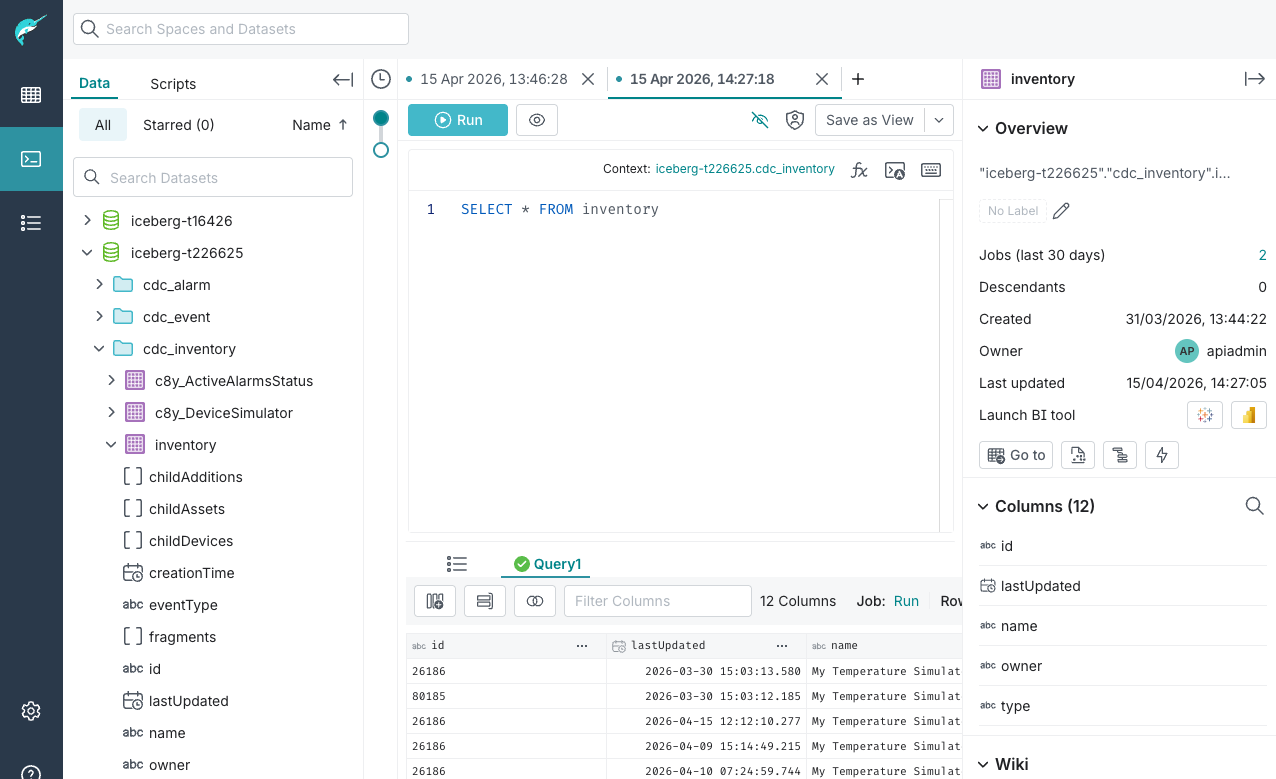
- Click the data source in the user interface to view the Iceberg folders (“namespaces”) that contain the tables of your data lake.
- Click a table to open the query editor and run SQL queries on the table. You see an example of a query as shown in the screenshot below.
- To refer to a table, use the pattern
<tenant>.<namespace>.<table>. For example, if your tenant is “mytenant”, the inventory would be referred to asmytenant.cdc_inventory.inventory. - To simplify your SQL statement, click the “Context:” link just above the query editor. You can select a data source and namespace that will be used as context for queries in the editor. For example, if you use “mytenant” as context, you can refer to the inventory using only
cdc_inventory.inventory. If you use “mytenant.cdc_inventory” as context, you can refer to the inventory using onlyinventory.
Using DataHub Query APIs and drivers to analyze lake data programmatically
If your tenant includes a subscription to DataHub Query, use the DataHub APIs as well as the JDBC and ODBC drivers.
For example, use the REST API to submit a query job to DataHub Query.
$ curl -H "Content-Type: application/json" -u "<USER>:<PASS>" \
  https://<TENANT_DOMAIN>/service/datahub/dremio/api/v3/sql -d @- <<EOF \
{
  "sql": "SELECT * FROM inventory",
  "context": [ "<TENANT>", "cdc_inventory" ]
}
EOF

{"id":"12345678-1234-5678-1234-5678901234567"}
Then fetch the results of the query job once the job has finished.
$ curl -u "admin:$PASS" \
  https://<TENANT_DOMAIN>/service/datahub/dremio/api/v3/job/12345678-1234-5678-1234-5678901234567/results

{
  "rowCount": 7,
  "schema": [
    { "name": "id", "type": { "name": "VARCHAR" } },
    …
  ],
  "rows": [
    {
      "id": "99266201",
      "lastUpdated": "2026-03-30 15:27:35.781",
      "name": "Temperature #1",
      "owner": "service_device-simulator",
      "type": "c8y_MQTTDevice",
      "eventType": "MANAGED_OBJECT_UPDATE",
    …
  ]
}
Obtaining Iceberg catalog credentials
To connect to the Cumulocity Iceberg catalog directly — for example, from Apache Spark, Databricks, or a custom application — you need OAuth2 client credentials. You can create and manage named catalog principals using the Manager API.
Prerequisites
- Your tenant must be subscribed to Streaming Lake Ingestion.
- Your Cumulocity user must have the ROLE_OFFLOADING_ADMIN permission. The OFFLOADING_ADMINISTRATOR global role carries ROLE_OFFLOADING_ADMIN: assign it to a user in the Administration application under Accounts > Roles.
- Principal names must be strictly alphanumeric — letters and digits only, no dashes or underscores (for example,
spark1ordremioqa).
Creating a principal
Send a POST request to create a named principal. The response contains the clientId and clientSecret required to authenticate against the Iceberg catalog.
curl -s -X POST \
  "https://<TENANT_DOMAIN>/service/offloading/api/v1/principals/<NAME>" \
  -u "<USER>:<PASS>"
{
  "name":         "<NAME>",
  "clientId":     "<TENANTID>-<NAME>",
  "clientSecret": "<SECRET>"
}
Important
The
clientSecret is returned only once and is never stored by the service. Store it securely immediately after creation. If the secret is lost, rotate the principal to issue new credentials using a PUT request — rotating immediately invalidates the previous secret.Listing principals
To list the names of all principals for your tenant:
curl -s \
  "https://<TENANT_DOMAIN>/service/offloading/api/v1/principals" \
  -u "<USER>:<PASS>"
Rotating credentials
To replace a lost or compromised secret. The previous secret is immediately invalidated.
curl -s -X PUT \
  "https://<TENANT_DOMAIN>/service/offloading/api/v1/principals/<NAME>" \
  -u "<USER>:<PASS>"
Deleting a principal
To revoke a principal’s catalog access immediately:
curl -s -X DELETE \
  "https://<TENANT_DOMAIN>/service/offloading/api/v1/principals/<NAME>" \
  -u "<USER>:<PASS>"
Info
A maximum of 100 principals can be created per tenant by default.
Using the Iceberg catalog from Apache Spark
Apache Spark is a distributed computing framework that seamlessly integrates with the Cumulocity Iceberg catalogs to provide full SQL-based data processing through a standard Iceberg REST catalog interface.
Use OpenID Connect with a client credentials grant type to authenticate against the Cumulocity Iceberg REST catalog.
Info
To obtain client credentials for the Iceberg catalog, see Obtaining Iceberg catalog credentials.
The URL of the OpenID Connect server is
https://iceberg.<INSTANCE>:19120/api/catalog/v1/oauth/tokens
For example, if your tenant is mytenant.cumulocity.com, the URL is
https://iceberg.cumulocity.com:19120/api/catalog/v1/oauth/tokens.
Run Spark SQL queries with the Cumulocity Iceberg catalog on an AWS S3 object store using the example below. In the example, replace
- The version number of the Iceberg Spark Runtime to match the Spark version that you use (here Spark 4.0.x).
- The
<CLIENTID>and<CLIENT_SECRET>with the credentials obtained from support. <INSTANCE>and<TENANT_ID>with your instance URL and tenant ID.<REGION>,<AWS_ACCESS_KEY>and<AWS_SECRET_ACCESS_KEY>with credentials to access your AWS S3 store.
bin/spark-sql \
  --packages org.apache.iceberg:iceberg-spark-runtime-4.0_2.13:1.10.1,org.apache.iceberg:iceberg-aws-bundle:1.10.1 \
  --conf spark.sql.extensions=org.apache.iceberg.spark.extensions.IcebergSparkSessionExtensions \
  --conf spark.sql.catalog.polaris.credential="<CLIENT_ID>:<CLIENT_SECRET>" \
  --conf spark.sql.catalog.polaris.oauth2-server-uri="https://iceberg.<INSTANCE>:19120/api/catalog/v1/oauth/tokens" \
  --conf spark.sql.catalog.polaris.scope="PRINCIPAL_ROLE:ALL" \
  --conf spark.sql.catalog.c8y.rest-metrics-reporting-enabled=false \
  --conf spark.sql.catalog.c8y=org.apache.iceberg.spark.SparkCatalog \
  --conf spark.sql.catalog.c8y.type=rest \
  --conf spark.sql.catalog.c8y.uri=https://iceberg.<INSTANCE>:19120/api/catalog \
  --conf spark.sql.catalog.c8y.warehouse=<TENANT_ID> \
  --conf spark.sql.catalog.c8y.io-impl=org.apache.iceberg.aws.s3.S3FileIO \
  --conf spark.sql.catalog.c8y.s3.endpoint=https://s3.amazonaws.com \
  --conf spark.sql.catalog.c8y.s3.region=<REGION> \
  --conf spark.sql.catalog.c8y.s3.access-key-id=<AWS_ACCESS_KEY_ID> \
  --conf "spark.sql.catalog.c8y.s3.secret-access-key=<AWS_SECRET_ACCESS_KEY>"

spark-sql (default)> show namespaces in c8y;
cdc_alarm
cdc_event
cdc_inventory
cdc_measurement
…
spark-sql (default)> select * from c8y.cdc_inventory.inventory;
99266201	2026-03-30 17:27:35.781	Temperature #1	service_device-simulator	c8y_MQTTDevice	MANAGED_OBJECT_UPDATE	["supportedMeasurements","com_cumulocity_model_Agent","c8y_IsDevice","c8y_SupportedOperations"]	NULL	NULL	NULL	["c8y_Temperature.T"]	2026-03-30 17:07:13.37
99266201	2026-03-30 17:27:44.838	Temperature #1	service_device-simulator	c8y_MQTTDevice	MANAGED_OBJECT_UPDATE	["supportedMeasurements","com_cumulocity_model_Agent","c8y_IsDevice","c8y_SupportedOperations"]	NULL	NULL	NULL	["c8y_Temperature.T"]	2026-03-30 17:07:13.37
Using the Iceberg catalog from other applications
Access the catalog from other applications using the curl example below. To obtain the <CLIENT_ID> and <CLIENT_SECRET> referenced in this section, see Obtaining Iceberg catalog credentials. First, get an access token to the catalog.
$  curl -X POST https://iceberg.<INSTANCE>:19120/api/catalog/v1/oauth/tokens \
  -H "Content-Type: application/x-www-form-urlencoded" \
  -d "grant_type=client_credentials" \
  -d "client_id=<CLIENT_ID>" \
  -d "client_secret=<CLIENT_SECRET>" \
  -d "scope=PRINCIPAL_ROLE:ALL"

{"access_token":"ey…","token_type":"bearer","issued_token_type":"urn:ietf:params:oauth:token-type:access_token","expires_in":900}
Then use the token to access the catalog configuration and metadata:
$ curl "https://iceberg.<INSTANCE>:19120/api/catalog/v1/config?warehouse=<TENANT>" \
  -H "Authorization: Bearer <ACCESS_TOKEN>"

{
  "defaults": { "default-base-location": "s3://…>" },
  "overrides": { "prefix": "…" },
  "endpoints": [
    "GET /v1/{prefix}/namespaces",
    "GET /v1/{prefix}/namespaces/{namespace}",
    "HEAD /v1/{prefix}/namespaces/{namespace}",
    "POST /v1/{prefix}/namespaces",
    "POST /v1/{prefix}/namespaces/{namespace}/properties",
    "DELETE /v1/{prefix}/namespaces/{namespace}",
    "GET /v1/{prefix}/namespaces/{namespace}/tables",
    "GET /v1/{prefix}/namespaces/{namespace}/tables/{table}",
    …
}

$ curl https://iceberg.<INSTANCE>:19120/api/catalog/v1/<TENANT>/namespaces/cdc_inventory/tables/inventory' \
  -H "Authorization: Bearer <ACCESS_TOKEN>"

{
  "metadata": {
    "format-version": 2,
    …
    "schemas": [
      {
        "type": "struct",
        "schema-id": 0,
        "fields": [
          { "id": 1, "name": "id", "required": true, "type": "string" },
          { "id": 2, "name": "lastUpdated", "required": true, "type": "timestamptz" },
          { "id": 3, "name": "name", "required": false, "type": "string" },
    …
Info
While Iceberg is widely supported, the degree of support currently still varies and we cannot guarantee the catalog to be interoperable with all setups and applications.
Understanding the data lake structure
Streaming Lake Ingestion provides three types of data:
- Change data capture (
cdc): Includes the complete history of incoming IoT data. For example, thecdc_alarm.alarmtable contains a complete, historical log of all alarm changes, while thecdc_inventory.inventorytable captures all modifications made to your device master data over time. - Latest data (
latest): Provides the current representation of incoming inventory data. For example, thelatest_inventory.inventorytable contains a consolidated view on the latest state of your inventory without you needing to reconstruct the state from the historical logs. - Views (
view): Provides views for the change data capture tables. For example, theview_alarm.alarmview shows the same content ascdc_alarm.alarmwith nested properties converted to top-level columns. This makes the data more easily browsable in tools like PowerBI.
For each type of data, folders (“namespaces”) are created to mirror the familiar Cumulocity domain model as shown in the screenshot. You will find folders with names ending in inventory, alarm, event, measurement and operation. Inside the folders, tables for standard data, device-specific data, and customer-specific data are created. Device- or customer-specific data in the form of fragments resides in separate, dedicated tables within the corresponding folders. For instance, if you send a measurement with a fragment type c8y_EngineMetric, it will be stored in a table named cdc_measurement.c8y_EngineMetric.
The following sections discuss the general table structure for each Cumulocity domain model class.
General table structure
All tables contain the following column:
id: The record ID of the device, asset, alarm, event, measurement or operation associated with the change. In the inventory tables, this is the managed object ID.
The following columns are present in some tables, depending on the type of data:
source: For alarms, events, or measurement, this column contains the managed object ID of the device or asset associated with the change.deviceId: For operations, this column contains the managed object ID of the device targeted for the operation.time: The timestamp of the change as sent by the device. This column is present for alarms, events, and measurements.creationTime: The timestamp when Cumulocity created the record. This column is present for inventory, measurements, and operations.type: The type property of the device, measurement and so on.
For change data capture tables and views, the following column is present:
eventType: The type of change indicated by the record. For example,MANAGED_OBJECT_UPDATEindicates an update of a managed object.
Inventory
Creating inventory data
To understand how the service captures inventory data in the data lake, assume that the device user “device_123” creates a new tracking device “Tracking #1” with the following data:
{
    "name": "Tracker #1",
    "type": "sb_nano",
    "c8y_Position": {
        "alt": 67,
        "lng": 6.15173,
        "lat": 51.211977
    },
    "c8y_IsDevice": { },
    "someProperty": 10
}
This results in the following data in the data lake:
Table: cdc_inventory.inventory
| id | lastUpdated | name | owner | type | eventType | fragments | childAdditions | childAssets | childDevices | creationTime | someProperty |
|---|---|---|---|---|---|---|---|---|---|---|---|
| 47635 | 2025-08-20T13:41:39.678Z | Tracker #1 | device_123 | sb_nano | MANAGED_OBJECT_CREATE | [c8y_IsDevice, c8y_Position] | [] | [] | [] | 2025-08-20T13:41:39.678Z | 10 |
The columns of the inventory table are:
idcontains “47635”, the managed object ID assigned to the new device by Cumulocity.lastUpdatedcontains “2025-08-20T13:41:39.678Z”, the timestamp of the most recent update to the managed object in Cumulocity.namecontains “Tracker #1”, the name of the managed object as used in the request.ownercontains the user who created the managed object.typecontains “sb_nano”, the type of the managed object as used in the request to create the managed object.eventTypecontains “MANAGED_OBJECT_CREATE”, the event type for creating a new managed object.fragmentscontains a list of all fragments used in the managed object.childAdditionscontains a list of IDs of services linked to a device.childAssetscontains a list of IDs of child assets of an asset.childDevicescontains a list of IDs of child devices of an asset or device.somepropertycontains 10. Cumulocity creates additional columns in theinventorytable when there are top-level properties of an atomic type in the managed object (character strings, numbers, booleans).
Additional columns may be visible depending on your use of Cumulocity. For example, once the device has emitted measurements, you will see a column supportedMeasurements with a list of the measurement fragments sent by the device.
Info
Use top-level properties with care. For example, if you have custom properties that you want to store for all devices, such properties may be a good choice.
However, the total number of top-level properties is limited through a table width limit. If you exceed the table width limit,
additional properties will not be written to the inventory table but “binned”.
Note also that very wide tables with many properties will lead to more inefficient storage and querying.
We advise you to prefer fragments for custom data when modeling your device data model.
Table: cdc_inventory.c8y_Position
For the c8y_Position fragment, a table c8y_Position is created with the following columns:
| id | eventType | lastUpdated | alt | lng | lat |
|---|---|---|---|---|---|
| 47635 | MANAGED_OBJECT_CREATE | 2025-08-20T13:41:39.678Z | 67 | 6.15173 | 51.211977 |
Generally, columns are set as follows:
- Key columns are stored as previously described.
- Properties of the fragment are stored in additional columns of the table.
Info
Marker fragments such as
c8y_IsDevice are only represented in the fragments property of the inventory tables. No additional tables are created.Table: latest_inventory.inventory
In addition, the service stores the latest data in corresponding tables in the latest_inventory folder. You will find a table “inventory” with the following structure:
| id | lastUpdated | name | owner | type | … | someProperty |
|---|---|---|---|---|---|---|
| 47635 | 2025-08-20T13:41:39.678Z | Tracker #1 | device_123 | sb_nano | … | 10 |
Since the table reflects the only latest state of the inventory and not the entire change history, no eventType column is provided.
Info
The
latest_inventory tables are pre-populated at subscription time with all managed objects that exist in your inventory. Unlike the change data capture tables, which only record changes that occur after subscription, latest_inventory reflects the complete current state from the start. The initial population may take a while for large tenants.Table: latest_inventory.c8y_Position
Accordingly, the latest custom data is visible in the c8y_Position table in latest_inventory:
| id | lastUpdated | alt | lng | lat |
|---|---|---|---|---|
| 47635 | 2025-08-20T13:41:39.678Z | 67 | 6.15173 | 51.211977 |
Updating inventory data
Assume that the tracking device updates its location:
{
    "c8y_Position": {
        "alt": 69,
        "lng": 6.3213,
        "lat": 50.425
    }
}
This update appears in the inventory and c8y_Position tables as follows:
Table: cdc_inventory.inventory
| id | lastUpdated | name | owner | type | eventType | … | creationTime | someProperty |
|---|---|---|---|---|---|---|---|---|
| 47635 | 2025-08-20T13:41:39.678Z | Tracker #1 | device_123 | sb_nano | MANAGED_OBJECT_CREATE | … | 2025-08-20T13:41:39.678Z | 10 |
| 47635 | 2025-08-20T13:45:20.002Z | Tracker #1 | device_123 | sb_nano | MANAGED_OBJECT_UPDATE | … | 2025-08-20T13:41:39.678Z | 10 |
Table: cdc_inventory.c8y_Position
| id | eventType | lastUpdated | alt | lng | lat |
|---|---|---|---|---|---|
| 47635 | MANAGED_OBJECT_CREATE | 2025-08-20T13:41:39.678Z | 67 | 6.15173 | 51.211977 |
| 47635 | MANAGED_OBJECT_UPDATE | 2025-08-20T13:45:20.002Z | 69 | 6.3213 | 50.425 |
Table: latest_inventory.inventory
The “latest data” versions of the tables reflect this update:
| id | lastUpdated | name | owner | type | … | creationTime | someProperty |
|---|---|---|---|---|---|---|---|
| 47635 | 2025-08-20T13:45:20.002Z | Tracker #1 | device_123 | sb_nano | … | 2025-08-20T13:41:39.678Z | 10 |
Table: latest_inventory.c8y_Position
| id | lastUpdated | type | alt | lng | lat |
|---|---|---|---|---|---|
| 47635 | 2025-08-20T13:45:20.002Z | sb_nano | 69 | 6.3213 | 50.425 |
Deleting inventory data
Currently, delete operations of inventory entries are only written for CDC tables. When a managed object is deleted, an
update is written to cdc_inventory.inventory like the following:
| id | lastUpdated | eventType | name | fragments | … | creationTime | someProperty |
|---|---|---|---|---|---|---|---|
| 47635 | 2026-04-14T12:10:00.009Z | MANAGED_OBJECT_DELETE | null | null | … | null | null |
Only the key columns are updated.
Alarms
Assume that our sample tracking device has low battery and sends an alarm:
{
  "source": { "id": "47635" },
  "type": "c8y_BatteryAlarm",
  "text": "Battery level below 5 percent.",
  "severity": "MAJOR",
  "status": "ACTIVE",
  "time": "2025-08-19T12:03:27.845Z"
}
This results in the following data in the data lake:
Table: cdc_alarm.alarm
| eventType | time | count | severity | source | status | text | type | firstOccurrenceTime | id |
|---|---|---|---|---|---|---|---|---|---|
| ALARM_CREATE | 2025-08-19T12:03:27.845Z | 1 | MAJOR | 47635 | ACTIVE | Battery level below 5 percent. | c8y_BatteryAlarm | 2025-08-19T12:03:27.845Z | 12345 |
Again, the columns of the table represent the properties of a Cumulocity alarm. The eventType property reflects the recorded change (in this case, a created alarm), and the count property is added by Cumulocity’s alarm de-duplication.
The firstOccurrenceTime column is added to reflect the time of the first occurrence of the alarm, which stays the same for de-duplicated alarms.
In the example, there are no custom properties or fragments in the alarm data. The service treats such properties or fragments in the same way as described for the inventory.
Events
Now assume that the tracker moves and sends a location update event.
{
    "c8y_Position": { "alt": 67, "lng": 6.95173, "lat": 51.151977 },
    "time": "2025-08-20T13:41:39.678Z",
    "source": { "id": "47635" },
    "type": "c8y_LocationUpdate",
    "text": "Tracker location update"
}
This results in the following data in the data lake, consistent with the method described previously.
Table: cdc_event.event
| eventType | time | source | text | type | id |
|---|---|---|---|---|---|
| EVENT_CREATE | 2025-08-20T13:41:39.678Z | 47635 | Tracker location update | c8y_LocationUpdate | 12345 |
Table: cdc_event.c8y_position
| id | source | eventType | time | type | alt | lng | lat |
|---|---|---|---|---|---|---|---|
| 12345 | 47635 | EVENT_CREATE | 2025-08-20T13:41:39.678Z | c8y_LocationUpdate | 67 | 6.15173 | 51.211977 |
Measurements
To illustrate the storage of measurements, assume that the tracking device sends a battery measurement in the following form:
{
  "time": "2025-08-20T13:42:39.678Z",
  "source": { "id": "47635" },
  "type": "c8y_BatteryMeasurement",
  "c8y_Battery": {
    "voltage": { "value": 12.8, "unit": "V" },
    "stateOfCharge": { "value": 85.5, "unit": "%" },
    "temperature": { "value": 22.5, "unit": "C" }
  }
}
This results in the following data in the data lake:
Table: cdc_measurement.c8y_Battery
| id | source | eventType | time | type | creationTime | voltage | stateOfCharge | temperature |
|---|---|---|---|---|---|---|---|---|
| value | unit | value | unit | value | unit | ||||||
| 12345 | 47635 | MEASUREMENT_CREATE | 2025-08-20T13:42:39.678Z | c8y_BatteryMeasurement | 2025-08-20T13:42:40.012Z | 12.8 | V | 85.5 | % | 22.5 | C |
There is one important difference for measurements compared to other data types: There is no cdc_measurement.measurement table. All relevant data is present in the fragment tables.
Every measurement table contains the column creationTime in addition to time. The device sets time, which records when the value was measured. Cumulocity sets creationTime when it stores the measurement.
This example also demonstrates how the service handles nested properties: Like the Cumulocity APIs and its operational store, Apache Iceberg supports nested data. Just like with the above JSON example, the property voltage is a nested structure containing two properties value and unit. You can query the contained properties from SQL using path expressions such as "voltage"."value". For more information on querying the data from SQL, see Example queries.
Operations
Finally, we would like to restart the tracker with a reset operation:
{
  "deviceId": "47635",
  "c8y_Restart": { }
}
This results in the following data in the data lake:
Table: cdc_operation.operation
| eventType | creationTime | deviceId | agentId | status | description | id | lastUpdated | fragments |
|---|---|---|---|---|---|---|---|---|
| OPERATION_CREATE | 2025-08-21T13:42:39.678Z | 47635 | 47635 | PENDING | null | 12345 | 2025-08-21T13:42:39.678Z | [c8y_Restart] |
The columns represent the properties of a Cumulocity operation. If you do not provide an optional property, the service stores it as a SQL “null” value.
Data types
Cumulocity relies on JSON as data exchange format in its APIs. JSON data types map to Iceberg data types as follows:
- Strings parsed as timestamps become the Iceberg
timestamptzdata type. Otherwise, they become the Icebergstringdata type. - Numbers are stored as Iceberg
decimalwith a maximum precision of 38 and scale of 9. - Booleans (true/false) map to the equivalent Iceberg
booleandata type. - JSON lists become the equivalent Iceberg
listdata type. - JSON objects become the equivalent Iceberg
structdata type.
“Null” values are stored as Iceberg “null” values.
Empty JSON objects ({}) and empty arrays ([]) carry no data to store. They are omitted from the input and treated the same as an absent or “null” property, rather than being converted to a value of the column’s data type.
Info
For more information related to Iceberg data types, refer to the Iceberg specification. Note that there are various structural limits that the service implements to ensure that common upstream query engines can interact with the data produced by the service.
Schema evolution
The data lake storage service automatically discovers the structure of the incoming data and applies it to the data lake.
- When the service discovers a new fragment, it creates a table to store the data in the fragment.
- When the service discovers a new property, it creates a column to store the data in the associated table.
Handling of schema conflicts
Contrary to Apache Iceberg and SQL, Cumulocity does not mandate a consistent schema across all incoming data. Consistency issues are automatically discovered and resolved by the service. Revisiting our previous example, assume that “Tracker #1” sends data as follows:
{
    "name": "Tracker #1",
    …
    "someProperty": 10
}
Table: cdc_inventory.inventory
| id | lastUpdated | name | … | someProperty |
|---|---|---|---|---|
| 47635 | 2025-08-20T13:41:39.678Z | Tracker #1 | … | 10 |
Now, “Tracker #2” sends data with a slightly different structure:
{
    "name": "Tracker #2",
    …
    "someProperty": "Some Value"
}
Storing the string value “Some Value” of someProperty in the numeric column with the corresponding name is not possible. When such a mismatch in type occurs, a new overflow column is created. The new column uses the same name as the property, but appends a double underscore followed by a short type suffix:
Table: cdc_inventory.inventory
| id | lastUpdated | name | … | someProperty | someproperty__s |
|---|---|---|---|---|---|
| 47635 | 2025-08-20T13:41:39.678Z | Tracker #1 | … | 10 | null |
| 47636 | 2025-08-20T13:55:20.002Z | Tracker #2 | … | null | Some Value |
Overflow columns use the following type suffixes:
| Data Type | Suffix |
|---|---|
| string | __s |
| decimal | __d |
| timestamp | __t |
| boolean | __b |
| struct | __o |
| list<string> | __ls |
| list<decimal> | __ld |
| list<timestamp> | __lt |
| list<boolean> | __lb |
| list<struct> | __lo |
If you send additional type variations for the same property, additional overflow columns are created accordingly. For example, if “Tracker #3” later sends "someProperty": [true], a new column someproperty__lb would be created for the list of booleans.
Info
The type of the existing column never changes automatically to ensure that your existing queries and reports do not break. Also, to prevent naming conflicts, incoming data with property names ending in these overflow suffixes is rejected and not stored in the main tables.
If there is a conflict between a top-level property with a fragment of the same name, the service creates a new table for the fragment. For example, if you have a top-level "version": "1.0" and send a "version": { "major": 1, "minor": 0 }, a table version is created.
Info
The result of schema conflict resolution depends on the order in which messages are processed. If you first send a message with a numeric version property and then a message with a string version property, the result is two properties version (decimal) and version__s. If you reverse the order of the messages, the result is two properties version (string) and version__d.
Note that the order in which messages are sent to Cumulocity and the order in which they are processed do not necessarily coincide. For more details on ordering guarantees, visit the Messaging Service documentation.
Naming
The Iceberg data lake supports names consisting of characters, numbers, underscores, and dashes — except as the first character, which must always be a letter (a-z, A-Z). Digits, underscores, dashes, and any other character are not permitted in the first position, even though they are permitted elsewhere in the name. Other characters are represented by the character string “_x” followed by the hexadecimal Unicode value of the character. This applies to table and property names, at any nesting level.
For example, if you use the property name “switch:status” in the data sent to Cumulocity, the corresponding Iceberg column name is “switch_x003Astatus”.
Info
The first-character restriction is checked before escaping is applied. If the first character of a name is not already a letter, the whole field or fragment is rejected as an illegal field name rather than being escaped. For example, replacing a leading special character with an underscore (a common client-side sanitization approach) does not make the name valid, since an underscore is not a letter.
Info
In the character string “_x”, the “_” is encoded to its binary representation “_x005F” to prevent name clashes. For example, “axis_x” would be shown as “axis_x005Fx”.
The sanitization method originates from the Apache Avro specification and Iceberg’s Avro support.
Characters are case-sensitive, but identifiers of tables and columns must be unique in a case-insensitive way. When the column or table name is not unique, a unique suffix is automatically appended to the name. The suffix is generated based on the original name as a binary code where uppercase letters are represented as 1 and lowercase letters as 0. This binary code is then converted to a hexadecimal number and appended to the name in the format {name}__{suffix}. For example:
| Input | Binary | Hex | Output |
|---|---|---|---|
| userId | 000010 | 2 | userId__2 |
| UserId | 100010 | 22 | UserId__22 |
| USERID | 111111 | 3F | UserId__3F |
| userid | 000000 | 0 | userId__0 |
| uSeRiD | 010101 | 15 | userId__15 |
Info
This is a reliability measure. The Iceberg specification considers tables and column names as case sensitive. However, upstream query engines do not generally support case sensitivity and may not be able to query such tables.
The service also appends this suffix when a top-level property has the same name as the eventType column, which records the type of change. For example, the service stores a string property eventType in the column eventType__8, in both change data capture and latest tables. A value of another type goes to the matching overflow column, for example eventType__d for a number.
Flat views
Streaming Lake Ingestion offers Apache Iceberg views on top of the data ingested into the data lake tables.
Integration with BI tools
As upstream reporting tools and query engines develop, there are still tools that do not support browsing structured data in database tables. The service solves this problem by flattening structured fields into “flat”, top-level columns. This makes it possible to browse, for example, the value and unit fields of measurements in such tools.
Take the following example of a measurement:
{
  "time": "2026-02-19T13:09:39.678Z",
  "source": { "id": "47635" },
  "type": "c8y_BatteryMeasurement",
  "c8y_Battery": {
    "voltage": { "value": 12.8, "unit": "V" },
    "stateOfCharge": { "value": 85.5, "unit": "%" },
    "temperature": { "value": 22.5, "unit": "C" }
  }
}
This results in a table like the following:
Table: cdc_measurement.c8y_Battery
| id | source | eventType | time | type | creationTime | voltage | stateOfCharge | temperature |
|---|---|---|---|---|---|---|---|---|
| value | unit | value | unit | value | unit | ||||||
| 12345 | 47635 | MEASUREMENT_CREATE | 2026-02-19T13:09:39.678Z | c8y_BatteryMeasurement | 2026-02-19T13:09:40.012Z | 12.8 | V | 85.5 | % | 22.5 | C |
Note that there are three columns which are of structured type: voltage, stateOfCharge and temperature.
Corresponding to the table, a view is created automatically as shown below. Note that the value property of voltage was converted to voltage\value, that is, all property names on the path up to the bottom-most property are concatenated with backslash as separator character.
View: view_measurement.c8y_Battery
| id | source | eventType | time | type | creationTime | voltage\value | voltage\unit | … | temperature\value | temperature\unit |
|---|---|---|---|---|---|---|---|---|---|---|
| 12345 | 47635 | MEASUREMENT_CREATE | 2026-02-19T13:09:39.678Z | c8y_BatteryMeasurement | 2026-02-19T13:09:40.012Z | 12.8 | V | … | 22.5 | C |
This makes it possible to operate directly on nested fields and, for example, do analytics for measurement values in BI tools.
View representations
In Apache Iceberg, views can have multiple representations for different SQL dialects. Currently supported dialects are:
- DremioSQL
- spark (experimental)
Binning
To ensure robustness data storage and queryability of the data, the service enforces a number of limits beyond Cumulocity’s platform-wide limits. Data that exceeding these more specific limits is “binned”, that is, stored into a separate Iceberg table in a different schema for inspecting problematic cases and potentially reprocessing data. An example of “binned” data is shown below:
Table: cdc_rejected.trash
| source | eventType | dataType | time | path | data | cause | reason | tableName | id |
|---|---|---|---|---|---|---|---|---|---|
| 47635 | EVENT_CREATE | EVENT | 2025-07-29T13:15:43Z | /event_fragment_1/c8y_TooLargeProperty | IuS4gOefs+S6jOmzpeS4gOefs+S……. | SIZE_EXCEEDED | Property size exceeded the limit of 32768 | event_fragment_1 | 12345 |
| 47638 | MANAGED_OBJECT_CREATE | INVENTORY | 2025-07-29T14:15:43Z | /inventory_fragment_2/level_1/level_2….level_17/name | IlRoZSBhYnlzcyI= | MAX_DEPTH_EXCEEDED | Property depth exceeded the limit of 16 | inventory_fragment_2 | 12346 |
| 47640 | EVENT_CREATE | EVENT | 2025-07-29T15:15:43Z | /event_fragment_2/nestedObject/invalidFieldName###ASD!ASD!@ | InRlc3Qi | ILLEGAL_FIELD_NAME | Illegal field name | event_fragment_2 | 12347 |
The following schema is used:
source: Source/managed object ID of the device or asseteventType: Type of the originating payloaddataType: Domain model typetime: Timestamp from the payloadpath: Payload path of the affected field as json pointerdata: Serialized value of the rejected field in binary (Base64) formatcause: Type of violationreason: Description of the violation, providing context for the rejectiontableName: Fragment name where the violation occurredid: Unique identifier for the record
Limits of Streaming Lake Ingestion
The following limits apply to data processed by Streaming Lake Ingestion. If any part of the processed data exceeds a limit, that part is moved to the trash table.
Schema limits
- Multidimensional arrays. (Note that arrays holding nested
structtypes are permitted.) - Arrays with inconsistent types in the array fields.
- Numbers requiring larger precision than the maximum Iceberg
decimalprecision of (38, 9). - More than 1,000 fragments per data type (inventory, alarms, …; corresponding to tables in a namespace).
- More than 1,000 total leaf properties per fragment (corresponding to leaf columns in an Iceberg table; across all data for the same fragment including columns generated as part of conflict resolution and base columns like type, source, and time).
Structure limits
- Strings larger than 32,768 characters.
- Arrays larger than 128 entries
- Objects nested deeper than 16 levels.
- Fragment or property names with more than 255 characters.
Examples
Illegal field name: The first character of a property or fragment name must be a letter (a-z, A-Z). Digits, underscores, dashes, or any other character in the first position cause the field to be rejected rather than escaped. See Naming for details.
{
    "event_fragment_2": {
        "nestedObject": {
            "_invalidFieldName": "test"
        }
    }
}
The same rule applies to fragment (table) names and to a number in the first position, for example:
{
    "3invalidFragmentName": {
        "test": "test"
    }
}
Maximum depth exceeded: Deeply nested structures exceeding the allowed depth of 16 levels.
{
    "inventory_fragment_2": {
        "level_1": {
            "level_2": {
                // ...
                    // ...
                        "level_17": {
                            "name": "The abyss",
                            "description": "You hit rock bottom, and then dug deeper."
                        }
                    // ...
                // ...
            }
        }
    }
}
Maximum number of columns exceeded: Adding columns to tables resulting in more than 1,000 columns.
{
    "fragment": {
        "property_0001": "value_0001",
        "property_0002": "value_0002",
        // ...
        "property_1000": "value_1000",
        // ...
    }
}
Maximum number of fragments exceeded: Creating more than 1,000 tables.
{
    "table_fragment_0001": {
        "test": "test"
    },
    "table_fragment_0002": {
        "test": "test"
    },
    // ...
    "table_fragment_1000": {
        "test": "test"
    },
    // ...
}
Size exceeded: Data exceeding the maximum permissible size of 32,768 characters for a string field or the maximum size of a list field (128 elements).
{
    "event_fragment_1": {
        "tooLargeProperty": "一石二鳥一石二鳥一石二鳥一石二鳥 ......",
        "tooLargeList": [
            "2025-01-1T01:00:11Z",
            "2025-01-1T01:05:02Z",
            "2025-01-1T02:00:11Z",
            // ...
            "2025-01-13T02:00:11Z"
        ]
    }
}
Unresolvable type conflict: Field has inconsistent data types across array elements.
{
    "fragment": {
        "listField": ["Some string", 5.1, false, null]
    }
}
Example queries
The following example queries demonstrate how to extract common metrics and insights from the data lake using the Dremio SQL dialect. To keep the queries concise, they assume that you set the query context to your tenant as described in Analyzing lake data. This allows you to omit the tenant prefix in the FROM clauses.
Basic inventory queries
To list all devices registered in your tenant, use the latest_inventory tables to get the most recent state and filter for the marker fragment c8y_IsDevice in the fragments array.
SELECT id, name
FROM latest_inventory.inventory
WHERE ARRAY_CONTAINS(fragments, 'c8y_IsDevice')
To find the current location of all devices within a specific geographic boundary, query the c8y_Position fragment in the latest_inventory folder.
SELECT id, lat, lng
FROM latest_inventory.c8y_Position
WHERE lat BETWEEN 50.0 AND 52.0
  AND lng BETWEEN 6.0 AND 8.0
Basic time series queries
To retrieve all events recorded for a specific device within a given timespan, query the cdc_event.event table. Note that time is a reserved word in Dremio SQL, so it must be quoted.
SELECT "time", type, text
FROM cdc_event.event
WHERE source = '52277201'
  AND "time" BETWEEN '2026-04-16 00:00:00' AND '2026-04-16 23:59:59'
ORDER BY "time" DESC
Parent and child queries
To find a parent device or asset linked to a specific device, you can search for the child’s ID within the childDevices array.
SELECT id, name
FROM latest_inventory.inventory
WHERE ARRAY_CONTAINS(childDevices, '102938')
Conversely, to retrieve all child devices belonging to a specific asset, use Dremio’s FLATTEN function to unroll the asset’s childDevices array and select the matching devices.
SELECT id, name
FROM latest_inventory.inventory
WHERE id IN (
  SELECT FLATTEN(childDevices)
  FROM latest_inventory.inventory
  WHERE id = '102938'
)
Measurement queries
To view a specific measurement series for a device over time, query the corresponding measurement fragment table. The following example fetches voltage measurements.
SELECT "time", b.voltage."value" AS voltage, b.temperature."value" AS temperature
FROM cdc_measurement.c8y_Battery b
WHERE source = '47635' AND
 "time" BETWEEN '2026-04-02 00:00:00' AND '2026-04-02 23:59:59'
ORDER BY "time" DESC
Note that Dremio SQL requires you to add a table name or table reference when accessing structured properties. In the example, it is not enough to only refer to voltage."value", b.voltage."value" has to be used. You can build on the previous query by adding a condition to filter for values that cross a certain threshold limit.
SELECT "time", b.voltage."value" AS voltage, b.temperature."value" AS temperature
FROM cdc_measurement.c8y_Battery b
WHERE source = '47635' AND
 "time" BETWEEN '2026-04-02 00:00:00' AND '2026-04-02 23:59:59' AND
 b.voltage."value" < 11.5
ORDER BY "time" DESC
Info
Complex analytics with conditions other than timestamps and devices as well as large joins of multiple tables can be slow. For reporting use cases that require high performance on complex models, process the data into a dedicated “gold layer”, where you store the pre-aggregated and materialized results.
To create reports that are easier to read, you can join the historical measurement data together with the latest inventory data. This allows you to display the current device name alongside the recorded measurement values.
SELECT b."time", i.name, b.voltage."value" AS voltage
FROM cdc_measurement.c8y_Battery b JOIN latest_inventory.inventory i ON b.source = i.id
WHERE source = '47635' AND
 "time" BETWEEN '2026-04-02 00:00:00' AND '2026-04-02 23:59:59' AND
 b.voltage."value" < 11.5
ORDER BY "time" DESC
Reading the lake with an Iceberg client
You can read your tables directly from your own application with any Apache Iceberg client, instead of querying them through DataHub.
The Data Lake page shows everything your client needs, with the values for your tenant and environment filled in. Navigate to Administration > Settings > Data Lake and click Show configuration for Iceberg client. The dialog shows:
- The catalog settings, each ready to copy.
- The commands to create, rotate, and delete client credentials.
- How your client receives temporary storage credentials, and the minimum client versions.
- Java and PyIceberg examples that also verify the access.
If your environment does not provide temporary storage credentials, the page does not offer the button.
Ensuring good query performance
While the data lake offers the flexibility of arbitrary SQL querying, performance can vary depending on the complexity of your query. Unlike the operational store, Cumulocity cannot provide a general response time guarantee for all possible SQL statements.
To ensure fast responses for common IoT use cases, performance is highly optimized for queries that select a specific set of devices, a particular time range, and, for measurements, a limited set of data points.
Conversely, other types of queries may exhibit slower responses. These include queries that process a very large base set of data with complex aggregations or execute multi-level joins with selections on non-indexed properties. In shared environments, the service may terminate very large or long-running queries to ensure fair resource usage.
To improve query performance for your specific applications, you have several options:
- Pre-process the data before it enters Cumulocity using Edge functionality or Data Preparation functions.
- Process the data within Cumulocity using Streaming Analytics or a custom microservice to create refined data streams.
- Post-process the data in the data lake by creating your own aggregated “gold layer” tables using external data lake tools.
Monitoring the data flow
The service automatically updates the data lake schema when the structure of the incoming data changes. You receive notifications in the form of Cumulocity events for schema changes and alarms for schema violations. These notifications help you stay informed about changes and be able to address any issues.
The following notifications appear in the system:
-
Schema evolved event (
c8y_StreamingLakeIngestion_SchemaEvolved): You see this event in the Cumulocity event viewer when the service detects a change in the structure of the incoming data. The event appears when new tables are created or new columns are added to existing tables. If several changes happen at once, the service combines them into a single event. The event lists all new tables and columns added during that period. This helps you track how your data structure grows over time.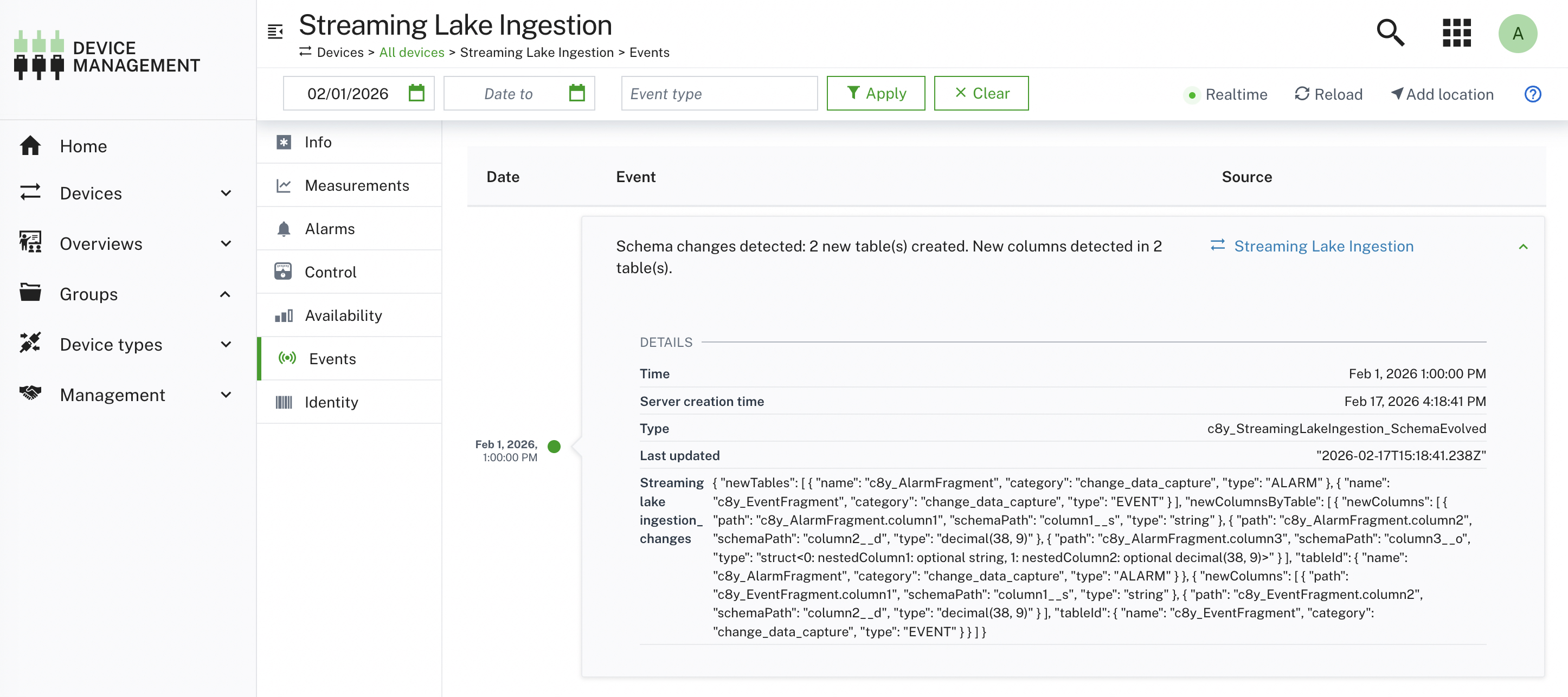
-
Schema violation alarm: This alarm appears in the alarm viewer when the service detects message payloads that do not match the expected schema (binned data). The alarm provides high-level information about the schema violation. For detailed information about the affected messages, query the
trashtable.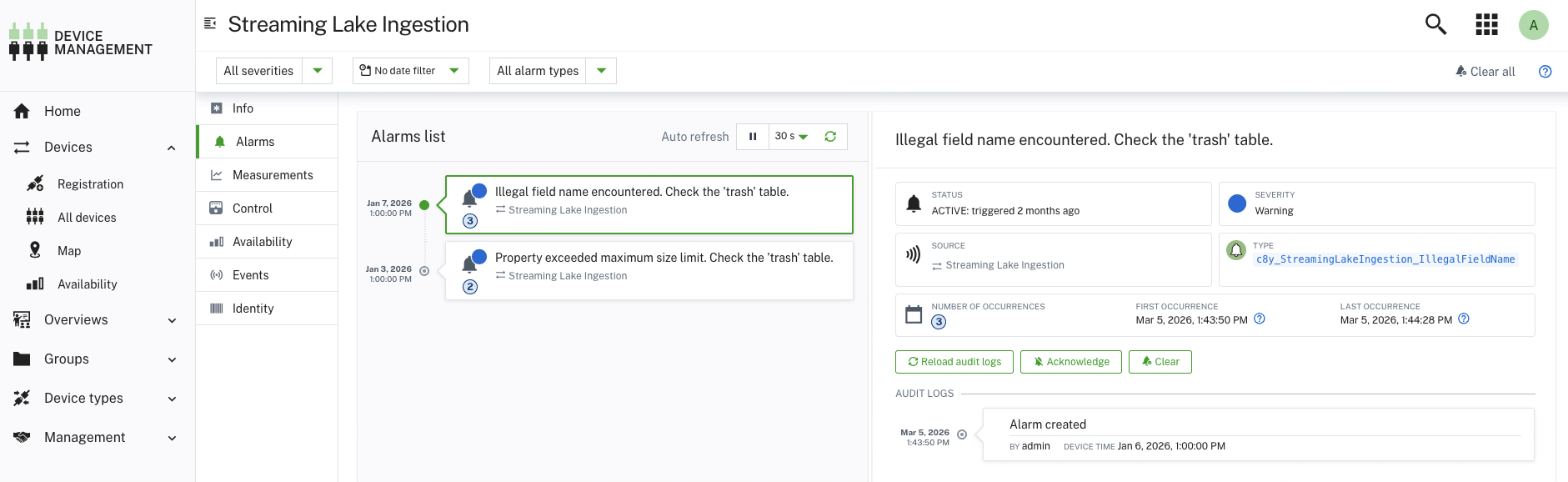
Migrating from DataHub Scheduled Offloading
You can run DataHub scheduled offloading jobs and Streaming Lake Ingestion in parallel. To migrate your postprocessing or reporting to Streaming Lake Ingestion incrementally, subscribe to Streaming Lake Ingestion and port your queries or scripts as needed. Contact Cumulocity support for questions on optimizing your data lake pipelines.
Current preview limitations
The current preview version includes a number of functional limitations as outlined in this section.
latestdata is only recorded for the inventory.- Delete events are only recorded for the inventory change data capture, not for the latest inventory.
- Custom top-level properties in measurements are ignored.
- There is no automated cleanup of tables and columns that are not in use anymore.
- The automated views only expose change data capture tables.
- Arrays appear as-is in the views.
- You may see an
internalfolder with tables for internal service information. Do not modify these tables. - The service does not offload any Cumulocity-internal inventory entries, events, measurements, and alarms.
- Users automatically get read permissions to the Dremio data source assigned. These read permissions cannot be manually revoked.
- On AWS, a bucket encrypted with a customer-managed KMS key is not supported. Use the default encryption of S3.
- You cannot change the base location of your data lake after the setup.
Frequently asked questions
How can I configure Streaming Lake Ingestion?
Streaming Lake Ingestion stores all incoming real-time data into your lake. It has no configuration options beyond a one-time setup that points it to a folder in your object storage. For details, see Enabling Streaming Lake Ingestion on AWS or Enabling Streaming Lake Ingestion on Microsoft Azure.
Depending on your use case, you can use a combination of options outside of Streaming Lake Ingestion to influence how data appears in your lake:
- Use Edge or Data Preparation to change data to more user friendly names, execute simple calculations or route data using processing modes.
- Use Digital Twin Manager to promote data points to asset level.
- Use Streaming Analytics to create new data in your desired output format.
- Use data broker to transfer data between tenants.
- Use a so-called “gold layer” to post-process IoT data together with your IT data into an joint and aggregated target format.
Is DataHub Query (Dremio) required for Streaming Lake Ingestion?
DataHub Query is optional if you want to post-process or query data using your own tools. Note that views are currently only generated for engines compatible with Dremio and Spark SQL. While we designed the service to be as compliant as possible with common tool restrictions, we cannot guarantee compliance with all Iceberg tools.
I see a device, alarm, measurement, event or operation in the operational store but not in the lake.
Only changes after subscription to Streaming Lake Ingestion are visible in the lake. If you have recently subscribed and the data was not changed since then, it will not be transferred to the lake.
If the data was changed and it is not visible, check the Alarms page in the Cockpit application for warnings. You may have breached a limit. In this case, data that breaches the limit is inserted into the trash table.
I see a device in the lake, but not in the operational store.
After you delete a device, the device is removed from the operational store but remains visible in the historic data in the lake for long-term reporting.
I see a device in latest_inventory but not in cdc_inventory. Is this expected?
Yes. The latest_inventory tables are pre-populated with all managed objects that existed at the time of subscription, while the cdc_inventory tables only record changes that occur after subscription.
My device, alarm … appears several times in the inventory in the lake.
The change data capture of the device inventory (cdc_inventory) records all changes to devices together with the kind of change that was applied. Inspect the eventType property and the lastUpdated to understand what change was applied when.