# Smart rules (NEW) plugin
Source: https://cumulocity.com/docs/streaming-analytics/smart-rules-plugin/
Sector: Analytics
Release: Latest
Description: Create and manage Analytics Builder model instances from device and group contexts in Device Management, Cockpit, and Digital Twin Manager.
## Getting started with the smart rules (NEW) plugin
### What is the smart rules (NEW) plugin {#what-is-the-smart-rules-plugin}
The smart rules plugin extends the Analytics Builder capabilities within Streaming Analytics by enabling users to create and manage Analytics Builder model instances directly from device and group contexts within applications such as Device Management, Cockpit, and Digital Twin Manager.
For more details about Analytics Builder, refer to [Analytics Builder](https://cumulocity.com/docs/streaming-analytics/analytics-builder/#getting-started).
### Prerequisites {#prerequisites}
Before using the smart rules (NEW) plugin, ensure that the following requirements are met:
- The tenant is subscribed to the Streaming Analytics microservice that supports the Analytics Builder capability.
- The smart rules plugin is installed in the desired application, and the **Smart rules (NEW) plugin** is enabled in **Preview feature**.
- The user has the required privileges to access Analytics Builder models and create new instances of Analytics builder templated models. Refer to [Permissions](https://cumulocity.com/docs/streaming-analytics/introduction-analytics/#permissions).
#### Managing permissions to smart rules (NEW) instances {#managing-permissions-to-smart-rules-instances}
The **Smart rule instances** permission under [global roles](https://cumulocity.com/docs/standard-tenant/managing-permissions/#to-add-a-global-role) allows you to manage permissions required to access smart rules (NEW) instances.
|Permission|Description|
|---------|-----------|
|**READ**|Grants read-only access to smart rule instances. Users with this permission can view existing instances but cannot create, update, or delete them.|
|**ADMIN**|Grants permission to create, read, update, and delete (CRUD) smart rule instances.|
These permissions ensure fine-grained access control, allowing administrators to manage user privileges based on operational requirements.
The permissions described above grant read-only access to the underlying Analytics Builder model. Administrative actions on the Analytics Builder models (like create, edit, or delete) require the *CEP management* permissions, see [permissions](https://cumulocity.com/docs/streaming-analytics/introduction-analytics/#permissions).
### Creating your first smart rule {#creating-your-first-smart-rule}
This topic provides the basic workflow for creating your first smart rules using the plugin from applications like Device Management. You will create a simple templated analytics model that creates an alarm when the temperature breaches a given threshold value. The steps below require that at least one device is already registered in Cumulocity. Preferably, this device already sends measurement values to Cumulocity.
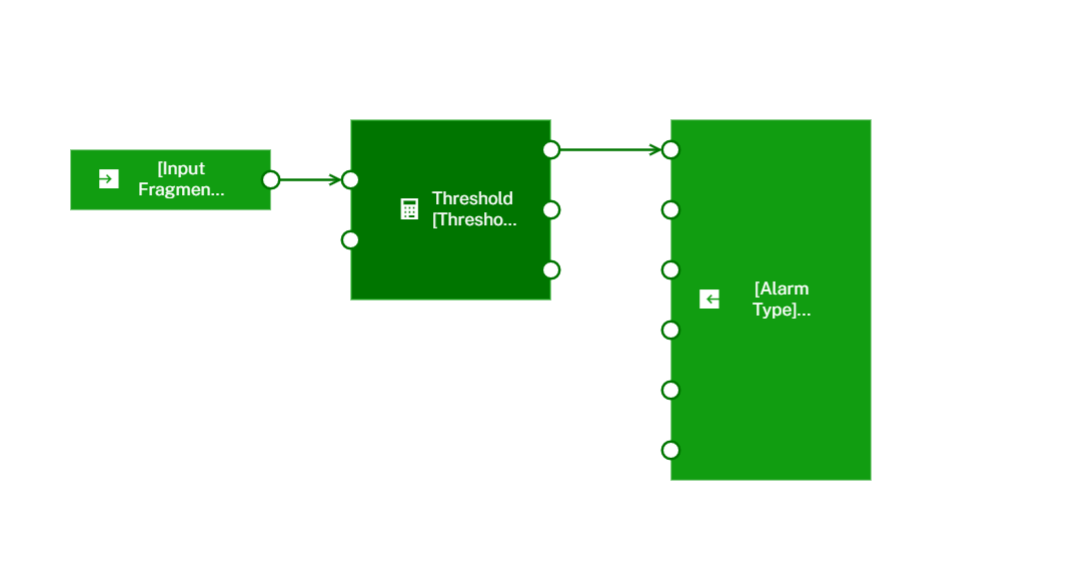
The model that you add will contain three blocks:
- An input block which receives measurements from devices, groups, or assets.
- A threshold block which verifies the measurement has breached the threshold value.
- An alarm output block which creates an alarm object for specified devices, groups, or assets.
#### Step 1: Create an Analytics model {#create-an-analytics-model}
This section walks you through creating a simple temperature monitoring model. For more detailed Analytics Builder information, refer to [Understanding models](https://cumulocity.com/docs/streaming-analytics/analytics-builder/#understanding-models).
1. Open the Streaming Analytics application and navigate to **Analytics Builder** > **Models**.
2. On the top bar, click **New Model**, enter a model name (for example, "Create alarm on threshold") and click **OK**.
3. From the palette on the left, expand **Input** and drag the **Measurement Input** block onto the canvas. In the block parameter editor:
- For **Input Source**, select "Template parameter" from the dropdown  , then provide a name. For example, "Measurement Source".
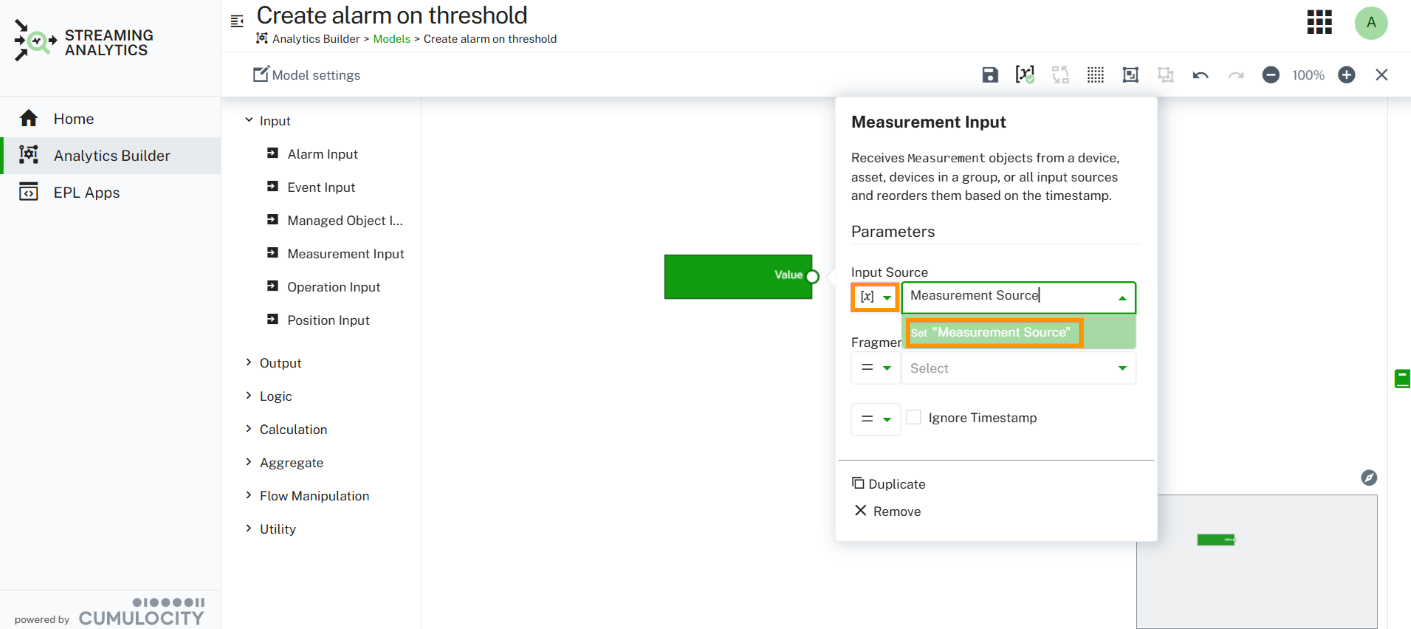
- For **Fragment and Series**, select "Template parameter" from the dropdown, then provide a name. For example: "Input Fragment and Series".
4. Expand **Calculation** and drag the **Threshold** block onto the canvas. In the block parameter editor:
- For **Threshold Value**, select "Template parameter" from the dropdown, then provide a name. For example: "Threshold Value".
5. Expand **Output** and drag the **Alarm Output** block onto the canvas. In the block parameter editor:
- For **Output Destination**, select "Template parameter" from the dropdown, then use the same template parameter given for **Input Source** of the **Measurement Input** block. For example: "Measurement Source".
- For **Alarm Type**, select "Template parameter" from the dropdown, then provide a name. For example: "Alarm Type".
- For **Message**, select "Template parameter" from the dropdown, then provide a name. For example: "Alarm Text".
- For **Severity**, select "Template parameter" from the dropdown, then provide a name. For example: "Alarm Severity".
6. Connect the blocks by clicking and dragging between their ports (small circles on the sides of blocks):
- Connect the **Value** output of the **Measurement Input** to the **Value** input of the **Threshold**.
- Connect the **Breached** output of the **Threshold** to the **Create Alarm** input of the **Alarm Output**.
7. In the toolbar of the model editor, click the template parameter icon to open the template parameter dialog. Ensure the template parameter entry provided for **Input Source** of the **Measurement Input** block (example : "Measurement Source") has "Source or Destination" updated to include one or more values from the **Restrict to** dropdown (for example, "Device") and set **Value Selection** to "From Context". Click **OK** to save the changes.
For more details about "From Context" and **Restrict to**, refer to [Define template parameters](https://cumulocity.com/docs/streaming-analytics/analytics-builder/#to-define-the-template-parameters-for-the-instances-of-the-current-model)
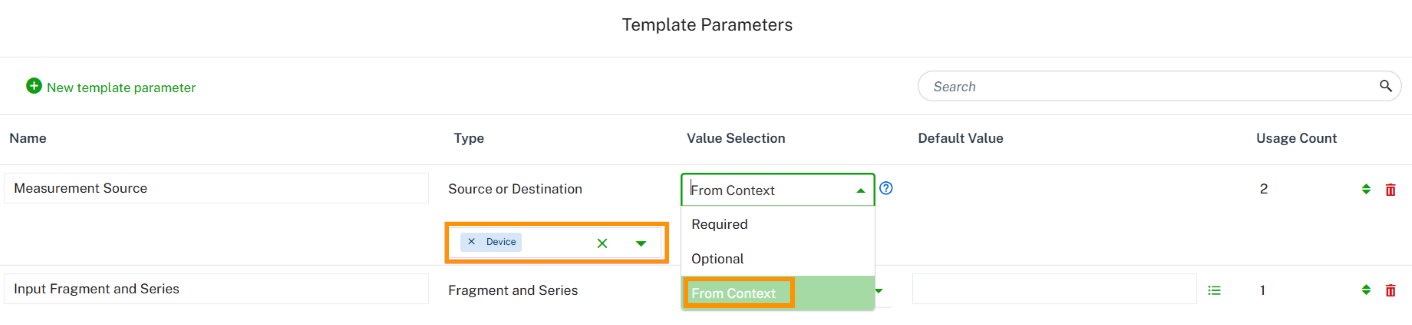
For detailed information about creating and managing template parameters in Analytics Builder, refer to [Managing template parameters](https://cumulocity.com/docs/streaming-analytics/analytics-builder/#managing-template-parameters).
8. In the toolbar of the model editor, click the save icon to save the model.
When completed, your model will look similar to this:
#### Step 2: Create a model instance using the smart rules plugin {#create-an-instance-of-model-using-smart-rules-plugin}
1. Navigate to the Device Management application.
2. Go to **Devices** > **All devices** and select a device.
3. Click the **Smart rules (NEW)** tab (embedded as one of the device details tabs).
Refer to the [Prerequisites](https://cumulocity.com/docs/streaming-analytics/smart-rules-plugin/#prerequisites) section to ensure all requirements are met.
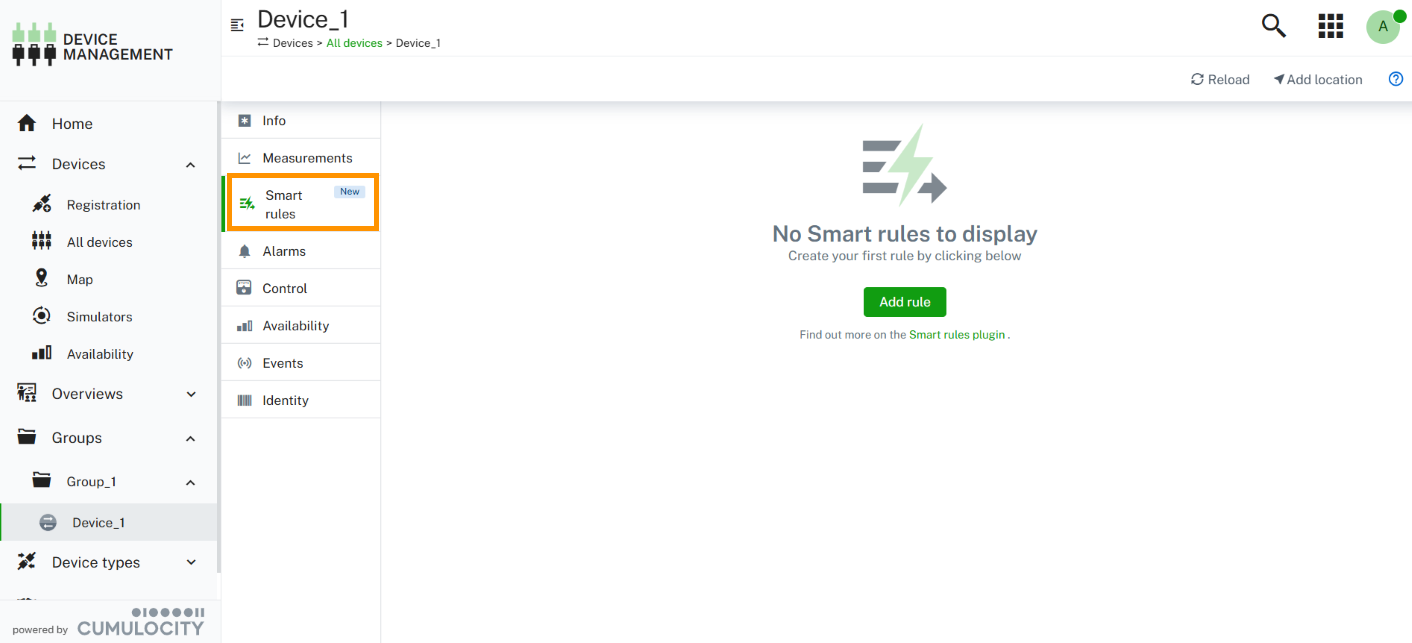
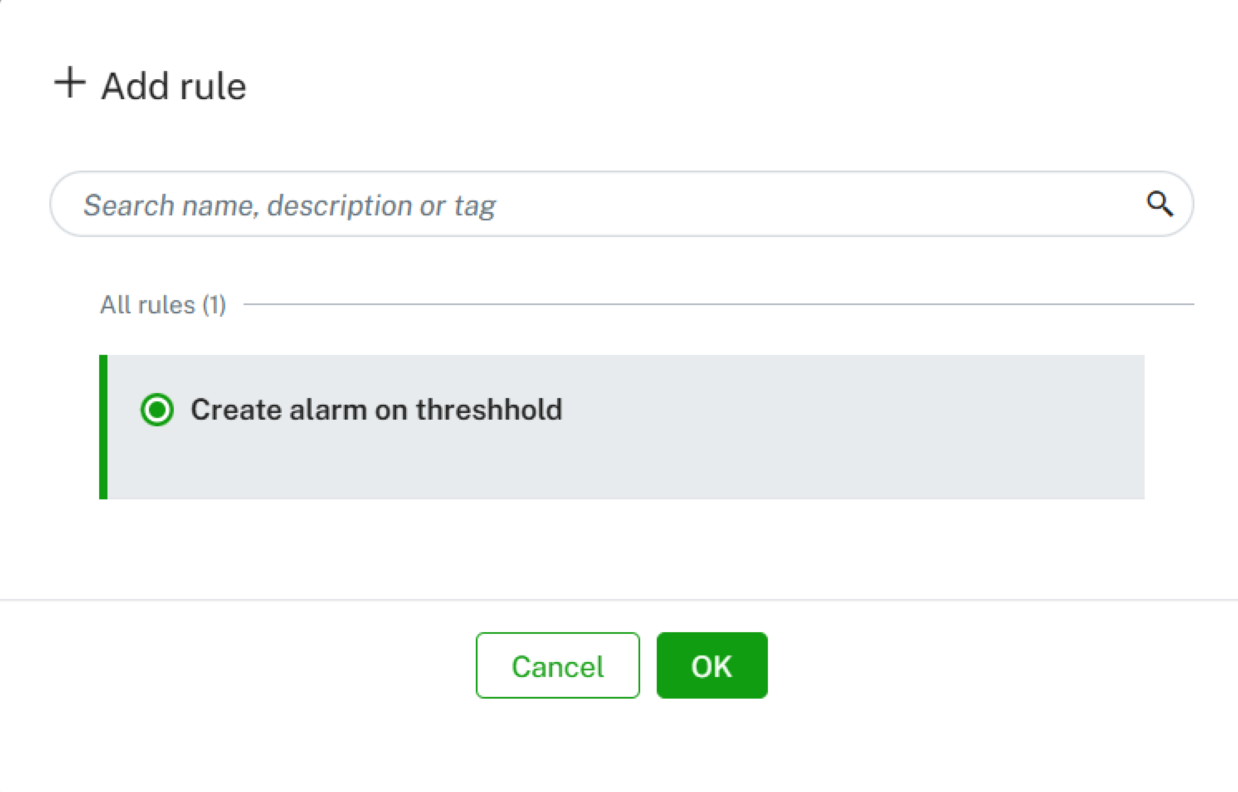
4. Click **Add rule** to open the **Add rule** dialog. Since you are currently in the **Device** context, only models that have been configured with **From Context** template parameters restricted to **Device** will be visible here. Select your configured model and click **OK**.
5. Configure the rule parameters:
- Optionally update the name or add a note if desired.
- Populate the template parameter values. The value of the template parameter (for example, "Measurement Source") configured with **From Context** is derived automatically from the current device or group context.
- Click **Save** to save the rule, or toggle to **Active** to save and deploy immediately.
6. Your rule now appears in the smart rules list, showing its status (Active/Inactive).
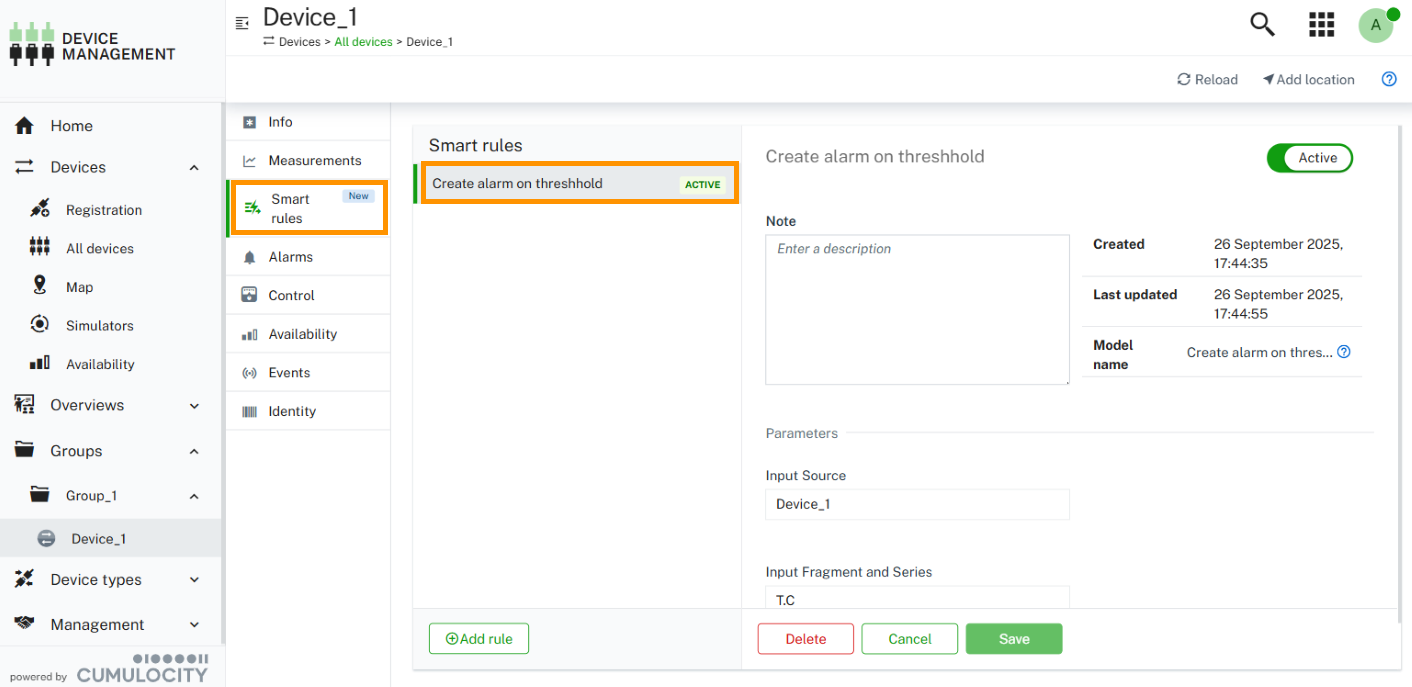
**Congratulations!** You have successfully created and deployed your first smart rule using the smart rules plugin.
### Creating smart rules from existing Analytics Builder samples {#create-smart-rule-for-existing-samples}
You can also create smart rules using pre-built sample models from Analytics Builder. The process is similar to creating from scratch but faster since the model logic is already defined.
#### Step 1: Create a model from a sample {#create-model-from-sample}
1. Navigate to **Analytics Builder** > **Samples**.
2. Click the actions menu of your desired sample (for example, "On alarm execute operation") and select **Create model from sample**.
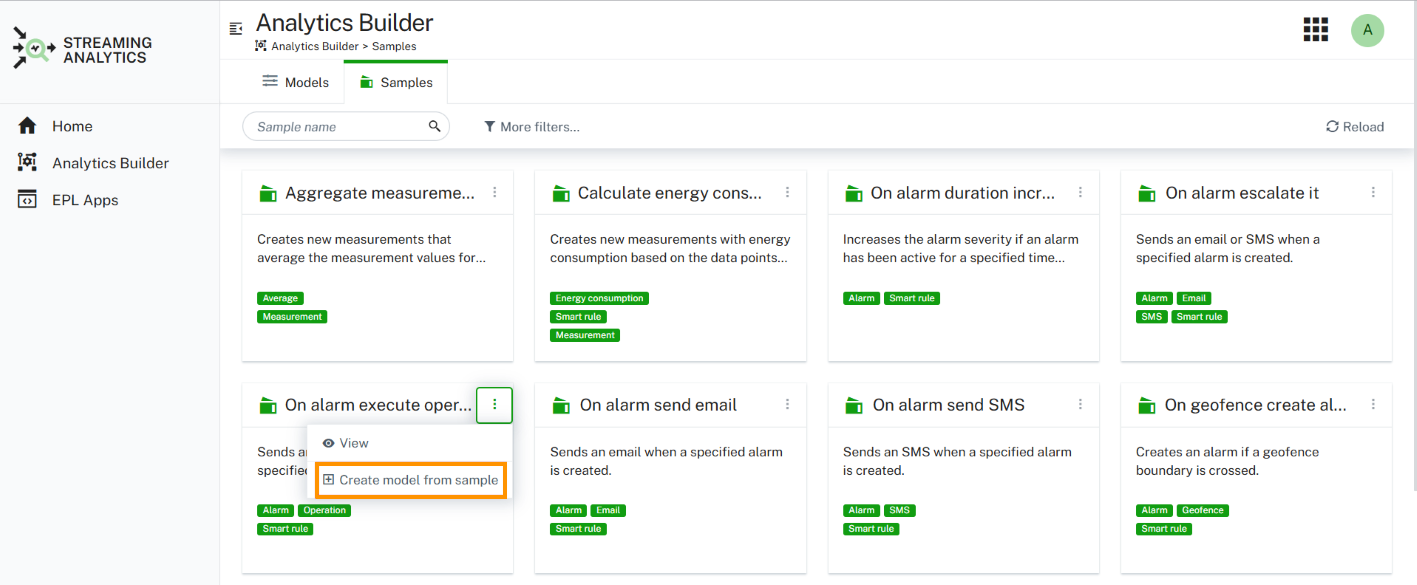
3. The model editor opens with the sample model ready for use.
#### Step 2: Configure template parameters {#configure-template-parameters}
1. Click the template parameter icon in the toolbar.
2. Ensure the template parameter entry provided for **Input Source** of the **Alarm Input** block (for example, "Device or group of devices") has "Source or Destination" updated to include one or more values from the **Restrict to** dropdown (for example, "Device") and set **Value Selection** to "From Context". Click **OK** to save the changes.
3. In the toolbar of the model editor, click the save icon to save the model.
#### Step 3: Create a rule from the Device Management application {#create-rule-from-device-management-application}
Follow the same steps as described in [Step 2: Create model instance using the smart rules plugin](https://cumulocity.com/docs/streaming-analytics/smart-rules-plugin/#create-an-instance-of-model-using-smart-rules-plugin) above.
### Troubleshooting {#troubleshooting}
1. **No models available in Add rule dialog**
- Ensure that the Analytics Builder models have template parameters configured with the "From Context" value.
- Verify your current context matches the model's "Source or Destination" type restrictions. For example, when in a device context where the model's **Restrict to** dropdown is configured with "Groups" only, that model will not be available. To appear in device contexts, "Device" must be selected in the **Restrict to** dropdown.
2. **Previously created rules don't appear in the smart rules list**
- Verify that the Analytics instances are set to **Production mode** in the Analytics Builder instance editor.
- Check if Analytics instance names are set in the Analytics Builder instance editor.
- Confirm you're viewing the correct device or group context.
3. **Error in smart rule deployment**
- Click the runtime error icon
, then provide a name. For example, "Measurement Source".

- For **Fragment and Series**, select "Template parameter" from the dropdown, then provide a name. For example: "Input Fragment and Series".
4. Expand **Calculation** and drag the **Threshold** block onto the canvas. In the block parameter editor:
- For **Threshold Value**, select "Template parameter" from the dropdown, then provide a name. For example: "Threshold Value".
5. Expand **Output** and drag the **Alarm Output** block onto the canvas. In the block parameter editor:
- For **Output Destination**, select "Template parameter" from the dropdown, then use the same template parameter given for **Input Source** of the **Measurement Input** block. For example: "Measurement Source".
- For **Alarm Type**, select "Template parameter" from the dropdown, then provide a name. For example: "Alarm Type".
- For **Message**, select "Template parameter" from the dropdown, then provide a name. For example: "Alarm Text".
- For **Severity**, select "Template parameter" from the dropdown, then provide a name. For example: "Alarm Severity".
6. Connect the blocks by clicking and dragging between their ports (small circles on the sides of blocks):
- Connect the **Value** output of the **Measurement Input** to the **Value** input of the **Threshold**.
- Connect the **Breached** output of the **Threshold** to the **Create Alarm** input of the **Alarm Output**.
7. In the toolbar of the model editor, click the template parameter icon to open the template parameter dialog. Ensure the template parameter entry provided for **Input Source** of the **Measurement Input** block (example : "Measurement Source") has "Source or Destination" updated to include one or more values from the **Restrict to** dropdown (for example, "Device") and set **Value Selection** to "From Context". Click **OK** to save the changes.
For more details about "From Context" and **Restrict to**, refer to [Define template parameters](https://cumulocity.com/docs/streaming-analytics/analytics-builder/#to-define-the-template-parameters-for-the-instances-of-the-current-model)

For detailed information about creating and managing template parameters in Analytics Builder, refer to [Managing template parameters](https://cumulocity.com/docs/streaming-analytics/analytics-builder/#managing-template-parameters).
8. In the toolbar of the model editor, click the save icon to save the model.
When completed, your model will look similar to this:

#### Step 2: Create a model instance using the smart rules plugin {#create-an-instance-of-model-using-smart-rules-plugin}
1. Navigate to the Device Management application.
2. Go to **Devices** > **All devices** and select a device.
3. Click the **Smart rules (NEW)** tab (embedded as one of the device details tabs).
Refer to the [Prerequisites](https://cumulocity.com/docs/streaming-analytics/smart-rules-plugin/#prerequisites) section to ensure all requirements are met.

4. Click **Add rule** to open the **Add rule** dialog. Since you are currently in the **Device** context, only models that have been configured with **From Context** template parameters restricted to **Device** will be visible here. Select your configured model and click **OK**.

5. Configure the rule parameters:
- Optionally update the name or add a note if desired.
- Populate the template parameter values. The value of the template parameter (for example, "Measurement Source") configured with **From Context** is derived automatically from the current device or group context.
- Click **Save** to save the rule, or toggle to **Active** to save and deploy immediately.
6. Your rule now appears in the smart rules list, showing its status (Active/Inactive).

**Congratulations!** You have successfully created and deployed your first smart rule using the smart rules plugin.
### Creating smart rules from existing Analytics Builder samples {#create-smart-rule-for-existing-samples}
You can also create smart rules using pre-built sample models from Analytics Builder. The process is similar to creating from scratch but faster since the model logic is already defined.
#### Step 1: Create a model from a sample {#create-model-from-sample}
1. Navigate to **Analytics Builder** > **Samples**.
2. Click the actions menu of your desired sample (for example, "On alarm execute operation") and select **Create model from sample**.

3. The model editor opens with the sample model ready for use.
#### Step 2: Configure template parameters {#configure-template-parameters}
1. Click the template parameter icon in the toolbar.
2. Ensure the template parameter entry provided for **Input Source** of the **Alarm Input** block (for example, "Device or group of devices") has "Source or Destination" updated to include one or more values from the **Restrict to** dropdown (for example, "Device") and set **Value Selection** to "From Context". Click **OK** to save the changes.
3. In the toolbar of the model editor, click the save icon to save the model.
#### Step 3: Create a rule from the Device Management application {#create-rule-from-device-management-application}
Follow the same steps as described in [Step 2: Create model instance using the smart rules plugin](https://cumulocity.com/docs/streaming-analytics/smart-rules-plugin/#create-an-instance-of-model-using-smart-rules-plugin) above.
### Troubleshooting {#troubleshooting}
1. **No models available in Add rule dialog**
- Ensure that the Analytics Builder models have template parameters configured with the "From Context" value.
- Verify your current context matches the model's "Source or Destination" type restrictions. For example, when in a device context where the model's **Restrict to** dropdown is configured with "Groups" only, that model will not be available. To appear in device contexts, "Device" must be selected in the **Restrict to** dropdown.
2. **Previously created rules don't appear in the smart rules list**
- Verify that the Analytics instances are set to **Production mode** in the Analytics Builder instance editor.
- Check if Analytics instance names are set in the Analytics Builder instance editor.
- Confirm you're viewing the correct device or group context.
3. **Error in smart rule deployment**
- Click the runtime error icon  to view information about the error.
## Understanding the smart rules (NEW) plugin
### Analytics Builder workflow versus smart rules plugin {#analytics-builder-workflow-versus-smart-rules-plugin}
#### Standard Analytics Builder workflow {#standard-analytics-builder-workflow}
In the standard Analytics Builder workflow, to deploy analytics instances, users must switch from their primary workflow to the Analytics Builder:
1. Navigate to the Streaming Analytics application.
2. Go to **Analytics Builder**.
3. Select your model and navigate to the **Instances** page.
4. Create instances/rules for the model in the instance editor.
5. Configure and deploy rules from the instance editor.
This process requires switching between applications and can be time-consuming when managing rules for multiple devices or groups.
For detailed information about the instance editor workflow, refer to [Instance editor](https://cumulocity.com/docs/streaming-analytics/analytics-builder/#using-the-instance-editor).
#### With smart rules plugin {#with-smart-rules-plugin}
The smart rules plugin streamlines this process by enabling Analytics Builder model instance creation and deployment directly from device and group contexts, eliminating the need for switching to a different application.
### Understanding the smart rules interface {#understanding-the-smart-rules-interface}
A rule has the following fields and properties:
| Field | Description |
|----------------------| ----------------------|
| **Name** | Automatically populated with the model name but can be customized for more descriptive names.
to view information about the error.
## Understanding the smart rules (NEW) plugin
### Analytics Builder workflow versus smart rules plugin {#analytics-builder-workflow-versus-smart-rules-plugin}
#### Standard Analytics Builder workflow {#standard-analytics-builder-workflow}
In the standard Analytics Builder workflow, to deploy analytics instances, users must switch from their primary workflow to the Analytics Builder:
1. Navigate to the Streaming Analytics application.
2. Go to **Analytics Builder**.
3. Select your model and navigate to the **Instances** page.
4. Create instances/rules for the model in the instance editor.
5. Configure and deploy rules from the instance editor.
This process requires switching between applications and can be time-consuming when managing rules for multiple devices or groups.
For detailed information about the instance editor workflow, refer to [Instance editor](https://cumulocity.com/docs/streaming-analytics/analytics-builder/#using-the-instance-editor).
#### With smart rules plugin {#with-smart-rules-plugin}
The smart rules plugin streamlines this process by enabling Analytics Builder model instance creation and deployment directly from device and group contexts, eliminating the need for switching to a different application.
### Understanding the smart rules interface {#understanding-the-smart-rules-interface}
A rule has the following fields and properties:
| Field | Description |
|----------------------| ----------------------|
| **Name** | Automatically populated with the model name but can be customized for more descriptive names.
When creating multiple rules from the same model without changing the rule name, the plugin automatically appends #1, #2, #3, etc. to differentiate instances. Rules are sorted by instance name. |
| **Note** | You can add a note for the rule. |
| **Created** | Shows the timestamp when the rule was created. |
| **Last Updated** | Shows the timestamp when the rule was last updated. |
| **Model Name** | Displays the name of the model associated with the rule. This field is read-only. |
| **Template parameters** | Template parameters configured as "From Context" are automatically populated based on your current device/group context.
Context-based parameters are read-only as they inherit values from the current context.
Non-context template parameters remain editable for user configuration. |
| **Active/Inactive** | Deploy the rule by toggling from inactive to active state.
Once the rule is deployed, all fields and properties become read-only unless the rule is undeployed. |
### Integration with Analytics Builder instance editor {#integration-with-analytics-builder-instance-editor}
The smart rules plugin maintains seamless bidirectional integration with the Analytics Builder instance editor.
Rules created in the Analytics Builder instance editor appear in the smart rules plugin only when the mode is set to **Production**. Non-production modes indicate the rule is under development or testing and not ready for deployment.
Rules created through the smart rules plugin automatically appear in the corresponding model's instance editor. These rules can be edited, modified, or deleted from the instance editor.
To prevent deployment of incomplete rules, the instance editor includes enhanced validation on the instance name. The instance name is required and must be unique within your tenant. The instance is available for deployment only after you provide a unique, non-empty instance name.
> **Info:**
> This validation applies only to models configured with template parameters with the value selection set to "From Context".
- When the instance name is empty, a message **Set distinct instance name to select production mode** is displayed below the mode field.
- If you enter a duplicate instance name, an error message **Instance name already exists** appears below the instance name field and prevents you from proceeding.
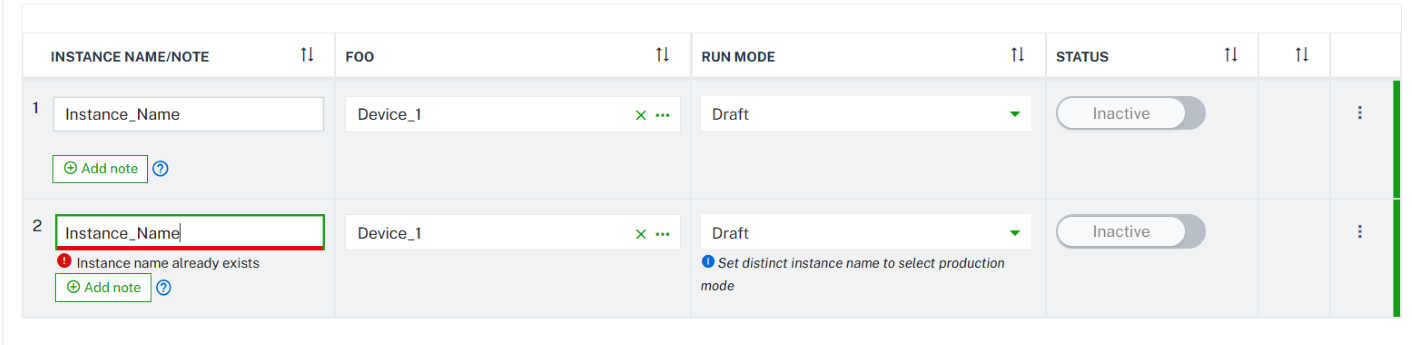
This validation ensures that all production-ready rules have proper identification and prevents deployment conflicts.