# User options and settings

Source: https://cumulocity.com/docs/get-familiar-with-the-ui/user-settings/
Sector: Getting started
Release: Latest

### Right drawer

Clicking the **User** button at the top right opens the right drawer which provides access to various actions and information.

![User account menu](https://cumulocity.com/docs/images/users-guide/getting-started/getting-started-user-account-menu.png)

At the top you find the following items:

<table>
<colgroup>
<col width = "20%">
<col width = "80%">
</colgroup>
<thead>
<tr>
<th style="text-align:left">Menu item</th>
<th style="text-align:left">Description</th>
</tr>
</thead>
<tbody>
<tr>
<td style="text-align:left">User settings</td>
<td style="text-align:left">Provides access to the user settings, see <a href="#to-change-user-settings" class="no-ajaxy">To change user settings</a> for more details. </td>
</tr>
<tr>
<td style="text-align:left">Access denied requests</td>
<td style="text-align:left">Shows a list of data requests which could not be accessed due to missing permissions, if any. </td>
</tr>
<tr>
<td style="text-align:left">Logout</td>
<td style="text-align:left">Logs you out from your Cumulocity account. </td>
</tr>
</tbody>
</table>

#### UI Settings {#ui-settings}

In the **UI settings** section change the language of the UI, see [To change the language of the UI](https://cumulocity.com/docs/get-familiar-with-the-ui/user-settings/#to-change-the-language-of-the-ui).

#### Platform info {#platform-info}

In the **Platform info** section, you find information on the infrastructure of your platform:

- The ID of your tenant, which might be required if you request support. Click the clipboard icon next to the tenant ID to copy it to the clipboard.
- Version information for the deployed components. For information on the version numbers of the different components, click the **Download platform details** button and then open the downloaded JSON file.

#### Preview features {#preview-features}


> **Requirements:**
> ROLES & PERMISSIONS:
>
> To see the **Preview features** section, you must have ADMIN permission for the "Tenant management" permission type or be the first admin user created in the tenant.
>
> For easier user access management, the above permission(s) are/is included in the global role(s) created by default in every new tenant:
> - Tenant manager - manages tenant-wide configurations like applications, tenant options and retention rules.


The Preview Features functionality allows you to manage all features currently in Public Preview for a specific application. With a simple toggle interface, you can easily discover, enable, and experiment with upcoming features.

When a new preview feature becomes available, the user icon at the top right corner flashes to draw your attention. 

#### Bookmarks {#bookmarks}

The **Bookmarks** section provides links to the most common pages and processes in the platform. Click **Add current page** to add a custom bookmark to the list.

#### Support {#support}

To allow a support user from Cumulocity help with an issue, click **Activate support access**. This allows support users to access your account.


> **Info:**
> Note that this option is only available if support user access is not set globally for subtenant users in the Management tenant, for details see <a href="https://cumulocity.com/docs/enterprise-tenant/support-user-access/" class="no-ajaxy">Support user access</a>. After the support user access has been activated, the menu item switches to <strong>Deactivate support access</strong>. If your support request has been resolved but the duration for the support user access is not expired (24 hours by default) you can actively disable an active support user request here.


Clicking **Request support** redirects you to the Cumulocity Customer Service Desk https://cumulocity.com/support.

#### Documentation {#documentation}

The **Documentation** section provides links to the most relevant sections of the user and developer documentation.


### To change user settings {#to-change-user-settings}

Several account settings can be changed by the user.

1. Click the **User** button at the right of the top bar and then click **User Settings**.  
2. In the **Edit user** dialog box, make the relevant changes.
3. Use the **Enable personalized product experience tracking** toggle to opt-out of sending Personally Identifiable Information to Gainsight, which is enabled by default if you accepted functional cookies.
4. Use the **Enable in-product information & communication** toggle to opt-out from the Knowledge Hub and all forms of engagements, which is enabled by default.
5. Click **Change password** to change your current password, see [To change your password](https://cumulocity.com/docs/get-familiar-with-the-ui/user-settings/#to-change-your-password) for details.
6. Click **Set up two-factor authentication** to set up two-factor authentication and increase tenant security.
7. Click **Save** to apply your settings.


### To change your password {#to-change-your-password}

1. Click the **User** button at the right of the top bar and then click **User settings**.
2. In the **Edit user** dialog box, click **Change Password**.
3. Enter a password and confirm it.
4. Click **Save** to apply your settings.

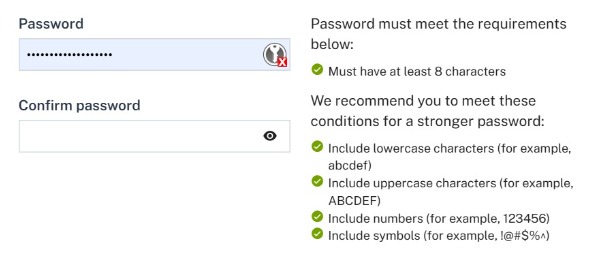
Make sure to select a strong password. To support you in doing so, a password strength indicator is displayed along with a password change.

<img src="https://cumulocity.com/docs/images/users-guide/getting-started/getting-started-password-strength.png" alt="Reset password" style="max-width: 100%">

By default, the password must meet the following conditions:

* Consist of at least eight characters (this parameter can be configured by the Management tenant. Contact your Operations team on how to configure this setting according to your needs.
* Must not have been used previously by the user.
* Include each of the following character types:
  * uppercase letters: `[A-Z]`, for example `ABCDEF`.
  * lowercase letters: `[a-z]`, for example `abcdef`.
  * numbers: `[0-9]`, for example: `123456`.
  * any other symbol from following list `` `~!@#$%^&*()_|+-=?;:'",.<>{}[]\/`` as a special character, for example `!@#$%^`.


> **Info:**
> The password rules can be configured by the administrator, that means, your administrator can configure your account to enforce a password policy. You may be required to pick a strong password for example or to change your password regularly.


### To change the language of the UI {#to-change-the-language-of-the-ui}

The user interface language is selected along the following criteria, in the order listed below:

* The language selected in the UI settings.
* The language selected in the browser preferences.
* The operating system language.

Change the language in the **UI settings** section by selecting a language from the dropdown list. Reload the page to apply the new language setting.

The UI is available in the following languages:

|Language|Language code|
|:---|:---|
|English (default)|en|
|Brazilian Portuguese|pt_BR|
|Chinese|zh_CN|
|Chinese, traditional|zh_TW|
|Dutch|nl|
|French|fr|
|German|de|
|Japanese|ja_JP|
|Korean|ko|
|Polish|pl|
|Spanish|es|