| Field | Description | Required |
|---|---|---|
| Domain/ URL | Enter a subdomain of your choice, for example "acme". The tenant's URL will be "acme.cumulocity.com" on cumulocity.com. You can only use one subdomain level. For example, you can only use "acme.cumulocity.com" on cumulocity.com. You cannot use "mycustomer.acme.cumulocity.com". This is not permitted by the TLS standard. The tenant domain may contain lowercase letters, digits or hyphens (-). It must start with a letter; hyphens are only allowed in the middle; minimum is 2 characters. |
Yes |
| Name | The name of the tenant, for example, the company's name. | Yes |
| Administrator's email | A valid email address to enable users to reset their password. | Yes |
| Administrator's username | Username for the administrator of this tenant. | Yes |
| Contact name | Name of the contact. | No |
| Contact phone | Phone number of the contact. | Yes |
| Send password reset link as email | Selected by default. If you deselect this option, you must provide a password and confirm the password (see To change your password for more information on password strength). | No |
| Tenant policy | You may select a tenant policy to be applied to the tenant from the dropdown list. | No |
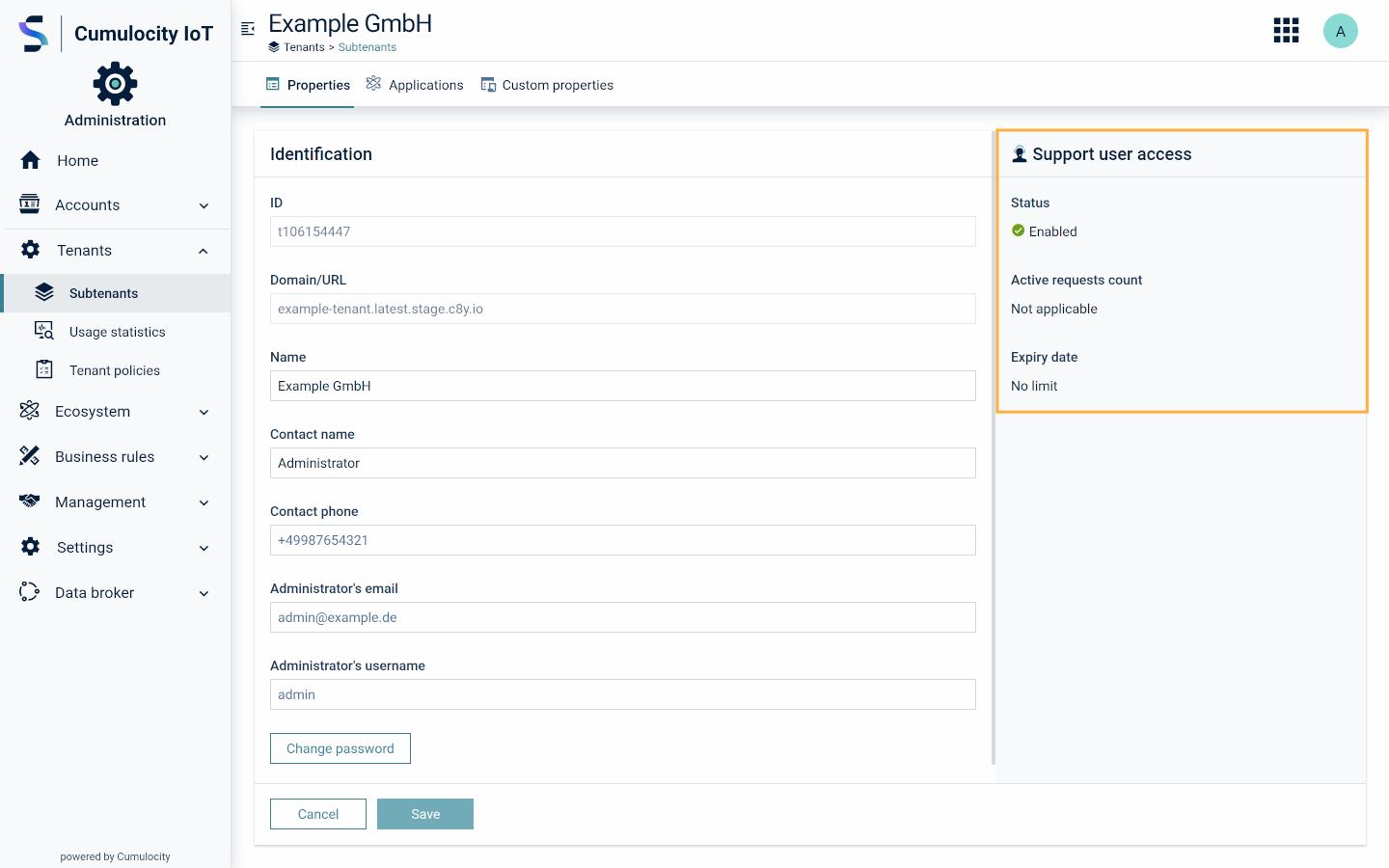 The following information is displayed here:
| Field | Description |
|---|---|
| Status | May be either "Enabled" or "Disabled". "Enabled" indicates that: - Support user access has been activated globally in the Management tenant. - One or more subtenant users have activated support user access. "Disabled" indicates that: - Support user access has been deactivated globally in the Management tenant. - No subtenant user has currently any active support user access (that means, each support user request has either expired or has actively been deactivated). |
| Active requests count | The number of requests currently active in the subtenant. Only displayed if support user access is not enabled globally in the Management tenant. Shown as a number in a small red dot. |
| Expiry date | Specifies the date on which support user access for the tenant will expire. If no date has been specified, the expiry date is set to "No limit". |
 > **Info:**
> Alternatively, you can retrieve the list of subscribed applications for a tenant by using the Cumulocity REST API to get [specific tenant information](https://cumulocity.com/api/core/#tag/Tenant-API). The subscribed applications will be listed under the
> **Info:**
> Alternatively, you can retrieve the list of subscribed applications for a tenant by using the Cumulocity REST API to get [specific tenant information](https://cumulocity.com/api/core/#tag/Tenant-API). The subscribed applications will be listed under the applications fragment.
#### To view the application details {#to-view-the-application-details}
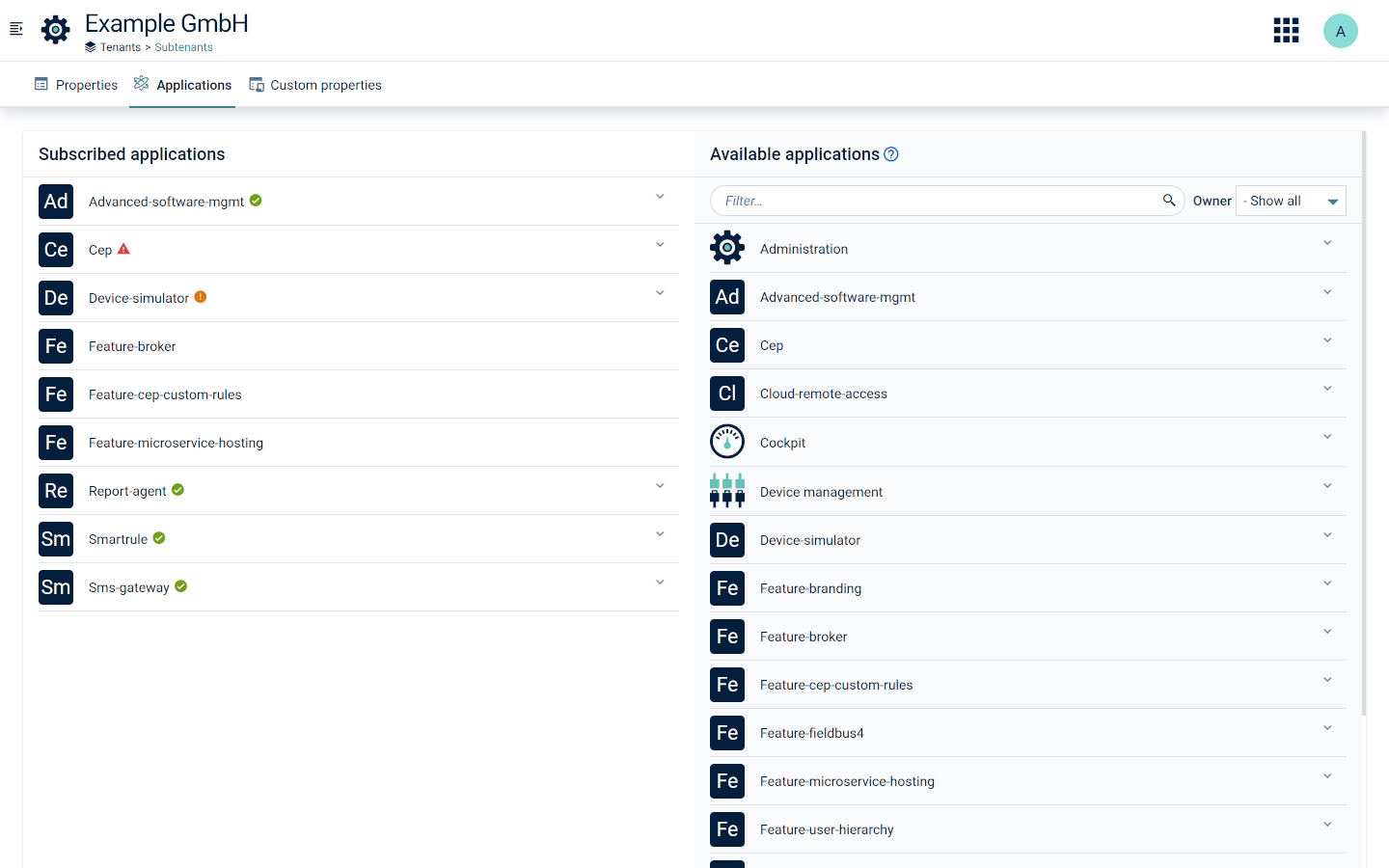
Expanding an application entry in the **Available applications** list shows the following details:
- Availability - One of MARKET, SHARED or PRIVATE
- Type - One of HOSTED, MICROSERVICE or EXTERNAL
- Owner - Tenant that owns the application
### To subscribe an application {#to-subscribe-an-application}
Hover over the application under **Available applications** at the right and click **Subscribe** on the desired application.
### To unsubscribe an application {#to-unsubscribe-an-application}
Hover over the application under **Subscribed applications** at the left and click **Unsubscribe**.
### To monitor the microservice status {#to-monitor-the-microservice-status}
For all applications hosted as microservices by Cumulocity the status of the application is indicated next to its name by symbols. It may be in one of the following states:
* Microservice is up and running.
* Microservice is unhealthy.
* Microservice is down.
You can view details on the status by expanding the respective entry.
 The following information is provided:
* Active - the number of active microservice instances.
* Unhealthy - the number of inactive microservice instances.
* Desired - the number of desired microservice instances.
* Name - microservice instance name.
* Restarts - the number of microservice instance restarts.
> **Info:**
> Information on the microservice instance name and the number of restarts is displayed in case of at least one restart.
Further details are provided on the **Status** tab of the respective microservice, see [Monitoring microservices](https://cumulocity.com/docs/standard-tenant/ecosystem/#monitoring-microservices).
## Custom properties
The **Custom properties** tab allows you to view and edit values of tenant custom properties defined in the [properties library](https://cumulocity.com/docs/standard-tenant/changing-settings/#properties-library). Such properties are also displayed as columns in the [Usage statistics](https://cumulocity.com/docs/enterprise-tenant/usage-and-billing/) page.
## Setting limits
The **Limits** tab allows you to view and edit resource limits for the tenant, as well as to assign an "External reference" and to enable/disable the Gainsight product experience tracking.
### To limit the subtenant request rate {#to-limit-the-subtenant-request-rate}
Platform administrators can limit the request rate of each subtenant via the following properties:
* **Limit HTTP queue**: Limit of the HTTP request queue for the tenant.
* **Limit HTTP requests**: Limit of the HTTP requests for the tenant per second.
* **Limit stream queue**: Limit of the MQTT request queue for the tenant.
* **Limit stream requests**: Limit of the MQTT requests for the tenant per second.
The request throttling mechanism is only enabled when both HTTP properties (**Limit HTTP queue** and **Limit HTTP requests**) are configured. If one of the values is omitted, the other one is ignored and throttling remains disabled.
> **Important:**
> Rate limiting can be an effective countermeasure against threats like brute force login attempts, API abuse and request flooding thus reducing the number of malicious/unwanted traffic. This helps in protecting against DoS (Denial of Service) attacks and saving the available bandwidth for legitimate requests.
You can also customize the buffer size for the CEP queue and the data broker queue for a particular tenant. This can be done from the Management tenant. Contact your Operations team on how to configure this setting according to your needs.
### To limit the subtenant device number {#to-limit-the-subtenant-device-number}
Platform administrators can limit the count of concurrently registered root devices or simply all devices (including child devices) via the property **Limit number of devices**.
You can view the peak number of concurrently registered devices, root devices and the peak value of used storage in the [Usage statistics](https://cumulocity.com/docs/enterprise-tenant/usage-and-billing/) page.
### Product experience tracking {#product-experience-tracking}
In the parent tenant, check the checkbox **Enable Gainsight product experience tracking** to enable/disable the product experience tracking through the [Gainsight PX](https://www.gainsight.com/product-experience/) product experience software for the given child tenant.
At the tenant level, you can disable the product experience tracking by Gainsight by turning off the cookie banner on the **Branding** page. For more information, see [Branding](https://cumulocity.com/docs/enterprise-tenant/customization/#branding).
If you activate tracking for the tenant, its users are automatically tracked. However, the nature of this tracking depends on their consent. By accepting tracking, they permit the use of Personally Identifiable Information (PII) for tracking purposes. If they decline, their data is anonymized to ensure privacy, though tracking will still capture usage data without personal identifiers. For more details, see [Accessing and logging into the platform](https://cumulocity.com/docs/get-familiar-with-the-ui/platform-access).
## Tenant policies
A tenant policy is a set of tenant options and retention rules. Tenant options and retention rules may be specified during tenant creation.
Creating a tenant policy with a specific set of options and rules saves time when creating multiple tenants with the same settings.
> **Info:**
> The options and rules are copied into the tenant. Editing the policy has no effect on tenants that have already been created.
> **Important:**
> Tenant options specified in a tenant policy are **not encrypted**. You should not specify or overwrite tenant options here with a "credentials." prefix, since the platform expects those options to be encrypted with data that will appear after the tenant has been created.
### To view tenant policies {#to-view-tenant-policies}
Click **Tenant policies** in the **Tenants** menu to view all available tenant policies.
For each tenant policy, the name, an optional description and the number of options and retention rules is provided, either in a list or a grid.
### To create a tenant policy {#to-create-a-tenant-policy}
1. Click **Add policy** in the top menu bar.
2. In the resulting dialog box, enter a name and an optional description.
The following information is provided:
* Active - the number of active microservice instances.
* Unhealthy - the number of inactive microservice instances.
* Desired - the number of desired microservice instances.
* Name - microservice instance name.
* Restarts - the number of microservice instance restarts.
> **Info:**
> Information on the microservice instance name and the number of restarts is displayed in case of at least one restart.
Further details are provided on the **Status** tab of the respective microservice, see [Monitoring microservices](https://cumulocity.com/docs/standard-tenant/ecosystem/#monitoring-microservices).
## Custom properties
The **Custom properties** tab allows you to view and edit values of tenant custom properties defined in the [properties library](https://cumulocity.com/docs/standard-tenant/changing-settings/#properties-library). Such properties are also displayed as columns in the [Usage statistics](https://cumulocity.com/docs/enterprise-tenant/usage-and-billing/) page.
## Setting limits
The **Limits** tab allows you to view and edit resource limits for the tenant, as well as to assign an "External reference" and to enable/disable the Gainsight product experience tracking.
### To limit the subtenant request rate {#to-limit-the-subtenant-request-rate}
Platform administrators can limit the request rate of each subtenant via the following properties:
* **Limit HTTP queue**: Limit of the HTTP request queue for the tenant.
* **Limit HTTP requests**: Limit of the HTTP requests for the tenant per second.
* **Limit stream queue**: Limit of the MQTT request queue for the tenant.
* **Limit stream requests**: Limit of the MQTT requests for the tenant per second.
The request throttling mechanism is only enabled when both HTTP properties (**Limit HTTP queue** and **Limit HTTP requests**) are configured. If one of the values is omitted, the other one is ignored and throttling remains disabled.
> **Important:**
> Rate limiting can be an effective countermeasure against threats like brute force login attempts, API abuse and request flooding thus reducing the number of malicious/unwanted traffic. This helps in protecting against DoS (Denial of Service) attacks and saving the available bandwidth for legitimate requests.
You can also customize the buffer size for the CEP queue and the data broker queue for a particular tenant. This can be done from the Management tenant. Contact your Operations team on how to configure this setting according to your needs.
### To limit the subtenant device number {#to-limit-the-subtenant-device-number}
Platform administrators can limit the count of concurrently registered root devices or simply all devices (including child devices) via the property **Limit number of devices**.
You can view the peak number of concurrently registered devices, root devices and the peak value of used storage in the [Usage statistics](https://cumulocity.com/docs/enterprise-tenant/usage-and-billing/) page.
### Product experience tracking {#product-experience-tracking}
In the parent tenant, check the checkbox **Enable Gainsight product experience tracking** to enable/disable the product experience tracking through the [Gainsight PX](https://www.gainsight.com/product-experience/) product experience software for the given child tenant.
At the tenant level, you can disable the product experience tracking by Gainsight by turning off the cookie banner on the **Branding** page. For more information, see [Branding](https://cumulocity.com/docs/enterprise-tenant/customization/#branding).
If you activate tracking for the tenant, its users are automatically tracked. However, the nature of this tracking depends on their consent. By accepting tracking, they permit the use of Personally Identifiable Information (PII) for tracking purposes. If they decline, their data is anonymized to ensure privacy, though tracking will still capture usage data without personal identifiers. For more details, see [Accessing and logging into the platform](https://cumulocity.com/docs/get-familiar-with-the-ui/platform-access).
## Tenant policies
A tenant policy is a set of tenant options and retention rules. Tenant options and retention rules may be specified during tenant creation.
Creating a tenant policy with a specific set of options and rules saves time when creating multiple tenants with the same settings.
> **Info:**
> The options and rules are copied into the tenant. Editing the policy has no effect on tenants that have already been created.
> **Important:**
> Tenant options specified in a tenant policy are **not encrypted**. You should not specify or overwrite tenant options here with a "credentials." prefix, since the platform expects those options to be encrypted with data that will appear after the tenant has been created.
### To view tenant policies {#to-view-tenant-policies}
Click **Tenant policies** in the **Tenants** menu to view all available tenant policies.
For each tenant policy, the name, an optional description and the number of options and retention rules is provided, either in a list or a grid.
### To create a tenant policy {#to-create-a-tenant-policy}
1. Click **Add policy** in the top menu bar.
2. In the resulting dialog box, enter a name and an optional description.
 ### To configure default subscriptions {#to-configure-default-subscriptions}
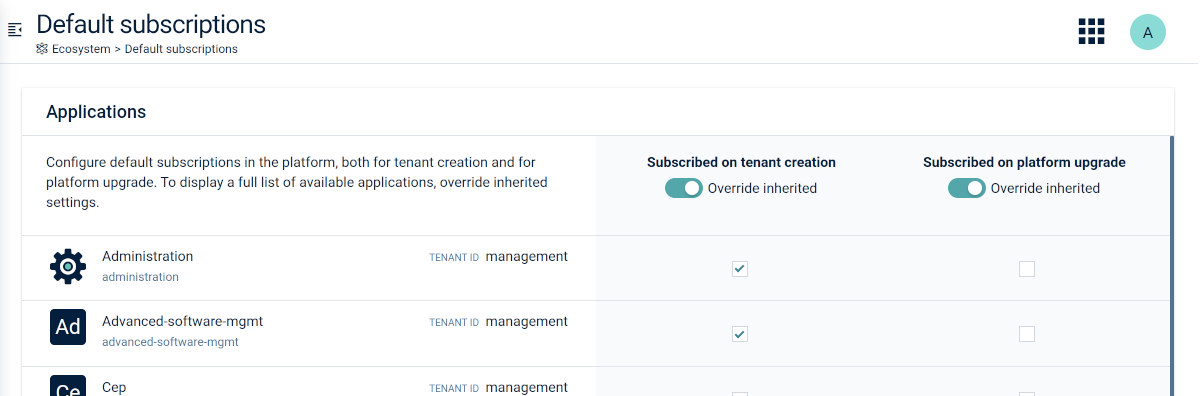
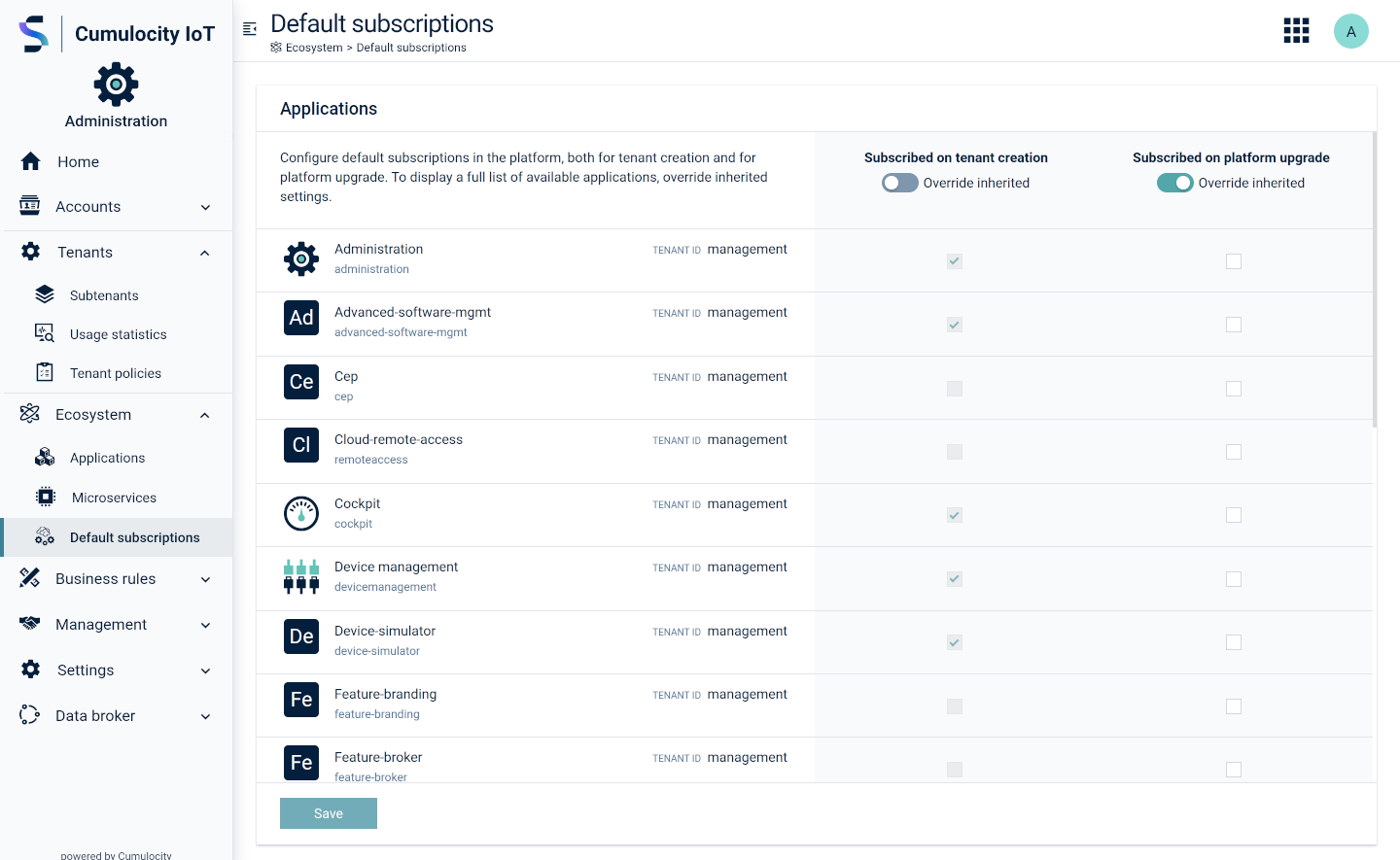
You can override both lists by switching the corresponding toggle. This will reveal all subscribable applications (initially, unselected ones are hidden) but the selection will remain the same.
Next, adjust the lists to your needs by selecting additional applications to be subscribed by default or deselect applications you do not want to be subscribed.
You may also deselect all of them if you don't want any subscriptions to be executed on tenant creation and/or platform upgrade.
### To configure default subscriptions {#to-configure-default-subscriptions}
You can override both lists by switching the corresponding toggle. This will reveal all subscribable applications (initially, unselected ones are hidden) but the selection will remain the same.
Next, adjust the lists to your needs by selecting additional applications to be subscribed by default or deselect applications you do not want to be subscribed.
You may also deselect all of them if you don't want any subscriptions to be executed on tenant creation and/or platform upgrade.