# Managing device types
Source: https://cumulocity.com/docs/device-management-application/managing-device-types/
Sector: Device management & connectivity
Release: Latest
> **Related topics:**
> * [Device management & connectivity > Device integration > Interfacing devices](https://cumulocity.com/docs/device-integration/interfacing-devices/) for information on the concepts relevant for interfacing IoT devices and other IoT-related data sources with Cumulocity.
> * [Device management & connectivity > Device integration](https://cumulocity.com/docs/device-integration/) for a list of protocols, parameters and network connectivity options for devices.
To process data from various device types, Cumulocity uses device protocols which are stored in a database.
Click **Device protocols** in the **Device types** menu in the navigator.
In the **Device protocols** page you will find a list with all device protocols available in your account.
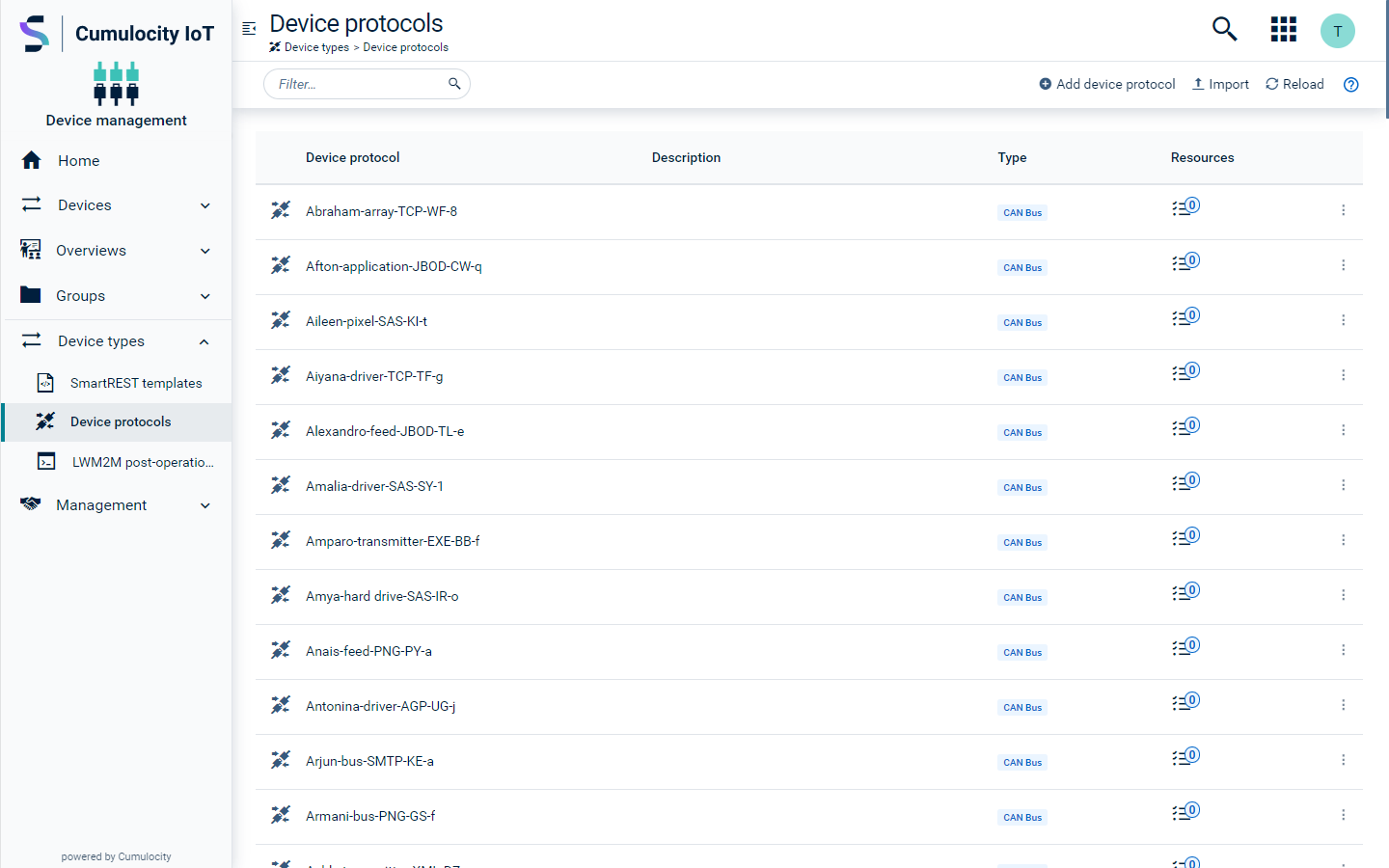
The device protocol list shows the following information:
* the device protocol type (for example Modbus, CANOpen, LoRa)
* the device type name
* the number of resources for the device (at the right)
### To add a device protocol {#to-add-a-device-protocol}
1. Click **Add device protocol** in the top menu bar.
2. Select one of the available device protocol types from the list.
3. In the resulting dialog box, enter a name and an optional description for the device protocol and click **Create**.
4. Enter the configuration for the device protocol. The configuration of the device protocol depends on the protocol type.
For details on configuring device protocols, follow the documentation of the particular device type you want to create, see [Device integration](https://cumulocity.com/docs/device-integration/).
5. Click **Save**.
The device protocol will be added to the device database.
### To import a device protocol {#to-import-a-device-protocol}
To add a device protocol from an existing protocol, perform the following steps:
1. Click **Import** in the top menu bar.
2. Either select the device protocol to be imported from a list of predefined protocols or load it from a file by browsing.
3. Provide a name for the new protocol and click **Save**.
The device protocol will be added to the device database.
### To edit a device protocol {#to-edit-a-device-protocol}
To edit a device protocol, just click on the protocol or click the menu icon at the right of the row and then click **Edit**.
Details on the fields can be found in the documentation of the particular device type, see [Device integration](https://cumulocity.com/docs/device-integration/).
### To delete a device protocol {#to-delete-a-device-protocol}
To delete a device protocol, click the menu icon at the right of the row and then click **Delete**.
The device protocol will be deleted from the device database.
### To export a device protocol {#to-export-a-device-protocol}
To export a device protocol, click the menu icon at the right of the row and then click **Export**.
The device protocol will be exported to your file system.