# Managing device data
Source: https://cumulocity.com/docs/device-management-application/managing-device-data/
Sector: Device management & connectivity
Release: Latest
> **Related topics:**
> * [Device management & connectivity > Device integration > Fragment library > Firmware](https://cumulocity.com/docs/device-integration/fragment-library/#firmware) for details on the `c8y_Firmware` fragment used in managed objects.
> * [Device management & connectivity > Device integration > Fragment library > Software](https://cumulocity.com/docs/device-integration/fragment-library/#software) for details on legacy software management via the `c8y_SoftwareList` fragment, software updates via the `c8y_SoftwareUpdate` fragment and advanced software management via the `c8y_SupportedOperations` and `c8y_SupportedSoftwareTypes` fragments used in managed objects.
> * [Device management & connectivity > Device integration > Fragment library > Configuration](https://cumulocity.com/docs/device-integration/fragment-library/#configuration) for details on text-based configuration, file-based configuration and typed file-based configuration.
> * The [device credentials API](https://cumulocity.com/api/core/#tag/Device-credentials) for REST API methods concerning device credentials.
> * [Device management & connectivity > Device integration > Fragment library > Device profile](https://cumulocity.com/docs/device-integration/fragment-library/#device-profile) for details on the `c8y_DeviceProfile` fragment used in managed objects.
> * [Device management & connectivity > Device integration > Device certificates](https://cumulocity.com/docs/device-certificate-authentication/device-certificates/) for information on device certificates in the context of MQTT.
The Device Management application provides features that support you in efficiently managing your devices.
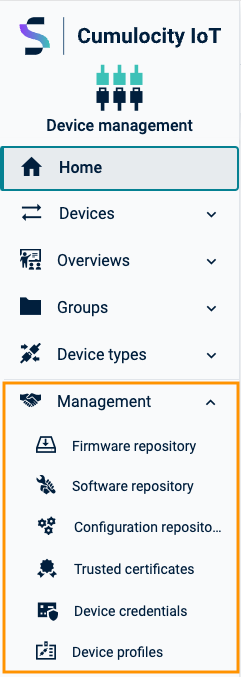
They are accessible through the **Management** menu in the navigator:
## Managing firmware
In the firmware repository, Cumulocity offers to collect reference firmware for devices.
Only one firmware package version can be applied per device.
### To view firmware {#to-view-firmware}
Click **Firmware repository** in the **Management** menu in the navigator.
The available firmware objects will be displayed as a list.
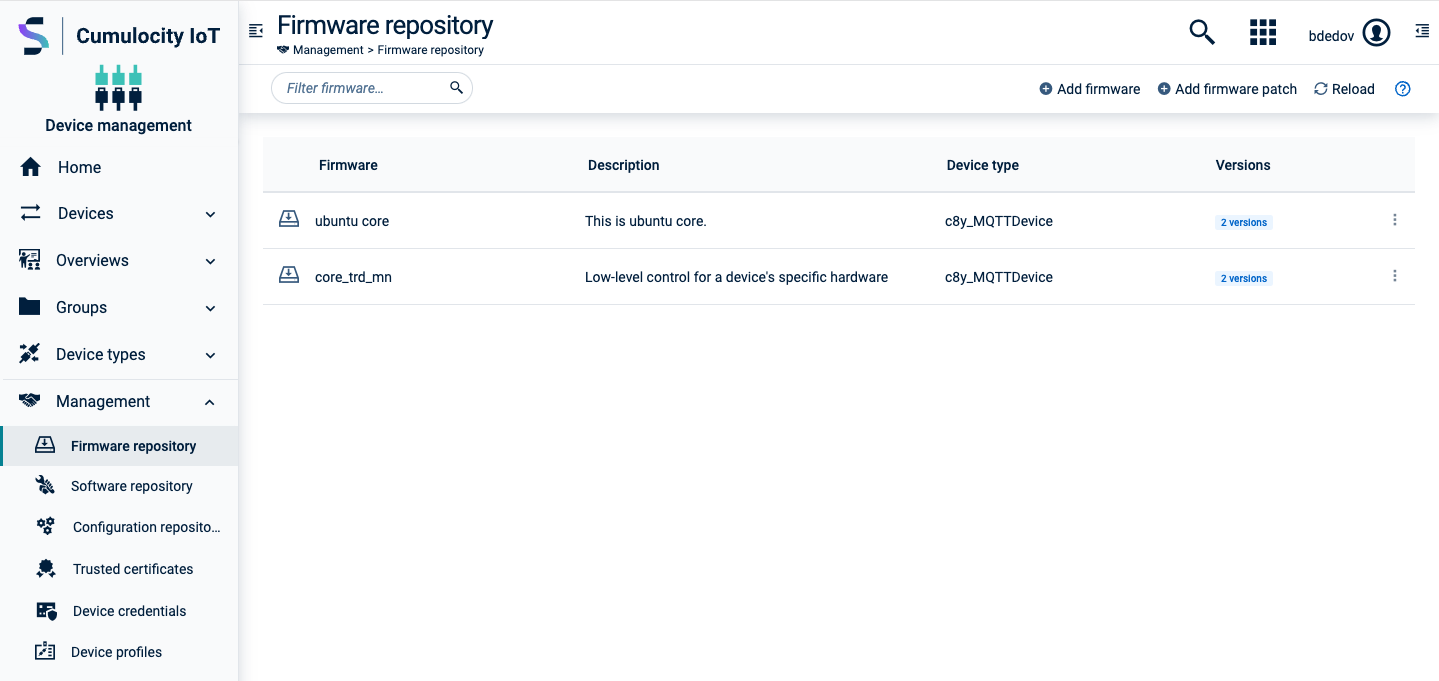
Each entry shows the firmware name, the device type it is applicable for (if set), and a label indicating if and how many versions are available for a particular firmware.
At the left in the top menu bar, you can filter the repository entries by name, description or device type. For details on the filtering functionality, see [Search and filter functionality](https://cumulocity.com/docs/get-familiar-with-the-ui/gui-features/#search-and-filter-functionality).
When clicking on an entry, the details for this firmware are displayed along with all available versions and patches.
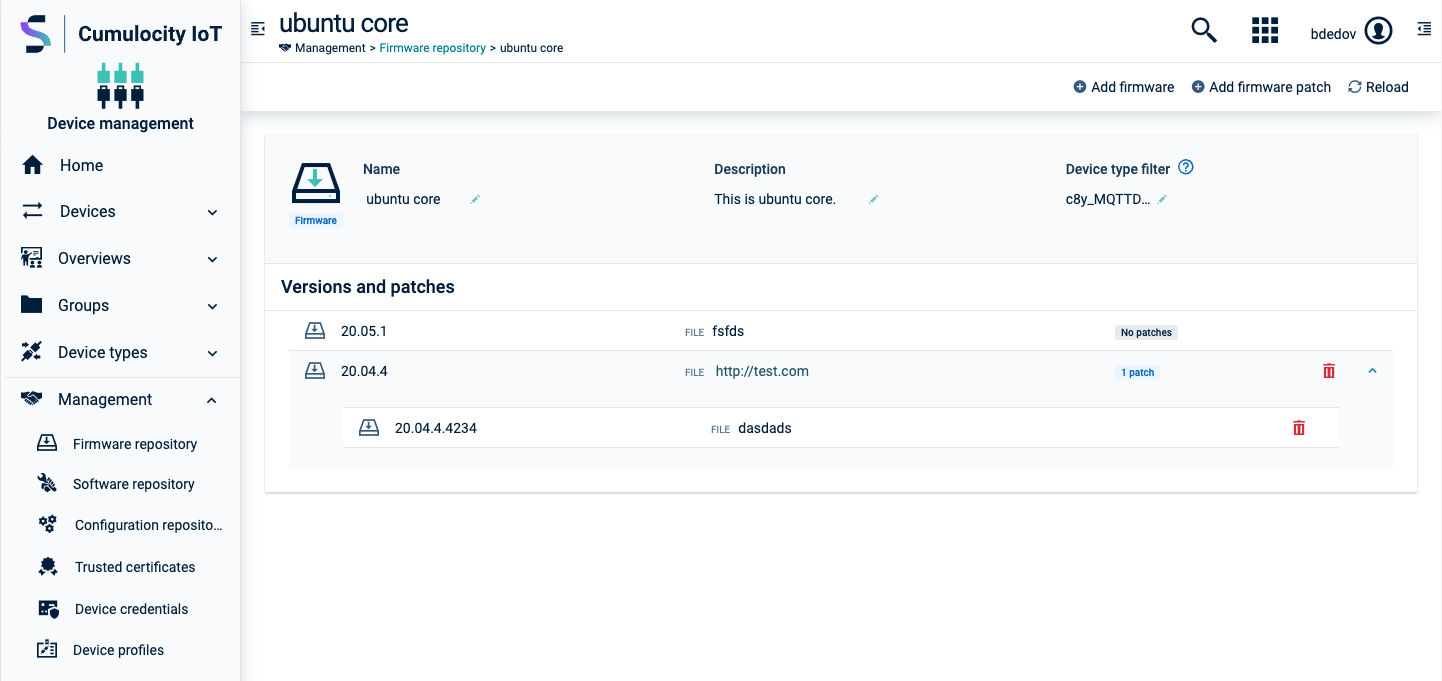
At the top, the firmware name, a description, and optional device type filter(s) are shown. If a filter is set, the firmware will show up for installation only for devices of that type. If no filter is set, it will be available for all devices.
The list of versions and patches shows the version name and the name of the firmware binary. Moreover, the list indicates if a firmware version has patches, which can be viewed by expanding the version entry. The versions and patches are ordered by their creation time (descending).
### To add a new firmware or firmware version {#to-add-a-new-firmware-or-firmware-version}
1. In the **Firmware repository** page, click **Add firmware** at the right of the top menu bar.
2. In the resulting dialog box,
* to add a new firmware, enter a name for the firmware (and confirm it by clicking **Create new** in the resulting window), add a description and its version (all required).
* to add a new version, select the firmware for which you want to add a new version from the dropdown list in the **Firmware** field and enter a version.
3. Optionally, you can define the device type filter when adding a new firmware.
4. Select one of the following options to define the patch binary:
- **Upload a binary** from your file system.
- **Provide a file path (URL)** to download the binary from.
- **Provided** – Select this option if the device is expected to resolve the binary itself. No file or URL will be defined, and an empty string is stored as the value of the `url` attribute.
5. Click **Save**.
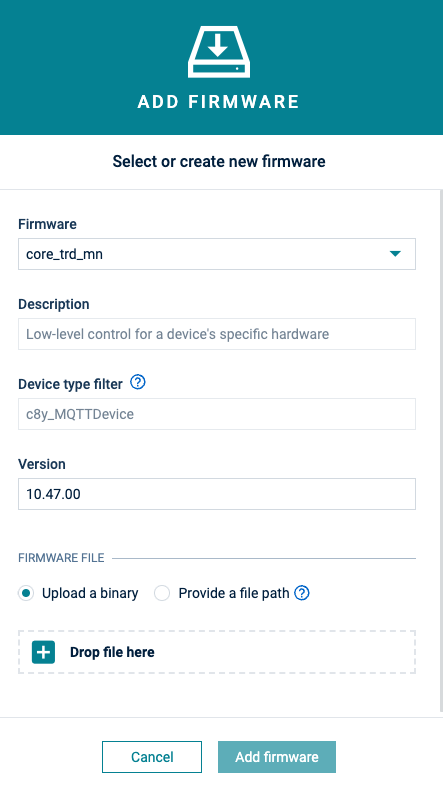
The firmware object will be added to the firmware list or the firmware version will be added to the firmware details and the version label will be updated accordingly.
If you click **Add firmware** from within the details of a specific firmware, the dialog box looks slightly different as the firmware is already selected. Enter the new version number and upload a binary or provide a file path.
### To add a new firmware patch {#to-add-a-new-firmware-patch}
1. In the **Firmware repository** page, click **Add firmware patch** at the right of the top menu bar.
2. In the resulting dialog box, select the firmware, for which you want to add a patch, from the dropdown list in the **Firmware** field.
3. in the **Version** field, select the version, for which you want to add a patch.
4. In the **Patch** field, enter a name for the patch.
5. Select one of the following options to define the patch binary:
- **Upload a binary** from your file system.
- **Provide a file path (URL)** to download the binary from.
- **Provided** – Select this option if the device is expected to resolve the binary itself. No file or URL will be defined, and an empty string is stored as the value of the `url` attribute.
6. Click **Save**.
As with adding versions, if you click **Add firmware patch** from within the details of a specific firmware, the dialog box looks slightly different as the firmware is already selected.
The firmware patch will be added to the version details within the firmware details.
### To edit a firmware {#to-edit-a-firmware}
1. Click the menu icon at the right of a specific firmware entry and in the context menu click **Edit**.
2. Update the name, description or device type filter by clicking the edit icon next to it. Make the desired changes and click **Save**.
The firmware will be updated accordingly.
### To delete a firmware {#to-delete-a-firmware}
Click the menu icon at the right of a specific firmware entry and in the context menu click **Delete**.
The object will be deleted from the firmware repository.
### To delete a firmware version or patch {#to-delete-a-firmware-version-or-patch}
In the details of a specific firmware, hover over the version or patch entry you want to delete and click the delete icon. The firmware version or patch will be deleted from the firmware details.
### To manage firmware on a device {#to-manage-firmware-on-a-device}
In the **Firmware** tab of a device you can manage the installed firmware for the device.
> **Info:**
> The **Firmware** tab shows up for a device if the device supports `c8y_Firmware` operations.
Click **All devices** in the **Devices** menu in the navigator, select the desired device from the device list and open its **Firmware** tab.
The **Firmware** tab shows the current firmware installed on the device.
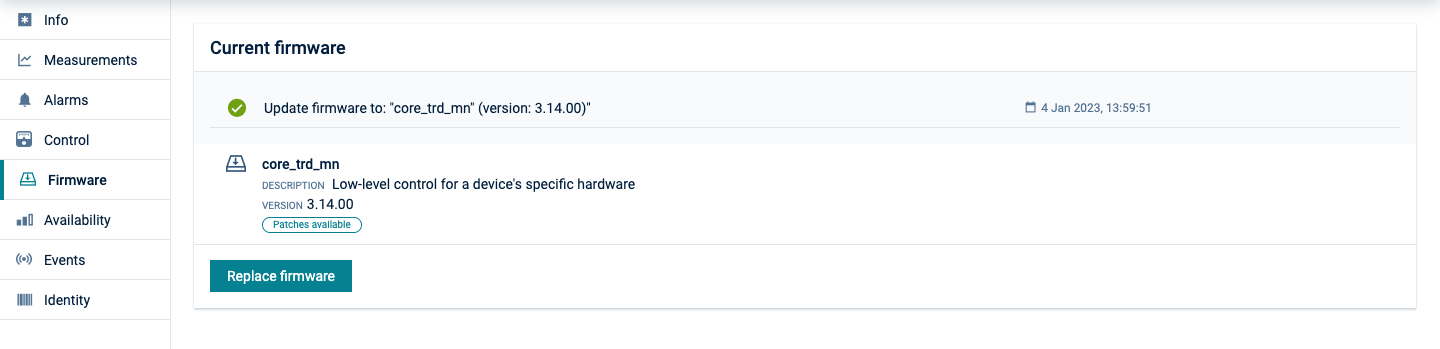
Additionally, it shows the operation status for the last operation (one of SUCCESSFUL, PENDING, EXECUTING, FAILED). Clicking on the operation will show you the operation details.
##### To install/replace firmware on a device {#to-installreplace-firmware-on-a-device}
1. In the **Firmware** tab, click **Install firmware** (or **Replace firmware** if there is already firmware installed on the device).
2. Select a firmware and the desired version from the list, which contains all firmware available for the particular device type (or the ones that have no device type) in the firmware repository.
3. Click **Install**.
The install operation to be executed by the device will be created. The firmware installation is completed as soon as the device has executed the operation.
Click on the operation to view its details. The status of the last operation is also shown on the **Firmware** tab.
##### To install/update firmware on multiple devices {#to-installupdate-firmware-on-multiple-devices}
Cumulocity offers the option to execute firmware updates for multiple devices at once.
1. Execute the firmware operation (install or replace) on a single device to test that the new version works.
2. Navigate to the operation in the **Control** tab and in the context menu select **Schedule as bulk operation**.
3. Fill in the fields to schedule the bulk operation and click **Create**. For details on bulk operations, see [Monitoring and controlling devices](https://cumulocity.com/docs/device-management-application/monitoring-and-controlling-devices).
The status of the bulk operation is shown in the **Bulk operations** tab under **Device control**.
Moreover, the operation details are shown in the **Control** tab of the selected devices.
## Managing software
In the software repository, Cumulocity offers to collect reference software for devices. Multiple software packages can be installed on a device.
### To view software {#to-view-software}
Click **Software repository** in the **Management** menu in the navigator.
The available software objects will be displayed as a list.
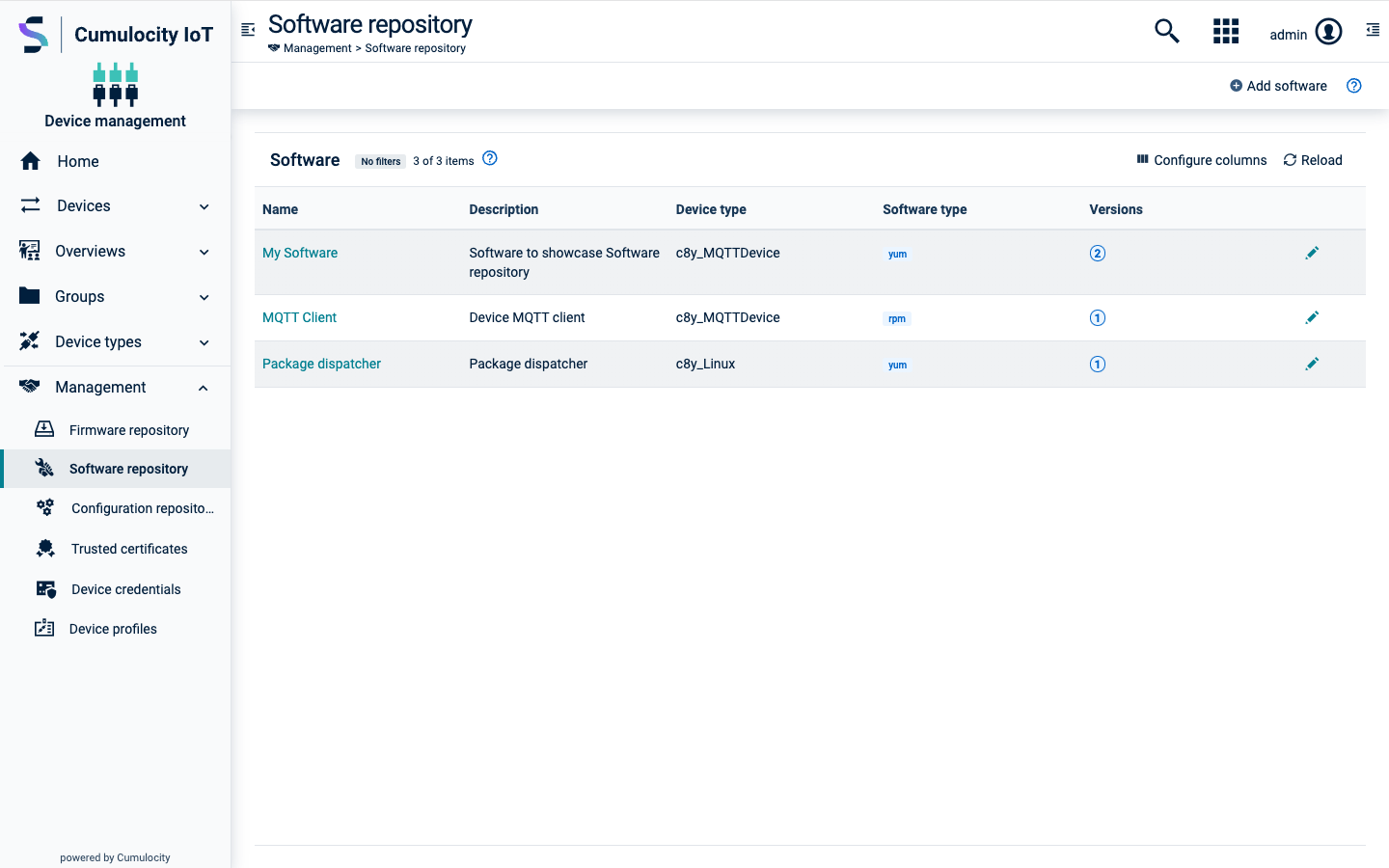
Each entry shows the software name, the device type it is applicable for (if set), the software type (if set), and a badge indicating if and how many versions are available for a particular software.
The values in every column except for the **Versions** column can be filtered and sorted by clicking the filter and sort icons in the column header.
When clicking on an entry, the details for this software are displayed along with all available versions.
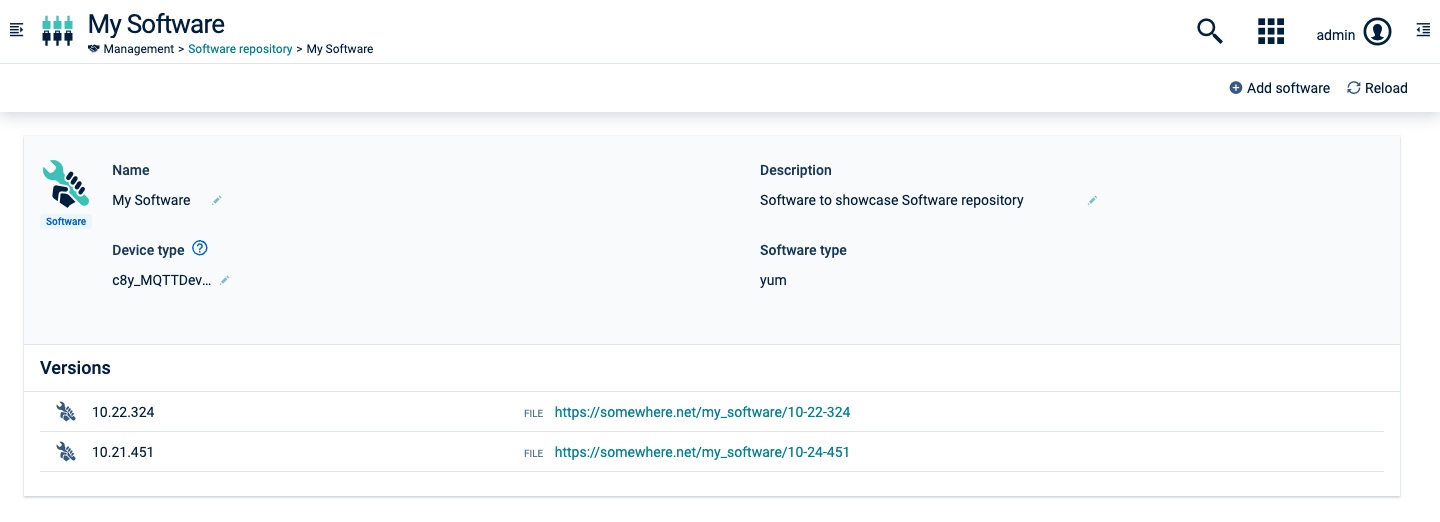
At the top, the software name, a description, an optional device type filter(s), and a software type are shown.
If a device type filter is set, the software will show up for installation only for devices of that type.
If no filter is set, it will be available for all devices.
The software type will make the software installable only on devices that specifically support the particular software type.
> **Info:**
> The **Software type** field suggests you a list of types already used in your software repository. Before you consider defining a new software type (the field accepts new values directly) check if the type you need has already been defined before for another software by looking at the suggestions in the dropdown. This will help you keep software types consistent within your organization. If you use, for example, container images you may look for `container` or `image`, or try to search for more specific types like `docker`, `lxc`, and so on. This may prevent you from scattering your software types and using different names for effectively the same software type.
The list of versions shows the version name and the name of the software binary.
The versions are ordered by their creation time (descending).
### To add a new software or software version {#to-add-a-new-software-or-software-version}
1. In the **Software repository** page, click **Add software** at the right of the top menu bar.
2. In the resulting dialog box,
* to add a new software, enter a name for the software (and confirm it by clicking **Create new** in the resulting window), a description, and its version (all required).
* to add a new version, select the software for which you want to add a new version from the dropdown list in the **Software** field and enter a version.
3. Optionally, you can define the device type filter when adding a new software.
4. Define the software type. It will make the software installable only on devices that have declared to support the particular software type.
5. Select one of the following options to define the binary:
- **Upload a binary** from your file system.
- **Provide a file path (URL)** to download the binary from.
- **Provided** – Select this option if the device is expected to resolve the binary itself. No file or URL will be defined, and an empty string is stored as the value of the `url` attribute.
6. Click **Add software**.
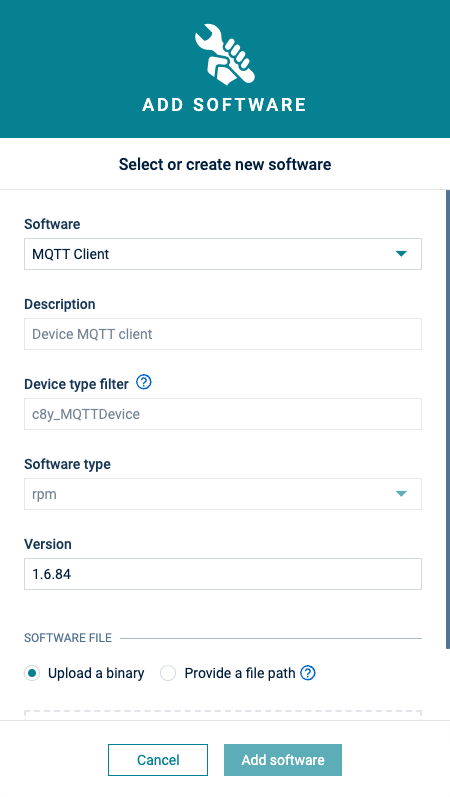
The software object will be added to the software list or the software version will be added to the software details and the version count label will be updated accordingly.
If you click **Add software** from within the details of a specific software, the dialog box looks slightly different as the software is already selected. Enter the new version number and upload a binary or provide a file path.
### To edit a software {#to-edit-a-software}
1. Click the edit icon at the right of a specific software item.
2. Update the name, description, device type filter or software type by hovering over the edit icon next to it. Make the desired changes and click **Save**.
The software will be updated accordingly.
### To delete a software {#to-delete-a-software}
Click the delete icon at the right of a specific software item and in the context menu click **Delete**.
The software and all its versions will be deleted from the software repository.
### To delete a software version {#to-delete-a-software-version}
In the details of a specific software, hover over the version entry you want to delete and click the delete icon . The software version will be deleted from the software details.
If the last version of a software is deleted, the software is entirely removed from the repository.
### To manage software on a device {#to-manage-software-on-a-device}
In the **Software** tab of a device you can manage the software for the particular device.
> **Info:**
> The **Software** tab shows up for a device if the device supports one of the following operations: c8y_SoftwareUpdate, c8y_SoftwareList, c8y_Software.
Click **All devices** in the **Devices** menu in the navigator, select the desired device from the device list and open its **Software** tab.
The **Software** tab shows a list of all available software installed on the device. If a given software has a type, it will be displayed next to its name. You can search for a particular software by its name or filter the list by software type.
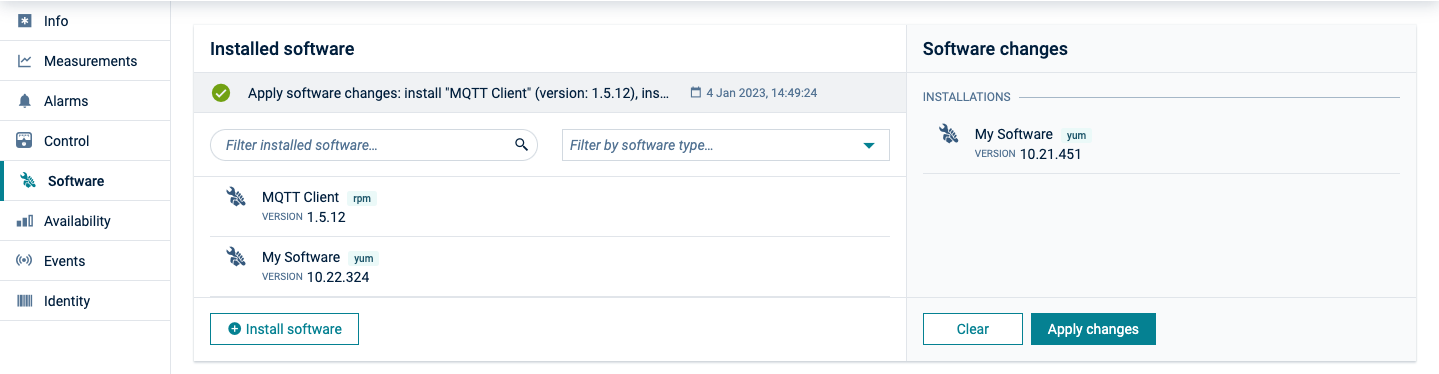
Additionally, it shows the operation status for the last operation (one of SUCCESSFUL, PENDING, EXECUTING, FAILED). Clicking on the operation will show you the operation details.
#### To install software on a device {#to-install-software-on-a-device}
1. In the **Software** tab, click **Install software**.
> **Info:**
> The **Install software** dialog will only display software items which match the device type or have no device type specified. Additionally, if the device has any `c8y_SupportedSoftwareTypes` declared the dialog will only display the software items matching the supported software types.
2. Select one or multiple software items by selecting the respective version from the list which contains all software items for the particular device type available in the software repository.
For devices supporting advanced software management features, already installed software items cannot be pre-filtered from the list of available software items. Thus, after a particular software version has been selected, a check is done if the selected software is already installed on the device. If this is the case, a warning next to the selected version indicates that this software version is already present on the device.
You can remove the already installed software item under **Software changes** or leave it and apply it as part of the changes. It is up to the device agent to decide how to handle such an update.
3. Click **Install**.
4. Under **Software changes** at the right, review your planned changes and confirm the software update operation by clicking **Apply changes**.
The install operation to be executed by the device will be created. The software installation is completed as soon as the device has executed the operation.
Click on the operation to view its details. The status of the last operation is also shown on the **Software** tab.
#### To update software on a device {#to-update-software-on-a-device}
Hover over the software item which you want to update and click **Update**.
Select a version from the list and click **Update** again.
The software will be updated with the selected version.
#### To delete software from a device {#to-delete-software-from-a-device}
Hover over the software item which you want to delete and click the delete icon.
#### To install software on multiple devices {#to-install-software-on-multiple-devices}
Cumulocity offers the option to execute software updates for multiple devices at once.
1. Execute the software operation (install or update) on a single device to test that the new version works.
2. Navigate to the operation in the **Control** tab and in the context menu select **Schedule as bulk operation**.
3. Fill in the fields to schedule the bulk operation and click **Create**. For details on bulk operations, see [Monitoring and controlling devices](https://cumulocity.com/docs/device-management-application/monitoring-and-controlling-devices).
The status and details of the bulk operation are shown in the **Bulk operations** tab under **Device control**.
Moreover, the operation details are shown in the **Control** tab of the selected devices.
## Managing configurations
Cumulocity allows to retrieve configuration data and store and manage it in a configuration repository. The configuration data contains the parameters and the initial settings of your device.
Configuration snapshots help you, for example, to apply the same configuration to multiple devices as described below.
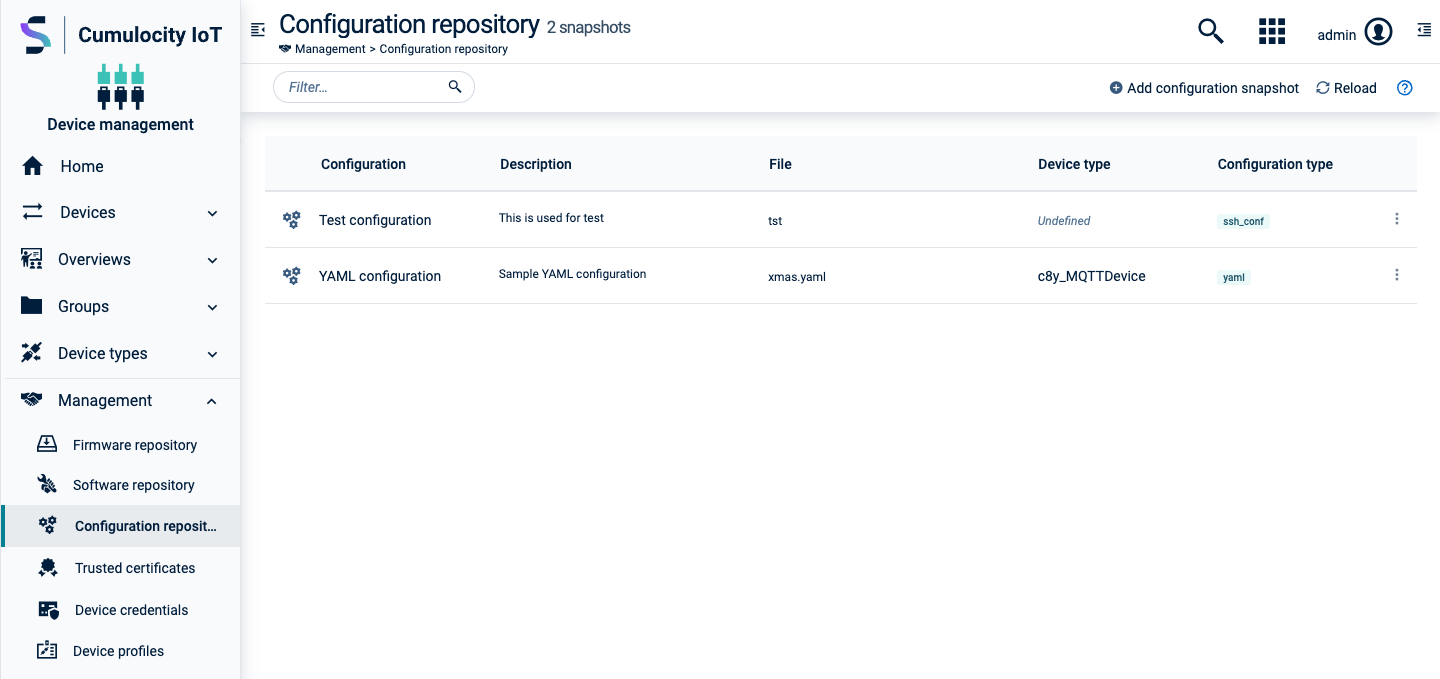
Click **Configuration repository** in the the **Management** menu in the navigator. In the **Configuration repository** page, all available configuration snapshots are listed. Each entry shows the configuration name, the description of the configuration, the device type, and the configuration type.
### To add a configuration snapshot {#to-add-a-configuration-snapshot}
1. Click **Add configuration snapshot** at the right of the top menu bar.
2. In the panel that opens, enter a unique name.
3. In the **Device type** field, enter a device type. The device type can be found in the **Info** tab of the target device.
4. Optionally enter a description for the configuration.
5. Enter the configuration type, for example "ssh".
6. Under **Configuration file**, provide the configuration content in one of the following ways:
- **Upload a binary**: Drag a file into the drop area or browse for a file on your file system. When you upload a text file, its content opens in the code editor so that you can review and adjust it before saving.
- **Provide a file path**: Enter a URL from which the device can obtain the configuration snapshot. External URLs only work with devices that support typed file-based configuration, not with devices using legacy configuration.
- **Edit inline**: Enter a filename and write the configuration content directly in the built-in code editor. This lets you create a configuration snapshot without preparing a file outside the application.
7. Click **Save**.
The configuration snapshot will be added to the configuration repository.
> **Info:**
> When a text file is opened in the editor, its syntax highlighting is detected automatically from the file extension. Use the **Language** selector to override the detected highlighting or set it manually.
### To edit a configuration snapshot {#to-edit-a-configuration-snapshot}
To edit a configuration snapshot, click on the menu icon at the right of the row and then click **Edit**. The **Edit configuration** drawer opens.
For details on the fields, see [To add a configuration snapshot](https://cumulocity.com/docs/device-management-application/managing-device-data/#to-add-a-configuration-snapshot).
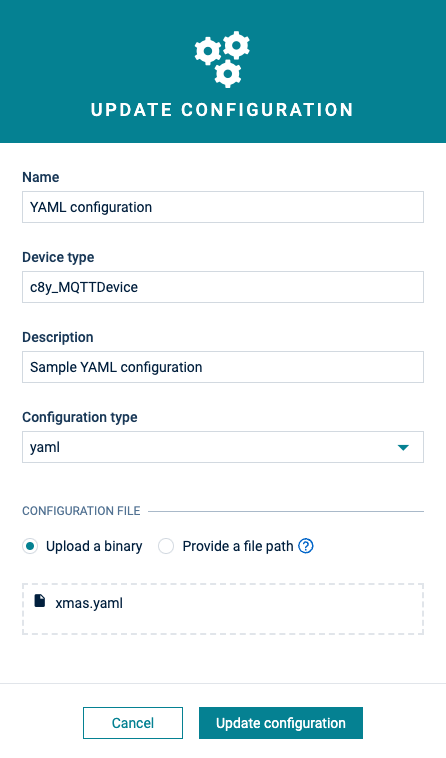
If the configuration content is a text file, it opens in the code editor so that you can adjust it inline. If the content is sourced from a remote URL, it cannot be edited inline; only the file URL is shown.
Click **Save** to apply your changes.
### To delete a configuration snapshot {#to-delete-a-configuration-snapshot}
To delete a configuration snapshot, click on the menu icon at the right of the row and then click **Delete**.
The configuration snapshot will be deleted from the configuration snapshot repository.
### To retrieve and apply a configuration snapshot {#to-retrieve-and-apply-a-configuration-snapshot}
Managing configurations, that is requesting a configuration from a device and sending a configuration to a device, can be done in multiple ways. Depending on user permissions and device settings, you can work with text based, typed file-based or legacy file-based configuration. Refer to [Configuration](https://cumulocity.com/docs/device-integration/fragment-library/#configuration) for more detailed and technical information.
### To retrieve and apply a configuration snapshot to a device which supports typed file-based configuration {#to-retrieve-and-apply-a-configuration-snapshot-to-a-device-which-supports-typed-file-based-configuration}
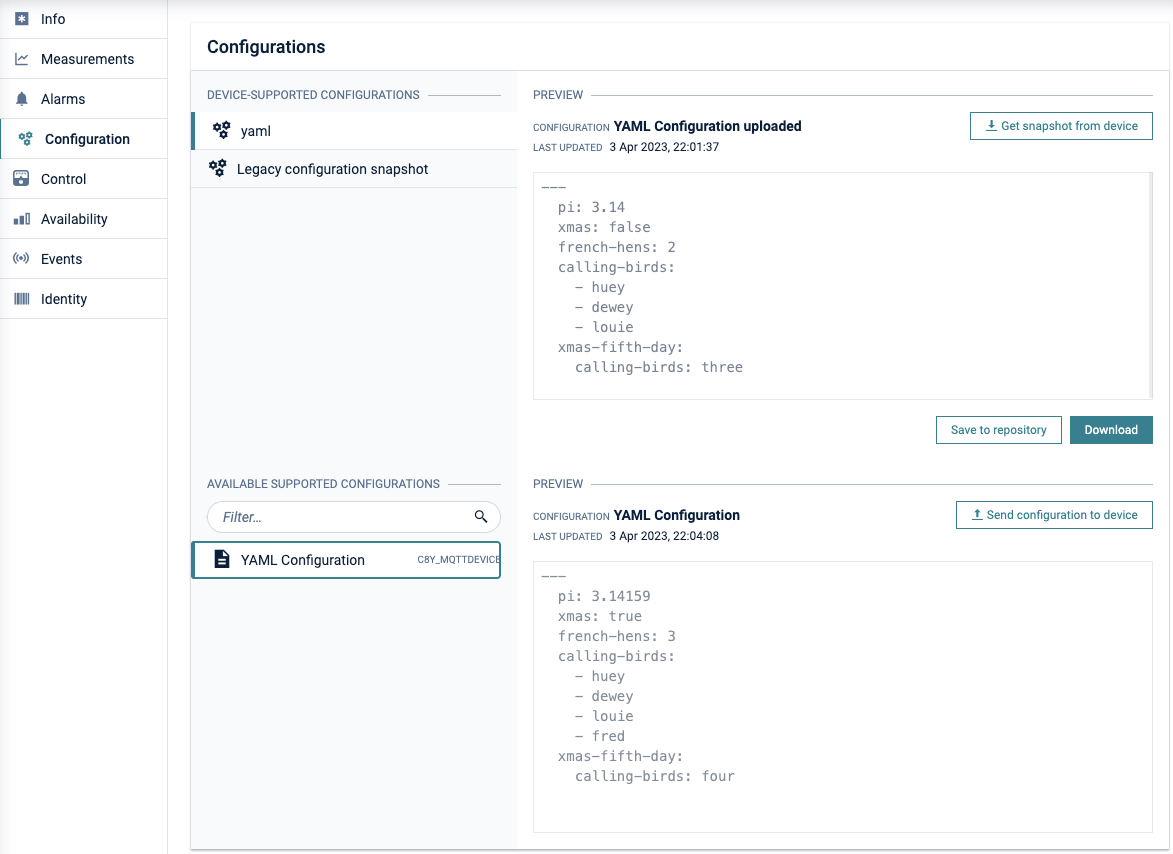
We recommend you to use typed file-based configuration. With typed file-based configuration, devices can manage multiple configurations at the same time. You can upload or retrieve different configurations for different types. Using this approach is more versatile because the configurations are handled as events rather than as files, which is more efficient.
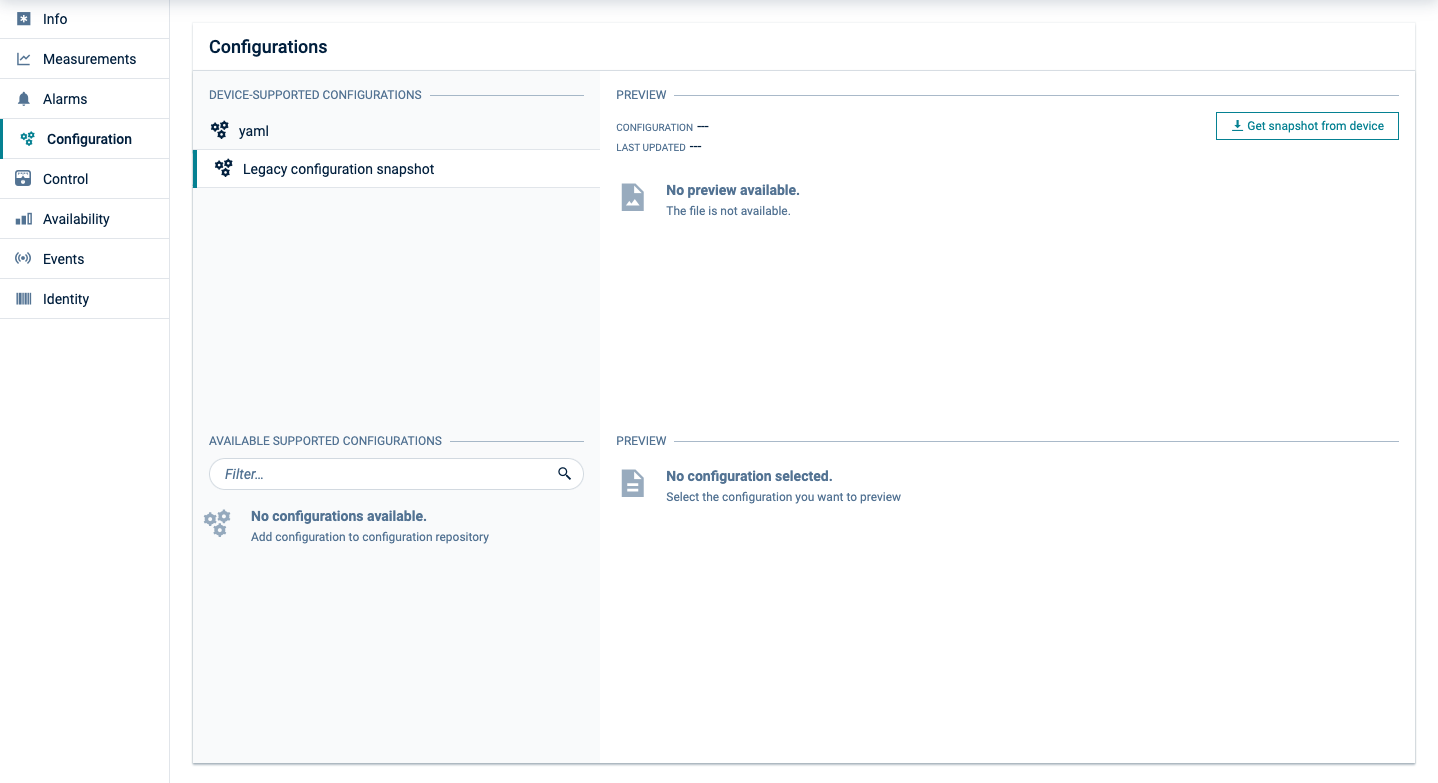
1. Navigate to the desired device in **Devices** > **All devices** and open its **Configuration** tab.
2. Under **On device**, select the desired configuration type and click
**Get snapshot from device** at the right.
Once retrieved, the snapshot is shown in the **Preview** section in a read-only editor with automatic syntax highlighting. From there you can:
- Click **Download** to save the snapshot as a file.
- Click **Save to repository** to store the snapshot in the **Configuration repository**, accessible from the **Management** menu in the navigator. This opens the **Save configuration to repository** drawer, prefilled with the retrieved content, where you can review and adjust it before saving. A warning in the drawer reminds you that the entry is shared, so your changes affect ongoing updates and future device deployments.
Binary configurations are not shown as text. If the retrieved snapshot is a binary file, the **Preview** section reports that no preview is available. Use **Download** to inspect the file outside the application.
> **Info:**
> Clicking **Get snapshot from device** creates a new operation. If the operation is in status PENDING or EXECUTING, it is not possible to trigger another configuration request for the configuration type. Navigate to the **Control** tab of a device to cancel the operation or view the history of operation changes.
To apply a configuration snapshot to a device which supports multiple configuration types:
1. Navigate to the desired device and open its **Configuration** tab.
2. Under **On device**, select the desired configuration type.
3. Under **Available from repository**, select a configuration file.
4. Click **Send configuration to device** at the right to apply the selected snapshot to the device.
When you select a configuration from **Available from repository**, an **Edit in repository** button is also shown at the bottom of the **Preview** section. Click it to open the corresponding entry in the **Configuration repository** directly in a drawer for editing, without having to navigate to the **Configuration repository** page. The drawer is titled **Edit configuration in repository** and warns you that the entry is shared, so your changes affect ongoing updates and future device deployments.
> **Info:**
> Under **Available from repository**, only configuration files with a matching configuration type property or without a configuration type defined are displayed. Also, configuration files are filtered based on the device type (ones that match the device type or have no device type specified).
### To retrieve and apply a configuration snapshot to a device which supports legacy file-based configuration {#to-retrieve-and-apply-a-configuration-snapshot-to-a-device-which-supports-legacy-file-based-configuration}
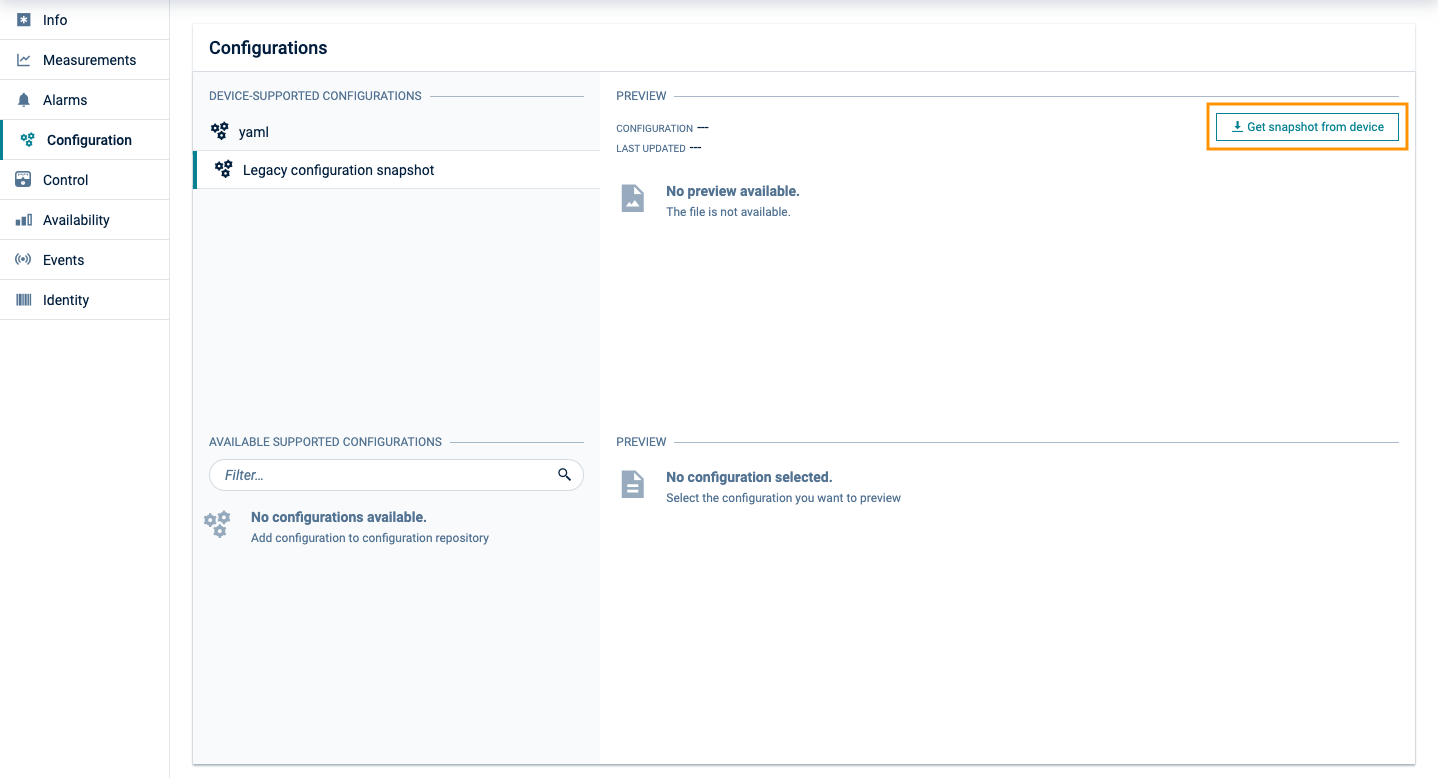
Devices managing configuration as files can do so in a basic form using legacy file-based configuration. Legacy file-based configuration only allows a single configuration to be set per a device.
### To retrieve and apply a configuration snapshot to a device which supports text-based configuration {#to-retrieve-and-apply-a-configuration-snapshot-to-a-device-which-supports-text-based-configuration}
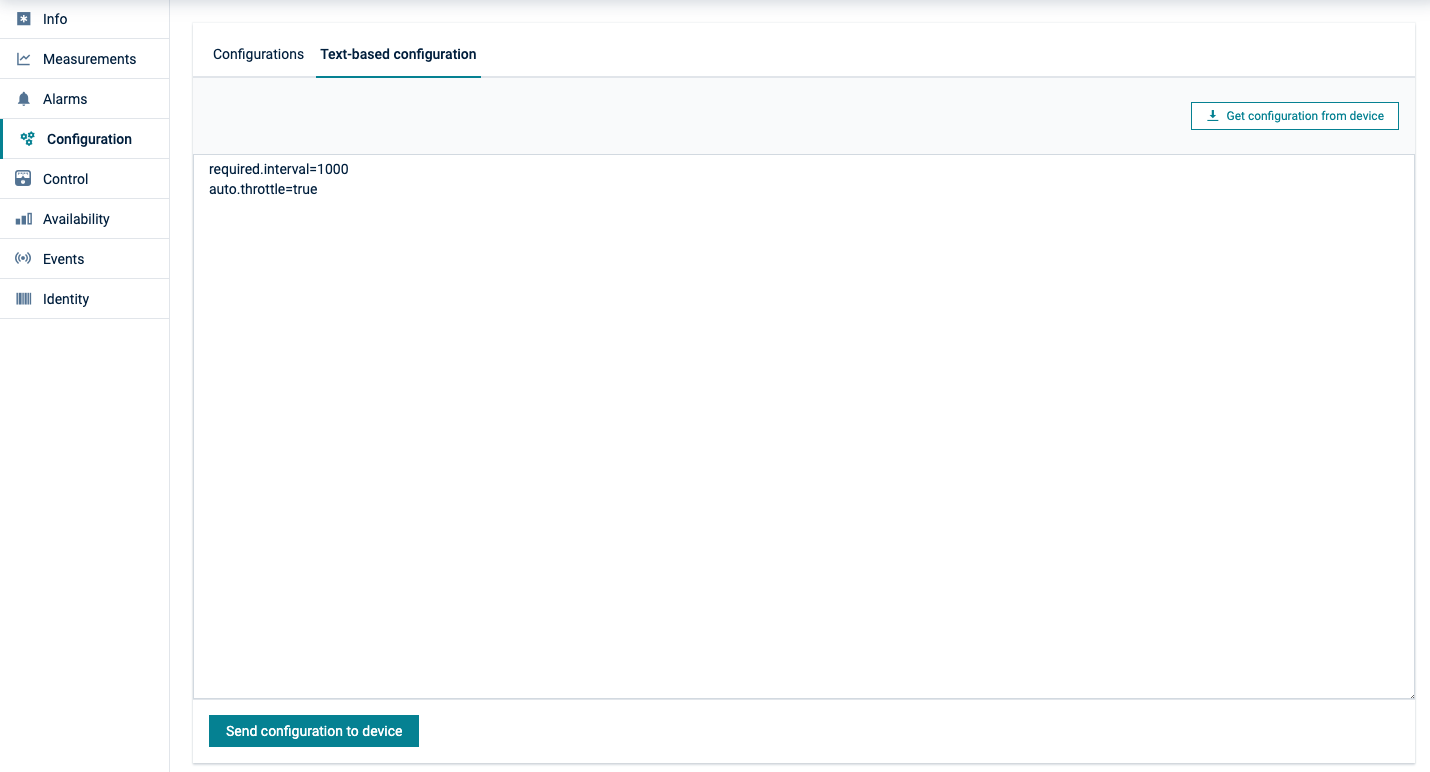
The most basic form of configuration is text-based configuration. A text command can be sent or received from a device. We recommend you to use text-based configuration for short human readable configuration files only.
## Managing device credentials
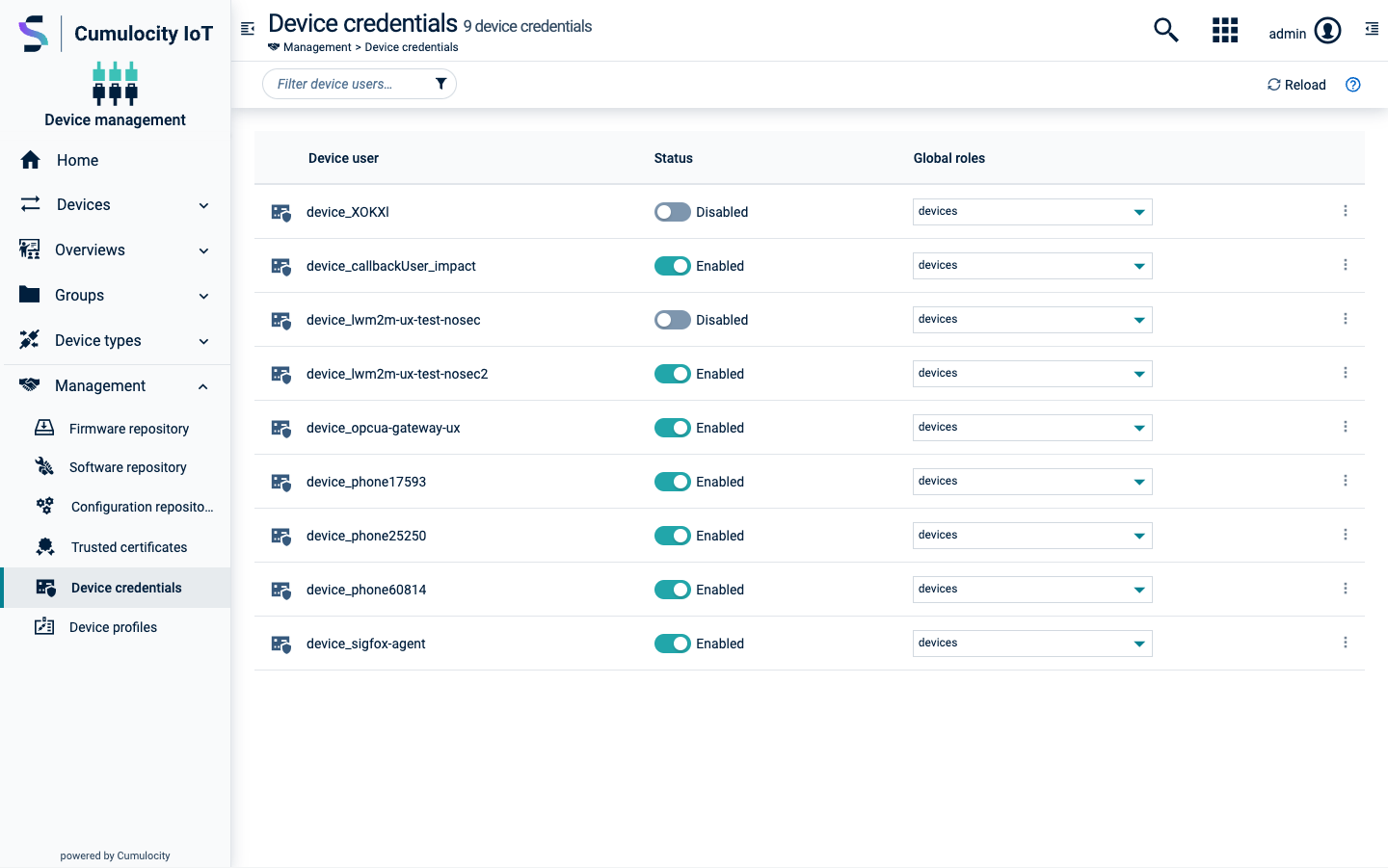
The **Device credentials** page lists all credentials that have been generated for your connected devices. Each device that has been [registered](https://cumulocity.com/docs/device-management-application/registering-devices) shows up here with the naming convention "device_<id>".
### To manage permissions for a device {#to-manage-permissions-for-a-device}
1. Click the arrow in the **Global roles** column of a device to open a list with available global roles.
2. Assign or remove permissions for an individual device by selecting/deselecting roles.
3. Click **Apply**.
The roles for the device will be updated accordingly.
### To edit device details {#to-edit-device-details}
1. Click the menu icon at the right of a device credentials entry and then click **Edit** to open the device details.
2. In the details page, you may disable/enable a device by clicking the **Active** toggle, or assign or remove permissions by selecting/deselecting roles in the **Global roles** list.
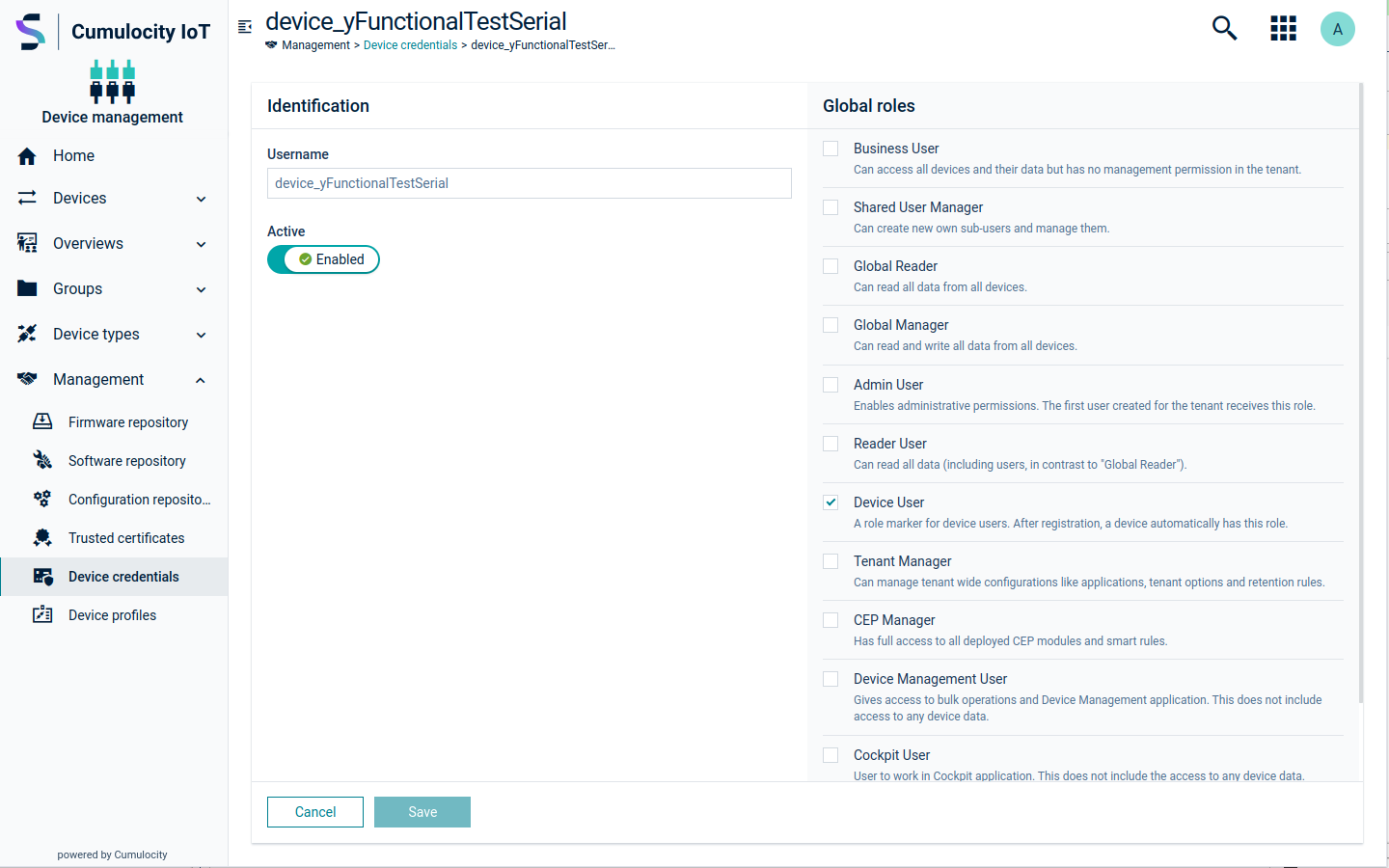
3. Click **Save**.
The device details will be updated accordingly.
### To disable device credentials {#to-disable-device-credentials}
Click the menu icon at the right of a device credentials entry and then click **Disable**.
The device credentials will be temporarily disabled.
### To delete device credentials {#to-delete-device-credentials}
Click the menu icon at the right of a device credentials entry and then click **Delete**.
The device credentials will be permanently deleted.
Deleting device credentials might be required if you have carried out a factory reset on a device. In this case, the device will often loose its assigned credentials. Delete the device credentials and continue with the normal [registration process](https://cumulocity.com/docs/device-management-application/registering-devices) to re-register the device.
## Managing device profiles
Device profiles represent a combination of a firmware version, one or multiple software packages, and one or multiple configuration files which can be deployed on a device. Based on device profiles, users can deploy a specific target configuration on devices by using bulk operations.
### To view device profiles {#to-view-device-profiles}
Click **Device profiles** in the **Management** menu in the navigator to access the **Device profiles** page, which lists all available device profiles.
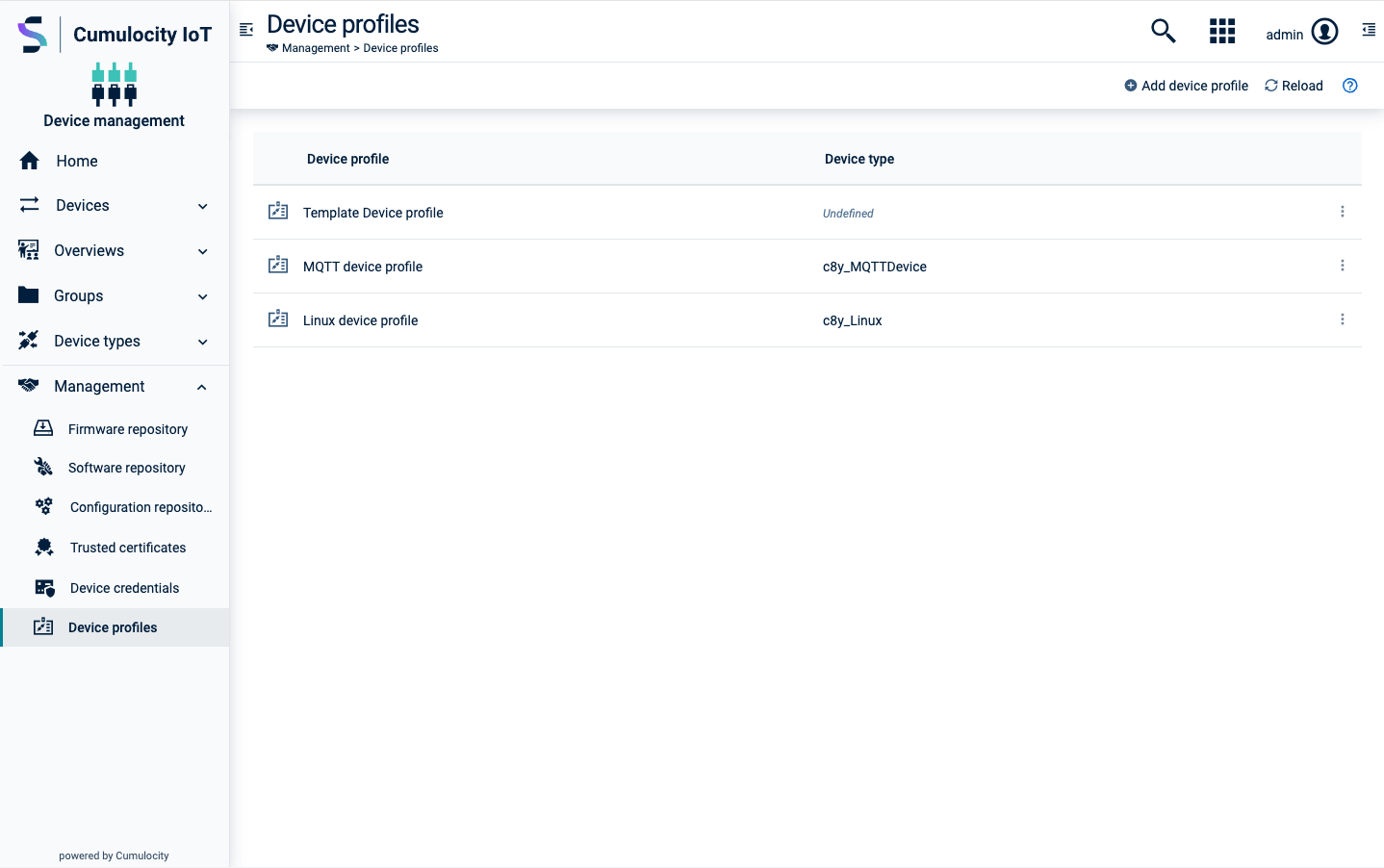
Each device profile entry shows the profile name and the selected device type(s), if any.
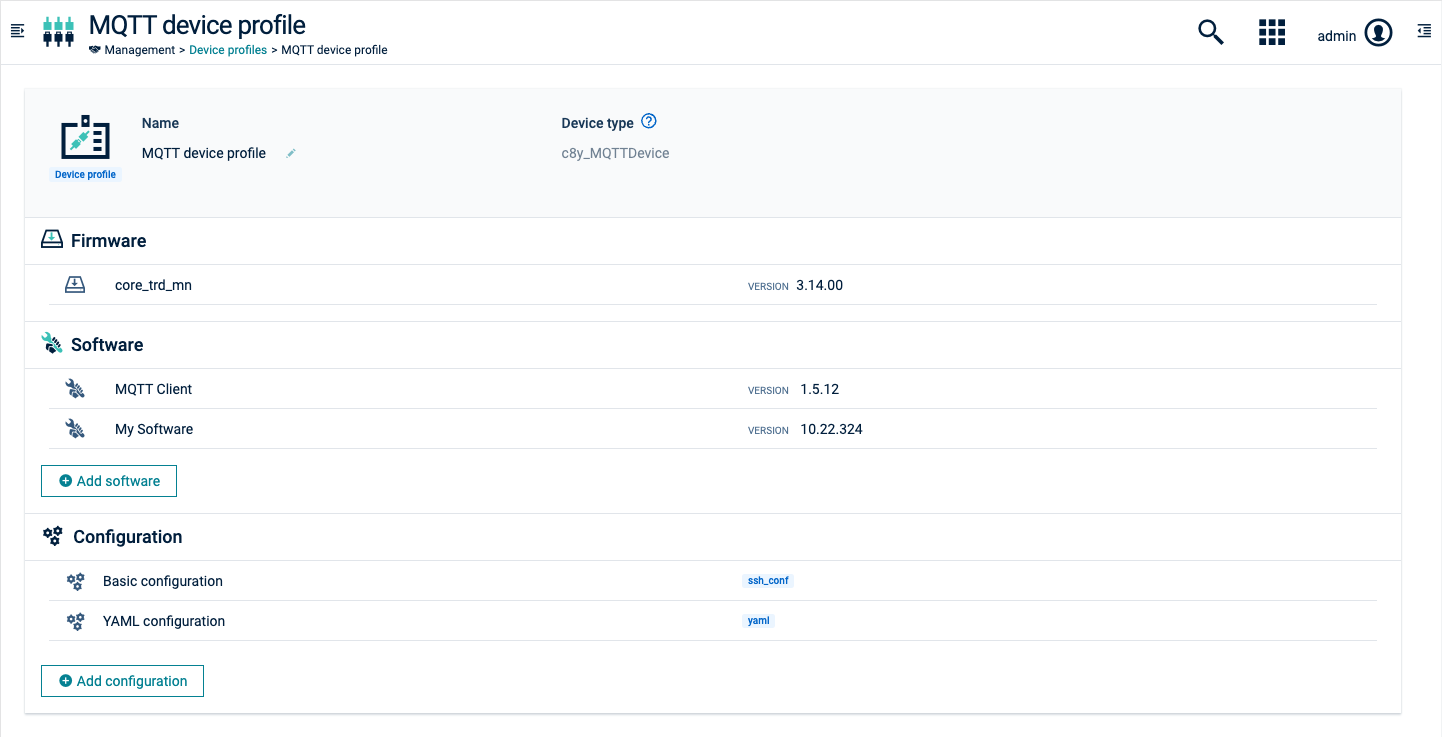
Click a device profile name to view its details.
The **Name and device type** section shows the name of the profile and optionally selected device types.
The sections below list the firmware version, software packages, and configuration files for this particular device profile.
### To add a device profile {#to-add-a-device-profile}
Click **Add device profile** at the right of the top menu bar, to add a new device profile.
In the **Add device profile** window, provide a name for the profile and optionally enter one or more device types. If a device type is provided, the device profile can only be assigned to devices of the specified type. If left empty, it will be available for all device types.
### To add items to a device profile {#to-add-items-to-a-device-profile}
In the device profile details, you can add firmware versions, software packages, and configuration files.
Click **Add firmware** to add a firmware version to the profile. Select a firmware and a version from the list and click **Save** to add the selection to the profile. If a device type has been defined for the profile, only those firmware versions can be selected that match the device type. Only one firmware version can be added to a profile.
For details on firmware, see [Managing firmware](https://cumulocity.com/docs/device-management-application/managing-device-data/#managing-firmware).
Click **Add software** to add a software package to the profile. Select a software and a software version from the list and click **Save** to add the selection to the profile. If a device type has been defined for the profile, only those software versions can be selected that match the device type. You can add multiple software packages to a profile.
For details on software, see [Managing software](https://cumulocity.com/docs/device-management-application/managing-device-data/#managing-software).
Click **Add configuration** to add a configuration file to the profile. Select a configuration file from the list and click **Save** to add the selection to the profile. You can add multiple configuration files to a profile.
For details on configuration snapshots, see [Managing configurations](https://cumulocity.com/docs/device-management-application/managing-device-data/#managing-configurations).
### To update device profiles {#to-update-device-profiles}
To update a device profile click the menu icon at the right of the respective device profile entry and then click **Edit**.
You may edit the name and the device types by clicking the edit icon next to the respective fields. Make the desired changes and click **Save** to save your edits.
Moreover, you can delete firmware, software or configuration items or add new ones.
To delete an item, hover over it and click the delete icon.
See [To add items to a device profile](https://cumulocity.com/docs/device-management-application/managing-device-data/#to-add-items-to-a-device-profile) for details on how to add firmware, software or configuration items.
Note that in case of firmware, only one item is allowed in a profile at a time.
### To duplicate device profiles {#to-duplicate-device-profiles}
To duplicate a device profile, click the menu icon at the right of the respective device profile entry and then click **Duplicate**.
Duplicating a profile creates another instance of the profile with the same content. Per default, the original profile name is extended with "Copy of". You may give the profile a more appropriate name by clicking the edit icon next to the name field and editing it.
### To delete device profiles {#to-delete-device-profiles}
To delete a device profile, click the menu icon at the right of the respective device profile entry and then click **Delete**.
> **Info:**
> Deleting a profile deletes the entry from the device profile repository. It has no affect towards the devices that currently use the profile.
### To apply device profiles to devices {#to-apply-device-profiles-to-devices}
Device profiles can be assigned to:
* [Individual devices](https://cumulocity.com/docs/device-management-application/managing-device-data/#to-apply-device-profiles-to-a-single-device)
* [Multiple devices through bulk operations](https://cumulocity.com/docs/device-management-application/managing-device-data/#to-apply-device-profiles-to-multiple-devices)
The **Device profile** tab of a particular device shows the details of the currently installed profile on a device.
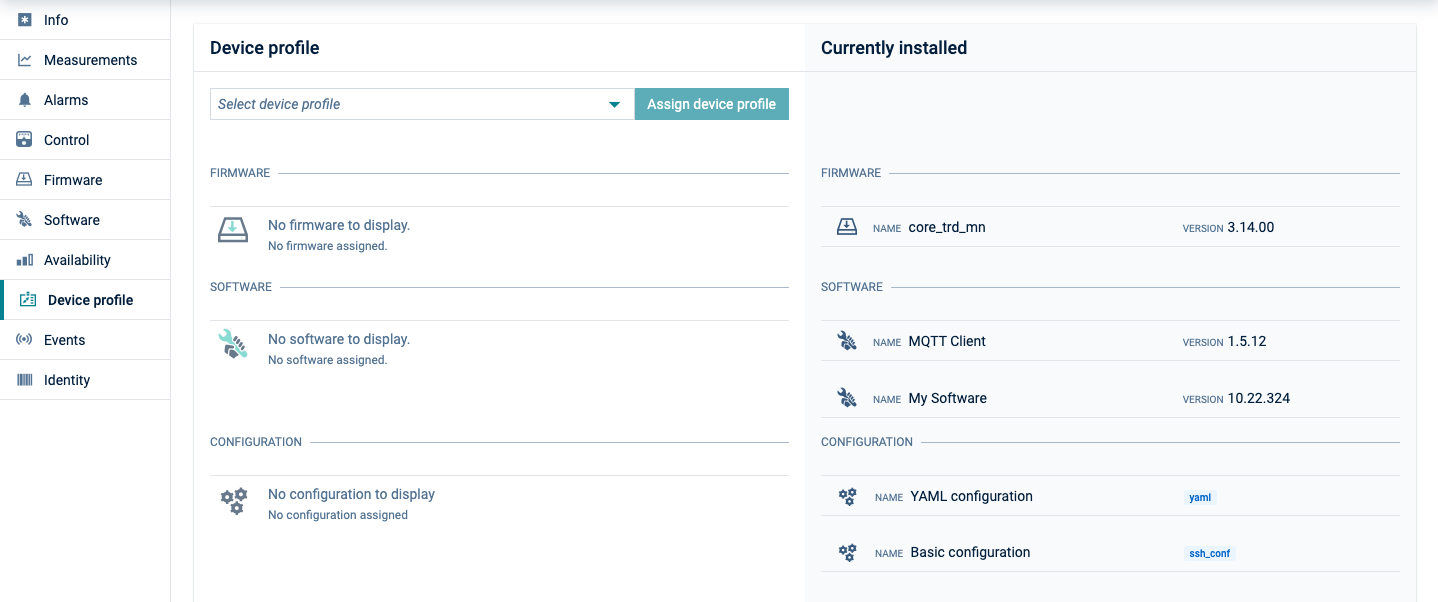
> **Info:**
> The **Device profile** tab shows up for a device if the device supports `c8y_DeviceProfile` operations.
#### To apply device profiles to a single device {#to-apply-device-profiles-to-a-single-device}
Device profiles can be applied to individual devices in the **Device Profile** tab of the particular device.
1. In the **Device profile** tab, select a device profile from the dropdown list. Only profiles that match the device type (if specified) or have no device type specified are displayed.
2. Click **Assign device profile** to start the update operation.
#### To apply device profiles to multiple devices {#to-apply-device-profiles-to-multiple-devices}
Device profiles can be applied to multiple devices by using bulk operations.
1. Click **Device control** in the **Overview** menu to navigate to the **Device control** page. In the **Device control** page, a new bulk operation can be created to apply a device profile.
2. In the **Bulk operations** tab, click **New bulk operation** at the right of the top menu bar and in the resulting dialog select **Apply device profile**.
3. Follow the steps described in [To add a bulk operation](https://cumulocity.com/docs/device-management-application/monitoring-and-controlling-devices/#to-add-a-bulk-operation) to schedule a bulk operation which applies a device profile.
The devices will install the firmware, software, and configurations items of the profile and report back the status of the operation. After applying the profile, the device objects in the platform are updated accordingly with the new profile information.
> **Info:**
> When creating bulk operations, it is possible to use filters, and by this create bulk operations only for those devices where a profile has not been applied yet.