# Managing trusted certificates
Source: https://cumulocity.com/docs/device-certificate-authentication/managing-trusted-certificates/
Sector: Device management & connectivity
Release: Latest
Cumulocity allows devices to connect via MQTT protocol using a X.509 certificate for authentication. To do so, a certificate must be trusted by Cumulocity. A certificate is trusted when it is added to the trusted certificates and is in activated state.
> **Requirements:**
> ROLES & PERMISSIONS:
>
> To view trusted certificates, you must be the initial admin user (first created user) of the tenant or have one of the following permissions:
>
> * READ permission for the "Tenant management" permission type.
>
> To manage trusted certificates, you must be the initial admin user (first created user) of the tenant or have one of the following permissions:
>
> * ADMIN permission for the "Tenant management" permission type.
> **Info:**
> This section describes how to manage trusted certificates. For information on connecting devices using certificates refer to [Connecting devices using certificates](https://cumulocity.com/docs/device-certificate-authentication/device-certificates/).
Click **Trusted certificates** in the **Management** menu in the navigator.
All certificates owned by the tenant will be displayed.
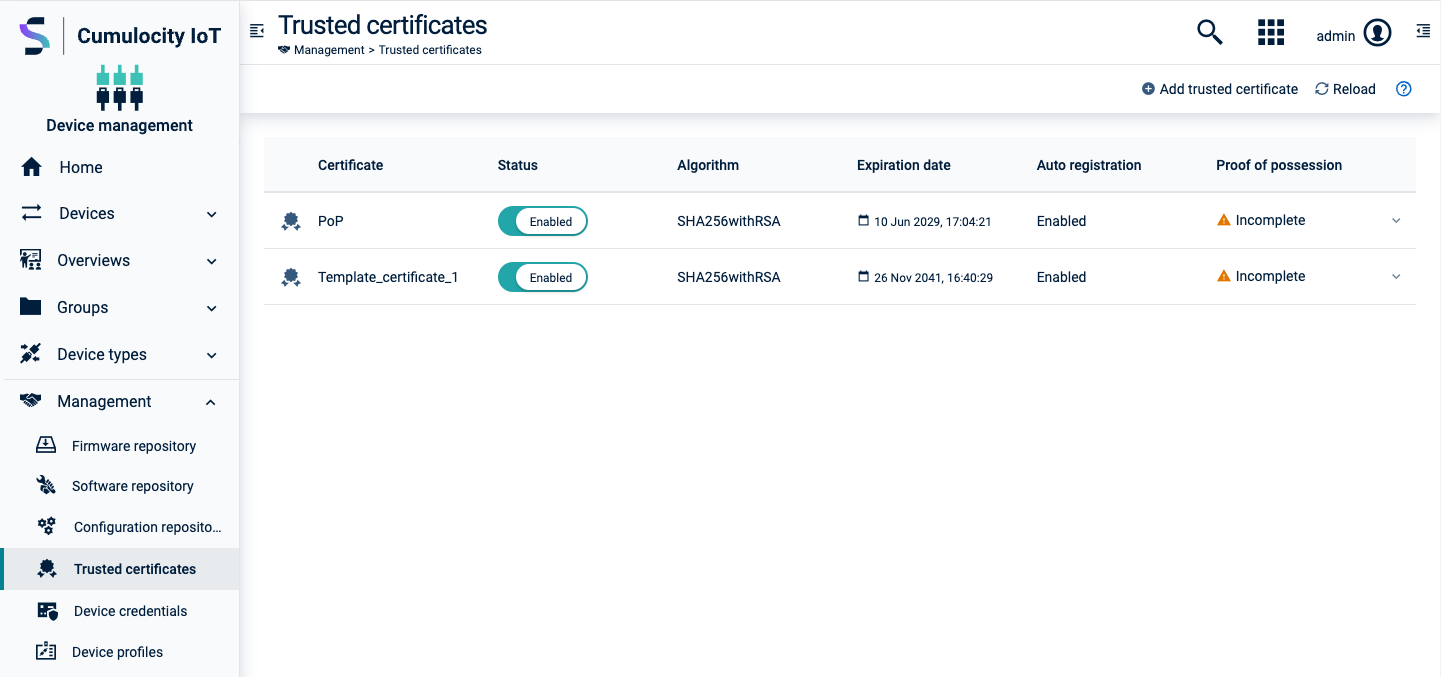
The **Status** column indicates if the certificate is enabled or disabled. At any given time a tenant can have any number of enabled or disabled certificates.
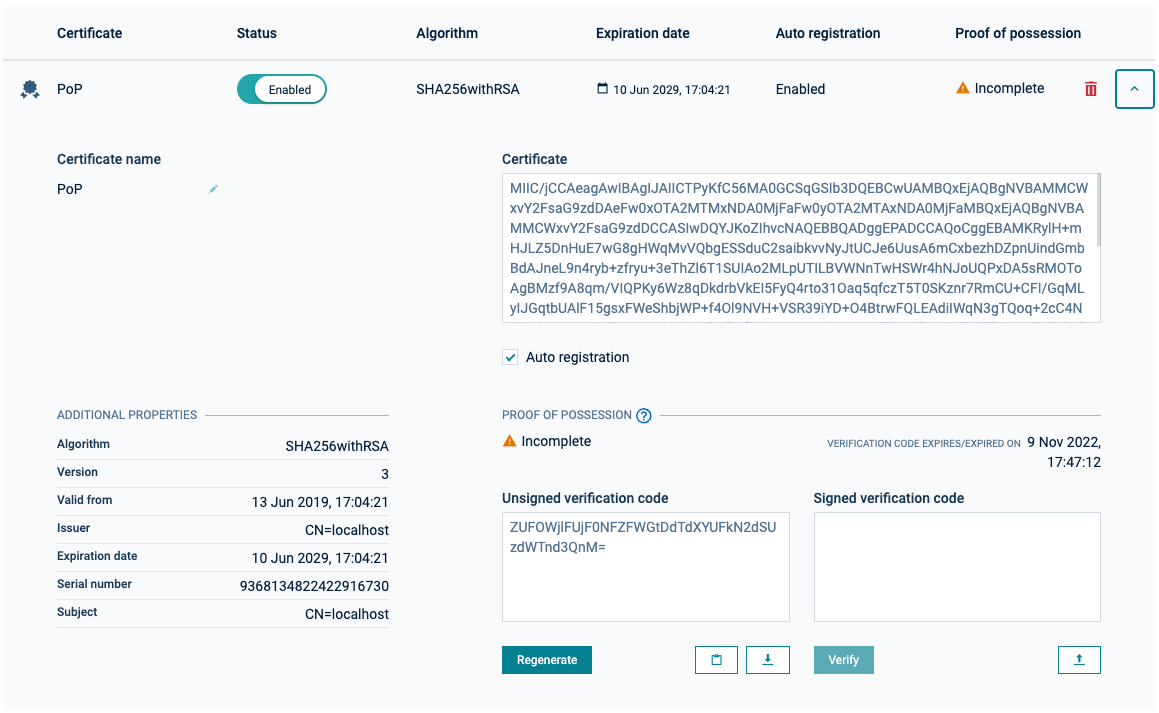
Expand a certificate by clicking the arrow icon at the right to view more details.
The information in the table at the right side is extracted from the provided certificate. The content is read-only and cannot be changed.
### To add a certificate {#to-add-a-certificate}
Before adding a new trusted certificate, make sure that:
- It is a X.509 certificate in PEM format.
- It is in version 3.
- It contains `BasicConstraints:[CA:true]`.
- It has not already been uploaded to Cumulocity.
- It is still valid (not expired).
To add a certificate perform these steps:
1. Click **Add trusted certificate** at the right of the top menu bar.
2. In the resulting dialog box, provide the following information:
| Field | Description |
|:------------------|:---------------------------------------------------------------------------------------------------------------------------------------------------------------------------------------------------------------------------------------------------------------------------------------------------------------------------------------------------------------------------------------------------------------------------------|
| Certificate name | User-provided name for the certificate. This name is not used by Cumulocity and can serve as a description of the certificate. |
| Certificate | File containing the certificate in PEM format. Add the file by dropping it into this field or browsing for it in your file system. |
| Auto registration | If selected, new devices that use a certificate signed by the authority owning this trusted certificate will be automatically registered. The option does not support devices using the LWM2M protocol. If deselected, devices that do not already exist in the system will not automatically be registered, and the connection will be rejected; such devices must be pre-registered using the full-bulk registration process. |
| Enabled/ Disabled | When disabled, devices which use a certificate signed by the authority owning this certificate, will not be able to connect. |
3. Click **Add Certificate** to validate and save the certificate.
> **Info:**
> For performance reasons, you shouldn't add the certificates of each device you want to connect, but only add the root certificate or one of the intermediate certificates from the chain which has been used to sign certificates used by devices.
### To edit a trusted certificate {#to-edit-a-trusted-certificate}
In the detail view of a certificate you may change the parameters on the left, that is, the certificate name, and the settings for the auto registration and enabled/disabled option.
For details on the fields, see the description on adding certificates above.
### To renew a CA certificate provided by Cumulocity {#to-renew-a-ca-certificate}
Certificate renewal enables you to generate a new Certificate Authority (CA) certificate provided by Cumulocity before the existing one expires. The connected devices may need a moment to reconnect after the renewal, but it prevents sudden authentication failures in case the current certificate reaches the end of its validity period.
A **Renew certificate** button appears for a certificate in the certificate list when the following conditions are met:
* The certificate is a CA certificate.
* The certificate expires within 2 years from the current date.
To renew a CA certificate perform these steps:
1. In the **Trusted certificates** list, find the certificate you want to renew.
2. Click the refresh icon next to its current expiration date.
> **Info:**
> When you renew a certificate, a new certificate with updated expiration dates is generated and it becomes active immediately, and can be used for device authentication.
### To delete a trusted certificate {#to-delete-a-trusted-certificate}
To permanently delete a certificate from the trusted certificates list, click the delete icon at the right of the respective entry and in the context menu click **Delete**.
The certificate will be permanently deleted.