# Usage
Source: https://cumulocity.com/docs/console/usage/
Sector: Platform administration
Release: Latest
The **Usage** section of the Console application contains detailed usage statistics information for each of the tenants associated with your account. The data is available on a monthly basis, only for the months that have been completed. The page is divided into two tabs: **Overview** and **Details**.
## Overview
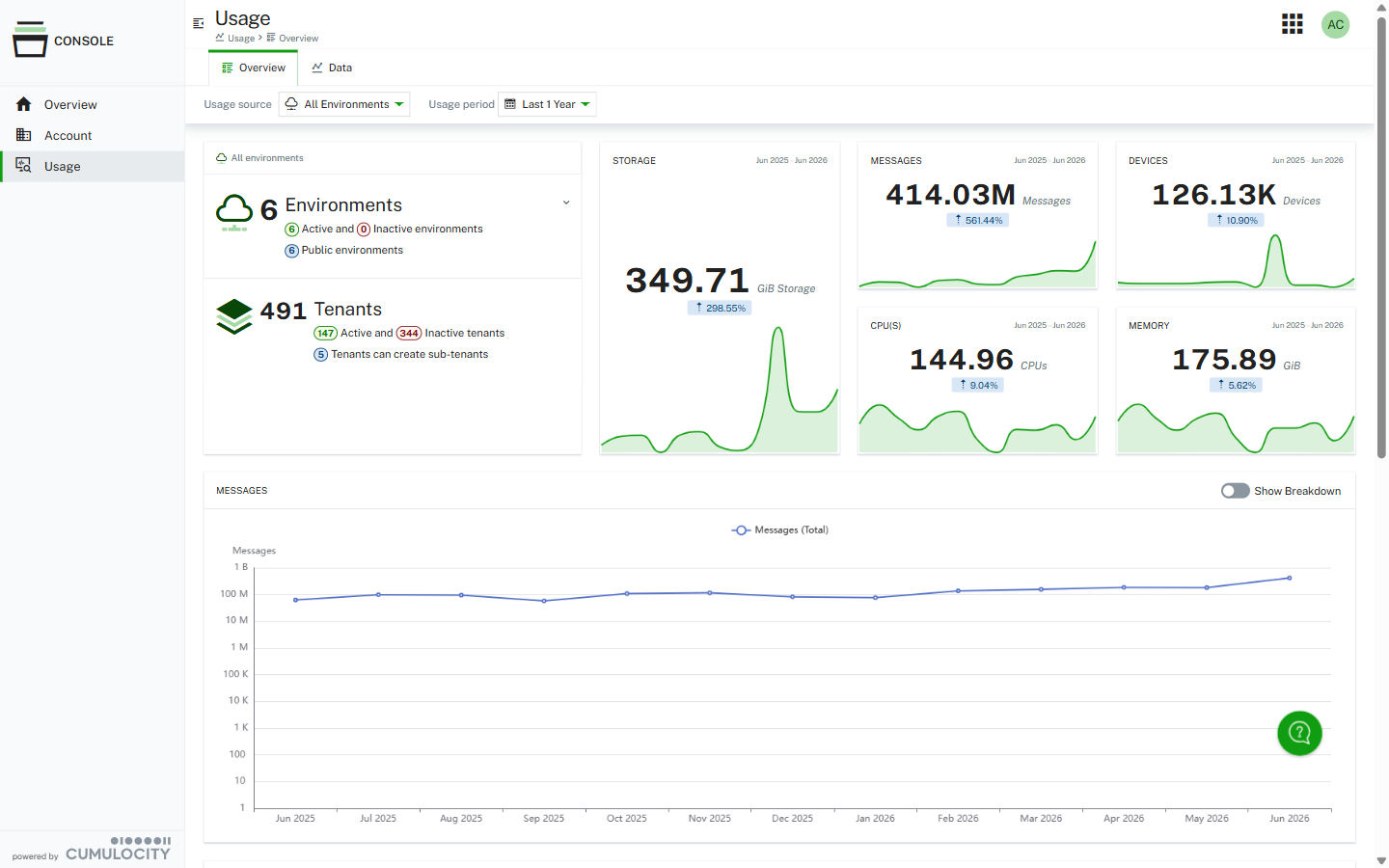
The **Overview** tab provides a dashboard with all usage statistics relating to your environments and tenants.
 ### Filters {#filters}
At the top of the page, you will find the following two filters:
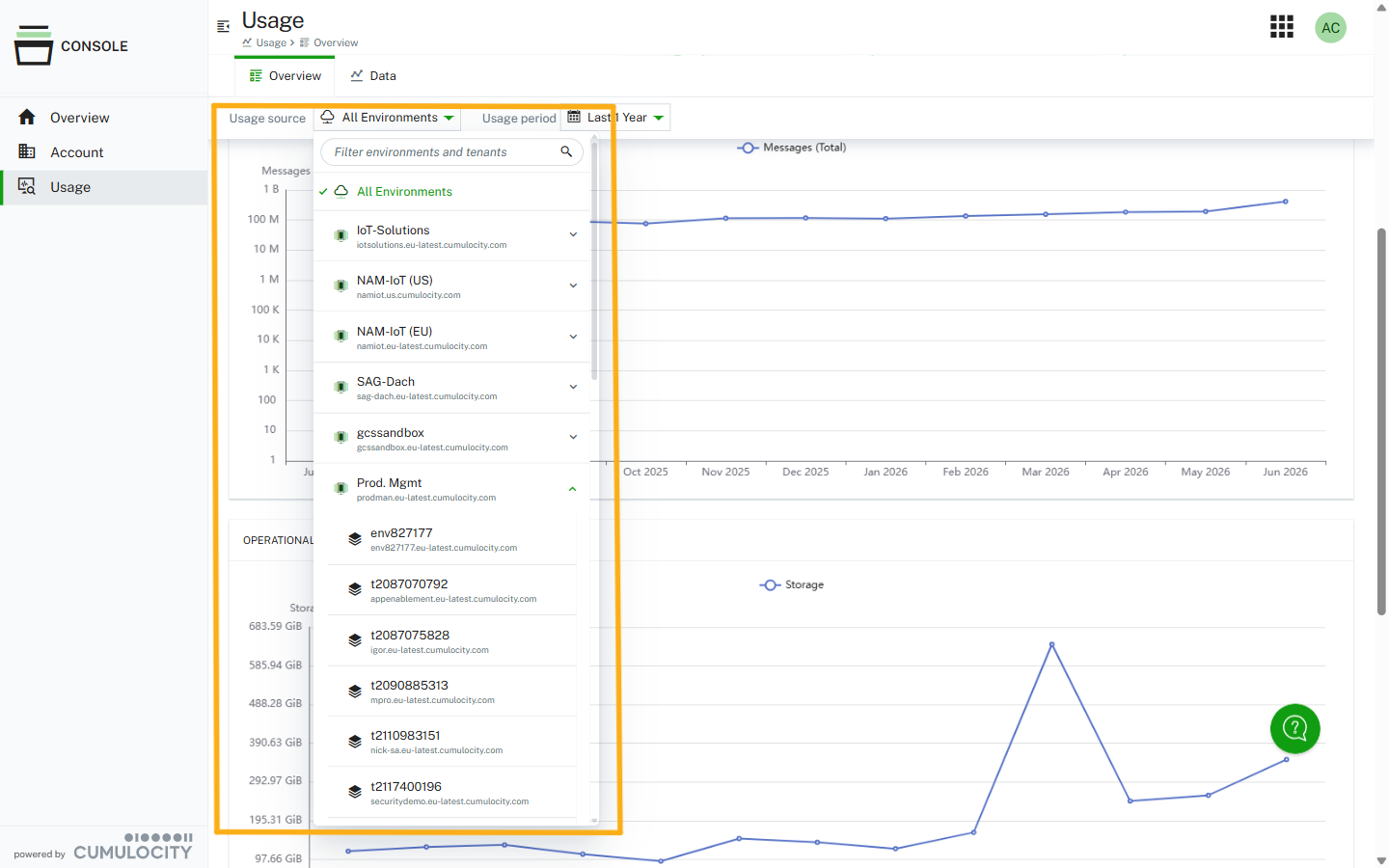
* **Environment filter** - Allows you to select from which environment you want to view the data. You do not need to be in the environment to view the data from it. For example, if you have a production environment and a development environment, you can view the data from the development environment even if you are logged in and viewing the Console application from the production environment. You can also dive into the individual tenant data, in case you want to identify high-usage tenants. In the following screenshot, you can see the filter showing three environments, with a tenant called "subtenant-prod" being selected from the production environment. As a reminder, you can name each environment in the **Environments** page of the Console application.
### Filters {#filters}
At the top of the page, you will find the following two filters:
* **Environment filter** - Allows you to select from which environment you want to view the data. You do not need to be in the environment to view the data from it. For example, if you have a production environment and a development environment, you can view the data from the development environment even if you are logged in and viewing the Console application from the production environment. You can also dive into the individual tenant data, in case you want to identify high-usage tenants. In the following screenshot, you can see the filter showing three environments, with a tenant called "subtenant-prod" being selected from the production environment. As a reminder, you can name each environment in the **Environments** page of the Console application.
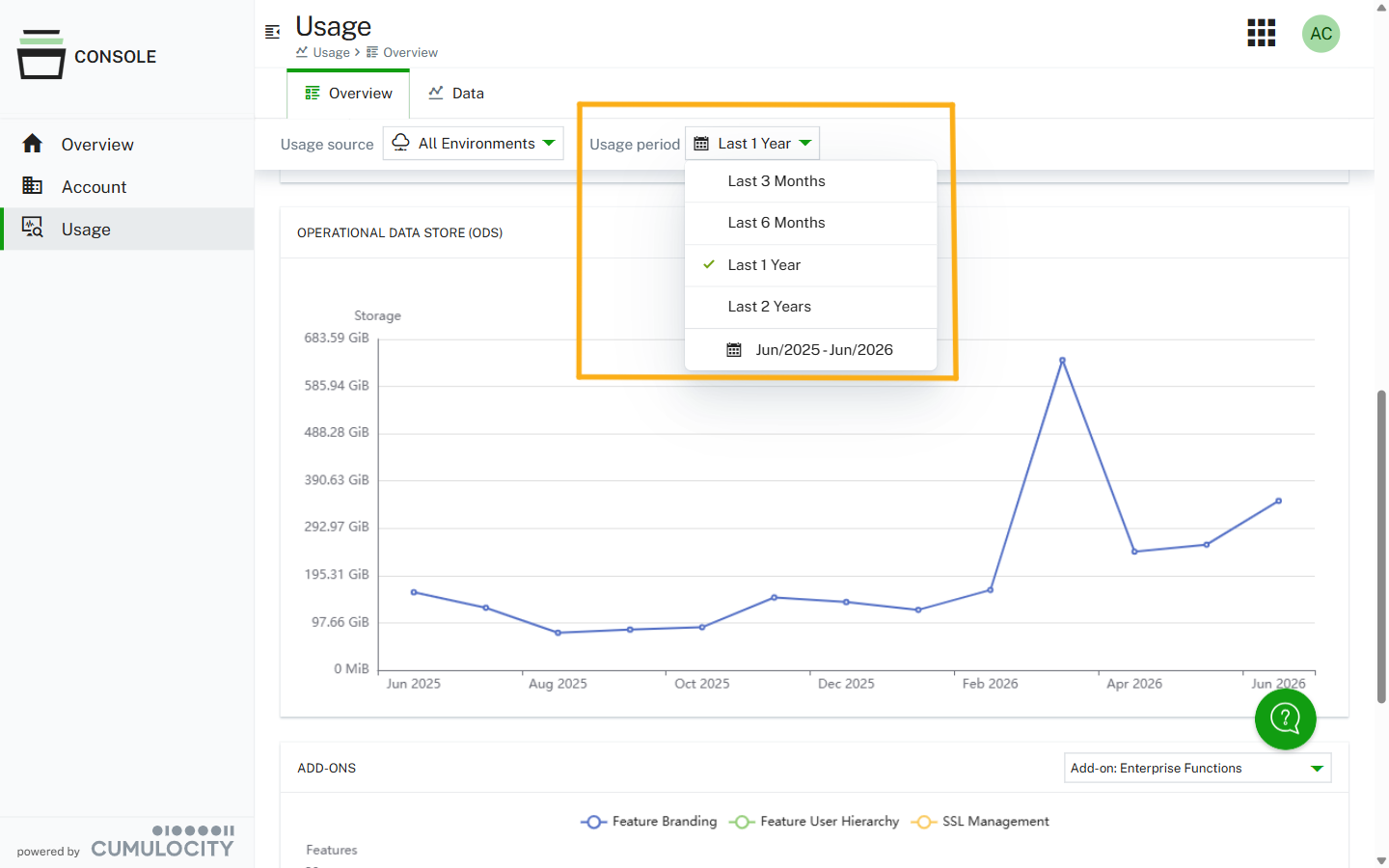
 * **Date filter** - Allows you to select the time range you want to view in the graphs below. The default range is "Last 1 Year", but it can be adjusted to whatever months are desired. As a reminder, only the completed month's data is available in the Console application.
 ### Usage statistics {#usage-statistics}
The first usage widget shows the data for the last available month in the selected time range. The month can be viewed in the top right corner of each tile.
### Usage statistics {#usage-statistics}
The first usage widget shows the data for the last available month in the selected time range. The month can be viewed in the top right corner of each tile.
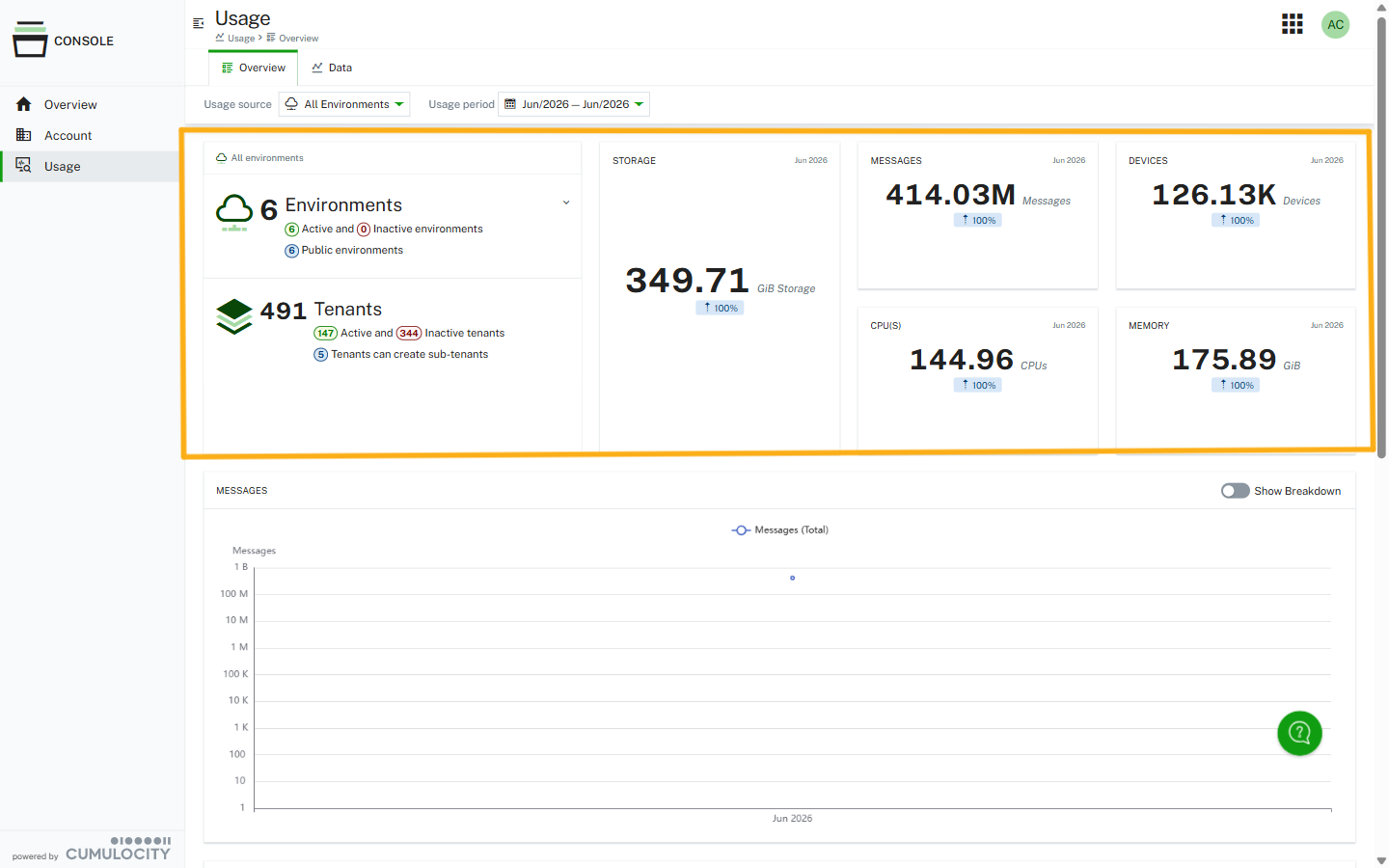 The following tiles are included:
* **Environments and tenants** - Displays the number of environments and total tenants, including the type of environment (public cloud versus dedicated cloud) and if they are active or not.
* **Storage** - Displays the latest total Operational Data Store metric from the last month. All tenants across all environments are aggregated in this metric.
* **Messages** - Displays the latest total messages metric from the last month. All tenants across all environments are aggregated in this metric. The full calculation of messages can be found in the [Cumulocity license metrics](https://cumulocity.com/docs/service-terms/license-metrics/) documentation.
* **Devices** - Displays the latest total number of devices from the last month. All tenants across all environments are aggregated in this metric.
* **CPU(S)** - Displays the latest total amount of CPU power used for microservices in the last month. All tenants across all environments are aggregated in this metric.
* **Memory** - Displays the latest total amount of memory used for microservices in the last month. All tenants across all environments are aggregated in this metric.
Each tile includes a percentage change indicator. This represents the percentage difference between the first month of your selected time range and the last month displayed on the tile.
### Messages graph {#messages-graph}
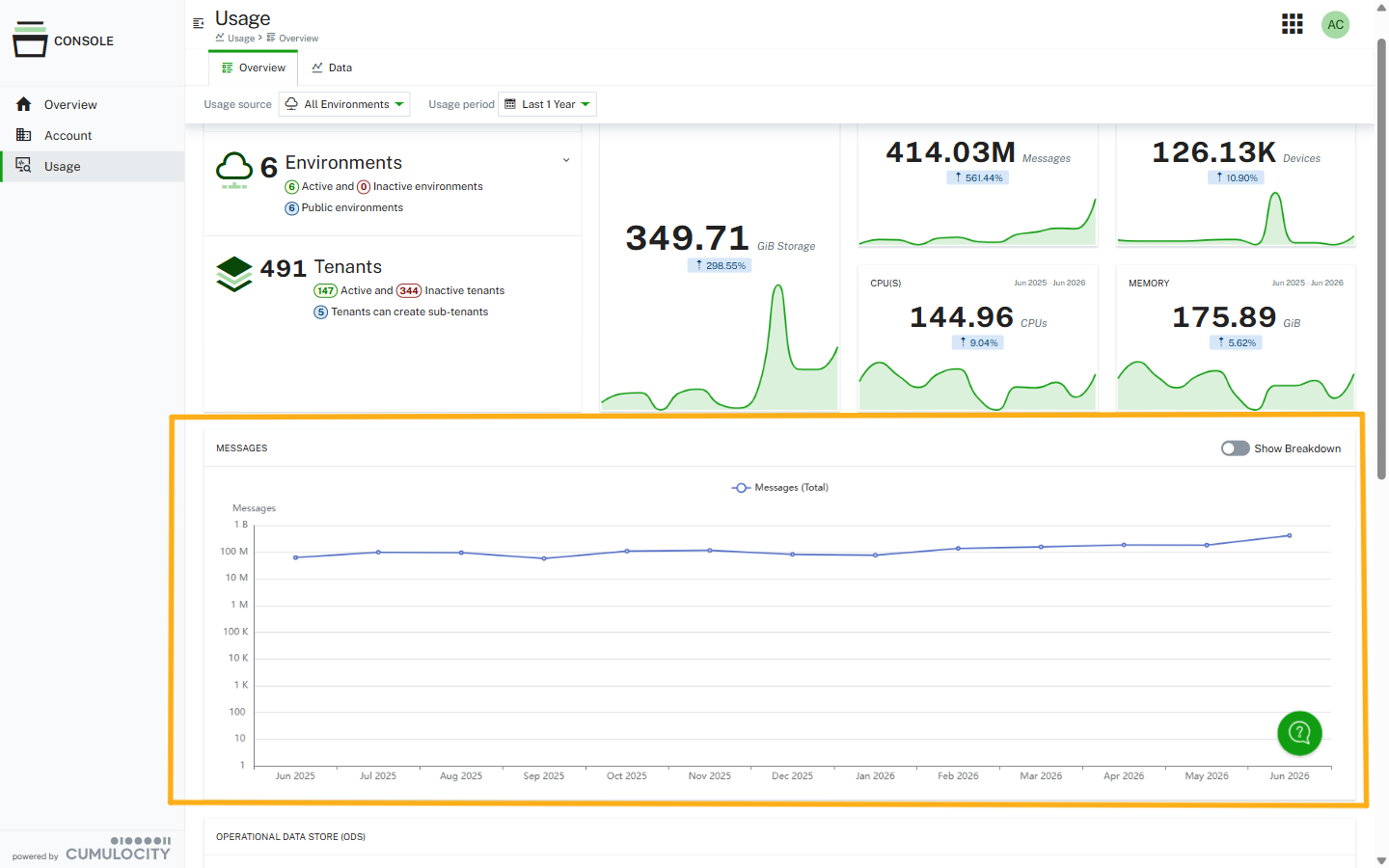
The messages graph displays the total number of messages across the selected time range.
The following tiles are included:
* **Environments and tenants** - Displays the number of environments and total tenants, including the type of environment (public cloud versus dedicated cloud) and if they are active or not.
* **Storage** - Displays the latest total Operational Data Store metric from the last month. All tenants across all environments are aggregated in this metric.
* **Messages** - Displays the latest total messages metric from the last month. All tenants across all environments are aggregated in this metric. The full calculation of messages can be found in the [Cumulocity license metrics](https://cumulocity.com/docs/service-terms/license-metrics/) documentation.
* **Devices** - Displays the latest total number of devices from the last month. All tenants across all environments are aggregated in this metric.
* **CPU(S)** - Displays the latest total amount of CPU power used for microservices in the last month. All tenants across all environments are aggregated in this metric.
* **Memory** - Displays the latest total amount of memory used for microservices in the last month. All tenants across all environments are aggregated in this metric.
Each tile includes a percentage change indicator. This represents the percentage difference between the first month of your selected time range and the last month displayed on the tile.
### Messages graph {#messages-graph}
The messages graph displays the total number of messages across the selected time range.
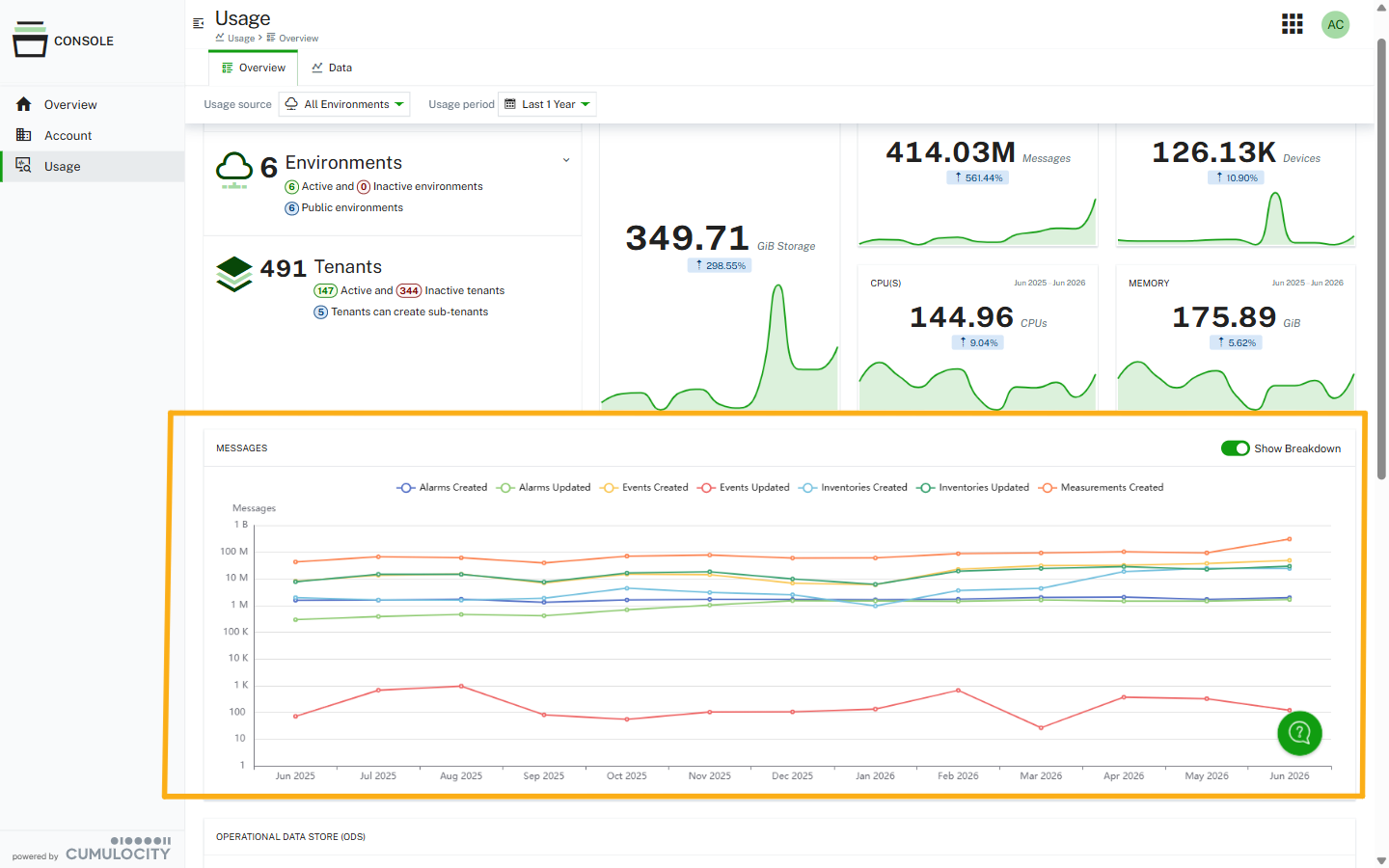
 Toggle **Show breakdown** to display all components of the messages metric.
 ### Operational Data Store graph {#operational-data-store-graph}
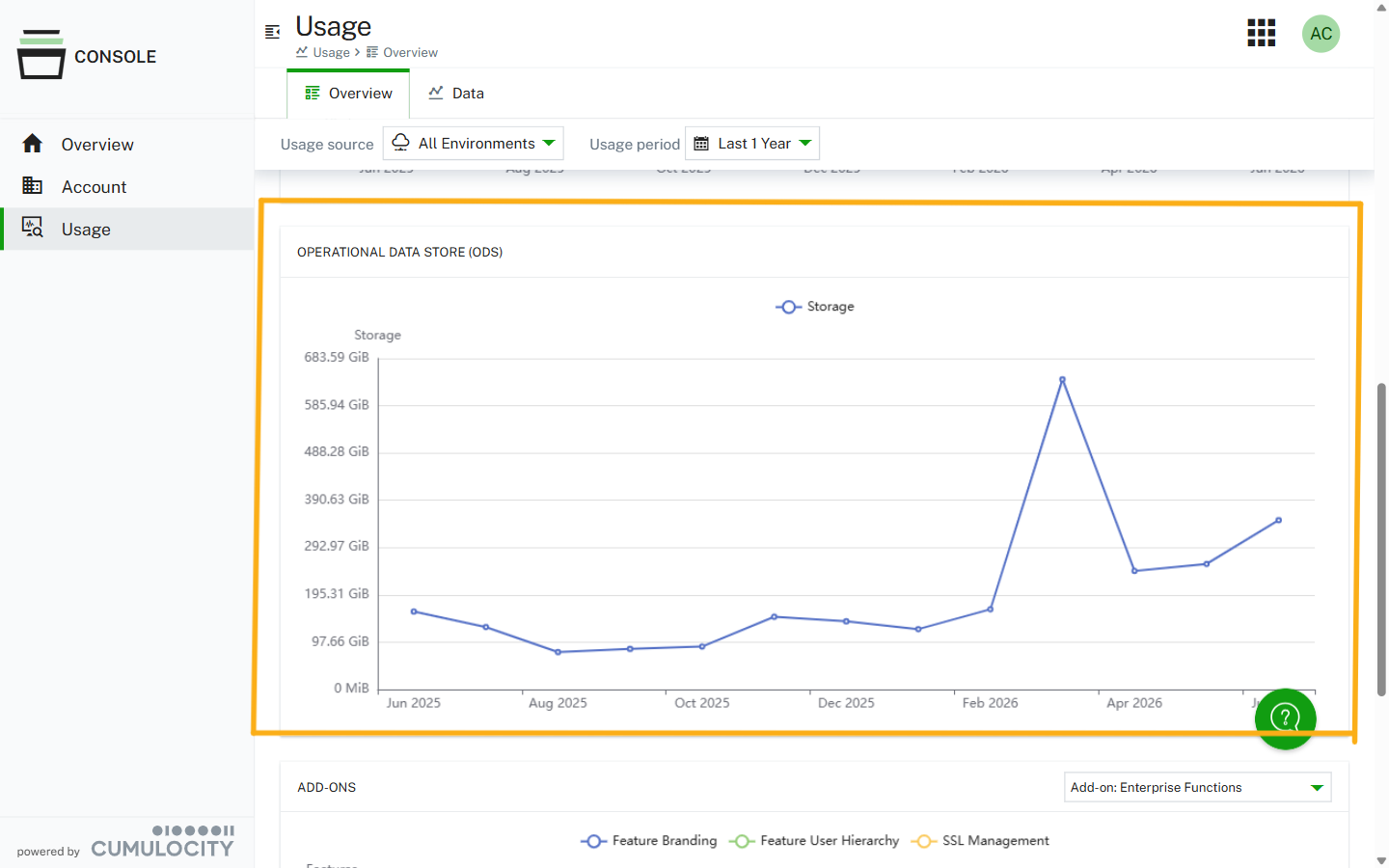
The Operational Data Store (ODS) graph displays the total aggregated storage used across all the selected environments and tenants.
### Operational Data Store graph {#operational-data-store-graph}
The Operational Data Store (ODS) graph displays the total aggregated storage used across all the selected environments and tenants.
 ### Add-ons graph {#addons-graph}
The add-ons graph allows you to select one of the add-ons and view the usage data from it.
### Add-ons graph {#addons-graph}
The add-ons graph allows you to select one of the add-ons and view the usage data from it.
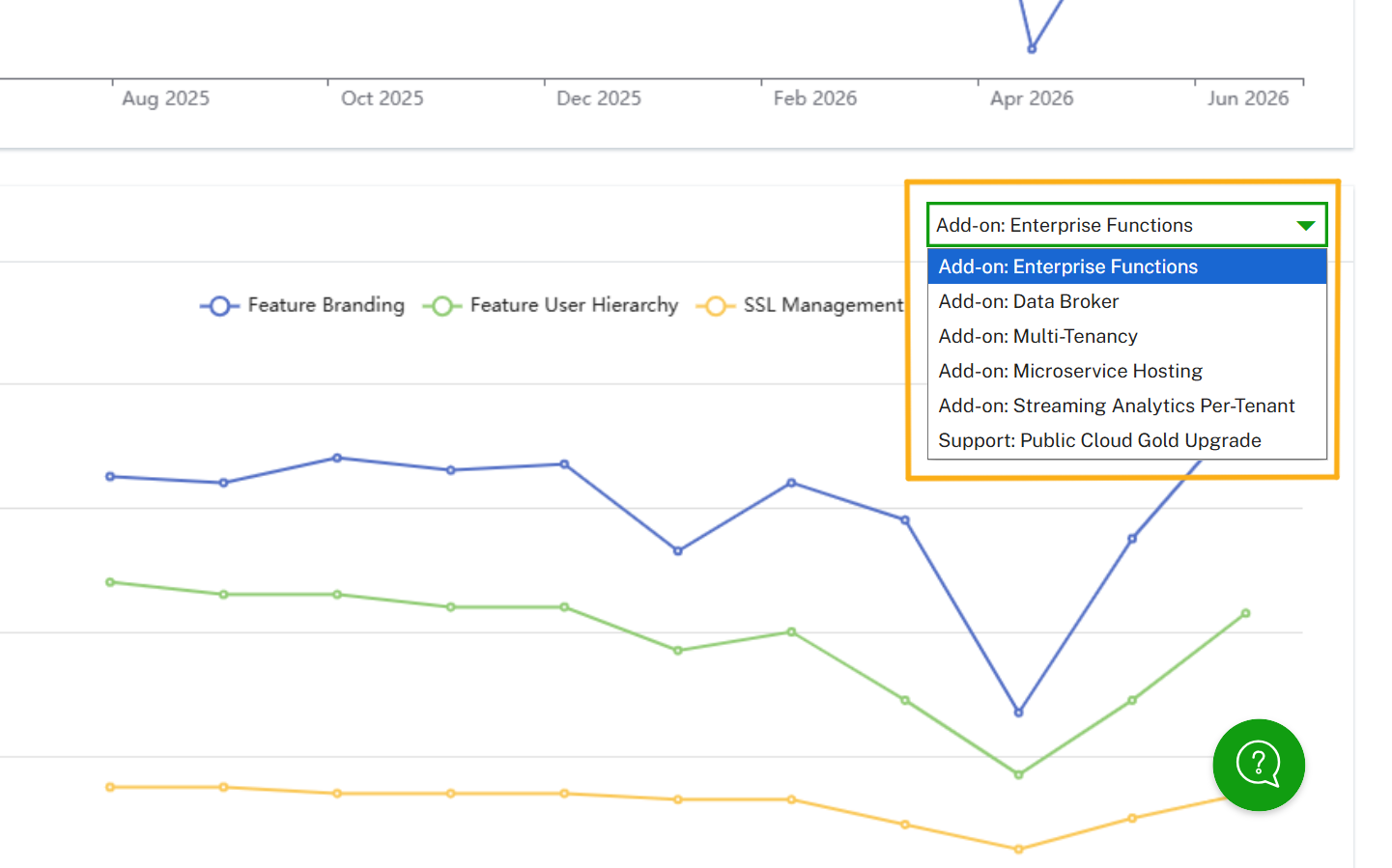
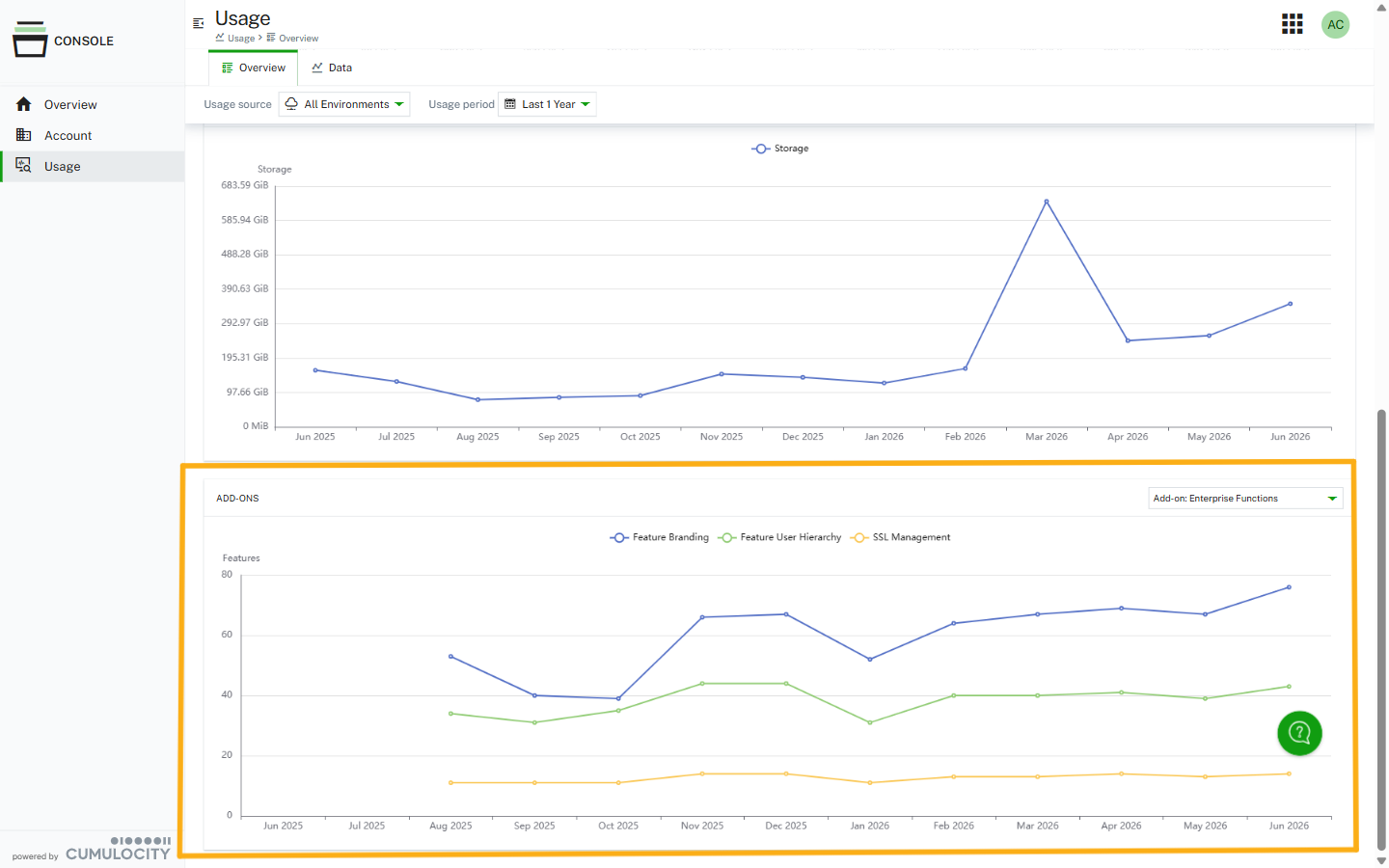 Use the selector at the top right to select one of the add-ons that are deployed on your environment. Each add-on has its own usage metrics that are then displayed in the graph.
 ## Details
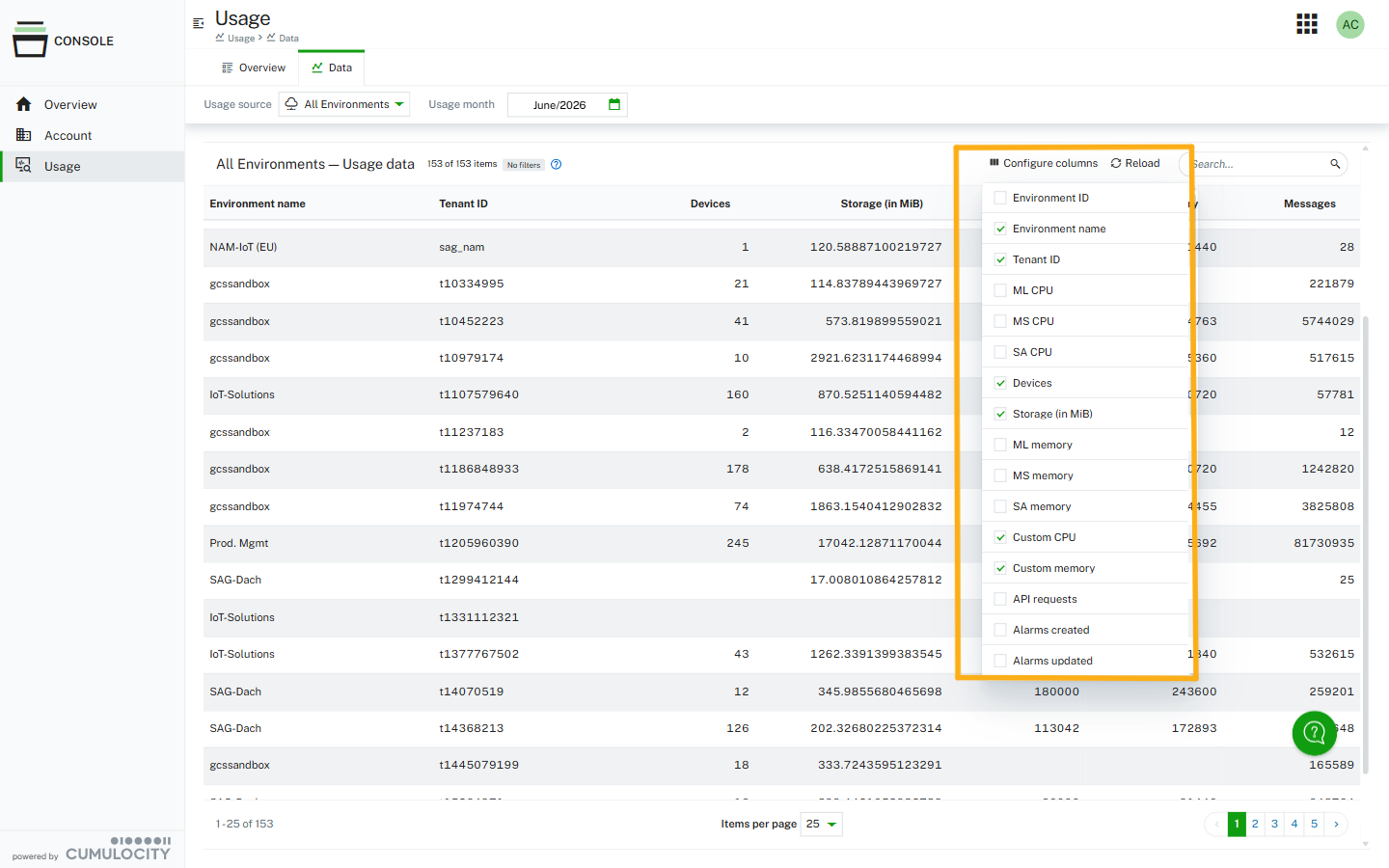
The **Details** tab provides access to the raw underlying data that powers the graphs on the **Overview** tab. It is a table with all the data, available for use with the same filters as the visualizations.
## Details
The **Details** tab provides access to the raw underlying data that powers the graphs on the **Overview** tab. It is a table with all the data, available for use with the same filters as the visualizations.
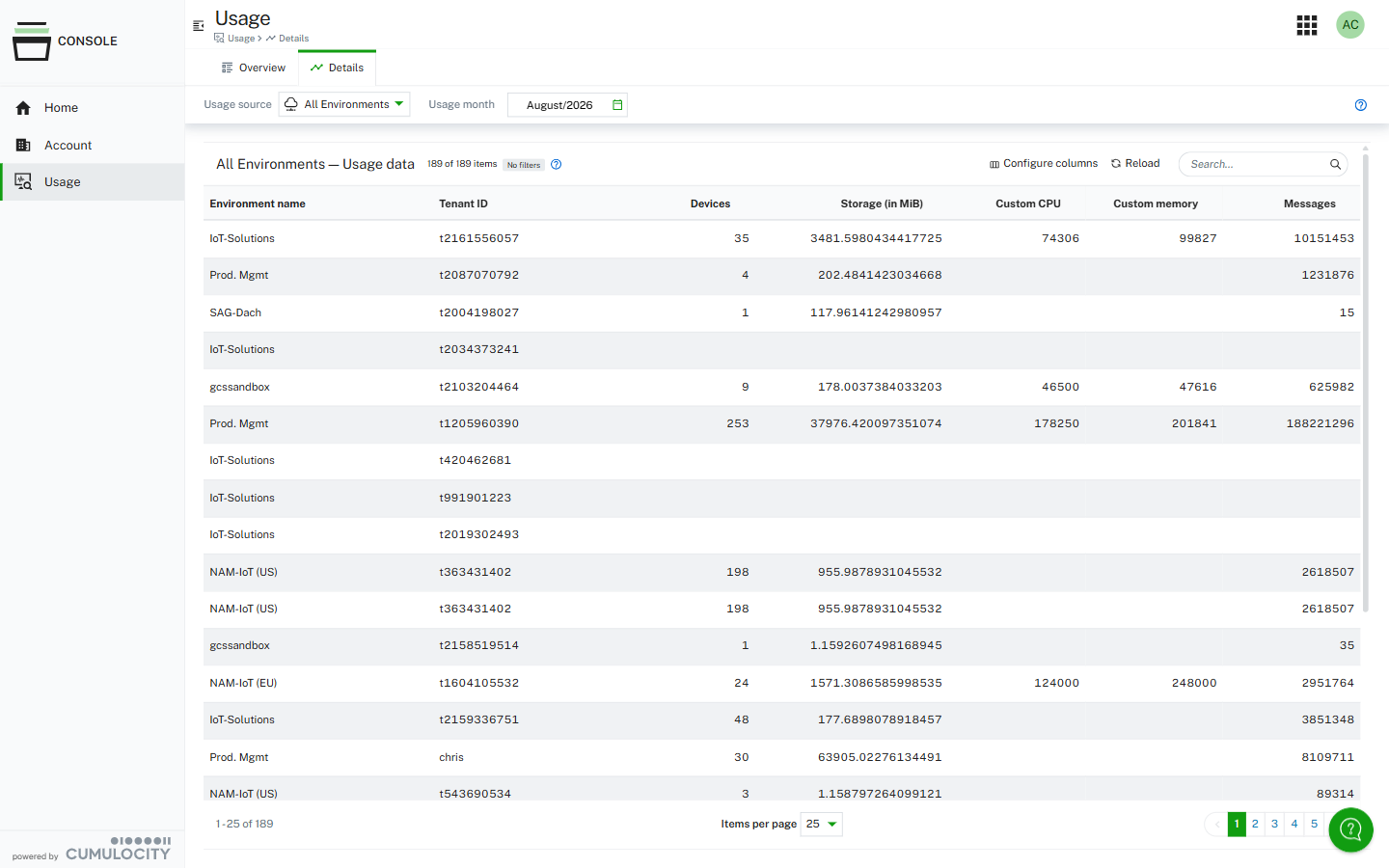 The data is available at the tenant level. Use **Configure columns** to add or remove metrics from the table.