# Working with reports
Source: https://cumulocity.com/docs/cockpit/working-with-reports/
Sector: Application enablement & solutions
Release: Latest
Reports enable you to track applications, alarms, assets, and other data in a dashboard layout. Reports are global dashboard pages, regardless of the asset hierarchy.
> **Requirements:**
> ROLES & PERMISSIONS:
>
> - To view reports: READ permission for permission type "Inventory"
> - To edit a report: ADMIN permission for permission type "Inventory"
> - To add a new report: CREATE permission for permission type "Inventory"
> - To delete a report: ADMIN permission for permission type "Inventory"
### To show all reports {#to-show-all-reports}
To show all reports, click **Reports** in the navigator.
In the **Reports** page you will find a list displaying all reports with their names, an optional description and a navigator toggle.
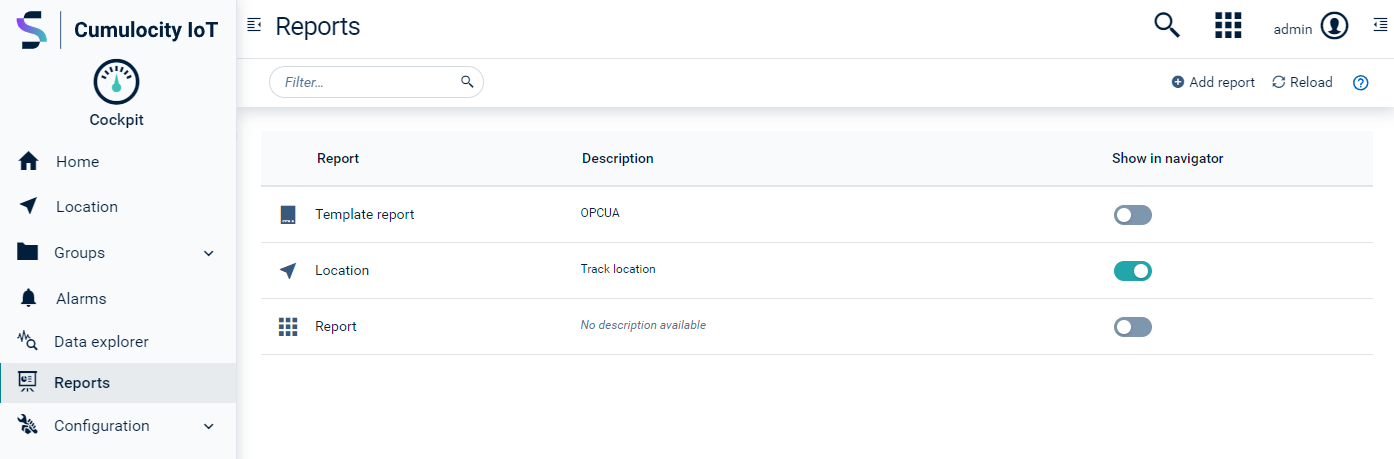
To open a report, click on its name in the report list. The report details will be displayed.
Use the toggle in the **Show in navigator** column, if you want to show the report more prominently on the first level in the navigator. If the toggle is turned on, the report will immediately appear in the navigator.
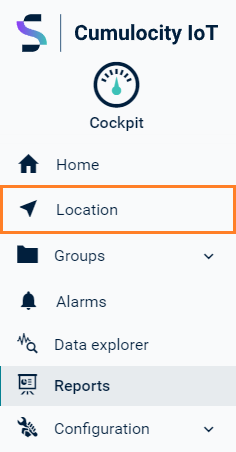
See [To create a report](https://cumulocity.com/docs/cockpit/working-with-reports/#to-create-a-report) below for details on how to configure the position in the navigator.
### To create a report {#to-create-a-report}
1. Click **Add report** in the top menu bar to open the **New report** dialog with the **General** tab opened.
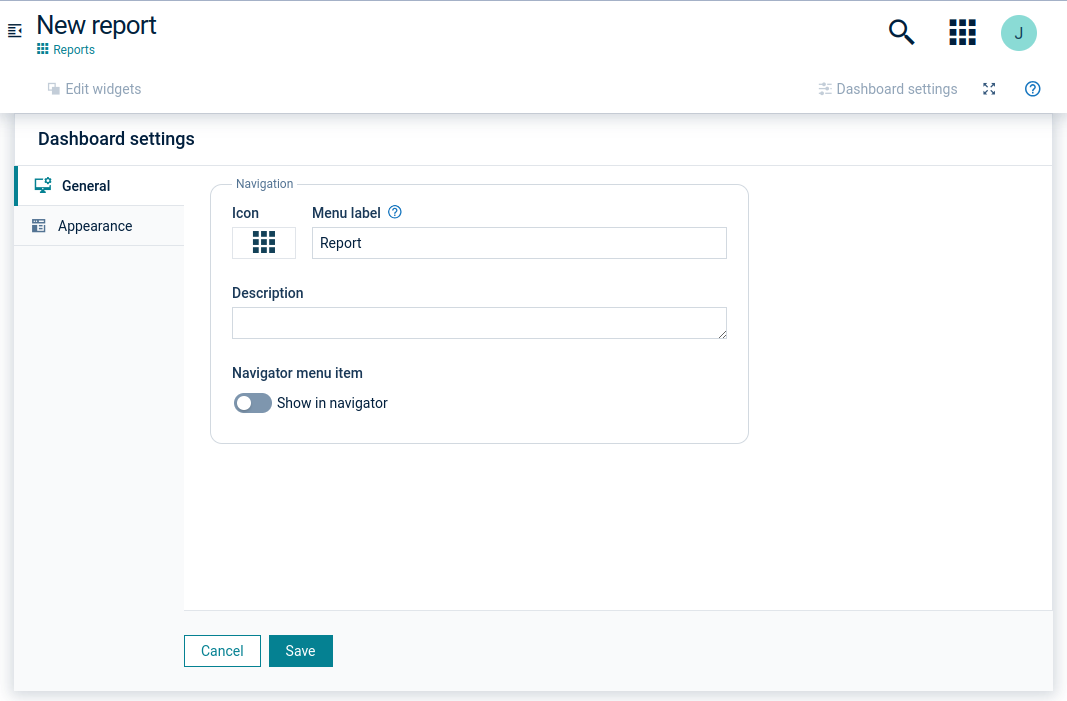
2. In the **Menu label** field, enter a name for the report and optionally provide a description below.
3. Select **Show in navigator** if you want the report to be displayed in the navigator. Select the position of the report in the navigator. Depending on the value it will be positioned relative to the existing items. If for example "Home" has the value "10000" it will be positioned above "Home", if the value is "10001" or higher.
4. In the **Appearance** tab you can select a theme for the report (one of "Match UI", "Light", "Dark" or "Branded") and a default header style for the widgets (one of "Regular", "Border", "Overlay", or "Hidden"). Moreover, you can change the default widget margin (default value is 12 px).
Under the **Translate if possible** option, you can select to have the dashboard and/or widget titles translated. For this option to work, the titles must be written in English and the corresponding translations must be available in the loaded translation resources, for example in the standard application translations, or in the custom ones provided via the [localization feature](https://cumulocity.com/docs/standard-tenant/changing-settings/#localization) or in the [application options](https://cumulocity.com/codex/advanced-development/services/options-service/overview).
Click **Save** to create the report and add it to the report list.
> **Info:**
> A preview of the selected layout settings is immediately displayed to visualize your selections on the dashboard below the settings drawer.
Next, widgets can be added to the report.
Refer to [Using widgets in dashboards and reports](https://cumulocity.com/docs/cockpit/using-widgets/) for details on how to add, modify or remove widgets.
### To edit a report {#to-edit-a-report}
Click on a report name in the report list to open its dashboard.
For details on how to edit the report dashboard, refer to [To edit a dashboard](https://cumulocity.com/docs/cockpit/working-with-dashboards/#to-create-a-dashboard).
### To delete a report {#to-delete-a-report}
1. In the **Reports** page, hover over the report item you want to delete and click the remove icon showing up at the right.
2. Confirm to delete the report.