# Smart rules
Source: https://cumulocity.com/docs/cockpit/smart-rules/
Sector: Application enablement & solutions
Release: Latest
Cumulocity includes the Streaming Analytics application which can analyze data in realtime and perform actions based on data.
To easily create rules, the Cockpit application includes a smart rules builder which allows you to create rules from templates (so-called smart rule templates).
The smart rules functionality is only available if the tenant is subscribed to the Smartrule microservice and the Apama-ctrl microservice.
> **Requirements:**
> * To use the smart rules functionality, you must be subscribed to the Smartrule and Apama-ctrl microservice.
Smart rules are parameterized. There are two sources for parameters:
- **Rule parameters** are provided by the user when creating a smart rule from a template. Examples are email addresses and alarm texts.
- **Object parameters** are stored in the group or device. These parameters can be edited after the smart rule has been created. An example includes min and max values for thresholds.
There are two different types of smart rules:
- Global smart rules
- Local smart rules
**Global smart rules**
Global smart rules are created in a global context (**Smart rules** page, alarms, data explorer, and so on). Rules created as global monitor the whole inventory (any asset type such as groups, devices, configurations, applications).
> **Requirements:**
> ROLES & PERMISSIONS for global smart rules:
>
> - To view a global smart rules: READ permission for permission type "Global smart rules" or "CEP management" and READ permission for permission type "Inventory"
> - To edit global smart rules: ADMIN permission for permission type "Global smart rules" or "CEP management" and ADMIN permission for permission type "Inventory"
> - To create a global smart rule: ADMIN permission for permission type "Global smart rules" or "CEP management" and CREATE or ADMIN permission for permission type "Inventory"
> - To duplicate a global smart rule: ADMIN permission for permission type "Global smart rules" or "CEP management" and CREATE or ADMIN permission for permission type "Inventory"
> - To delete a global smart rule: ADMIN permission for permission type "Global smart rules" or "CEP management" and ADMIN permission for permission type "Inventory"
Depending on the initial configuration of a global smart rule, there are two types possible:
- Global smart rules enabled for all assets by default: When no asset is selected in the initial configuration. Such a smart rule is automatically applied to each asset available in the system, including assets added later in time.
- Global smart rules disabled for all assets by default: When at least one asset is selected in the initial configuration. Such a smart rule is automatically disabled for any other assets except the ones selected during creation. You can manually enable it for other existing or newly added assets.
**Local smart rules**
Local smart rules are created from a group or a device. A local rule only affects the asset in which it was created and may affect all child assets depending on the configuration.
> **Requirements:**
> ROLES & PERMISSIONS for local smart rules:
>
> - To view local smart rules: READ permission for permission type "Inventory" or READ permission for "Inventory" in the inventory roles
> - To edit local smart rules: ADMIN permission for permission type "Inventory" or CHANGE permission for "Inventory" in the inventory roles
> - To create a new local smart rule: CREATE permission for permission type "Inventory" or CHANGE permission for "Inventory" in the inventory roles
> - To delete a local smart rule: ADMIN permission for permission type "Inventory" or CHANGE permission for "Inventory" in the inventory roles
Smart rules can be seen in three places:
- In the **Global smart rules** page accessible from the **Configuration** menu.
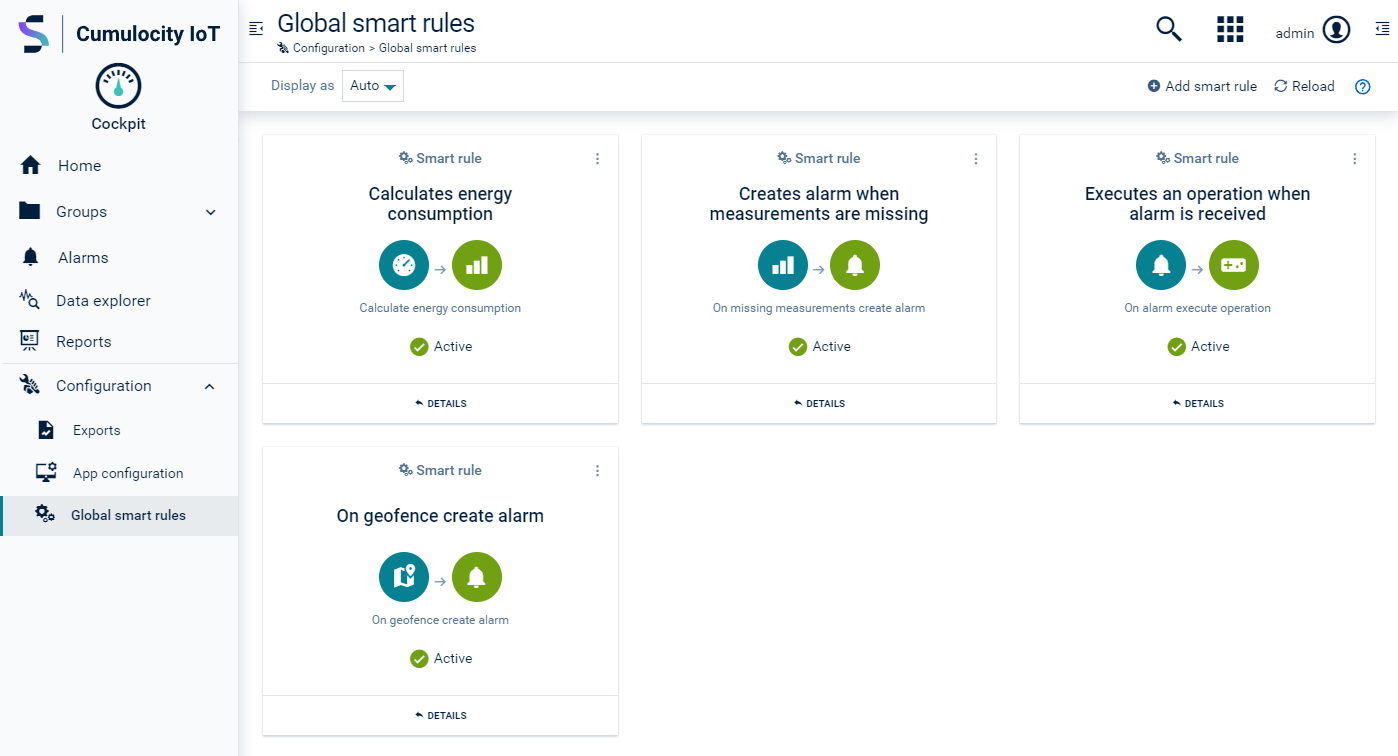
In the **Global smart rules** page, only the global smart rules are shown.
- In the **Smart rules** tab of a device or group.
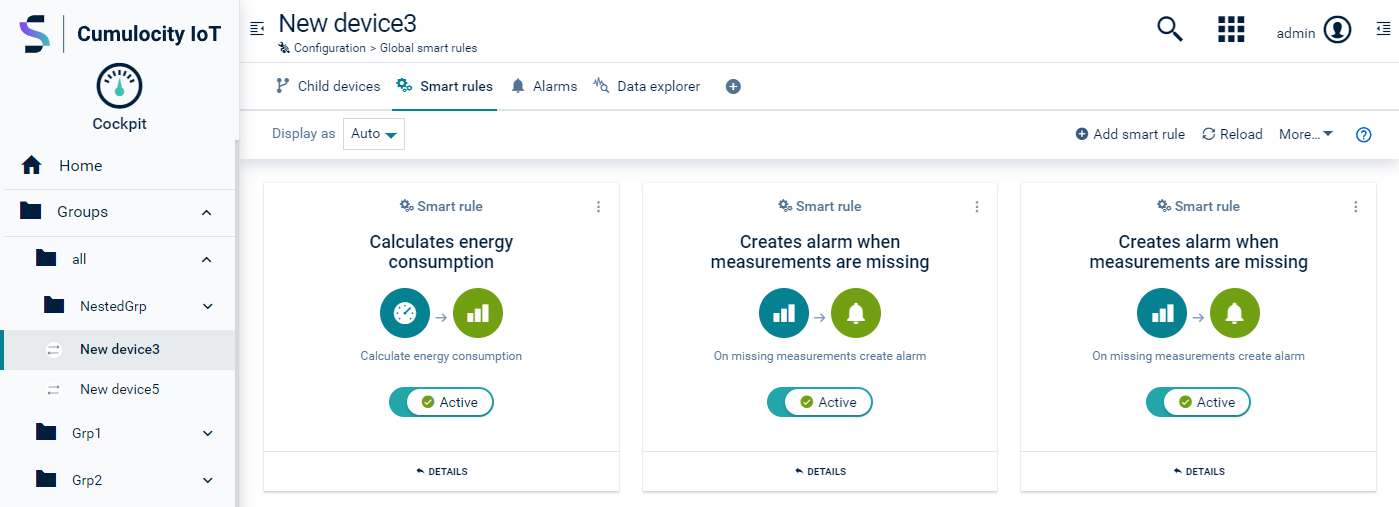
In a local context (group or device) the local smart rules are shown. For users with the relevant permissions, both local and global smart rules are shown.
- In the **Status** tab of the owned microservice.
The microservice details show the global and local smart rules (considering the permissions of the user). Here it is possible to configure a limited number of types of smart rules. Rules selection here is mainly focused on alarms that might be created by the microservice while transitioning through different deployment states.
> **Info:**
> From the context of a group or device, or in the **Status** tab of the owned microservice, you can only modify local smart rules. Editing global smart rules is only possible on the **Global smart rules** page.
> **Related topics:**
> - [Platform administration > Standard tenant administration > Alarm mapping](https://cumulocity.com/docs/standard-tenant/alarm-mapping/) for details on managing smart rules for your devices.
### To create a smart rule {#to-create-a-smart-rule}
Smart rules can both be created in the **Global smart rules** page (global smart rules), accessible from the **Configuration** menu in the navigator, or in the **Smart rules** tab of any group or a device (local smart rules).
1. Click **Add smart rule** in the top menu bar.
2. Select a smart rule template from the list. Note that this list might differ based on your installation.
3. In the resulting dialog box, use the toggle to select if the rule will be enabled or disabled, see [To enable/disable a smart rule](https://cumulocity.com/docs/cockpit/smart-rules/#to-enabledisable-a-smart-rule) for details.
4. Next, configure the rule parameters. The parameters differ from rule to rule, for details see the individual rule descriptions in [Smart rules collection](https://cumulocity.com/docs/cockpit/smart-rules-collection/).
6. Click **Create** to create the smart rule.
> **Info:**
> When you create a smart rule in the **Global smart rules** page, it will be active for all assets by default, unless you select target asset(s) in step 4 of the dialog box, see also [To enable/disable a smart rule](https://cumulocity.com/docs/cockpit/smart-rules/#to-enabledisable-a-smart-rule).
Smart rules can be instantiated multiple times.
### To edit a smart rule {#to-edit-a-smart-rule}
Click the menu icon at the right of an entry and then click **Edit**.
For details on the fields see [To create a smart rule](https://cumulocity.com/docs/cockpit/smart-rules/#to-create-a-smart-rule).
### To duplicate a smart rule {#to-duplicate-a-smart-rule}
1. Click the menu icon at the right of an entry and then click **Duplicate**.
2. Modify at least the name.
3. Click **Save & close** to save the smart rule and return to the smart rule list.
### To delete a smart rule {#to-delete-a-smart-rule}
Click the menu icon at the right of an entry and then click **Delete**.
### To enable/disable a smart rule {#to-enabledisable-a-smart-rule}
If a smart rule is set to **Enabled** in the edit dialog (accessible from the **Global smart rules** page and the **Smart rules** tab of a particular device/group), it is globally "turned on" (that means, its underlying module gets deployed) so that the rule is available for devices and groups.
If it is set to **Disabled** it is "turned off" (that means, its underlying module is not deployed).
In addition to globally enabling/disabling a smart rule, a smart rule can be in **active** or **inactive** state for particular objects (groups or devices). If **active**, the rule will process events for these groups and devices.
> **Info:**
> On creating a smart rule in the **Global smart rules** page, it will be active by default for all assets, unless you explicitly select target asset(s). If specific target assets are selected, it will be deactivated for all other assets. A local smart rule created in the **Smart rules** tab of a particular group or device is automatically activated for the respective target asset (and its direct children).
To explicitly activate or deactivate a rule, navigate to the **Smart rules** tab of the particular group or device and set the **Active/Inactive** toggle to **Active** or **Inactive** respectively.
An example use case for deactivating a smart rule for a single object could be that a particular device is generating too many threshold alarms. The rule can be deactivated for this device only, but still be active for all other objects.
In case of a group, you activate/deactivate the smart rule with the toggle for the group alone. You can then separately activate/deactivate the rule for the group's children via the dropdown box below the toggle.
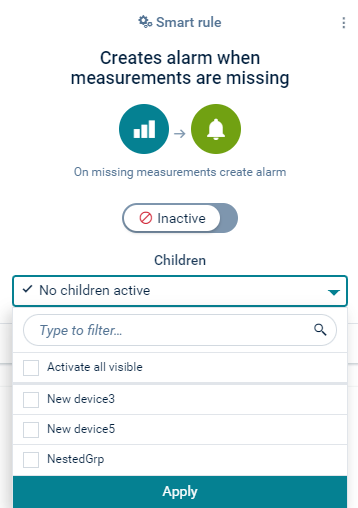 > **Important:**
> A rule which is activated for a particular object only works if the rule is also globally enabled.
### Example: Defining explicit thresholds {#example-defining-explicit-thresholds}
To define a threshold rule follow these steps:
1. In the navigator, select the desired group or device to apply a threshold to.
2. Switch to the **Data explorer** tab.
3. If the data point that should raise the threshold is not visible by default, select **Add data point** and [add a data point](https://cumulocity.com/docs/cockpit/data-point-library/#to-add-a-data-point-to-the-library).
4. Click the menu icon at the end of the row of the respective data point and select **Create smart rule**.
5. Select the smart rule "On measurement explicit threshold create alarm".
6. Fill in the red range minimum and red range maximum value. When the measurement value enters or leaves the RED range, an alarm is created or respectively cleared. For details, see the description of the rule "On measurement explicit threshold create alarm" in the [Smart rules collection](https://cumulocity.com/docs/cockpit/smart-rules-collection/).
7. Under **Create Alarm** you can optionally edit the alarm type and the alarm text.
8. Under **Target assets or devices** you can select the object this rule will be applied to.
9. Click **Create** to create the smart rule.
The rule will automatically be set to active and alarms appear if they arise.
### Chain rule execution {#chain-rule-execution}
Smart rules can create a new data item on the platform. For example, the threshold rule creates new alarms. This new data can be handled further by selected smart rules, for example, by an "On alarm send e-mail" rule.
Using this mechanism, it is possible to create a chain of smart rules.
> **Info:**
> If you create a rule chain keep in mind how much data will be created and avoid overload or excessive amount of data.
> **Important:**
> A rule which is activated for a particular object only works if the rule is also globally enabled.
### Example: Defining explicit thresholds {#example-defining-explicit-thresholds}
To define a threshold rule follow these steps:
1. In the navigator, select the desired group or device to apply a threshold to.
2. Switch to the **Data explorer** tab.
3. If the data point that should raise the threshold is not visible by default, select **Add data point** and [add a data point](https://cumulocity.com/docs/cockpit/data-point-library/#to-add-a-data-point-to-the-library).
4. Click the menu icon at the end of the row of the respective data point and select **Create smart rule**.
5. Select the smart rule "On measurement explicit threshold create alarm".
6. Fill in the red range minimum and red range maximum value. When the measurement value enters or leaves the RED range, an alarm is created or respectively cleared. For details, see the description of the rule "On measurement explicit threshold create alarm" in the [Smart rules collection](https://cumulocity.com/docs/cockpit/smart-rules-collection/).
7. Under **Create Alarm** you can optionally edit the alarm type and the alarm text.
8. Under **Target assets or devices** you can select the object this rule will be applied to.
9. Click **Create** to create the smart rule.
The rule will automatically be set to active and alarms appear if they arise.
### Chain rule execution {#chain-rule-execution}
Smart rules can create a new data item on the platform. For example, the threshold rule creates new alarms. This new data can be handled further by selected smart rules, for example, by an "On alarm send e-mail" rule.
Using this mechanism, it is possible to create a chain of smart rules.
> **Info:**
> If you create a rule chain keep in mind how much data will be created and avoid overload or excessive amount of data.