# Setting up Cloud Remote Access (CRA)
Source: https://cumulocity.com/docs/cloud-remote-access/setting-up-cloud-remote-access/
Sector: Device management & connectivity
Release: Latest
Cloud Remote Access is available in the [Device Management application](https://cumulocity.com/docs/device-management-application).
## Prerequisites
> **Requirements:**
> To use Cloud Remote Access, you need
>
> * a Cloud Remote Access compatible gateway connected to your Cumulocity account.
> * "Remote access" permission granted to the tenant user.
> * the Cloud Remote Access microservice included into your subscription plan.
### Set up your device
To configure your device for compatibility with the Cloud Remote Access functionality, your device must be running a local device gateway that connects to the corresponding CRA backend services of Cumulocity. We strongly recommend to use [thin-edge.io](https://thin-edge.io). It is fully integrated with Cloud Remote Access and can be easily deployed on any Linux-based device, eliminating the need for any custom integration.
Furthermore, devices can report their supported protocols using [SmartREST template 150](https://cumulocity.com/docs/smartrest/mqtt-static-templates/#150) which offers two significant advantages:
1. It prevents the display of unsupported protocols in the selection modal, streamlining the user experience and reducing potential confusion.
2. It enables administrators to restrict the use of potentially vulnerable protocols, such as Telnet, thereby enhancing the overall security of your deployment.
### User Authorization
The Cloud Remote Access feature is a powerful tool that requires careful management. Due to its potential for significant system impact, access should be restricted to experienced administrators
who fully understand its capabilities and risks.
To grant access to qualified users:
1. Navigate to **Accounts** > **Roles** in the Administration application.
2. Click **Add global role** at the top right.
3. Create a new role with the following details:
* **Name:** "Cloud Remote Access Role"
* **Permissions:** Enable "Admin" permission for "Remote Access"
## Accessing Cloud Remote Access
In the Device Management application in the Cumulocity platform, click **All devices** in the **Devices** menu and select the desired gateway from the device list.
When you open the gateway you will find the **Remote access** tab in its tab list.
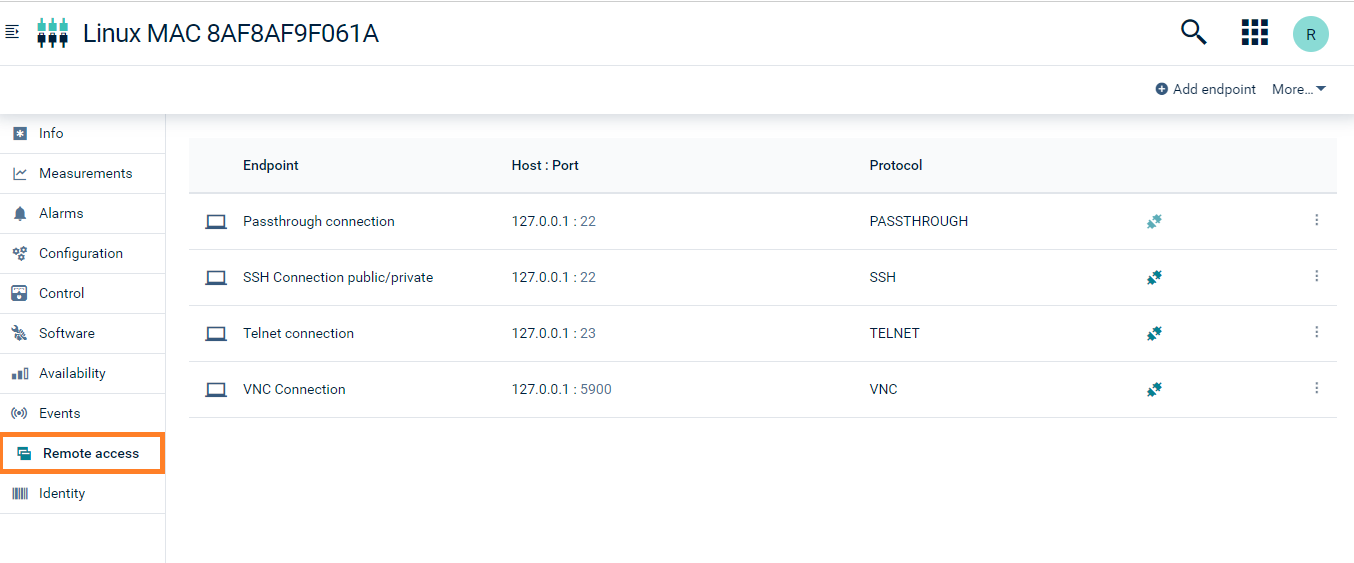
In the **Remote Access** tab, you can configure devices for remote control, so-called "endpoints", and connect to remote devices.
Connections can be established to the gateway itself (localhost) or to any device in the local area network reachable by the device.
## Managing endpoints
The "endpoint" is the IP address and port of the VNC, SSH or Telnet server running on the remote device. The IP address and port must be reachable from the gateway.
#### To configure a new remote device {#to-configure-a-new-remote-device}
1. Click **Add endpoint** at the right of the top menu bar.
2. Enter a name for the new endpoint and select the protocol to be used.
3. Follow the descriptions below for the protocol-specific settings.
> **Info:**
> To be able to configure an endpoint, you must have a role that includes ADMIN permission for "Remote access" and "Device control". To read data, READ permission is sufficient. For more information on permissions, refer to [Managing permissions and roles](https://cumulocity.com/docs/standard-tenant/managing-permissions/).
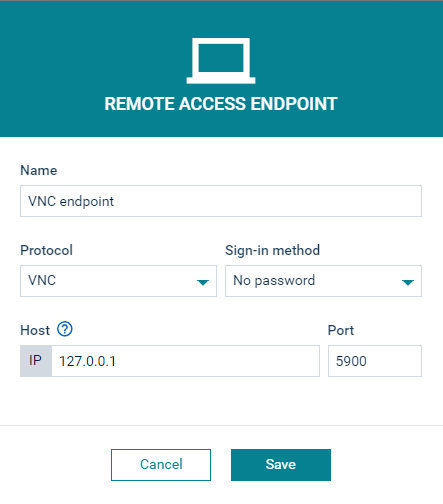
#### To add a remote access endpoint via VNC {#to-add-a-remote-access-endpoint-via-vnc}
1. Enter the host (IP address or hostname) and the port of the server.
2. Select a sign-in method. If you select "Password only", provide the password for the VNC server.
3. Click **Save** to add the endpoint.
Once the connection is established, a new browser tab will open displaying the front screen or operating panel of the remote device you are connected to. The top bar of the screen will show "starting VNC handshake" when the process is starting.
> **Info:**
> The following versions of the VNC protocol are currently supported:
> * RFB 003.003
> * RFB 003.007
> * RFB 003.008
>
> The functionality has been tested on the following VNC servers:
> * Real VNC 5.3.2
> * Tiger VNC 1.6.0/1.7.0
> * TightVNC 1.3.9
> * EfonVNC 4.2
> * Vino
#### To add a remote access endpoint via SSH {#to-add-a-remote-access-endpoint-via-ssh}
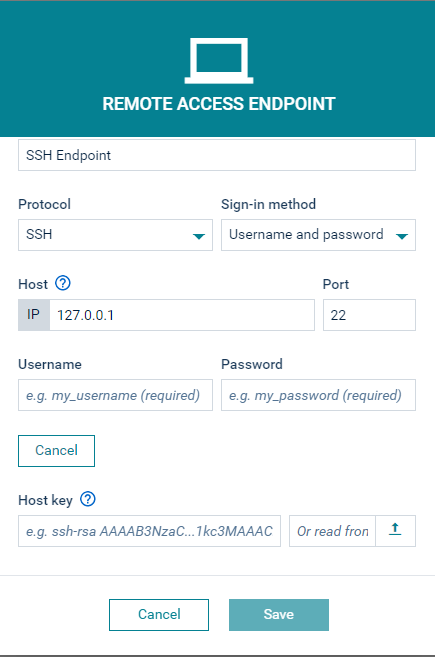
1. Enter the host (IP address or hostname) and the port of the server.
2. Select a sign-in method.
Username and password: If this method is selected, it is mandatory to enter a username and password.
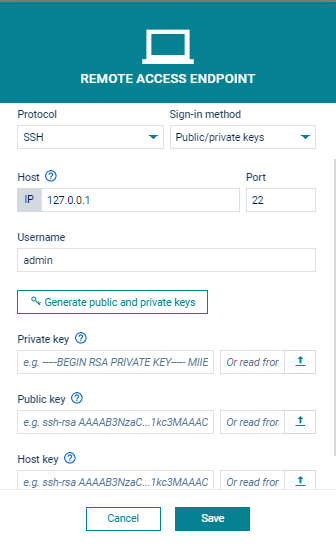
Public/private keys: Automatically generate public and private keys or simply paste pre-generated keys. The keys can also be uploaded from a file.
> **Info:**
> The public key must be installed on the remote device as authorized key.
Optionally, you can also add a host key to ensure connection to the correct device. This key can also be uploaded from a file.
3. Click **Save** to add the endpoint.
The following formats are supported when adding new keys:
- OpenSSHv1
- OpenSSHv2
- PEM
- SSH2
The following algorithms are supported when adding new keys:
- RSA
- DSA
- ECDSA
- ED25519
> **Info:**
> Limitations:
> * Character support:
> International characters are not supported.
> Only a limited set of control characters is functional.
> * Input restrictions:
> Mouse movements are not supported.
> * Protocol compatibility:
> SSH version 1 is not supported; only SSH version 2 is available.
> * Display behavior:
> Text reflow does not occur when the window width changes.
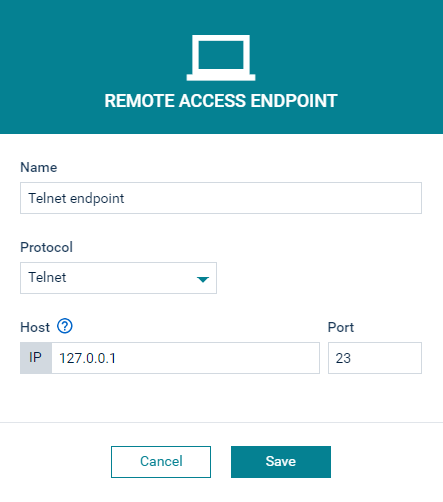
#### To add a remote access endpoint via Telnet {#to-add-a-remote-access-endpoint-via-telnet}
1. Enter the host (IP address or hostname) and the port of the server.
2. Click **Save** to add the endpoint.
> **Important:**
> Telnet is considered to be an insecure protocol lacking built-in security measures. For network communication in a production environment we highly recommend you to use the SSH protocol instead.
#### To add a remote access endpoint via Passthrough {#to-add-a-remote-access-endpoint-via-passthrough}
1. Enter the host (IP address or hostname) and the port of the server.
2. Click **Save** to add the endpoint.
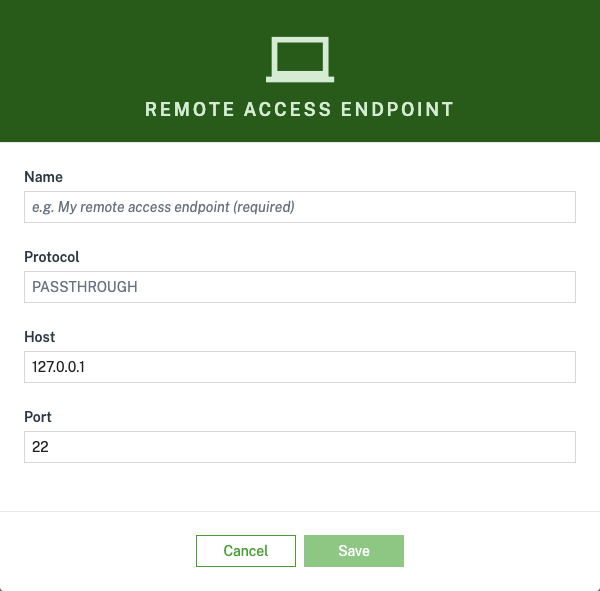
Visit the [Cumulocity CLI](https://goc8ycli.netlify.app/docs/examples/remoteaccess/) documentation to learn more about how to set up the passthrough connection from the device to your local machine using the local proxy that is embedded in the CLI.
#### To edit an endpoint {#to-edit-an-endpoint}
To edit an endpoint, click the menu icon at the right of the respective entry and select **Edit** from the context menu.
#### To delete an endpoint {#to-delete-an-endpoint}
To delete an endpoint, click the menu icon at the right of the respective entry and select **Remove** from the context menu.
> **Info:**
> An active connection will not be terminated automatically after the endpoint was deleted.
#### To connect to an endpoint {#to-connect-to-an-endpoint}
To connect to configured endpoints, select an endpoint in the **Remote access** tab and click **Connect**.
The connection to the configured remote device is established and the screen is shared in the client area.
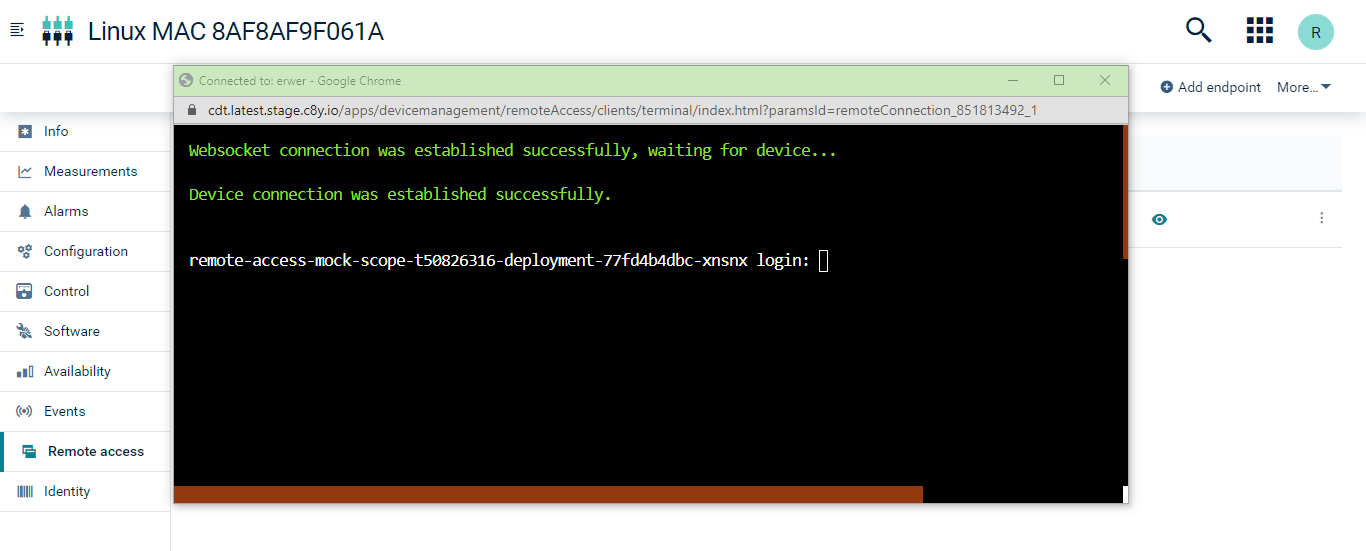
To terminate the connection, click **Disconnect**.
#### Auto-saving host key functionality {#auto-saving-host-key-functionality}
A host key is a public key of the server which is generated when an SSH server is installed. It is used to verify the identity of the server.
The host-key handling for SSH endpoints is controlled by the `hostkey-autosave` tenant option in the `remoteaccess` category.
* When `hostkey-autosave` is `false`, which is the default value, connecting to a remote access endpoint that has no host key stored yet first probes the server and shows you its host key fingerprint. The connection continues only after you confirm the fingerprint, and the confirmed host key is then saved for later connections.
* When `hostkey-autosave` is `true`, the server host key is instead trusted and saved automatically on the first successful connection, without asking you to enter or confirm it.
In both cases, once a host key is stored, it is used to verify the server identity on every following connection.
## Audit logs
For each gateway device, audit logs are available.
The audit logs can be found in the **Control** tab of the gateway device.
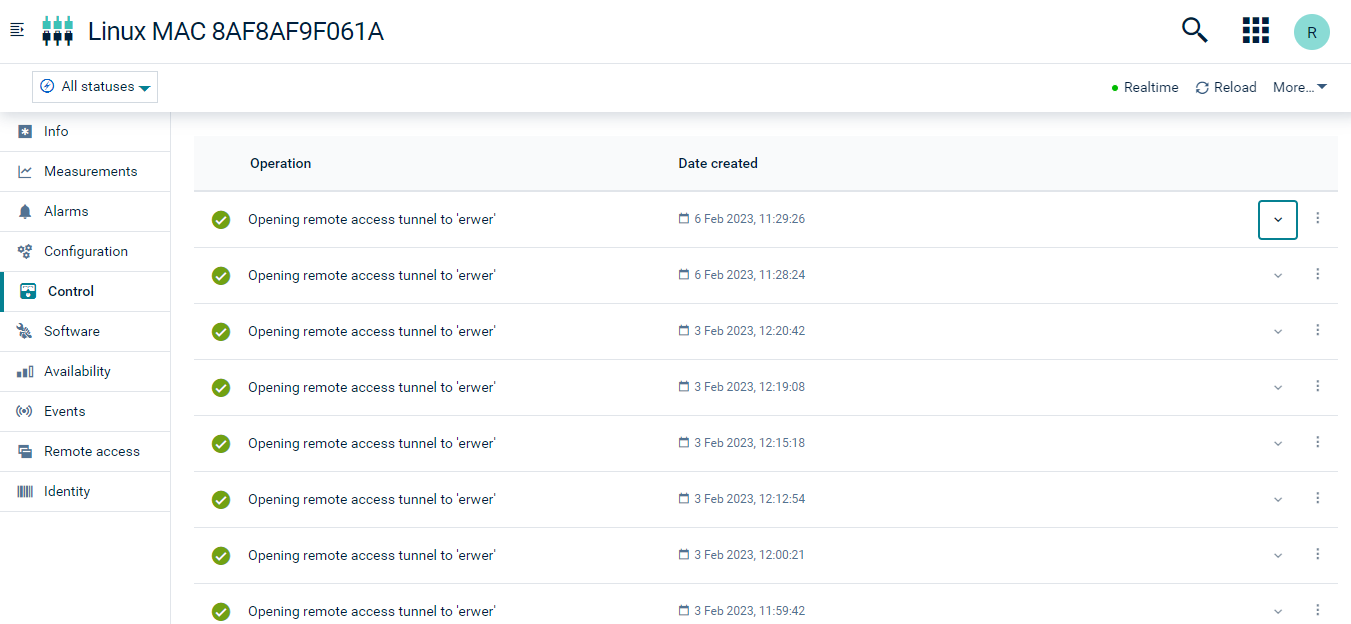
For each connection, the Cloud Remote Access microservice creates an operation in scope of the current user. Then the operation will be updated by the device to reflect the current status. Finally, the operation will have a status of SUCCESSFUL or FAILED.
## Troubleshooting
**Endpoints cannot be set up**
If you cannot set up new endpoints, check if you have sufficient permissions.
To set up new endpoints, you need ADMIN permission for "Device control" to be able to register a device and ADMIN permission for "Remote access" to be able to add an endpoint.
For more information on permissions, refer to [Managing permissions and roles](https://cumulocity.com/docs/standard-tenant/managing-permissions/).
**Connection fails**
The connection via a gateway to a remote VNC, SSH or Telnet server can fail because of network problems. In this case you must contact your network administrator.
**Unsupported protocol version**
In case of Real VNC, if you get an error message stating that you are using an unsupported protocol version (for example 005.00x), try the following workaround:
1. Open VNC.
2. Navigate to **Options**.
3. Select the **Export** tab.
4. Search for **Protocol version**.
5. Enter "3.8" as protocol version.