# Installation
Source: https://cumulocity.com/docs/2026/edge/installing-edge/
Sector: Edge
Release: 2026
Edge can be installed using one of two supported methods. The method you choose depends on whether you already have a Kubernetes environment or would like the tool to provision one for you.
- **[Installing with the c8yedge tool](https://cumulocity.com/docs/2026/edge/installing-edge/#install-edge-with-c8yedge-cli) (Recommended for first-time or simplified setups)**
This method is ideal if you **do not already have a Kubernetes cluster** and want a simplified, self-contained setup.
The **c8yedge** command-line tool automates the entire process of preparing the environment and installing Edge.
This is the recommended method for users who want a quick, consistent setup experience with minimal Kubernetes knowledge.
- **[Installing on a self-managed Kubernetes cluster](https://cumulocity.com/docs/2026/edge/installing-edge/#install-edge-with-edge-operator)**
This method is suitable for users who already have a Kubernetes cluster and want to install Edge using existing Kubernetes tools. Even a single-node Kubernetes cluster will suffice, but is not required.
In this case, you are expected to:
- Set up and manage the Kubernetes cluster yourself (using K3s or any compatible Kubernetes distribution).
- Deploy the Edge operator using Helm.
- Install Edge by creating and applying the Edge custom resource (CR)
Choose this method if you want more control over the environment or if your organization already has Kubernetes expertise and infrastructure in place.
## Prerequisites
|Item
|Details|
|:---|:---|
|Hardware|CPU: 8 cores
RAM: 16 GB
CPU Architecture: x86-64
**Info:** These are the minimum system requirements for deploying Edge. If a custom microservice requires additional resources, you must allocate them on top of the minimum requirements. For example, if a microservice needs 2 CPU cores and 4 GB RAM, the Kubernetes node must have an additional 2 CPU cores and 4 GB RAM. You can add more CPU cores or RAM to the host at any time, and Edge will use the additional resources automatically without further configuration. For an illustration of how additional resources can affect performance, see [Benchmarks](https://cumulocity.com/docs/2026/edge/benchmarks/).
**Important:** MongoDB requires a CPU that supports AVX instructions and an **x86-64-v3** (or later) microarchitecture. Ensure that the CPU type of the Kubernetes node supports AVX instructions. Use the command `lscpu` to check whether the CPU supports AVX instructions. AVX2 instructions are _not_ required.|
|Disk space|150 GB
Most of this disk space will be consumed as Kubernetes Persistent Volumes, whose nature depends on which Kubernetes distribution you are using and the storage classes you have configured. If you are using the **c8yedge** tool, this space will be consumed under the directory */var/lib/rancher/*.
|
|Edge license file|To request the license file for Edge, [contact product support](https://cumulocity.com/docs/2026/additional-resources/contacting-support/)
In the email, you must include - Your company name, under which the license has been bought
- The domain name (for example, myown.iot.com), where Edge will be reachable
For more information, see [Domain name validation for Edge license key generation](https://cumulocity.com/docs/2026/edge/installing-edge/#domain-name-validation-for-edge-license-key-generation).|
|The Edge registry credentials|You will receive the Edge registry credentials along with the Edge license.|
|TLS/SSL key and certificates|Optional.
TLS/SSL private key and domain certificates in PEM format.
Generate a TLS/SSL key pair and a Certificate Signing Request (CSR) following your organization's policies, specifying either a wildcard domain in the Common Name (CN) (for example, **.iot.com*) or listing required domains in the Subject Alternative Name (SAN) field, including the Edge tenant and Management tenant tenant domains (for example, *myown.iot.com*, *management-myown.iot.com*).
Additionally, verify that the TLS/SSL certificate includes the complete certificate chain in the correct order.|
|Connect Edge to the cloud|Optional.
To connect and manage one or more Edge deployments from your Cumulocity cloud tenant, you will need an active Cumulocity Standard tenant with a subscription plan that includes the _advanced-software-mgmt_ microservice.|
### Domain name validation for Edge license key generation
To procure the Edge license, you must provide the right domain name to product support for Edge license key generation.
When you provide the domain name, consider the following points:
* The domain name does not need to be a Fully Qualified Domain Name (FQDN). For example, to access Edge with the domain name **myown.iot.com**, request the Edge license for **myown.iot.com** or **iot.com** (without the subdomain **myown**).
* If you exclude the subdomain from the domain name in the Edge license, you must possess a wildcard SSL certificate which can be used with multiple subdomains (**myown** or others) of the domain (**iot.com**).
For example, if you provide **iot.com** as the domain name, you must possess an SSL certificate for **.iot.com**.
* If you have an Internationalized Domain Name (IDN), then you must provide the translated ASCII equivalent domain name.
For example, if your domain name is **myown.iöt.com** (for example, containing **ö**), then you must use **myown.xn--it-fka.com**.
Also, provide the same translated ASCII equivalent domain name as the tenant domain name during the Edge installation process.
> **Info:**
> An Internationalized Domain Name (IDN) is an internet domain name that contains at least one label, in whole or in part, in a language-specific script or alphabet, such as Arabic, Chinese, Cyrillic, Devanagari, Hebrew or the Latin alphabet-based characters with diacritics or ligatures, such as French. The internationalization of domain names is a technical solution to translate names written in language-native scripts into an ASCII text representation that is compatible with the Domain Name System. See [Wikipedia](https://en.wikipedia.org/wiki/Internationalized_domain_name).
* Ensure that you adhere to the following domain name validation rules:
* The domain name must be a combination of case-insensitive alphanumeric characters separated by dot ( . ) or hyphen ( - ).
* Cannot contain any letters of languages like Chinese, Latin or Arabic.
* Cannot contain any special characters like (+ , ! @ # $ % ^ & * ( ) ; \ \ / | < > \ " \ ' ) other than dot ( . ) or hyphen ( - ).
* The length of the domain name including the dot must not exceed 255 characters.
* The domain name must contain at least one dot.
* Each segment of the domain name must be separated by a dot.
* The domain name must be between 1 to 63 characters long.
* The Top-Level Domain (TLD) which refers to the last segment of the domain name must be between two to six characters long.
* The domain name cannot begin or end with a hyphen.
## Installing with the c8yedge tool
This method is ideal if you do not already have a Kubernetes cluster and want a simplified, self-contained setup. The **c8yedge** command-line tool automates the entire process of preparing the environment and installing Edge on a Linux environment.
### Configuring the environment
Edge can be installed on any modern x86-64 Linux environment, virtualised or otherwise.
First, choose your environment. It can be a physical machine, or it can be a virtual machine (VM), using the technology of your choice. For example, VMWare Workstation Player, VMWare ESXi or HyperV. Create a VM, referring to the documentation from your VM technology vendor as necessary.
Whether a VM or physical machine, ensure that all hardware and storage requirements for Edge are met, based on [prerequisites](https://cumulocity.com/docs/2026/edge/installing-edge/#prerequisites).
Install the Linux distribution of your choice. Because the c8yedge-based install provisions Edge on [Lightweight Kubernetes (K3s)](https://docs.k3s.io/), you should consult the [operating system configurations required by K3s](https://docs.k3s.io/installation/requirements#operating-systems) to help you choose and configure your operating system.
> **Info:**
> Although the virtual or physical nature of the platform is unimportant to Edge, the advantage of most VM technologies is that a running image can be exported to be run in another environment without further configuration.
>
> For example, you could install and customize Edge on a VM in your development environment. You can then then hand-off a self-contained VM image to be installed at a remote site in a reliable and reproducable way.
> **Caution:**
> **Host security hardening**
>
> Installing Cumulocity Edge with c8yedge also supports hosts with standard SELinux to the extent supported by [K3s](https://docs.k3s.io/advanced#selinux-support).
>
> Additional host hardening, such as custom SELinux policies, AppArmor, Smack, fapolicyd, or similar controls, is the customer's responsibility. These host-specific security mechanisms can interfere with Kubernetes, the container runtime, or networking required by c8yedge.
### Downloading c8yedge
You can download the tool from the [Cumulocity Download Center](https://download.cumulocity.com/Cumulocity-Edge) or by running the following commands:
```shell
curl -sfL https://download.cumulocity.com/Cumulocity-Edge/2026/c8yedge -o c8yedge
sudo chmod +x c8yedge
sudo mv c8yedge /usr/local/bin/
```
The tool takes commands of the form
```shell
sudo c8yedge [command] [flags]
```
For more information about the tool, run `c8yedge --help` or `c8yedge [command] --help`.
### Install Edge
To install Edge, execute the following command and follow the interactive prompts:
```shell
sudo c8yedge install
```
> **Info:**
> [Contact product support](https://cumulocity.com/docs/2026/additional-resources/contacting-support/) to request the Edge registry credentials.
Upon successful installation, the tool will exit automatically.
To sign in to Edge, refer to the instructions at the start of the [**Accessing Edge**](https://cumulocity.com/docs/2026/edge/installing-edge/#accessing-edge) section. You can later update the domain and license to match your environment by following the steps outlined in [**Modifying Edge**](https://cumulocity.com/docs/2026/edge/manage-edge/#modify-edge).
### Install Edge in an airgapped environment {#install-edge-airgapped}
If you are installing Edge on an environment that has no or limited internet access, you will have to use the c8yedge tool to create an offline package first. This has to be executed in an environment with internet access. Execute the following command and follow the interactive prompts:
```shell
c8yedge package
```
The tool generates a tarball suffixed with the specific version of Edge downloaded (for example, `c8yedge-2026_0_0.tar`). By default, this file is created in your current directory and contains the latest release of Edge 2026. You can discover more options with `c8yedge package --help`, such as the ability to package a very specific version.
The offline package can be used for either an initial installation, or an upgrade of an existing installation. You need to transfer this file, as well as the c8yedge tool, into your airgapped environment.
The c8yedge tool installs [Lightweight Kubernetes (K3s)](https://docs.k3s.io/), which has prerequisites for running in an airgapped environment. If your environment has no network interface with a default route, or SELinux is enabled, pay attention to and follow the two relevant sections under [Prerequisites](https://docs.k3s.io/installation/airgap#prerequisites).
Once in the airgapped environment, run the installation command referencing the offline package file the tool generated earlier:
```shell
sudo c8yedge install -s ""
```
## Installing on a self-managed Kubernetes cluster
This method is suitable for users who already have a Kubernetes cluster and want to install Edge using existing Kubernetes tools. Before you start the installation, ensure that you have met the [prerequisites](https://cumulocity.com/docs/2026/edge/installing-edge/#prerequisites).
You will need Helm version 3.x available on your system. Refer to [Installing Helm](https://helm.sh/docs/intro/install/) for the installation instructions.
> **Info:**
> Edge has been tested and officially supported on Kubernetes version 1.34.x, the latest GA version at the time of release. Support is limited to this version. We aim to support deployments on CNCF-certified Kubernetes distributions provided they use upstream Kubernetes version 1.34.x and meet the documented resource and environment prerequisites. We are committed to maintaining alignment with the Kubernetes support lifecycle and will validate and support newer versions in future maintenance releases, ensuring continuity when version 1.34.x reaches end-of-life.
>
> **Important:**
> * Edge requires that your Kubernetes cluster has support for **LoadBalancer services**.
> * Edge requires that your Kubernetes cluster does not have an **Ingress provider** (for example, Traefik) enabled on common ports that would block those used by Edge, such as ports 80 and 443.
> * Edge requires that your Kubernetes cluster has **dynamic volume provisioning** enabled with a default storage class.
> * Edge is tested and supported on **single-node Kubernetes clusters** only.
Because resource consumption can be very use-case specific, many containers have memory limits significantly higher than the memory request. Workloads that consume a lot of memory can result in inevitable out-of-memory kills of processes on the host. In order to protect the underlying operating system and Kubernetes infrastructure from this, we recommend setting reserved resources. See [Reserve Compute Resources for System Daemons](https://kubernetes.io/docs/tasks/administer-cluster/reserve-compute-resources/) for more details.
### Install Edge operator from Edge registry {#install-edge-operator-from-edge-registry}
The Edge operator is available as a Helm chart and a container image in the [Edge registry](https://registry.c8y.io/), and can be installed like any other chart. You need your registry credentials, which can be acquired from [product support](https://cumulocity.com/docs/2026/additional-resources/contacting-support/). Assuming you are installing the 2026 release of Edge, and that you wish all Edge workloads to be running in the namespace `c8yedge`, run the following commands:
1. **Authenticate with Edge registry:**
```shell
helm registry login registry.c8y.io \
--username="" \
--password=""
```
1. **Install the operator:**
```shell
helm install cumulocity-iot-edge-operator oci://registry.c8y.io/edge/helm-charts/cumulocity-iot-edge-operator \
--version="2026" \
--namespace c8yedge \
--create-namespace \
--set imageCredentials.username="" \
--set imageCredentials.password="" \
--wait
```
1. **Verify the installation:**
Follow the operator logs to ensure successful startup:
```shell
kubectl logs -f --namespace c8yedge deployment/c8yedge-operator-controller-manager manager
```
> **Info:**
> If you are installing Edge on an environment that has no or limited internet access, we strongly recommend using the **c8yedge** tool for installing and upgrading Edge.
After the Edge operator is installed successfully, continue with the standard Edge installation procedure. See [Install Edge](https://cumulocity.com/docs/2026/edge/installing-edge/#install-edge-using-kubectl-command) to install Edge by applying the Edge CR.
### Install Edge operator from private OCI registry {#install-edge-operator-from-private-registry}
You can install the Edge operator using Helm charts and container images hosted in a private [Open Container Initiative](https://opencontainers.org/) (OCI) compliant registry. This is useful for organizations that require strict control over container image distribution.
Before you begin, ensure that you have the following:
* **Tooling:** The c8yedge tool to sync Edge artifacts. See [Downloading c8yedge](https://cumulocity.com/docs/2026/edge/installing-edge/#downloading-c8yedge).
* **Private registry** A running OCI-compliant registry that is accessible from the environment where you will install the Edge operator.
#### Step 1: Sync Edge artifacts to your private registry {#sync-edge-artifacts-to-private-registry}
Choose one of the following synchronization methods based on the network connectivity of your environment.
* **Direct Sync (Online)**
Run the `c8yedge registry-sync` command on a machine that has access to both the internet and your private registry.
* **Offline Package (Air-gapped)**
If no single machine has access to both the internet and your private registry, use an offline package to transfer the required artifacts:
1. **Create the offline package** by running `c8yedge package` on a machine with internet access.
2. **Transfer the generated tarball and c8yedge binary** to a machine that has access to the private registry. For example, the generated tarball might be named `c8yedge-2026_0_0.tar`.
3. **Sync the artifacts to the private registry** by running the `c8yedge registry-sync -s ""` command on the machine with access to the private registry.
> **Info:**
> * You can discover more options with `c8yedge package --help` and `c8yedge registry-sync --help`, such as the ability to sync a specific Edge version.
> * Record the **root path in the target registry** that you choose during the sync process. You will need this when installing the operator.
#### Step 2: Install Edge operator
Once the Edge artifacts are available in your private registry, install the Edge operator using Helm.
1. **Authenticate with your registry:**
```shell
helm registry login \
--username="" \
--password=""
```
1. **Install the operator:**
```shell
helm install cumulocity-iot-edge-operator oci:////edge/helm-charts/cumulocity-iot-edge-operator \
--version="2026.0.x" \
--namespace c8yedge \
--create-namespace \
--set image.repository="//edge/cumulocity-iot-edge-operator" \
--set imageCredentials.username="" \
--set imageCredentials.password="" \
--wait
```
1. **Verify the installation:**
Follow the operator logs to verify that the operator starts successfully:
```shell
kubectl logs -f --namespace c8yedge deployment/c8yedge-operator-controller-manager manager
```
After the Edge operator is installed successfully, continue with the standard Edge installation procedure. See [Install Edge](https://cumulocity.com/docs/2026/edge/installing-edge/#install-edge-using-kubectl-command) to install Edge by applying the Edge CR.
### Install Edge {#install-edge-using-kubectl-command}
Download and edit the Edge CR ([c8yedge.yaml](https://cumulocity.com/docs/2026/files/edge/c8yedge.yaml)), before applying it to your Kubernetes cluster by running the command below:
```bash
kubectl apply -f c8yedge.yaml
```
This command will complete immediately, and the installation will proceed in the background. See [Monitoring changes](https://cumulocity.com/docs/2026/edge/manage-edge/#monitoring-changes) to track the progress of the installation.
For more information about the structure and configuration options available in the Edge CR, see [Edge custom resource](https://cumulocity.com/docs/2026/edge/edge-custom-resource-definition/).
## Configuring trusted TLS certificates and proxy settings
You can configure Cumulocity Edge to:
* **Trust additional TLS certificates** for external endpoints, in addition to certificates issued by public certificate authorities. This allows Edge to securely connect to endpoints such as a private registry hosting Edge artifacts or an SSO server used to authenticate users to tenants.
* **Route outbound traffic** through a proxy server when deployed behind a proxy.
To apply these settings, create or update a ConfigMap named `c8yedge-operator-config` in the `c8yedge` namespace (or the specific namespace where Edge is deployed) using the keys described below.
### Configuration keys {#configuration-keys}
* `ca.crt` - One or more trusted TLS certificates in PEM format that the Cumulocity Edge should trust. To provide multiple certificates, concatenate them into a single PEM bundle.
* `http_proxy` - The URL for your HTTP proxy server.
* `https_proxy` - The URL for your HTTPS proxy server.
* `socks_proxy` - The URL for your SOCKS proxy server.
* `no_proxy` - A comma-separated list of domain suffixes, IP addresses, or CIDR ranges that must bypass the proxy. This **must** include:
* The Management tenant and Edge tenant **domain names**.
* The Kubernetes **Pod CIDR** (Cluster pod IP address range).
* The Kubernetes **Service CIDR** (Cluster service IP address range).
* Any additional domains, hosts, or IP addresses that should bypass the proxy.
### Apply changes {#apply-changes}
After creating or updating the ConfigMap, restart the Edge operator to apply the configurations. For detailed steps, see [Restarting the Edge operator](https://cumulocity.com/docs/2026/edge/manage-edge/#restart-operator).
### Sample ConfigMap {#sample-config-map}
```yaml
apiVersion: v1
kind: ConfigMap
metadata:
name: c8yedge-operator-config
namespace: c8yedge
data:
# Trusted TLS certificates in PEM format
ca.crt: |
http_proxy:
https_proxy:
socks_proxy:
# Comma-separated list of domains, IPs, or CIDR ranges to bypass the proxy
no_proxy: 127.0.0.1,::1,localhost,.svc,.cluster.local,cumulocity,,
```
## Accessing Edge
If you have installed Edge on your local machine, then you should be able to immediately access Edge in your browser with the URL `http://localhost`. If it is on a remote machine or a VM with a simple network setup and no firewall in the way, you can use `http://`.
> **Info:**
> If you have performed the install on a self-managed Kubernetes cluster rather than installing with the **c8yedge** tool, it is sometimes the case that Edge is not accessible via either URL. This depends on the Kubernetes distribution you have used. See [Accessing Edge via an external IP](https://cumulocity.com/docs/2026/edge/manage-edge/#external-ip).
When signing into Edge this way, you will first be prompted for the Cumulocity tenant ID. Edge has two tenants, `management` and `edge`. For both the Management tenant and the Edge tenant, use the following credentials:
* **Username:** `admin`
* **Password:** Use the password you provided during the Edge installation. This password was set either via the c8yedge tool's `--cumulocity-password` flag or through the Kubernetes Secret specified in the Edge CR field `spec.cumulocityPasswordSecretName`.
### Accessing Edge using the domain name {#accessing-cumulocity-iot-edge-using-the-domain-name}
> **Info:**
> This is an optional part of setup. Although essential to have a specific domain name for both the license and the Edge configuration, having Edge accessible by domain name in your browser is not.
>
> It may be important for a better user experience, if Edge is to be regularly accessed without a need to remember IP addresses. It is essential if you wish to have secure SSL access to Edge.
Access Edge using the domain name configured as part of the installation. There are two ways of configuring the accessibility with the domain names:
* Add an entry of the domain name and IP address mapping in the DNS servers.
For example, if your domain name is **myown.iot.com**, add an entry for both **myown.iot.com** and **management-myown.iot.com**.
* Alternatively, [Add the alias](https://cumulocity.com/docs/2026/edge/installing-edge/#add-alias) to access Edge through the domain name provided during installation. This must be performed on each client host on which Edge is accessed.
The first option is always preferable so that Edge is accessible over LAN.
#### Adding the alias {#add-alias}
On Linux machines, add the following entry to */etc/hosts*:
```text
management-
```
If you do not know the external IP address of your host, see [Accessing Edge via an external IP](https://cumulocity.com/docs/2026/edge/manage-edge/#external-ip).
On Windows machines, add the same entry to *C:\Windows\System32\drivers\etc\hosts*.
Ping the <domain_name> to verify it.
```shell
ping
ping management-
```
If the ping is successful, the DNS resolution is working properly.
#### To access Edge {#to-access-cumulocity-iot-edge}
To access Edge, enter one of the following URLs in the browser:
- For the "edge" tenant, use the URL `https://`.
- For the Management tenant, use the URL `https://management-`.
This will bring up the below login screen. For both the Management tenant and the Edge tenant, use the following credentials:
* **Username:** `admin`
* **Password:** Use the password you provided during the Edge installation. This password was set either via the c8yedge tool's `--cumulocity-password` flag or through the Kubernetes Secret specified in the Edge CR field `spec.cumulocityPasswordSecretName`.
> **Info:**
> You can change the Management tenant and the Edge tenant admin password independently using the [user interface](https://cumulocity.com/docs/2026/standard-tenant/managing-users/) or the Cumulocity API.
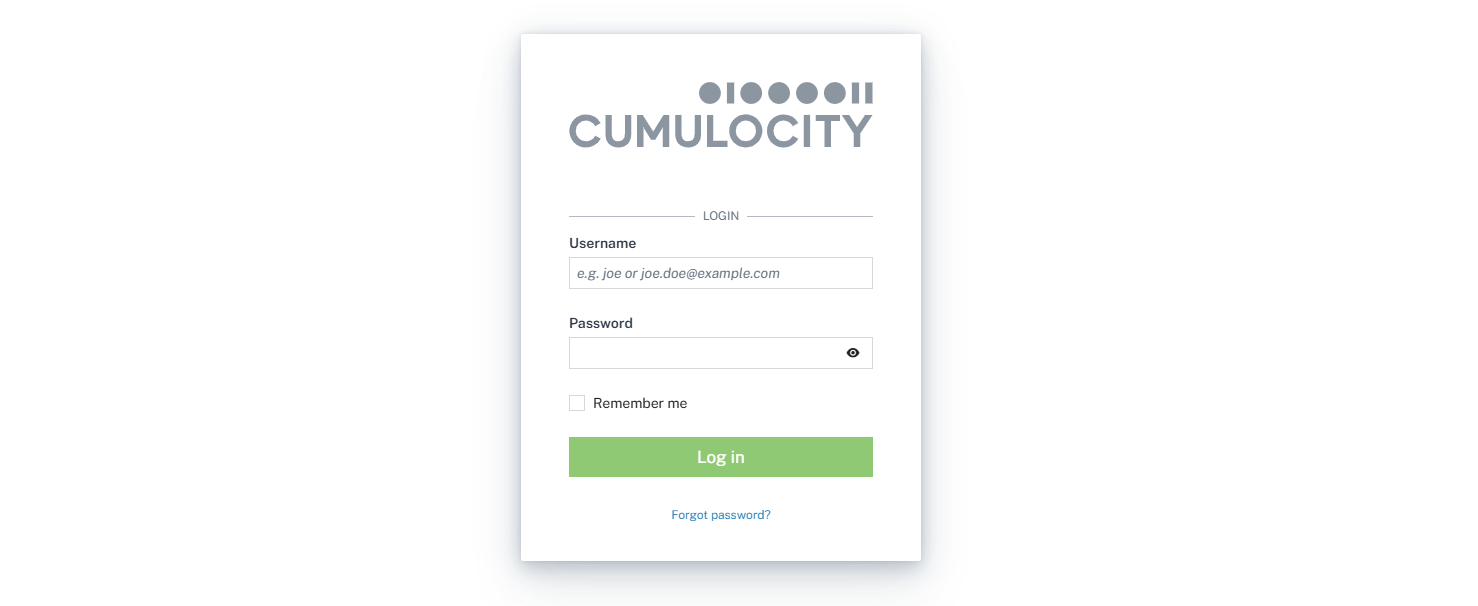
If you are logging in for the first time, you will see a cookie banner at the bottom of the login screen:

> **Info:**
> The cookie banner is turned on by default. This feature can be configured. For more information, see [Branding](https://cumulocity.com/docs/2026/edge/using-edge/#branding).
* Click **Agree and Proceed** to accept the default cookie settings (required and functional cookies enabled).
* Click **Reject all** to reject all of the default cookie settings.
* Click **Preferences** to select your individual cookie preferences:
* **Required** - Required to enable core site functionality. They perform a task or operation without which a site's functionality would not be possible. Required cookies cannot be disabled.
* **Functional** - Used to track site usage and to process personal data to measure and improve usability and performance. Functional cookies must be actively enabled.
* Click **See also our Privacy Notice** to open the [Cumulocity privacy statement](https://cumulocity.com/docs/2026/legal-notices/privacy-notice/) with details on the Cumulocity privacy policy.
> **Info:**
> If you have enabled functional cookies you can opt out of the product experience tracking later on via the **User settings** dialog, see [User options and settings](https://cumulocity.com/docs/2026/get-familiar-with-the-ui/user-settings/).
Select the **Remember me** checkbox if you want the browser to remember your credentials, so that you do not have to enter them again when opening the application the next time. This is especially convenient if you frequently switch between Cumulocity applications, as Edge requests you to authenticate each time when starting an application. You can make the browser "forget" your credentials by explicitly logging out.
Finally, click **Login** to enter Edge. Initially, you will be taken to the [Cockpit](https://cumulocity.com/docs/2026/cockpit/cockpit-introduction/) application, if not configured differently. For further information about the Cumulocity standard applications see [Available applications](https://cumulocity.com/docs/2026/get-familiar-with-the-ui/available-applications/).
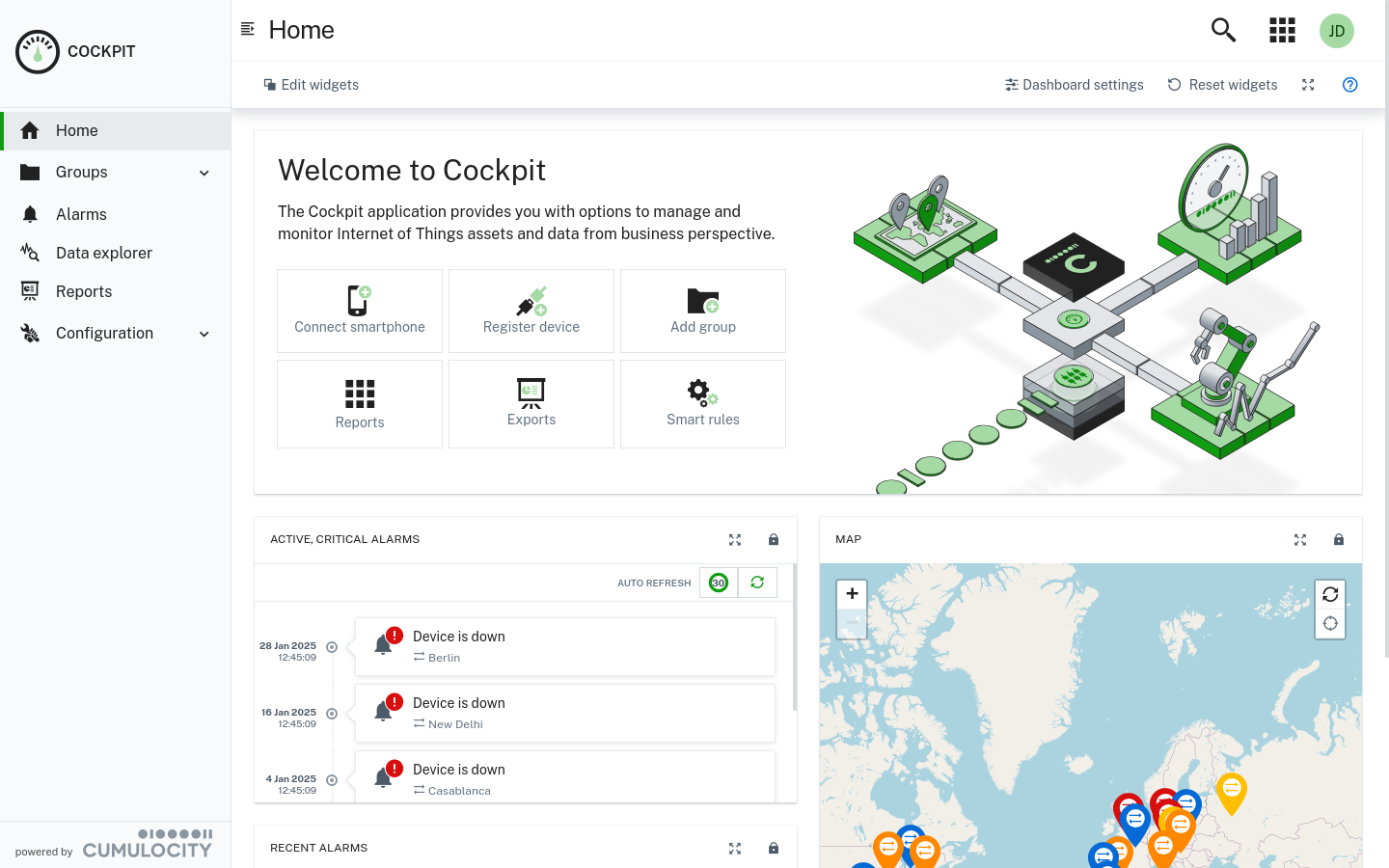
To explicitly log out, click the **User** button at the right of the top bar, then select **Logout** from the context menu.
> **Info:**
> The maximum number of failed logins (due to invalid credentials), after which a user is locked, can be configured by the Management tenant on platform level. Contact your Operations team for further support. The default value is 100.
### How to reset or change your password {#how-to-reset-your-password}
To reset your password, you must first configure the "reset password" template and email server settings in Edge. For information about configuring the email server, see [Configuring the email server](https://cumulocity.com/docs/2026/edge/manage-edge/#email-server).
For information about changing the password, see [To change your password](https://cumulocity.com/docs/2026/get-familiar-with-the-ui/user-settings/#to-change-your-password).
### How to access pages using URLs {#how-to-access-pages-using-urls}
For information about accessing pages using the URLs, see [URL](https://cumulocity.com/docs/2026/get-familiar-with-the-ui/platform-access/#url).